Snipping Tool Missing After Update? Here’s How to Restore It on Windows 11 & Windows 10
Windows updates can sometimes make the Snipping Tool seem like it has disappeared. In most cases, the app hasn’t been permanently removed. Instead, a Microsoft Store issue, app registration problem, corrupted system files, or a search indexing error is preventing Windows from finding it. Fortunately, you can usually restore the Snipping Tool in just a few minutes using the troubleshooting methods below.
Introduction
The Snipping Tool is one of Windows’ most useful built-in screenshot utilities. Whether you use it to capture your screen for work, school, or personal projects, suddenly finding that it has disappeared after a Windows update can be frustrating.
This issue has been reported after both Windows 10 and Windows 11 cumulative updates, including some feature updates where built-in apps temporarily fail to register correctly. Fortunately, the problem rarely means the application has been permanently deleted.
In this guide, you’ll learn why the Snipping Tool may go missing after an update, how to confirm whether it’s actually removed, and the safest ways to restore it without affecting your files or Windows installation.
Why Is Snipping Tool Missing After a Windows Update?
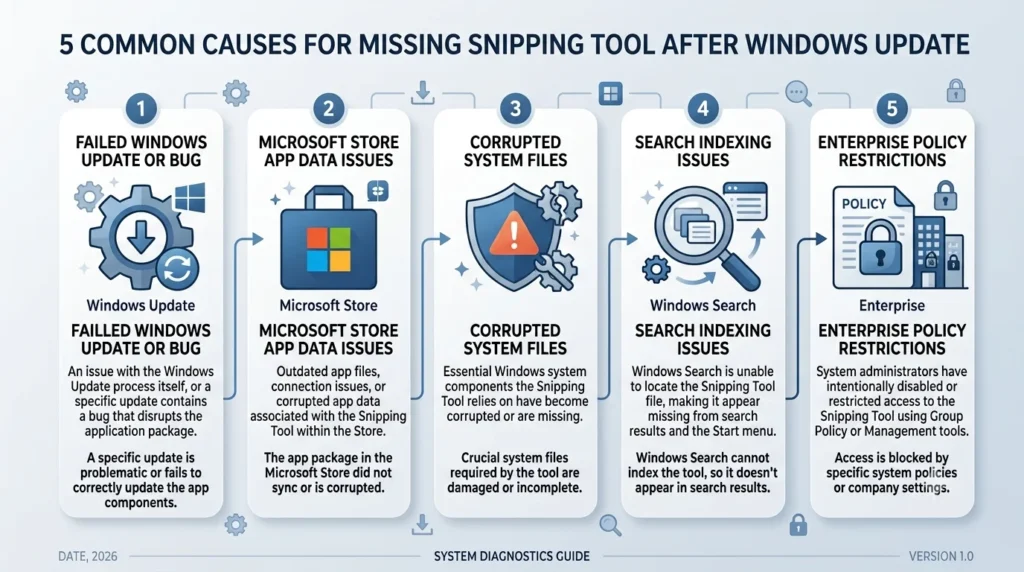
Several factors can cause the Snipping Tool to disappear after installing a Windows update. Understanding the cause makes it easier to choose the correct solution.
App Registration Failed
During a Windows update, Microsoft Store apps are re-registered. If this process is interrupted, Windows may no longer recognize the Snipping Tool even though it’s still installed.
Common symptoms
- Search returns no results.
- The Start menu doesn’t list Snipping Tool.
- Keyboard shortcuts stop working.
Microsoft Store App Became Corrupted
The Snipping Tool is delivered through the Microsoft Store in modern versions of Windows 11. If the Store database becomes corrupted during an update, Windows may fail to display or launch the app.
Signs include:
- Install button missing
- Update errors
- Microsoft Store failing to detect installed apps
Windows Update Reset Built-in Apps
Major feature updates occasionally refresh built-in Windows applications. If the update doesn’t complete successfully, certain apps, including the Snipping Tool, may temporarily disappear until they’re repaired or reinstalled.
Corrupted Windows System Files
Damaged system files can prevent Windows from loading built-in applications correctly.
You may notice additional issues such as:
- Missing Calculator
- Missing Photos app
- Microsoft Store errors
- Search problems
If multiple built-in apps are affected, repairing Windows system files is usually necessary.
Windows Search Indexing Issue
Sometimes the Snipping Tool is still installed but doesn’t appear in Windows Search because the search index hasn’t finished rebuilding after the update.
This usually happens immediately after installing:
- Monthly cumulative updates
- Windows feature updates
- Insider Preview builds
Waiting a few minutes or rebuilding the search index often resolves the problem.
Organization or School Policy
If you’re using a work or school computer, your IT administrator may have removed or blocked the Snipping Tool using:
- Microsoft Intune
- Group Policy
- Enterprise security policies
In this case, local troubleshooting may not restore the application.
How to Confirm Whether Snipping Tool Is Actually Missing
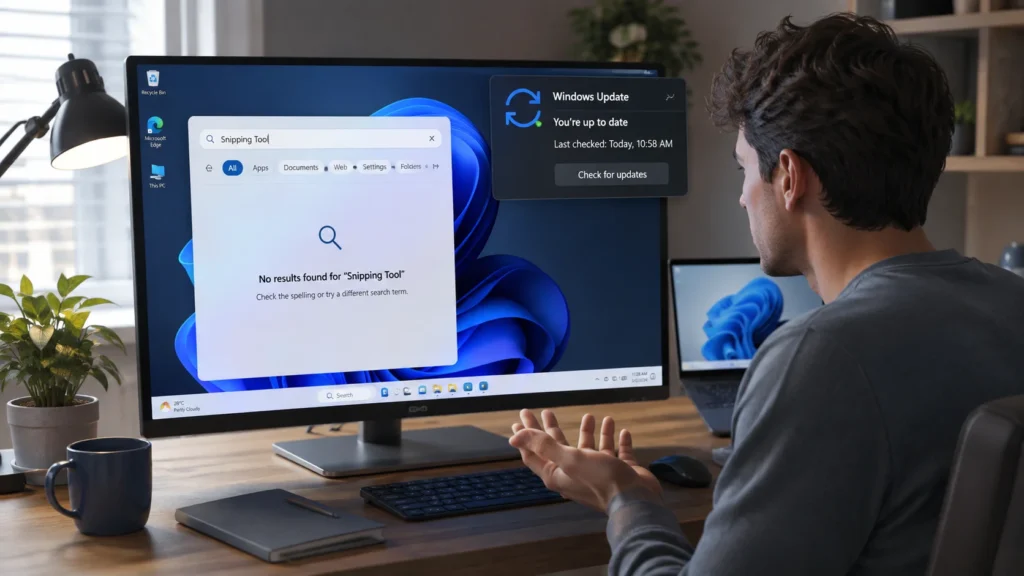
Before reinstalling anything, verify whether Windows has truly removed the application.
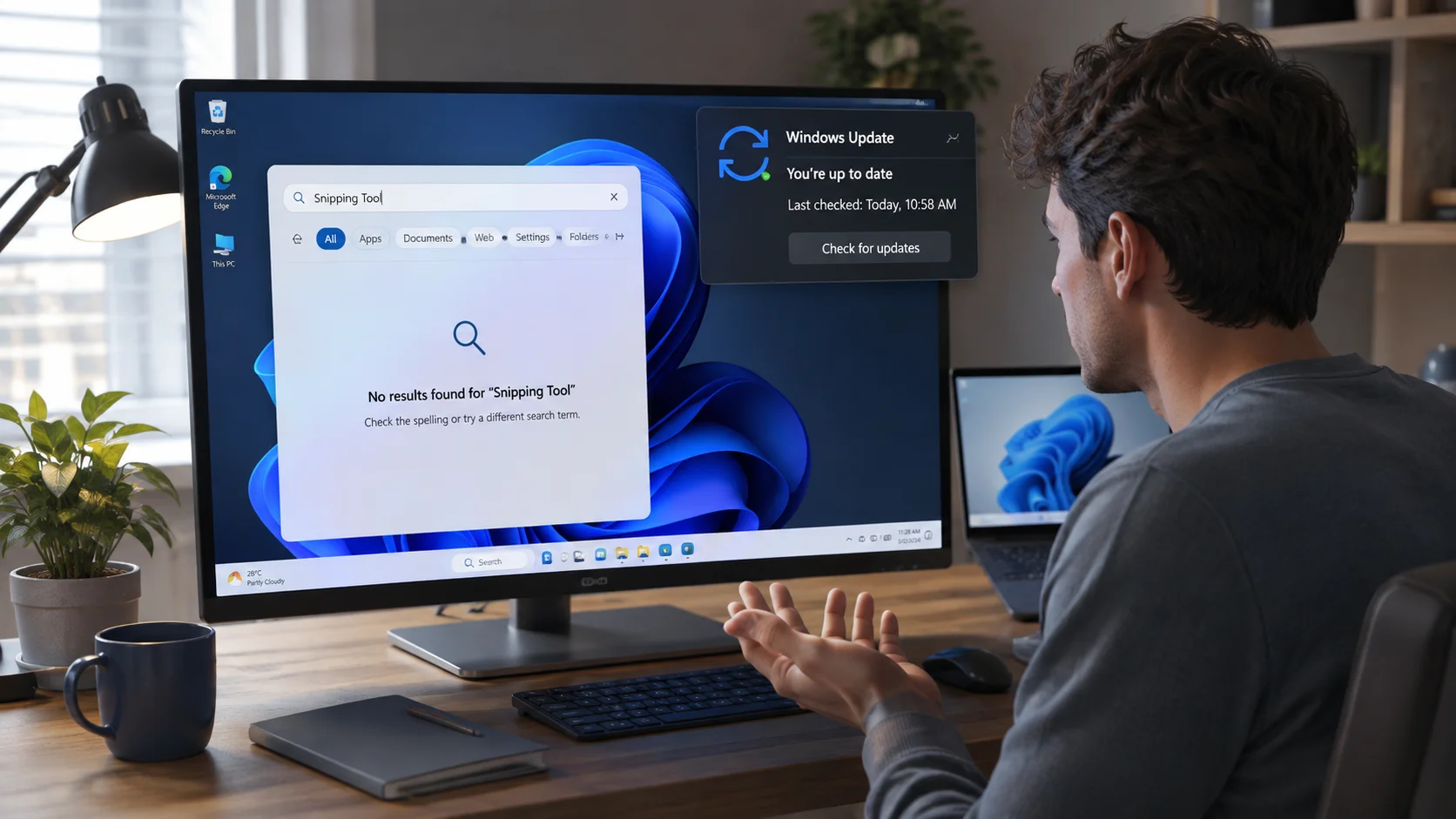
Search from the Start Menu
Press the Windows key and type:
Snipping Tool
If nothing appears, continue to the next checks.
Check Installed Apps
- Open Settings.
- Select Apps.
- Choose Installed apps.
- Search for Snipping Tool.
If it’s listed, the application still exists and likely only needs repair.
Check the Microsoft Store Library
Open Microsoft Store.
Go to:
Library → Installed Apps
If Snipping Tool appears, try updating or reinstalling it from there.
Check Optional Apps
Some Windows configurations may manage built-in applications differently.
Navigate to:
Settings → Apps → Optional Features
Look for any screenshot-related utilities.
Try the Run Command
Press:
Windows + R
Type:
snippingtool
If the program launches, the app isn’t missing; only the shortcut or search entry is broken.
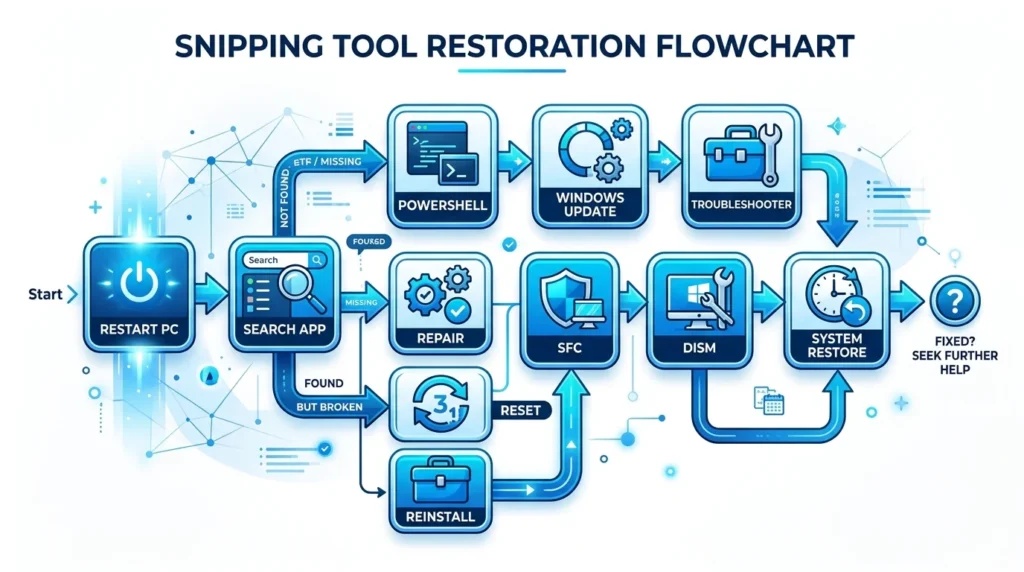
Fix 1: Restart Your Computer
Although it sounds simple, restarting Windows after a major update often completes background configuration tasks.
A restart can:
- Finish pending app registrations.
- Rebuild Windows Search.
- Refresh Microsoft Store services.
- Restore missing shortcuts.
After restarting, search for Snipping Tool again before trying more advanced fixes.
Fix 2: Search for Snipping Tool Correctly
Microsoft renamed its screenshot tools over the years.
Depending on your Windows version, search for:
- Snipping Tool
- Snip & Sketch
- Screenshot
- Screen Snip
Older Windows 10 versions may still reference Snip & Sketch, while Windows 11 combines both applications into the modern Snipping Tool.
If one appears but the other doesn’t, simply pin the available version to your Start menu or taskbar.
Fix 3: Repair the Snipping Tool App
If the application exists but won’t appear or open, repairing it is the next step.
Repair Using Windows Settings
- Open Settings.
- Select Apps.
- Open Installed apps.
- Find Snipping Tool.
- Click the three-dot menu.
- Select Advanced options.
- Click Repair.
Windows will attempt to repair the application without deleting your preferences.
If the repair doesn’t work:
- Return to Advanced options.
- Select Reset.
- Confirm the reset.
- Restart your computer.
Resetting reinstalls the app’s local configuration while preserving your personal files.
Fix 4: Reinstall Snipping Tool from Microsoft Store
If repairing the app doesn’t solve the problem, reinstalling it is the next logical step. Since the Snipping Tool is distributed through the Microsoft Store on modern versions of Windows, reinstalling it is safe and usually takes only a few minutes.
How to Reinstall Snipping Tool
- Open Microsoft Store.
- Search for Snipping Tool.
- Open the official Microsoft app page.
- Select Install or Get.
- Wait for the installation to finish.
- Restart your computer.
After restarting, search for Snipping Tool from the Start menu to confirm that it has been restored.
Tip: If the Store shows Open instead of Install, the app is already installed. In that case, try repairing or resetting it instead.
Fix 5: Install Any Pending Windows Updates
Sometimes the update that caused the issue is followed by another cumulative update that fixes built-in app problems.
To check for updates:
- Open Settings.
- Go to Windows Update.
- Click Check for updates.
- Install any available updates.
- Restart your PC.
After your computer restarts, check whether the Snipping Tool has reappeared.
Fix 6: Run the Windows Store Apps Troubleshooter
If Microsoft Store apps aren’t working correctly, Windows includes a built-in troubleshooter that can automatically detect and fix common issues.
On Windows 11
- Open Settings.
- Select System.
- Click Troubleshoot.
- Open Other troubleshooters.
- Run the Windows Store Apps troubleshooter (if available on your Windows version).
Follow the on-screen instructions and restart your computer afterward.
Note: Microsoft has gradually retired some built-in troubleshooters in newer Windows 11 releases. If you don’t see this option, continue with the next fixes.
Fix 7: Repair Corrupted System Files Using SFC and DISM
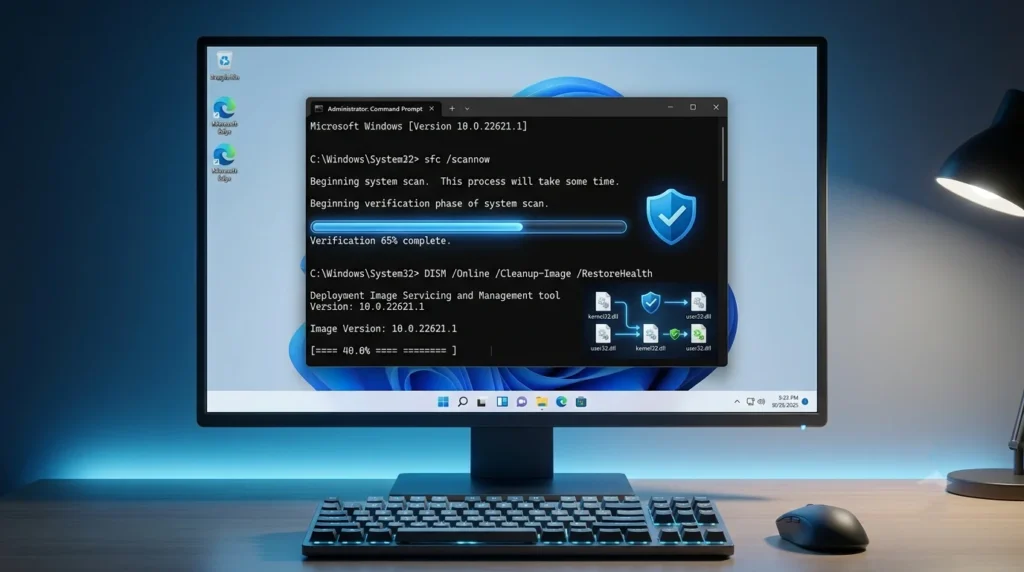
If multiple built-in Windows apps are missing or malfunctioning, corrupted system files may be the underlying cause.
Windows provides two trusted tools for repairing these issues:
- System File Checker (SFC)
- Deployment Image Servicing and Management (DISM)
Step 1: Run SFC
Open Command Prompt as an administrator and run:
sfc /scannowThis command scans protected Windows system files and replaces corrupted copies with healthy versions.
Wait until the scan reaches 100%, then restart your computer.
Step 2: Run DISM
If the problem persists, run:
DISM /Online /Cleanup-Image /RestoreHealthDISM checks the Windows image for corruption and downloads replacement files when necessary.
Depending on your internet connection and system performance, this process may take several minutes.
Once it finishes, restart your PC and check whether the Snipping Tool has returned.
Fix 8: Re-register Windows Apps Using PowerShell
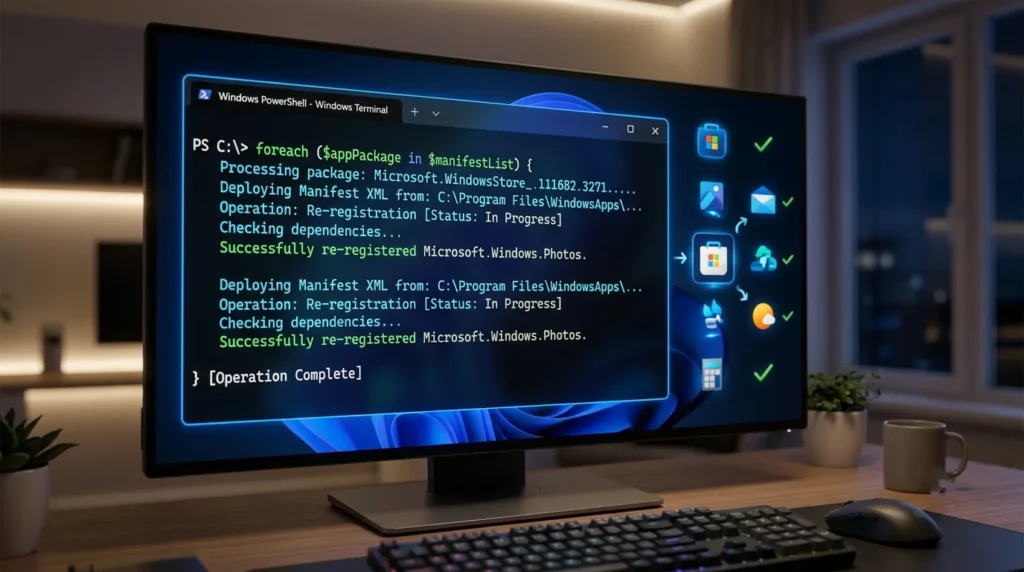
Occasionally, a Windows update fails to register built-in apps correctly. Re-registering them can restore missing applications without reinstalling Windows.
Follow these steps:
- Right-click the Start button.
- Select Windows Terminal (Admin) or PowerShell (Admin).
- Run the following command:
Get-AppxPackage -AllUsers | Foreach {
Add-AppxPackage -DisableDevelopmentMode -Register "$($_.InstallLocation)\AppXManifest.xml"
}
Windows will begin re-registering installed Microsoft Store apps.
This process may take several minutes. During this time, you may see some warning messages. In many cases, these warnings can be safely ignored if the process completes successfully.
Restart your computer after the command finishes.
Fix 9: Restore Windows Using System Restore
If the Snipping Tool disappeared immediately after installing a Windows update and none of the previous fixes worked, restoring Windows to an earlier restore point may solve the issue.
Use System Restore
- Press Windows + S.
- Search for Create a restore point.
- Open System Protection.
- Click System Restore.
- Choose a restore point created before the update.
- Follow the prompts to restore Windows.
Important: System Restore doesn’t delete your personal files, but it may remove recently installed applications, drivers, or updates.
Fix 10: If You’re Using a Work or School Computer
If your device is managed by your organization, the Snipping Tool may be disabled intentionally.
Many businesses and educational institutions manage Windows devices using:
- Microsoft Intune
- Group Policy
- Enterprise security policies
In these situations:
- The Microsoft Store may be disabled.
- Built-in apps may be blocked.
- Local reinstall attempts may fail.
- Only your IT administrator can restore the application.
If your PC belongs to your employer or school, contact your IT department before making advanced system changes.
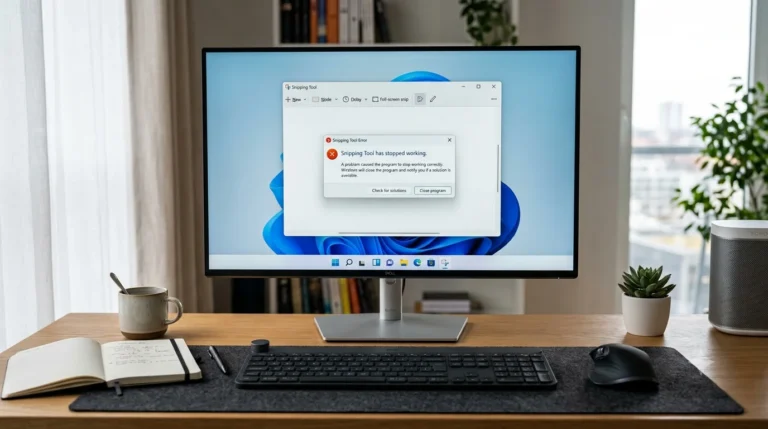
What to Do If the Snipping Tool Is Installed but Still Won’t Open
Sometimes the app is present, but it crashes, freezes, or closes immediately after launching.
This usually points to a different problem, such as:
- A corrupted app cache
- Outdated graphics drivers
- Damaged Windows components
- Conflicts with third-party software
If that’s your situation, it’s better to troubleshoot the app itself rather than focusing on reinstalling it.
How to Prevent the Snipping Tool From Disappearing Again
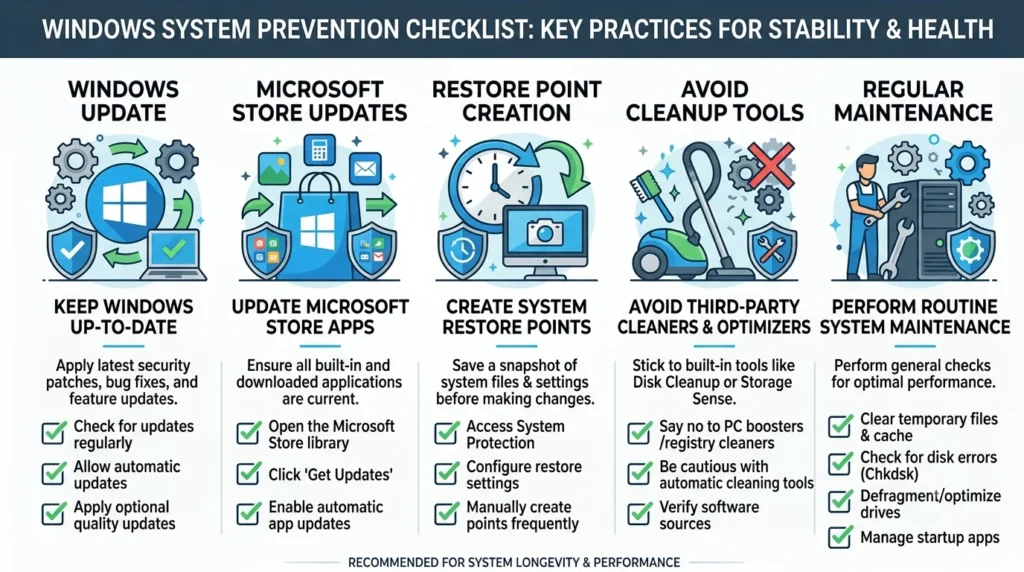
While you can’t prevent every Windows update issue, following these best practices can reduce the chances of the Snipping Tool disappearing after future updates.
Keep Microsoft Store Apps Updated
Many users focus on Windows Update but forget that the Snipping Tool is also updated through the Microsoft Store.
To keep it up to date:
- Open Microsoft Store.
- Select Library.
- Click Get updates.
- Install any available app updates.
Keeping Store apps current ensures you receive bug fixes and compatibility improvements.
Restart Your Computer After Every Windows Update
Some Windows updates require one or more restarts to finish configuring built-in apps.
Avoid turning off your PC immediately after an update. Instead, let Windows complete all pending background tasks before using your device.
Avoid Removing Built-in Windows Apps
Some third-party system optimization tools allow users to remove built-in Microsoft applications.
Although this may free a small amount of storage, it can cause unexpected issues after future Windows updates.
Unless you fully understand the consequences, it’s best to leave built-in apps installed.
Create a Restore Point Before Major Feature Updates
Creating a restore point gives you a quick way to recover if an update causes unexpected problems.
Before installing feature updates like Windows 11 24H2 or later releases:
- Search for Create a restore point.
- Open System Protection.
- Select your system drive.
- Click Create.
- Enter a descriptive name.
- Save the restore point.
If something goes wrong, you can restore Windows without affecting your personal files.
Keep Windows Updated
Although updates occasionally introduce bugs, they also include important security patches and stability improvements.
If Microsoft releases a fix for a known Snipping Tool issue, installing the latest cumulative update is often the quickest solution.
Final Thoughts
If the Snipping Tool is missing after a Windows update, don’t assume it has been permanently removed. In most cases, the app is still present, but a temporary issue with Windows Search, Microsoft Store, app registration, or system files prevents it from appearing.
Start with the simplest fixes, such as restarting your computer, searching for the app, repairing it, or reinstalling it from the Microsoft Store. If the problem continues, advanced solutions like running SFC, DISM, or re-registering Windows apps with PowerShell can often restore normal functionality.
By following the troubleshooting steps in this guide, most users can recover the Snipping Tool without resetting Windows or losing personal data. Additionally, keeping Windows and Microsoft Store apps updated and creating restore points before major feature updates can help prevent similar issues in the future.
Frequently Asked Questions
A Windows update can temporarily affect app registration, Microsoft Store components, or Windows Search. In most cases, the Snipping Tool isn’t permanently removed and can be restored by repairing, resetting, or reinstalling the app.
This may happen because the Windows Search index hasn’t finished rebuilding, the app registration is corrupted, or the shortcut was removed during an update.
Normally, no. Windows updates don’t intentionally remove the Snipping Tool. However, update-related issues can make the app appear missing or prevent Windows from detecting it correctly.
Open the Microsoft Store, search for Snipping Tool, and install the official Microsoft version. If the app is already installed, try using the Repair or Reset options in Windows Settings.
Yes. The Snipping Tool is included with Windows 11 and is available as a Microsoft Store app that receives regular updates.
No. Reinstalling or resetting the Snipping Tool doesn’t delete screenshots you’ve already saved to your computer. However, unsaved captures in the clipboard may be lost.
If the Snipping Tool is still missing after trying all the solutions in this guide, check whether the issue is caused by an enterprise policy, corrupted Windows files, or a failed update. Running SFC and DISM, using System Restore, or contacting Microsoft Support may be necessary.
Microsoft merged the features of Snip & Sketch into the modern Snipping Tool in Windows 11. Older versions of Windows 10 may still reference Snip & Sketch.