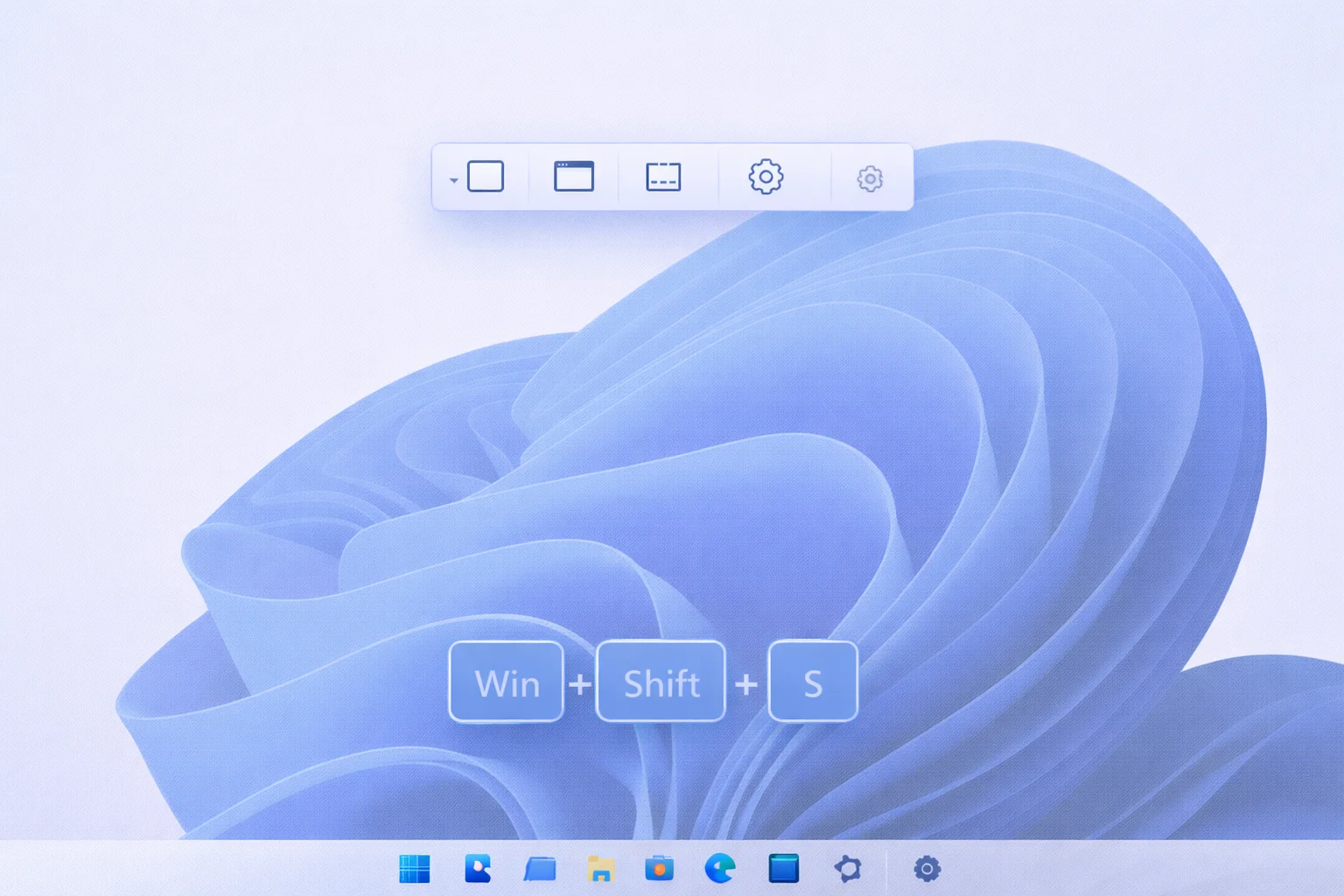
Windows 11 Snipping Tool Keyboard Shortcuts (Complete Guide)
Taking screenshots quickly is essential for productivity, and Windows 11 Snipping Tool keyboard shortcuts make the process fast, smooth, and efficient. Whether you want to capture a specific area, a full screen, or record your screen, knowing the right keyboard shortcuts can save you time and clicks.
In this guide, you’ll learn all the Snipping Tool keyboard shortcuts in Windows 11, how they work, how to customize them, and what to do if they stop working.
What Is the Snipping Tool in Windows 11?
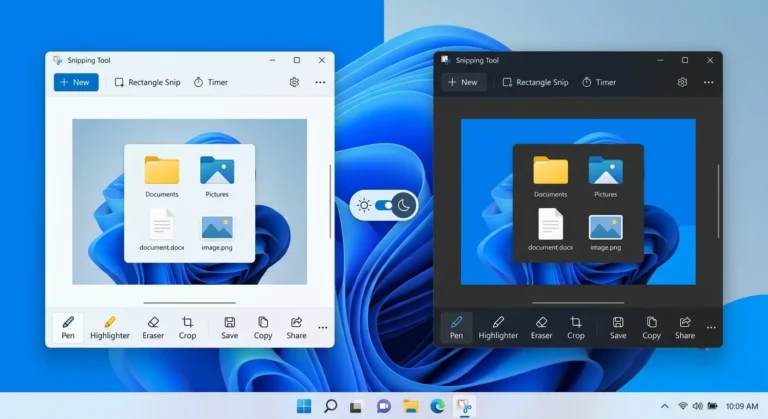
The Snipping Tool is the built-in screenshot and screen-recording utility in Windows 11. Microsoft merged the classic Snipping Tool and Snip & Sketch into a single modern app that supports:
- Screenshot capture
- Screen recording
- Editing and annotation
- Clipboard copying
- Automatic saving
Keyboard shortcuts are the fastest way to access these features without opening the app manually.
Default Windows 11 Snipping Tool Keyboard Shortcut
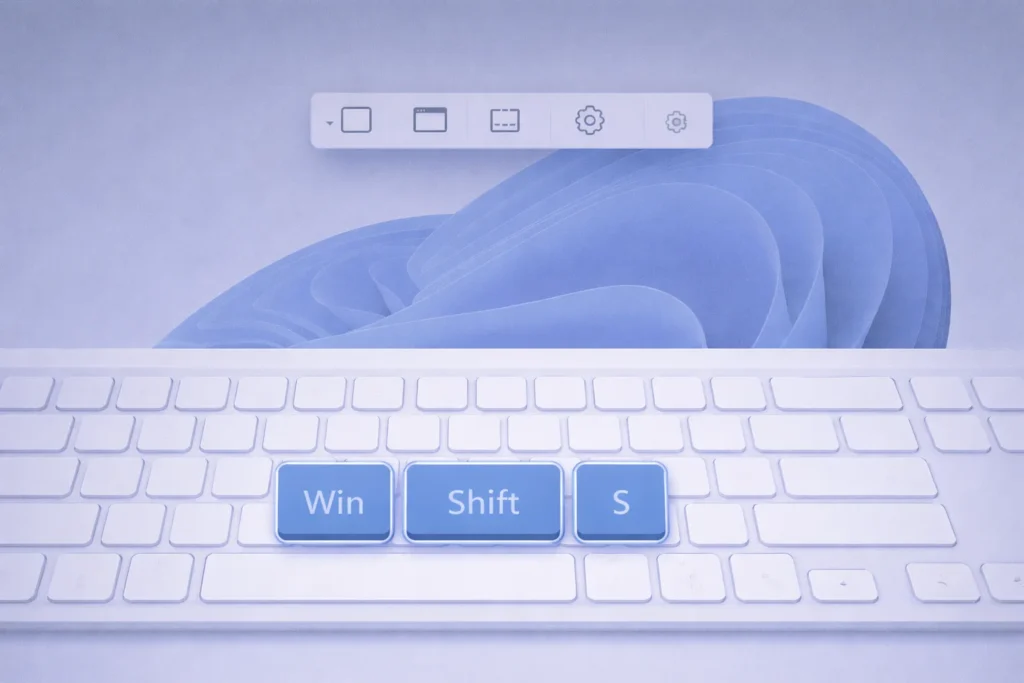
Win + Shift + S (Most Important Shortcut)
This is the primary keyboard shortcut for the Snipping Tool in Windows 11.
What it does:
- Opens the snipping overlay instantly
- Let you choose a capture mode
- Copies the screenshot to the clipboard
Available capture modes:

- Rectangular Snip
- Freeform Snip
- Window Snip
- Full-screen Snip
Snip modes & when to use them
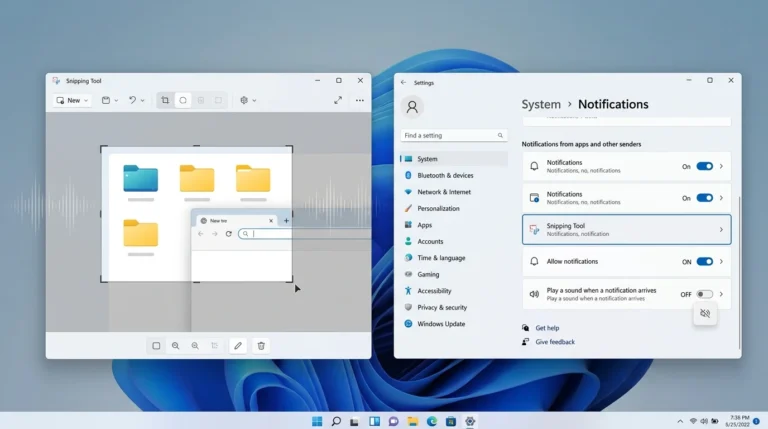
Use these modes after you press Win + Shift + S (or start a new snip in the app):
Rectangular snip — Best for capturing a clean portion of the screen (error messages, UI panels, part of a webpage).
Freeform snip — Best when the area is irregular and a rectangle would include too much clutter.
Window snip — Best for one app window without the whole desktop.
Full-screen snip — Best for the entire display (or choose the right screen on multi-monitor setups).
All Windows 11 Snipping Tool Keyboard Shortcuts

Here’s a complete list of working and verified shortcuts for the Snipping Tool in Windows 11:
Capture & Workflow Shortcuts
| Keyboard Shortcut | Function |
|---|---|
| Win + Shift + S | Open Snipping Tool overlay |
| Alt + M | Switch snip mode |
| Alt + N | Create a new snip in the same mode as the last one (not Ctrl+N) |
| Ctrl + A | Select the entire snip/image in the editor (when supported) |
| Esc | Cancel snipping |
| Ctrl + C | Copy snip to clipboard |
| Ctrl + S | Save the screenshot |
| Ctrl + P | Print the snip |
| Ctrl + Z | Undo last action |
| Ctrl + Y | Redo action |
Change snip mode with the keyboard
When Snipping Tool is open (or you are in a keyboard-driven snip flow):
- Press Alt + M to choose a snipping mode.
- Use the arrow keys to highlight Rectangular, Freeform, Window, or Full-screen.
- Press Enter to confirm.
- Press Alt + N to start a new snip in that mode (same mode as last, per Microsoft).
This lets you capture without relying on the mouse for mode switching.
Snipping Tool Screen Recording Shortcut (Windows 11)
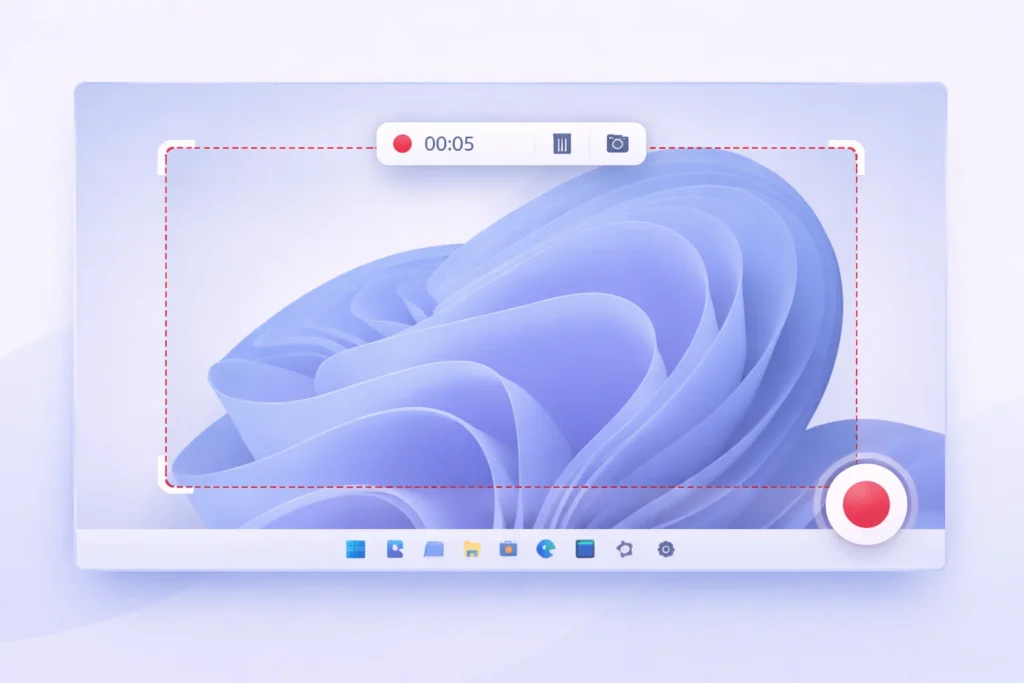
Windows 11 also supports screen recording inside the Snipping Tool.
Win + Shift + R
- Starts screen recording directly
- Let’s you select a recording area
- Saves the recording automatically
Note: Screen recording is available only in newer Windows 11 builds. If you don’t see it, update Windows.
See the Snipping Tool screen recording guide for more details.
How to Change or Customize Snipping Tool Keyboard Shortcuts
Windows 11 does not allow full shortcut remapping for the Snipping Tool by default, but you have options.
Option 1: Use Print Screen Key
- Open Settings
- Go to Accessibility → Keyboard
- Enable Use the Print Screen key to open Snipping Tool
Now pressing PrtSc launches the Snipping Tool instead of taking a traditional screenshot.
Option 2: Use Third-Party Tools
You can remap keys using tools like:
- PowerToys (Keyboard Manager)
- AutoHotkey
Tip: This is useful if Win + Shift + S conflicts with other apps.
Where Are Snipping Tool Screenshots Saved in Windows 11?
By default:
- Screenshots are copied to the clipboard
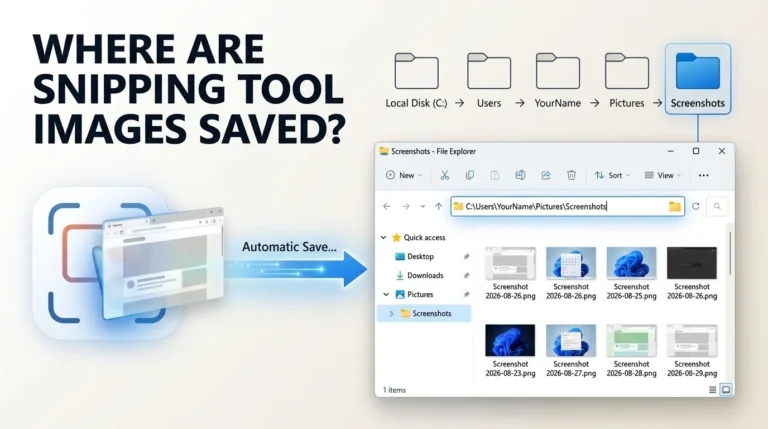
- If you save manually, they go to Pictures → Screenshots
Screen recordings are saved automatically to:
- Videos → Screen recordings
You can change the save location inside the Snipping Tool settings. See how to change the Snipping Tool save location.
Windows 10 notes
On Windows 10, some menus still use older labels (for example Ease of Access vs Accessibility), Delay may use Alt + D, and screen recording with Win + Shift + R is a newer Snipping Tool capability—do not assume every Win11 shortcut exists on every Win10 build.
For Win10-specific shortcut keys and Snip & Sketch-era notes, see: Windows 10 Snipping Tool shortcut keys.
Pro tips for faster screenshots
- Press Win + V to use Clipboard History if you capture multiple snips.
- Pin Snipping Tool to the taskbar for one-click access to the app editor.
- After Win + Shift + S, paste with Ctrl + V into docs or email when you do not need a saved file.
- Use Delay Snip (in the app) when you need to open a menu before capture.
- On multi-monitor PCs, confirm which display you are snipping before full-screen capture.
- Save important snips promptly if you rely on notifications—clipboard content can be overwritten.
Fix Snipping Tool keyboard shortcuts not working
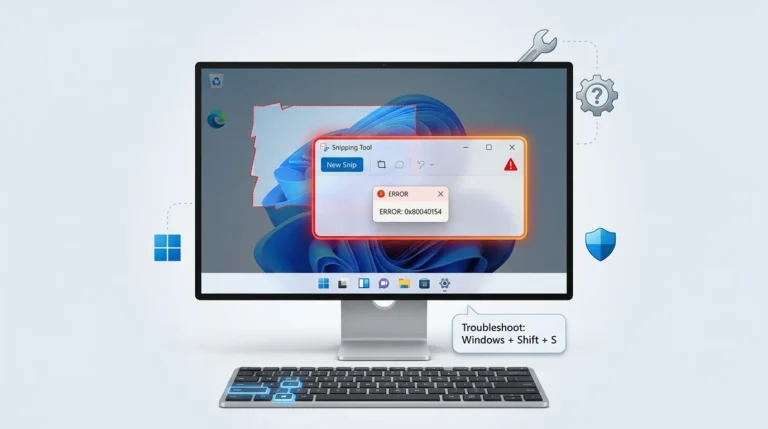
If Win + Shift + S or other Snipping Tool shortcuts fail, try a quick restart of Windows Explorer and confirm Clipboard / Focus settings are not blocking captures. For the full step-by-step checklist (repair, reset, reinstall, and more), use this Snipping Tool hotkey fix guide.
Final Thoughts
Mastering Windows 11 Snipping Tool keyboard shortcuts makes capturing screenshots and screen recordings faster and more efficient. The Win + Shift + S shortcut alone can dramatically improve your workflow, while additional shortcuts help with editing, saving, and sharing.
If you use screenshots daily, learning these shortcuts is absolutely worth it.
Frequently Asked Questions
Yes. Win + Shift + S is the default shortcut.
You can map Print Screen or use third-party key remapping tools.
Yes. Snip & Sketch has been fully replaced by the Snipping Tool in Windows 11.
Yes, on updated Windows 11 versions.
Does Win + Shift + S auto-save screenshots?
Not always. The snip usually goes to the clipboard first. Open the notification or Snipping Tool editor to save the file, unless auto-save is enabled in your Snipping Tool settings.
Can I use Snipping Tool without a mouse?
Yes for many flows: Win + Shift + S starts capture, Alt + M changes mode, arrow keys + Enter select options, and Alt + N starts a new snip in the last mode. See the keyboard mode section above.