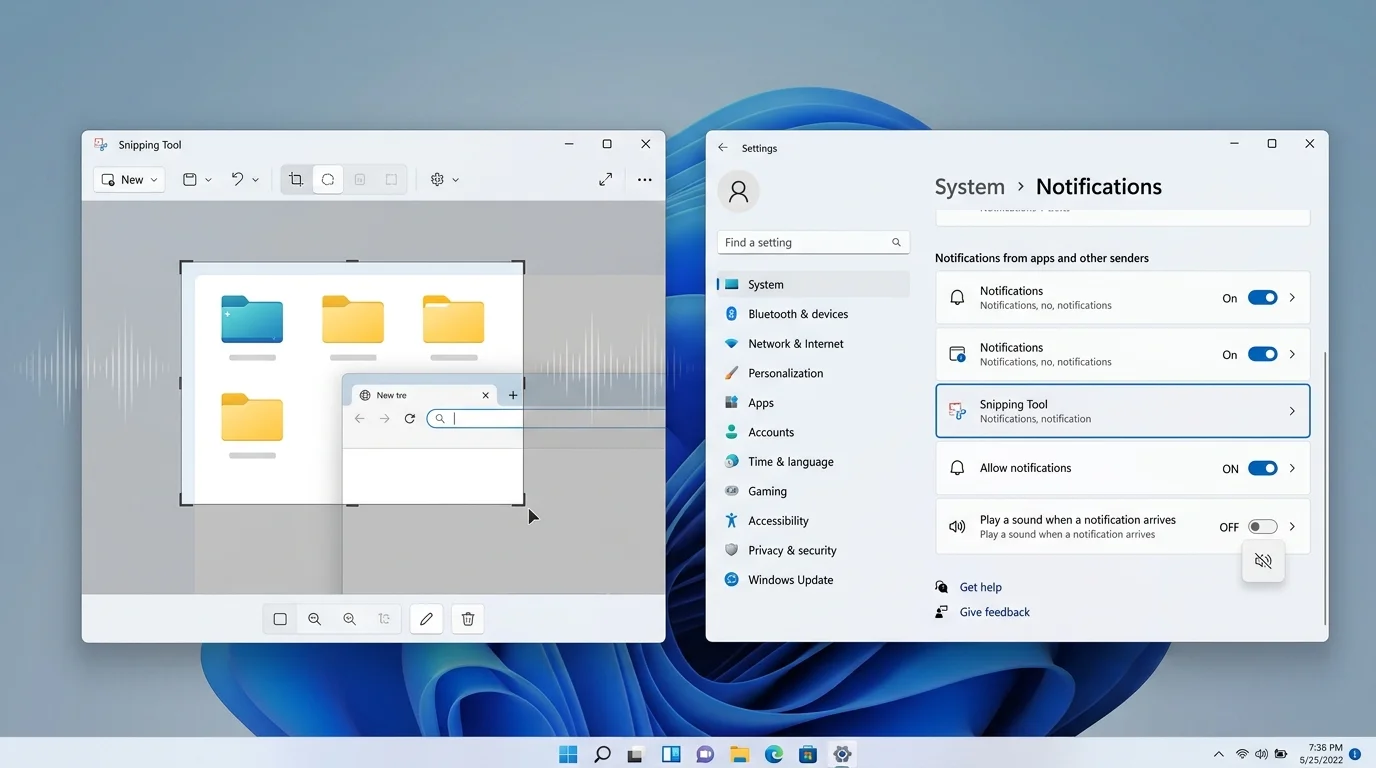
How to Turn Off Snipping Tool Sounds in Windows 11
If Snipping Tool makes a sound when you capture your screen, the sound may be coming from Windows notification settings rather than a dedicated Snipping Tool screenshot sound. To turn it off, open Settings > System > Notifications, select Snipping Tool, and turn off Play a sound. If you mean audio captured during a screen recording, that is a separate Snipping Tool setting.
Introduction
The Snipping Tool is one of the most convenient built-in screenshot and screen-recording utilities in Windows 11. You can use it to capture a selected area, window, or the entire screen, and newer versions also support screen recording. Microsoft documents both image capture and video recording as Snipping Tool features.
However, some Windows 11 users notice a sound when they use Snipping Tool and want to know how to turn it off. The confusing part is that “Snipping Tool sound” can refer to more than one thing.
You might be hearing a Windows notification sound after taking a screenshot, or you might be talking about system audio and microphone audio included in a screen recording. These settings work differently.
In this guide, you will learn how to turn off Snipping Tool sounds in Windows 11, how to disable only its notification sound, and how to stop system or microphone audio from being included in screen recordings.
Why Does Snipping Tool Make a Sound in Windows 11?
Before changing any settings, it is important to identify which sound you want to disable.
Windows 11 allows individual apps to control whether their notifications play sounds. Microsoft lists Play a sound as an app-specific notification option under Settings > System > Notifications.
Therefore, if you hear a notification-style sound after using Snipping Tool, the first setting to check is the Snipping Tool notification sound.
There is another possibility. Snipping Tool also supports screen recording with audio. Microsoft introduced support for recording PC audio and microphone input with the Snipping Tool screen recorder.
These are two different situations:
- Notification sound: A sound Windows plays for an incoming Snipping Tool notification.
- Recorded system audio: Audio that Snipping Tool captures while recording your screen.
- Microphone audio: Your voice or other sound captured through the microphone.
Knowing the difference helps you change the correct setting without unnecessarily muting other Windows sounds.
How to Turn Off Snipping Tool Sounds in Windows 11
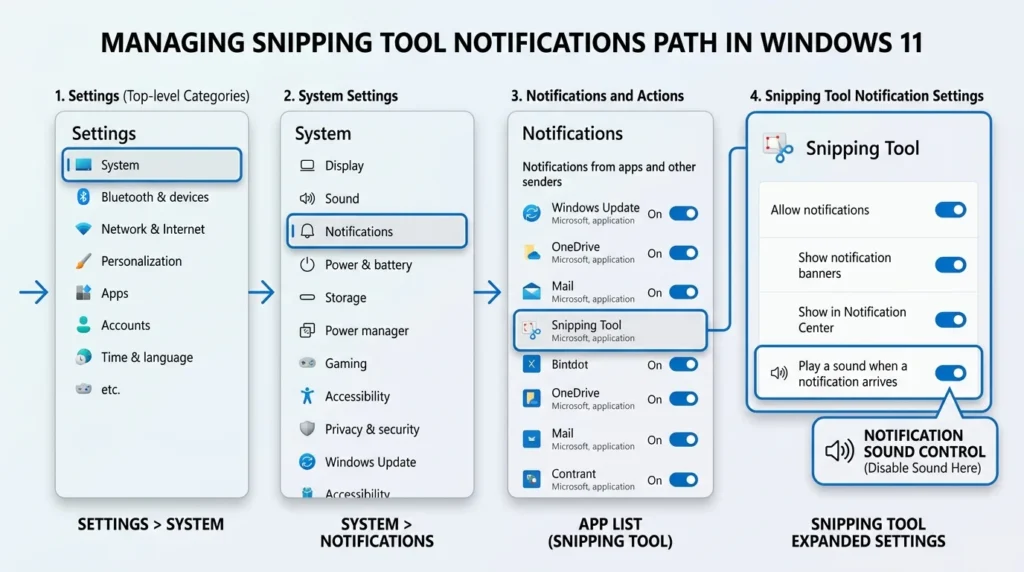
If the sound occurs as part of a Snipping Tool notification, you can disable the sound without turning off every Windows notification.
Step 1: Open Windows Settings
Press Windows + I on your keyboard to open Settings.
You can also open Start and select Settings.
Step 2: Open Notification Settings
Select:
System > Notifications
Microsoft’s current Windows documentation confirms that app-specific notification controls are available under System > Notifications.
Step 3: Find Snipping Tool
Scroll through the list of apps under the notification settings.
Find Snipping Tool and select it to open its notification options.
Step 4: Turn Off the Notification Sound
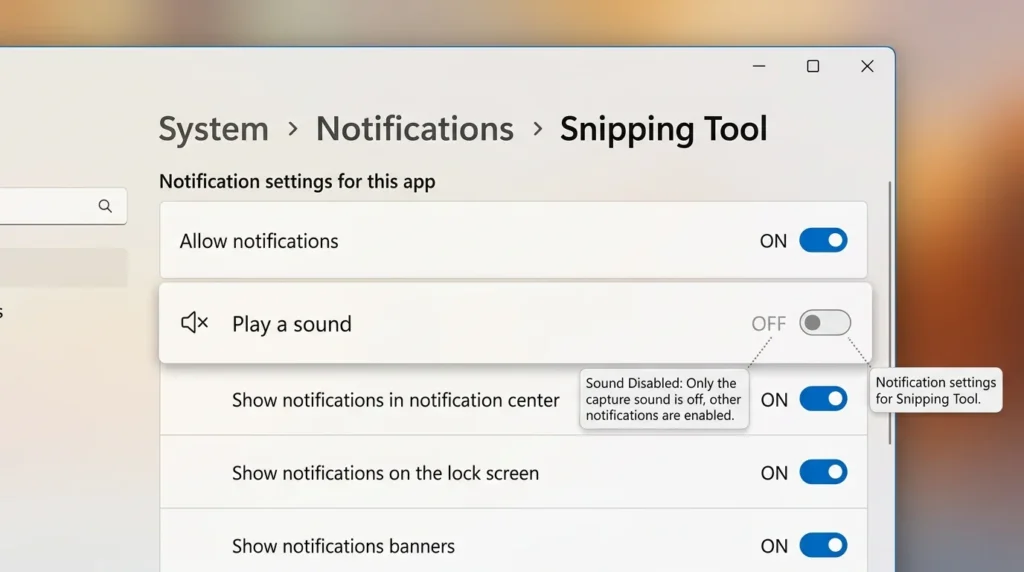
Look for the option that controls notification sounds and turn Play a sound off.
This prevents Snipping Tool notifications from playing a sound while allowing you to keep other notification features enabled.
Windows supports separate controls for notification banners, Notification Center notifications, and notification sounds.
Step 5: Test Snipping Tool
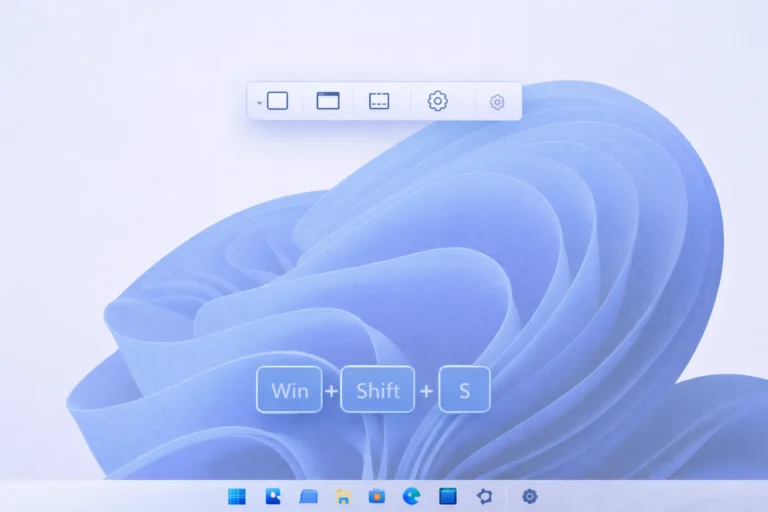
Press Windows + Shift + S and capture a small area of your screen.
If the sound was coming from the Snipping Tool notification, it should now be silent while the screenshot functionality continues to work.
The Windows + Shift + S shortcut opens the screen capture experience in Windows 11. Microsoft also documents Windows + Shift + R for starting a screen recording with Snipping Tool.
How to Turn Off Snipping Tool Notifications Completely
If you do not want Snipping Tool notifications at all, you can disable notifications for the app instead of only muting their sound.
Go to:
Settings > System > Notifications > Snipping Tool
Then turn off notifications for Snipping Tool.
This is a stronger option because it prevents the app from sending normal Windows notifications, rather than simply silencing them.
Microsoft provides app-specific controls for turning notifications on or off, showing banners, displaying notifications in the Notification Center, and playing notification sounds.
Which Option Should You Use?
If you still want to see Snipping Tool notifications but do not want to hear them, turn off Play a sound.
If you do not want Snipping Tool notifications at all, turn off notifications for the app.
The first option is usually better when your only problem is the sound.
How to Stop Snipping Tool From Recording System Audio
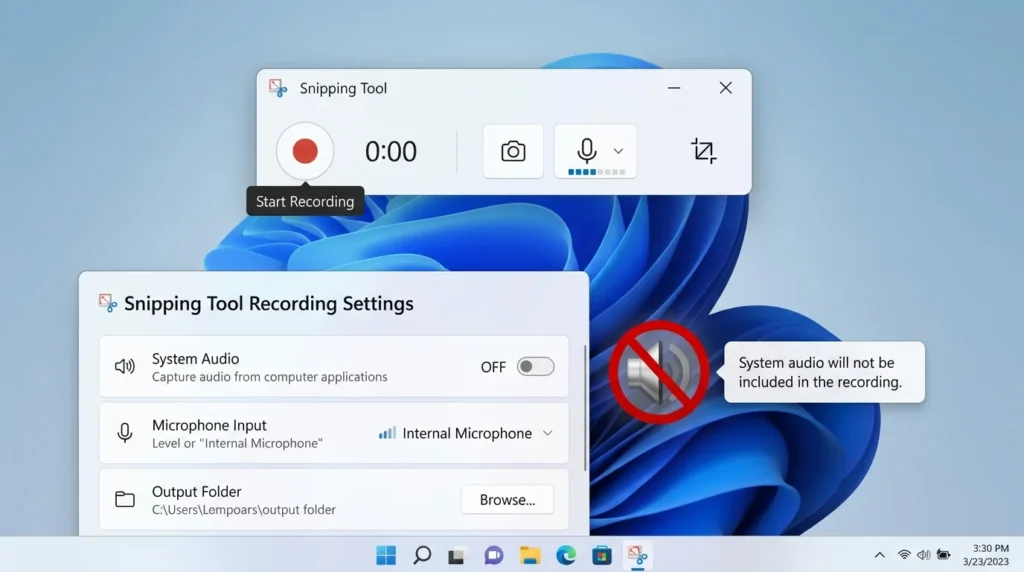
If by “Snipping Tool sounds” you mean audio that is included in a screen recording, the solution is different.
Snipping Tool’s screen recorder supports audio. Microsoft has documented support for recording audio from the PC and voice input from a microphone.
Some Windows 11 versions expose settings for including system audio and microphone input when a screen recording starts.
To check these options:
- Open Snipping Tool.
- Select the Record option.
- Open Snipping Tool’s Settings.
- Look for the audio-related recording options.
- Turn off the option for including system audio if you do not want computer audio in future recordings.
- Turn off the microphone option if you also do not want microphone input.
Microsoft Q&A guidance for current Windows 11 versions describes Snipping Tool settings for Include microphone input by default when a screen recording starts and system-audio recording.
Notification Sound and Recorded Audio Are Not the Same
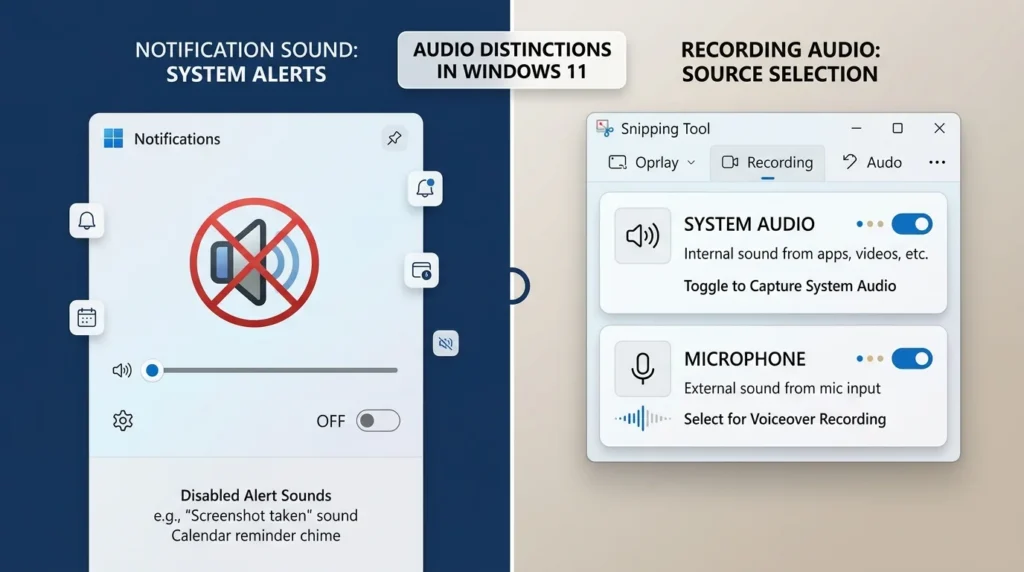
This distinction is important.
Turning off a notification sound does not necessarily stop Snipping Tool from recording audio.
Likewise, disabling system audio for screen recordings does not necessarily disable Windows notification sounds.
Think of them as separate controls:
| Sound or audio type | Where to control it |
|---|---|
| Snipping Tool notification sound | Windows notification settings |
| Snipping Tool notifications | Windows notification settings |
| System audio in screen recordings | Snipping Tool recording settings |
| Microphone audio in recordings | Snipping Tool recording settings |
| Other Windows sounds | Windows sound settings |
How to Stop Microphone Audio in Snipping Tool Recordings
Snipping Tool can also use your microphone when recording your screen.
If you do not want your voice or nearby sounds included in a recording, check the microphone recording option in Snipping Tool’s settings.
Open Snipping Tool, switch to the recording feature, and open its settings. If your version provides the microphone option, disable Include microphone input by default when a screen recording starts.
Microsoft introduced microphone support alongside PC-audio support for Snipping Tool screen recording.
This setting is useful when you want a silent screen recording or only want the visual content without microphone narration.
Can You Completely Disable the Screenshot Sound in Windows 11?
Windows 11 does not provide a universal setting named “Snipping Tool screenshot shutter sound” that works like the screenshot sound controls found on some smartphones.
Instead, the sound you hear may be associated with Windows notifications.
That is why the best approach is to first determine whether the sound is a notification sound or recorded audio.
If it is a notification sound, use:
Settings > System > Notifications > Snipping Tool > Play a sound
If it is audio being captured in a screen recording, check Snipping Tool’s recording audio settings instead.
This distinction also explains why simply changing your general Windows volume may not be the best solution.
How to Mute Snipping Tool Without Muting Other Windows Sounds
You do not need to mute your entire computer just because Snipping Tool is making a sound.
Windows 11 lets you manage notification behavior for individual apps. Microsoft specifically lists app-level controls for notification sounds and other notification behaviors.
For example, you can keep sounds enabled for:
- Email notifications
- Calendar reminders
- Messaging apps
- Other important applications
while disabling the sound for Snipping Tool.
This gives you a quieter screenshot workflow without affecting unrelated notifications.
What If Snipping Tool Still Makes a Sound?
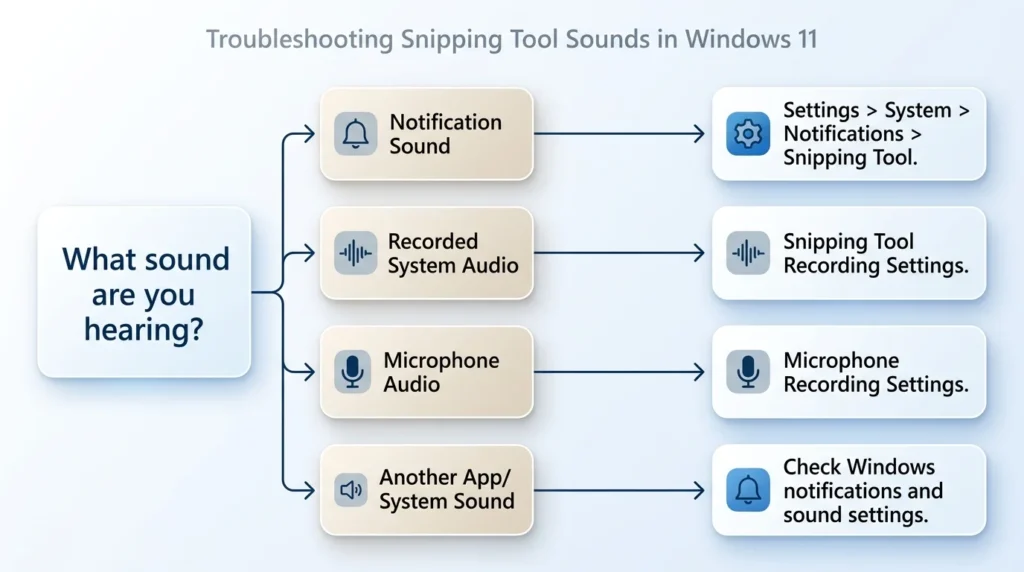
If you disabled the Snipping Tool notification sound but still hear something, the sound may not be coming from the notification system.
Try these checks.
Check Whether Another App Is Making the Sound
Take a screenshot while watching the notification area.
If another application sends a notification at the same time, its sound could be responsible.
Windows lets you manage notifications separately for individual apps, so check the app that appears in the notification.
Check Snipping Tool’s Recording Settings
If the sound occurs while starting or stopping a screen recording, check Snipping Tool’s recording settings instead of its notification settings.
Screen recording and screenshot capture are separate Snipping Tool functions. Microsoft currently documents both image capture and screen recording.
Restart Snipping Tool
Close Snipping Tool and open it again after changing its settings.
Then take another screenshot or make a short test recording.
Restart Windows
If Windows does not immediately apply the changed notification behavior, restart your computer and test Snipping Tool again.
Update Snipping Tool
An outdated version can behave differently from the current version.
Microsoft has continued adding features to Snipping Tool, including screen recording and audio support. Microsoft notes that newer Snipping Tool capabilities are delivered through updates, including Microsoft Store updates.
What If Snipping Tool Has No Sound During Screen Recording?
Some users actually experience the opposite problem: they want audio in a recording but the saved video has no sound.
This is different from disabling Snipping Tool sounds.
Current Microsoft Q&A discussions show Windows 11 users troubleshooting missing system audio and microphone audio in Snipping Tool recordings.
If your recording has no audio, check the following:
- Open Snipping Tool.
- Switch to Record.
- Open its settings.
- Check the system-audio option.
- Check the microphone option if you need voice recording.
- Make sure Windows has permission to use your microphone when microphone recording is required.
- Make a short test recording.
If system audio still fails, another application may be using an audio device in exclusive mode. Microsoft Q&A discussions include reports of Snipping Tool displaying an error related to WASAPI exclusive mode when recording audio.
In that situation, check the audio device’s advanced Windows sound settings and whether another application is controlling the device exclusively.
Snipping Tool Sound Settings Explained
The easiest way to avoid confusion is to separate notification sounds from recording audio.
Play a Sound for Notifications
This is a Windows notification setting.
When enabled for an app, Windows can play a sound when that app sends a notification. Microsoft lists Play a sound among the per-app notification controls.
System Audio in Screen Recordings
This controls whether computer audio is included in a Snipping Tool screen recording.
It does not simply mute Windows.
Instead, it determines whether audio from the computer is captured as part of the recording.
Microphone Input
This controls whether Snipping Tool captures audio through your microphone during screen recording.
It is useful for tutorials, demonstrations, presentations, and narrated recordings.
Windows System Sounds
Windows also has broader sound settings that affect the operating system.
You generally should not change these settings just to stop a Snipping Tool notification sound because Windows already provides app-specific notification controls.
Should You Turn Off All Windows Notification Sounds?
Usually, no.
If Snipping Tool is the only application whose notification sound bothers you, disabling sounds for that individual app is more practical.
Turning off notification sounds globally can also silence alerts from applications you still want to hear.
Windows 11 supports both global notification controls and individual app notification settings, so you can choose a more targeted solution.
Final Thoughts
Turning off Snipping Tool sounds in Windows 11 is easier once you identify which type of sound you are dealing with.
If you hear a sound associated with a Snipping Tool notification, go to Settings > System > Notifications > Snipping Tool and turn off Play a sound. Windows supports individual notification controls, so you do not have to silence every application.
If you are talking about audio captured during a screen recording, check Snipping Tool’s recording settings instead. System audio and microphone input are separate from Windows notification sounds.
The key is to avoid treating every Snipping Tool sound as the same setting. Once you identify whether it is a notification sound, system audio, or microphone input, you can disable exactly what you do not need while keeping the rest of Windows working normally.
Frequently Asked Questions
Yes, if the sound is coming from a Snipping Tool notification. Go to Settings > System > Notifications > Snipping Tool and turn off Play a sound.
First, check Snipping Tool’s notification settings. Open Settings > System > Notifications, select Snipping Tool, and disable its notification sound. If the sound continues, determine whether another app or a different Windows sound is responsible.
Open Settings > System > Notifications > Snipping Tool and turn off Play a sound. Windows supports this type of app-specific notification control.
Windows 11 does not provide a universal screenshot-shutter setting specifically labeled for Snipping Tool. If the sound is related to a notification, manage it through the app’s Windows notification settings.
Open Settings > System > Notifications > Snipping Tool and turn off notifications. If you only want to remove the sound while keeping notifications visible, turn off Play a sound instead.
Open Snipping Tool’s settings and look for the system-audio option associated with screen recording. Turn it off if you do not want computer audio included in your recordings.