Snipping Tool Text Actions (OCR): Copy Text From Screenshots on Windows 11
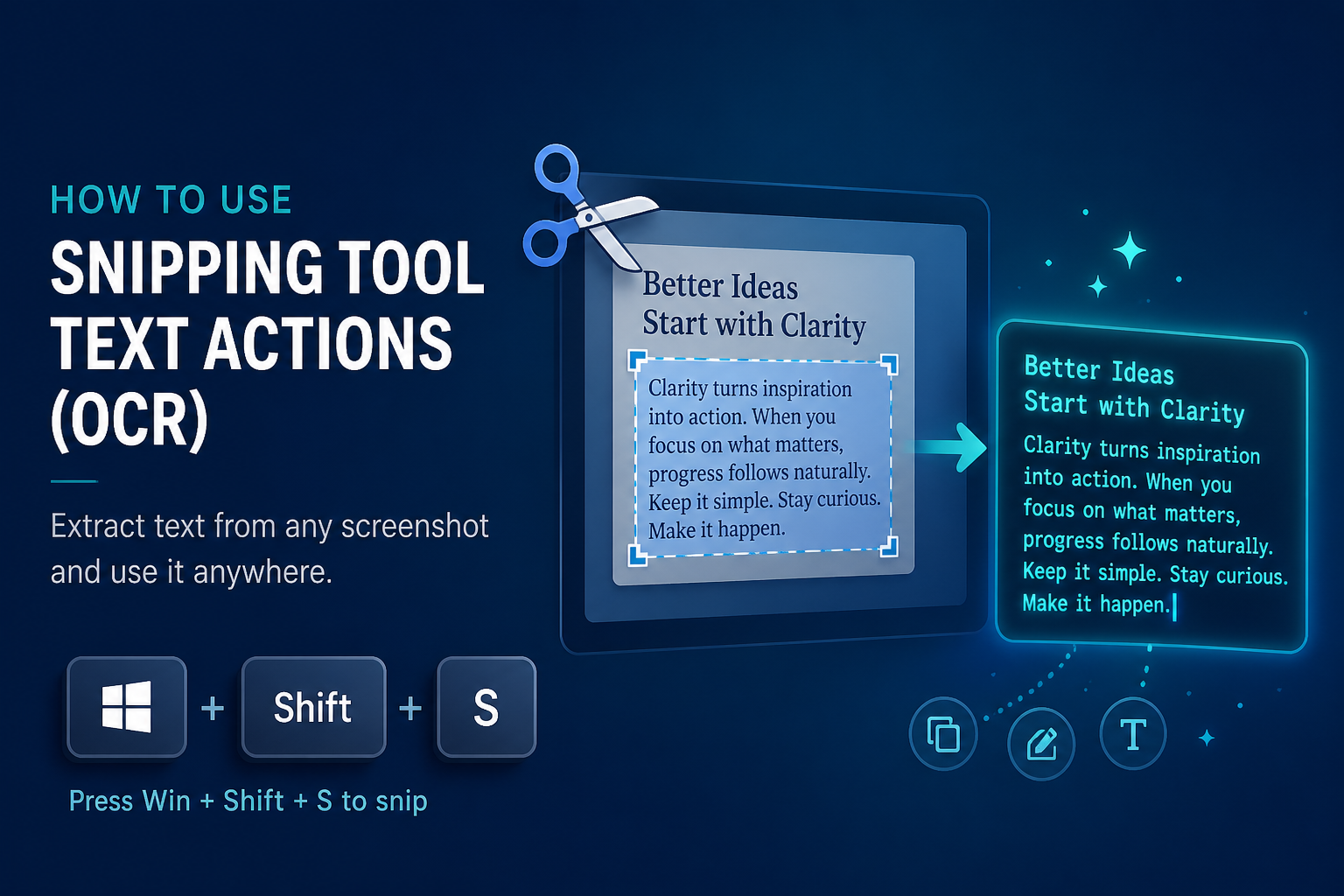
Need to grab text from a screenshot, a PDF page shown on screen, or an error dialog you cannot select? On Windows 11, Snipping Tool Text Actions turns that image into selectable, copyable text using built-in OCR (optical character recognition).
This guide covers what Text Actions is, version requirements, how to use it after a capture, the confusing Win+Shift+T shortcut conflict, and when to prefer Snipping Tool versus PowerToys or other options.
New to the app? Start with what the Snipping Tool is in Windows and how to use Snipping Tool in Windows.
What Is Snipping Tool Text Actions?
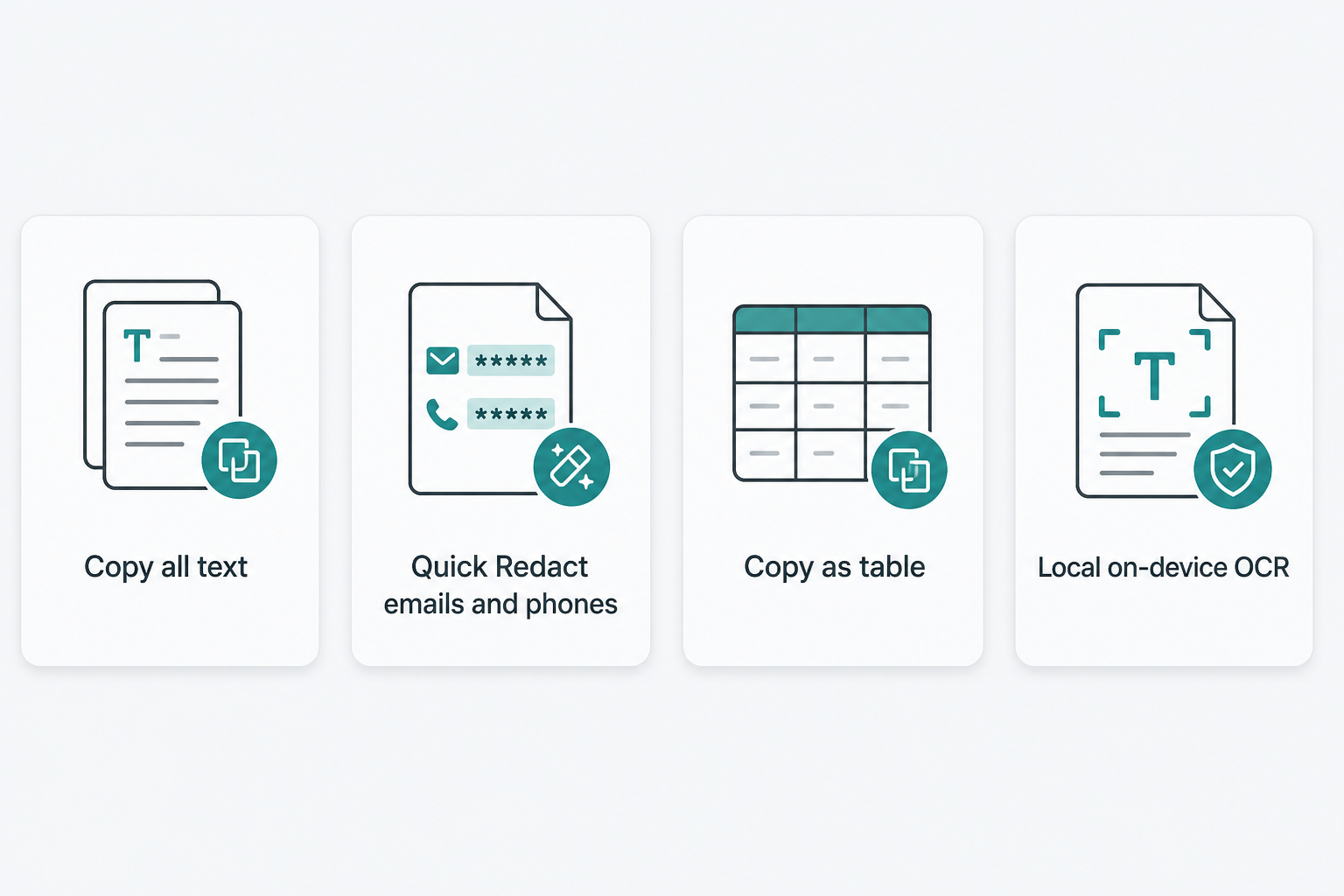
Text Actions is Microsoft’s name for OCR inside the modern Snipping Tool. After you capture (or open) an image, you select Text actions so the tool can detect text in the picture. You can then:
- Select and copy specific words or lines
- Copy all text from the snip
- Use Quick Redact to hide detected email addresses and phone numbers
- On newer builds, Copy as table for structured table data
Microsoft describes Text Actions as activating OCR so you can extract text from your image, and states that text recognition runs locally on your device.
Text Actions shipped for Insiders with Snipping Tool 11.2308.33.0 (September 2023). Copy as table followed in 11.2409.22.0 and newer (October 2024 Insider announcement) and works best when the screenshot includes only one table.
Requirements (Windows and App Version)
What you need
| Requirement | Guidance |
|---|---|
| Operating system | Best experience is Windows 11 with the modern Microsoft Store Snipping Tool. Do not expect full Text Actions parity from the classic Windows 10 Snipping Tool experience. |
| Snipping Tool version | Text Actions: roughly 11.2308.33.0+. Copy as table: roughly 11.2409.22.0+ (availability can still vary by rollout). |
| Capture shortcuts | Win+Shift+S (image snip) and Win+Shift+R (screen recording overlay) are documented Microsoft shortcuts. |
How to check your Snipping Tool version (About)
- Open Snipping Tool (Start menu search is fine).
- Open the app menu (often the ⋯ / See more control).
- Open Settings.
- Scroll to About this app (wording can vary slightly by build) and note the version number.
How to update from the Microsoft Store
- Open the Microsoft Store.
- Go to Library (or your updates view).
- Select Get updates / update Snipping Tool if listed.
- Close and reopen Snipping Tool after the update finishes.
If Text Actions is still missing after an update, see how to reinstall the Snipping Tool and the Snipping Tool download guide.
How to Use Text Actions
Method 1: Capture a snip, then use Text Actions (recommended)
This is the clearest Microsoft-aligned workflow.
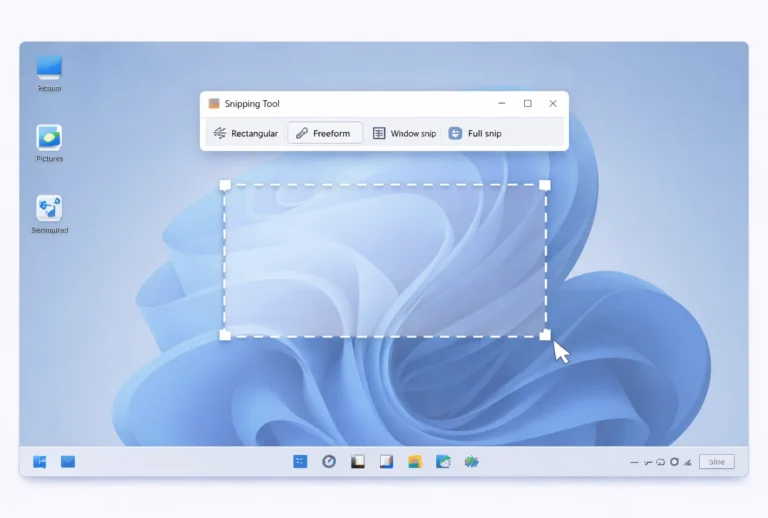
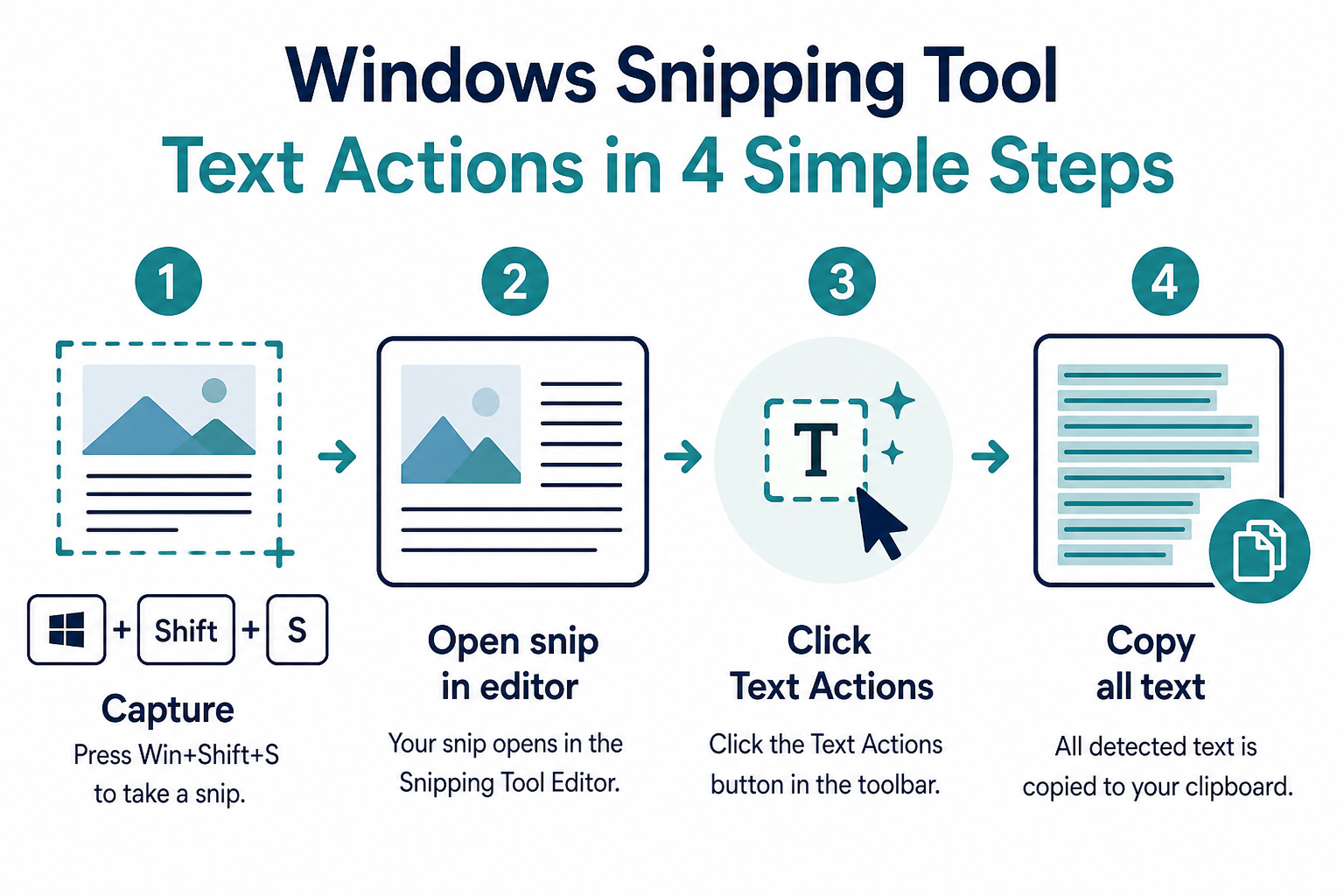
- Press Win+Shift+S (or start a new snip in the app). Refresher: how to take a screenshot with Snipping Tool and Windows 11 Snipping Tool keyboard shortcuts.
- Capture the text area (rectangle mode is usually best for OCR).
- In the Snipping Tool editor, select Text actions.
- Wait for recognized text to become selectable.
- Drag to select text and press Ctrl+C, or choose Copy all text.
- Paste with Ctrl+V into Word, Notepad, email, Teams, Excel, or another app.
Tip: Crop tightly around the text—especially before Copy as table.
Also useful: how to copy snipped images to the clipboard.
Method 2: Open an existing image carefully
On many builds, you can open an image with Snipping Tool (for example Open with → Snipping Tool in File Explorer), then select Text actions.
Verify on your PC: confirm the Store build includes Text Actions, confirm the file opens in the Snipping Tool editor (not only Preview/Photos), and if the button is missing, display the image and snip it with Win+Shift+S (Method 1).
Method 3: Win+Shift+T — verify first (shortcut conflict)
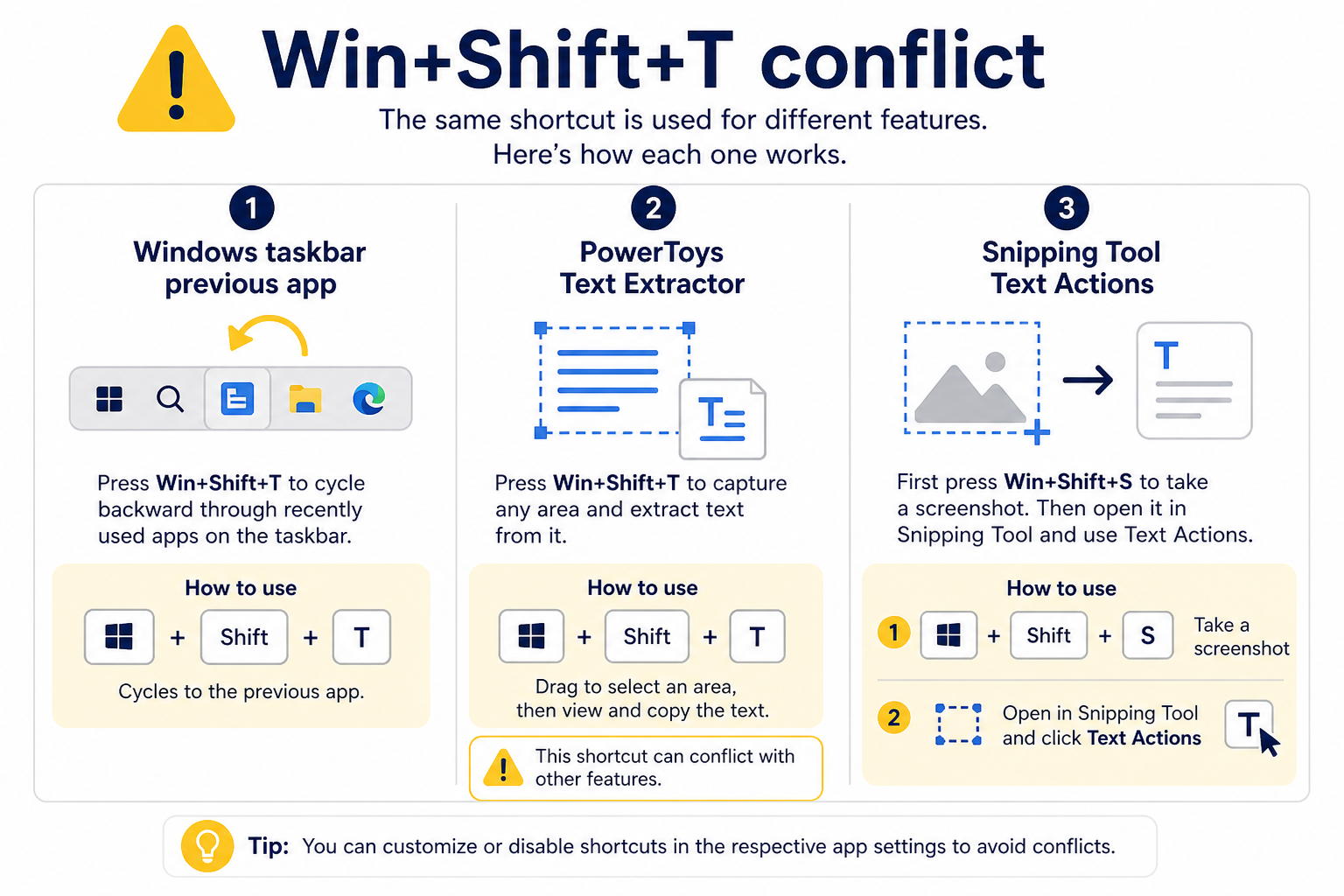
Do not treat Win+Shift+T as an official Microsoft Snipping Tool Text Actions shortcut.
Here is the honest conflict:
| Source | What Win+Shift+T means |
|---|---|
| Microsoft’s Windows keyboard shortcuts documentation | Windows logo key + Shift + T moves to the previous app on the taskbar (related to Win+T, which cycles taskbar apps). |
| Microsoft PowerToys Text Extractor | Default activation shortcut is Win+Shift+T. It overlays a capture region and copies OCR text to the clipboard. |
| Some third-party guides | Claim Win+Shift+T launches a native Snipping Tool “text extractor.” That is not how Microsoft’s Snipping Tool support docs document the feature. Official guidance is: capture a snip, then select Text actions. |
How to check what Win+Shift+T does on your PC
- Press Win+Shift+T once.
- Note what happens:
- Taskbar focus moves → Windows default taskbar behavior.
- Dimmed OCR overlay / crosshair → likely PowerToys Text Extractor (or another remapper).
- Something else → another app owns the shortcut.
- In PowerToys (if installed): Settings → Text Extractor to view or change the activation shortcut.
- For reliable Snipping Tool OCR: Win+Shift+S → Text actions.
If hotkeys fail generally, see Snipping Tool hotkey not working — fix and Snipping Tool shortcut on Windows.
Text Actions Features
Copy all text
After Text Actions runs, Copy all text puts the OCR result on the clipboard. Microsoft also documents Ctrl+A / Ctrl+C once text is selectable. Always proofread—OCR can misread small fonts, stylized text, or low-contrast UI.
Remove line breaks (cautious)
On many builds, you may see an option that flattens multi-line OCR into a cleaner paragraph (often described as removing line breaks). Label and placement vary by version. If it is missing, clean line breaks in the destination app.
Quick Redact (emails and phone numbers)
Quick Redact automatically hides detected email addresses and phone numbers before you share. On supported builds, you can also select text and redact from the context menu. Review the image before sending—detection helps, but it is not perfect.
Copy as table
On Snipping Tool 11.2409.22.0 and newer (Insider announcement), Copy as table turns visible table structure into pasteable data for email, documents, or spreadsheets. Microsoft notes it works best when the screenshot includes only one table—crop first.
QR-related behavior (cautious)
Microsoft’s Windows learning content mentions QR recognition on some Snipping Tool experiences (for example, offering to open a link). Treat this as build-dependent. If you do not see a QR option, your build may not include it, or the code was not detected.
Keyboard Shortcuts Cheat Sheet
| Shortcut / action | What it does | Confidence |
|---|---|---|
| Win+Shift+S | Open Snipping Tool image capture overlay | Official (Microsoft) |
| Win+Shift+R | Open Snipping Tool screen recording overlay | Official (Microsoft) |
| Text actions (toolbar) | Run OCR on the open snip | Official (Microsoft) |
| Copy all text | Copy recognized text from the snip | Official (Microsoft) |
| Quick Redact | Hide detected emails/phones | Official (Microsoft) |
| Copy as table | Copy structured table data (newer versions) | Official for 11.2409.22.0+ announcement |
| Ctrl+C / Ctrl+V | Copy / paste | Standard Windows |
| Ctrl+A then Ctrl+C (in Text Actions view) | Select/copy recognized text on many builds | Documented in Microsoft’s Text Actions intro |
| Win+Shift+T | Not documented as Snipping Tool OCR. Officially: previous taskbar app. Also PowerToys Text Extractor default. | Verify on your PC |
For a broader shortcut list, use Windows 11 Snipping Tool keyboard shortcuts.
When to Use Text Actions
Use Text Actions when you need to:
- Copy an error message, order number, or URL from a dialog that blocks selection
- Document a UI bug with both a screenshot and exact on-screen wording
- Share a snip after redacting emails/phones
- Pull one on-screen table into Excel or Sheets without retyping
- Extract text from a scanned page, whiteboard photo, or paused video frame (quality varies)
For video capture instead of still OCR, see Snipping Tool screen record.
Troubleshooting Text Actions
I do not see Text Actions
- Confirm you are on Windows 11 with the Store Snipping Tool (not only a classic Win10-era expectation).
- Check About for version 11.2308.33.0+.
- Update via Microsoft Store, then restart the app.
- If the app is corrupted, try reinstalling Snipping Tool.
OCR text is wrong or incomplete
- Capture a larger, sharper region (zoom the source if possible).
- Avoid heavy compression, tiny fonts, and busy backgrounds.
- Prefer horizontal, high-contrast text.
- Proofread every paste—OCR is assistive, not guaranteed perfect.
Copy as table is missing or messy
- Confirm app version is in the 11.2409.22.0+ range and that the feature has rolled out to your device.
- Crop so the snip contains one table only.
- Paste into Excel/Sheets and fix merged cells or misaligned columns if needed.
You may see “image too small” or similar messaging
On some builds, very small captures may fail OCR or show a size-related message. Recapture a larger area and try again. Exact wording can differ by version.
Shortcut keys do nothing
See Snipping Tool hotkey not working — fix. Also check whether PowerToys or another utility remapped Win+Shift combinations.
Snipping Tool Text Actions vs Alternatives
| Tool | Best for | OCR approach | Notes |
|---|---|---|---|
| Snipping Tool Text Actions | Capture + markup + OCR in one Windows 11 app | Capture snip → Text actions | Built-in; local OCR per Microsoft; includes Quick Redact / Copy as table on supported versions |
| PowerToys Text Extractor | Fast “select region → text on clipboard” without keeping a snip | Default Win+Shift+T overlay | Free Microsoft utility; shortcut conflicts with taskbar Win+Shift+T; language packs configurable |
| OneNote (Insert → Picture / OCR features depending on edition) | Notes workflows where the image lives in a notebook | Image OCR inside OneNote | Handy if you already file screenshots in OneNote |
| Photos / other viewers | Viewing only | Usually limited or none for full Text Actions-style redact/table | Not a full substitute for Snipping Tool Text Actions |
If you need a wider comparison of capture tools, see best Snipping Tool alternatives.
Privacy and Limitations
Privacy: Microsoft states that for Snipping Tool Text Actions OCR, all text recognition processes are performed locally on your device. Prefer it for sensitive snips when the feature is available.
Limitations:
- Accuracy depends on image quality, font, language, and contrast.
- Quick Redact targets emails/phones—it will not hide every secret (names, addresses, balances, and so on).
- Copy as table works best with one clear table.
- Store builds can lag behind Insider announcements.
- Windows 10 users should not assume Windows 11 Text Actions parity.
- Language support and detection quality can vary (Microsoft notes language limits for some experiences).
Related Guides
- What is the Snipping Tool in Windows?
- How to use Snipping Tool in Windows
- Windows 11 Snipping Tool keyboard shortcuts
- Snipping Tool shortcut Windows
- How to take a screenshot with Snipping Tool
- How to copy snipped images to the clipboard
- Snipping Tool hotkey not working — fix
- How to reinstall the Snipping Tool
- Snipping Tool download guide
- Snipping Tool screen record
- Best Snipping Tool alternatives
FAQ
What is Snipping Tool Text Actions?
It is Snipping Tool’s OCR feature: detect text in a screenshot/image so you can select, copy, redact, or (on newer builds) copy table data.
Is Text Actions the same as OCR?
Yes. Microsoft describes Text actions as activating optical character recognition (OCR) to extract text from the image.
Which Snipping Tool version do I need?
Microsoft introduced Text Actions at 11.2308.33.0. Update from the Microsoft Store if About shows an older build.
Does text recognition upload my screenshot to the cloud?
Microsoft’s support article states all text recognition processes are performed locally on your device for this OCR workflow.
How do I copy all text from a screenshot?
Open the snip in Snipping Tool, select Text actions, then Copy all text (or select text and copy). Paste with Ctrl+V.
What does Quick Redact do?
It automatically hides detected email addresses and phone numbers. Always review the image before sharing.
What is Copy as table?
Announced for 11.2409.22.0 and newer, it copies structured table data for pasting into documents or spreadsheets. Microsoft says it works best with one table in the snip.
Is Win+Shift+T the Snipping Tool OCR shortcut?
No. Microsoft lists Win+Shift+T as the previous taskbar app shortcut. PowerToys Text Extractor defaults to Win+Shift+T. For Snipping Tool OCR, use Win+Shift+S, then Text actions, and verify the key combo on your PC.
Does Text Actions work on Windows 10?
Do not expect full Windows 11 Text Actions parity from classic Windows 10 Snipping Tool. Use an updated Windows 11 build that includes the feature.
Why is Text Actions missing from my toolbar?
The app may be outdated, the feature may not have rolled out yet, or you are not in the Snipping Tool editor after capture. Update from the Store, restart, and capture again with Win+Shift+S.
Can Snipping Tool extract text from screen recordings?
Text Actions is for image snips. Pause video on a clear frame and capture a still, or use another OCR path. For recording: Snipping Tool screen record.
Should I use PowerToys Text Extractor instead?
Choose Snipping Tool Text Actions for capture + markup + redact + OCR. Choose PowerToys Text Extractor for a fast region-to-clipboard overlay if you can manage its shortcut (default Win+Shift+T).
Sources
- Use Snipping Tool to capture screenshots (Microsoft Support) — Text Actions / OCR, Copy all text, Quick Redact, local processing, Win+Shift+S, Win+Shift+R
- How to use Snipping Tool on Windows (Microsoft Windows Learning Center) — capture shortcuts, Text Actions overview, Quick Redact, QR mention
- New updates for Snipping Tool and Phone Link (Windows Insider Blog, Sep 14, 2023) — Text Actions introduced at 11.2308.33.0; Copy all text; Quick Redact for emails/phones
- Windows 11 Insider Preview Build 26120.2122 (Windows Insider Blog, Oct 11, 2024) — Copy as table at 11.2409.22.0+; best with one table
- PowerToys Text Extractor (Microsoft Learn) — default Win+Shift+T activation
- Keyboard shortcuts in Windows (Microsoft Support) — Win+Shift+S, Win+Shift+R, Win+Shift+T as previous taskbar app