Snipping Tool PNG vs JPG: Which Screenshot Format Should You Use?
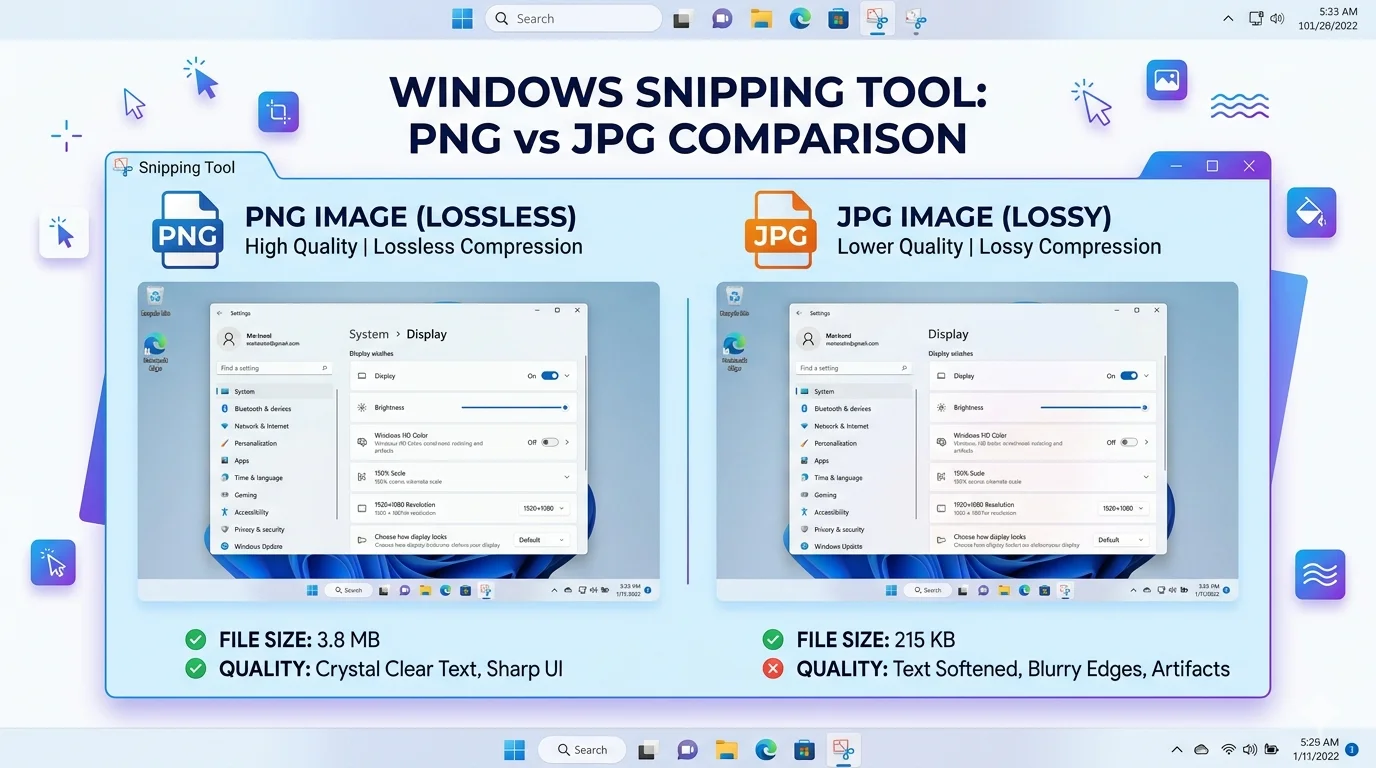
PNG is usually the best format for screenshots taken with Snipping Tool because it preserves image quality and keeps text sharp. JPG creates smaller file sizes but uses compression that can reduce image clarity. If quality matters most, choose PNG. If saving storage space is your priority, JPG may be the better option.
Introduction
The Windows Snipping Tool is one of the easiest ways to capture screenshots on Windows 10 and Windows 11. Whether you’re creating tutorials, documenting software issues, sharing information with colleagues, or publishing content online, screenshots help communicate information quickly and clearly.
However, after capturing a screenshot, many users face an important decision: should they save the image as PNG or JPG?
At first glance, both formats may appear identical. They can both store screenshots, be shared online, and open on virtually any device. However, the way these formats compress and store image data is very different.
Choosing the wrong format can result in blurry text, unnecessary file sizes, or reduced image quality. Understanding the differences between PNG and JPG will help you save screenshots more effectively and achieve the best results for your specific use case.
In this guide, you’ll learn how PNG and JPG work, their advantages and disadvantages, when to use each format, and which one is best for screenshots captured with Snipping Tool.
What Is PNG in Snipping Tool?
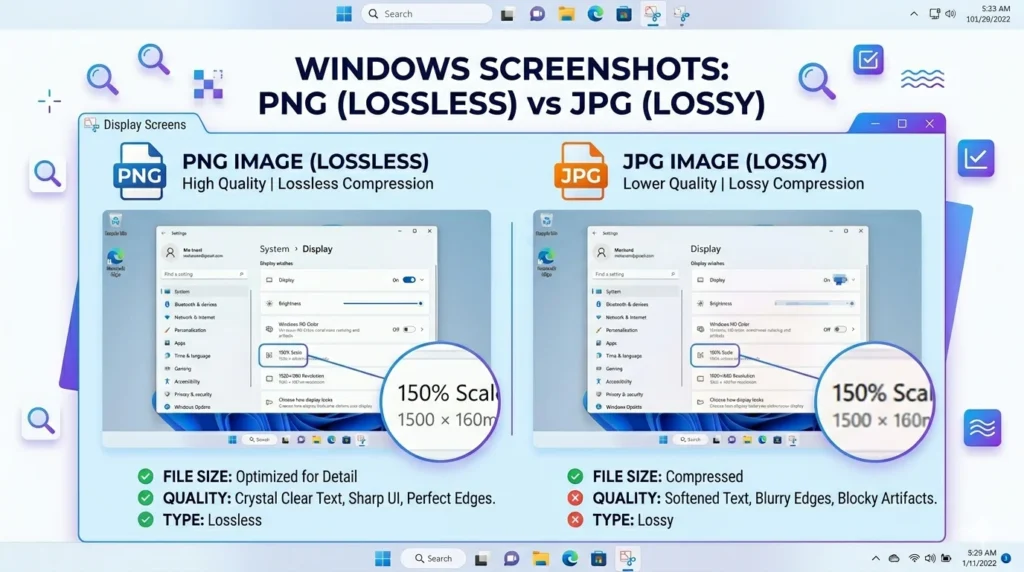
PNG stands for Portable Network Graphics. It is one of the most popular image formats for screenshots because it uses lossless compression.
Lossless compression means that image quality remains intact even after the file is compressed. No visual information is removed from the screenshot.
As a result, screenshots saved as PNG maintain sharp text, crisp icons, and clear interface elements.
How PNG Works
PNG compresses image data without discarding information. Every pixel captured by Snipping Tool remains preserved in the final image.
This makes PNG particularly useful for screenshots containing:
- Text
- Menus
- Buttons
- Icons
- Settings pages
- Software interfaces
- Web pages
Advantages of PNG Screenshots
Excellent Image Quality
PNG preserves every detail of your screenshot, ensuring maximum clarity.
Sharp Text
Text remains readable even when zooming in or cropping screenshots.
Better for Editing
PNG files handle repeated editing and saving without introducing quality loss.
Transparency Support
PNG supports transparent backgrounds, making it useful for graphic design and presentations.
Ideal for Documentation
Most software documentation and technical guides use PNG because of its superior quality.
Disadvantages of PNG
Larger File Sizes
Because PNG preserves all image information, files are typically larger than JPG images.
More Storage Required
Users who capture hundreds of screenshots daily may notice increased storage usage.
What Is JPG in Snipping Tool?
JPG, also known as JPEG, is another popular image format supported by Snipping Tool.
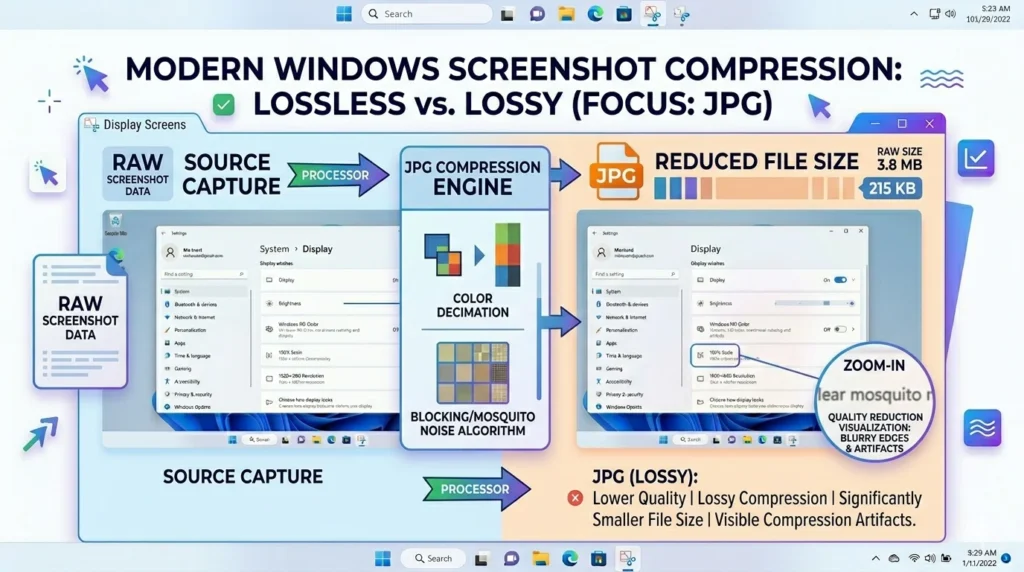
Unlike PNG, JPG uses lossy compression.
Lossy compression removes certain image data to reduce file size. This makes JPG files much smaller but can also reduce image quality.
How JPG Works
JPG analyzes image data and removes information that is considered less noticeable to the human eye.
While this process significantly reduces file size, it may create visible quality loss in screenshots that contain text and sharp edges.
Advantages of JPG Screenshots
Smaller File Sizes
JPG files are often significantly smaller than PNG files.
Faster Upload Speeds
Smaller files upload faster to websites, cloud storage services, and messaging apps.
Better for Email Sharing
Email attachments become easier to send when file sizes are reduced.
Less Storage Usage
JPG images help conserve disk space.
Disadvantages of JPG
Quality Loss
Compression removes image information permanently.
Reduced Text Clarity
Small text and interface elements may appear slightly blurry.
Compression Artifacts
Visible distortions may appear around sharp edges and text.
Not Ideal for Repeated Editing
Each save can reduce image quality further.
Snipping Tool PNG vs JPG: Key Differences
The table below highlights the most important differences between PNG and JPG.
| Feature | PNG | JPG |
|---|---|---|
| Compression Type | Lossless | Lossy |
| Screenshot Quality | Excellent | Good |
| Text Clarity | Excellent | Moderate |
| File Size | Larger | Smaller |
| Transparency Support | Yes | No |
| Editing Quality | Excellent | Moderate |
| Screenshot Accuracy | Best | Slightly Reduced |
| Upload Speed | Slower | Faster |
| Best Use Case | Tutorials & Documentation | Quick Sharing |
Why Does Snipping Tool Save Screenshots as PNG by Default?
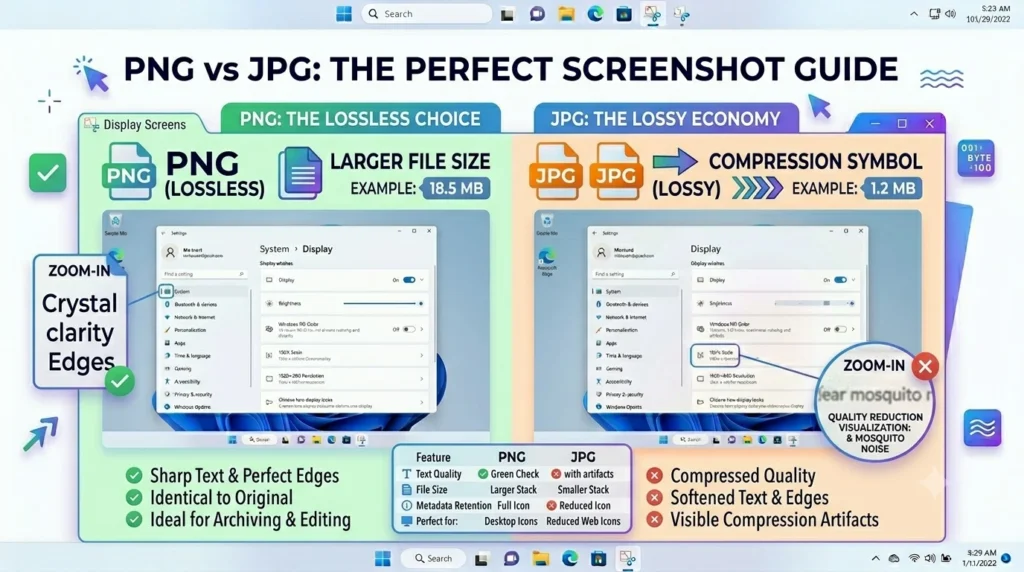
Microsoft commonly uses PNG as the preferred screenshot format because screenshots differ from photographs.
Screenshots often contain:
- User interface elements
- Text
- Application menus
- Browser content
- System settings
- Technical information
These elements require sharp edges and precise detail reproduction.
PNG preserves this information perfectly, while JPG compression can introduce blur around text and icons.
For this reason, PNG has become the standard format for screenshots across many operating systems and applications.
Which Format Is Better for Different Screenshot Types?
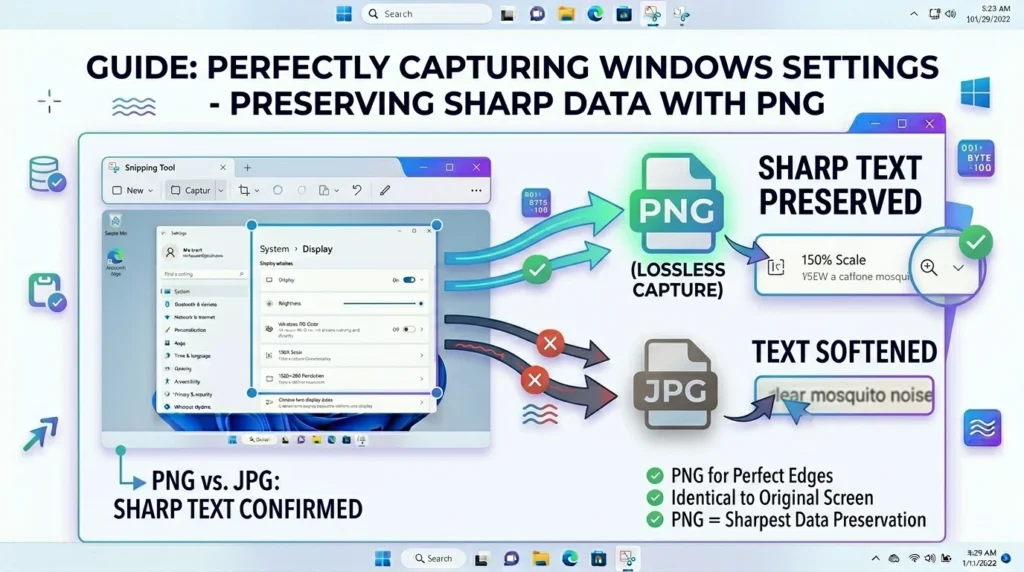
The best format depends on how you intend to use your screenshots.
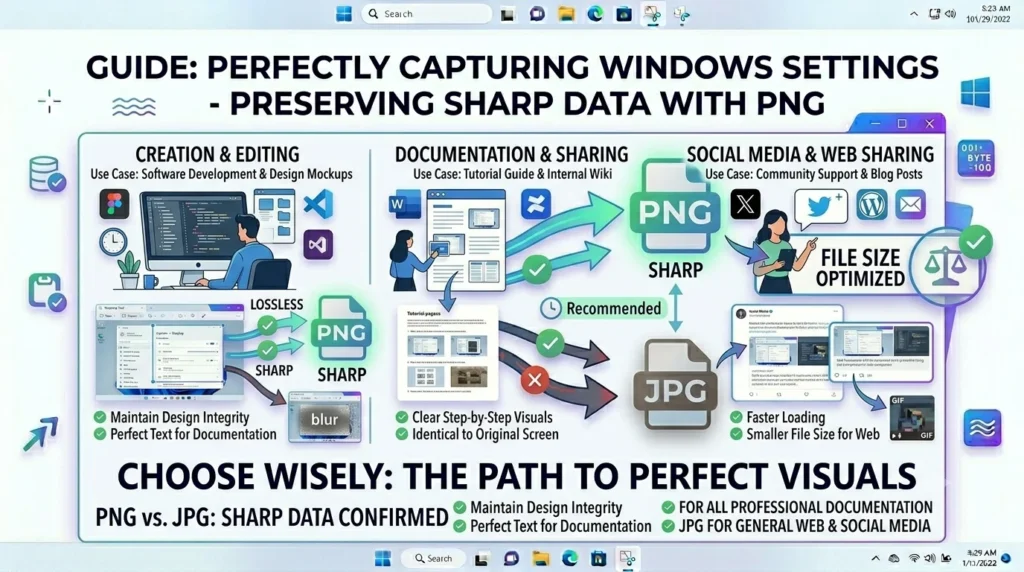
Tutorials and How-To Guides
Recommended Format: PNG
Tutorials require clear screenshots that allow readers to follow instructions easily.
PNG preserves menus, buttons, and text perfectly.
Website Screenshots
Recommended Format: PNG
Web pages contain many sharp visual elements that benefit from lossless compression.
Software Documentation
Recommended Format: PNG
Technical documentation demands maximum clarity and professionalism.
Technical Support Screenshots
Recommended Format: PNG
Support teams often need to zoom into screenshots to identify problems.
PNG provides the best visibility.
Social Media Sharing
Recommended Format: JPG
Social media platforms often compress uploaded images automatically.
Using JPG can reduce upload times and file sizes.
Email Attachments
Recommended Format: JPG
If file size is more important than image quality, JPG is often sufficient.
Personal Screenshot Archives
Recommended Format: PNG
Archiving screenshots in PNG preserves quality for future use.
PNG vs JPG File Size Comparison
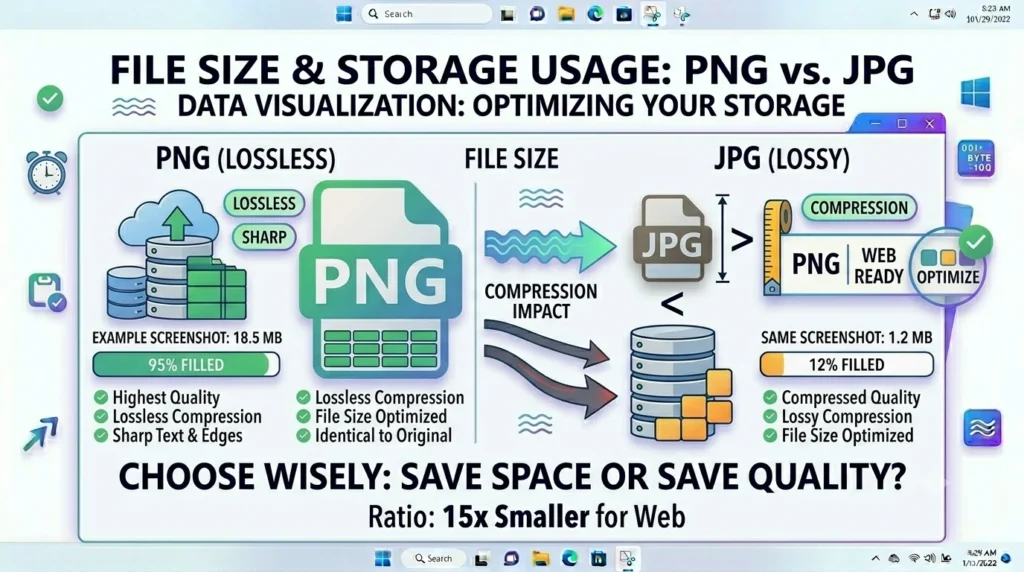
File size is one of the biggest differences between PNG and JPG.
A typical full-screen screenshot may produce:
| Format | Approximate File Size |
|---|---|
| PNG | 1 MB – 5 MB |
| JPG | 200 KB – 2 MB |
Actual sizes vary depending on:
- Screen resolution
- Color complexity
- Compression settings
- Screenshot content
Screenshots with large areas of text often compress very efficiently in PNG, while photographs typically benefit more from JPG compression.
Does JPG Reduce Screenshot Quality?
Yes.
JPG compression removes image data to reduce file size.
This reduction may not be obvious in photographs, but screenshots often contain:
- Small text
- Sharp edges
- Icons
- Interface elements
These elements can reveal compression artifacts more easily.
Common signs of JPG compression include:
- Blurry text
- Fuzzy edges
- Distorted icons
- Visible compression blocks
For professional screenshots, PNG generally delivers superior results.
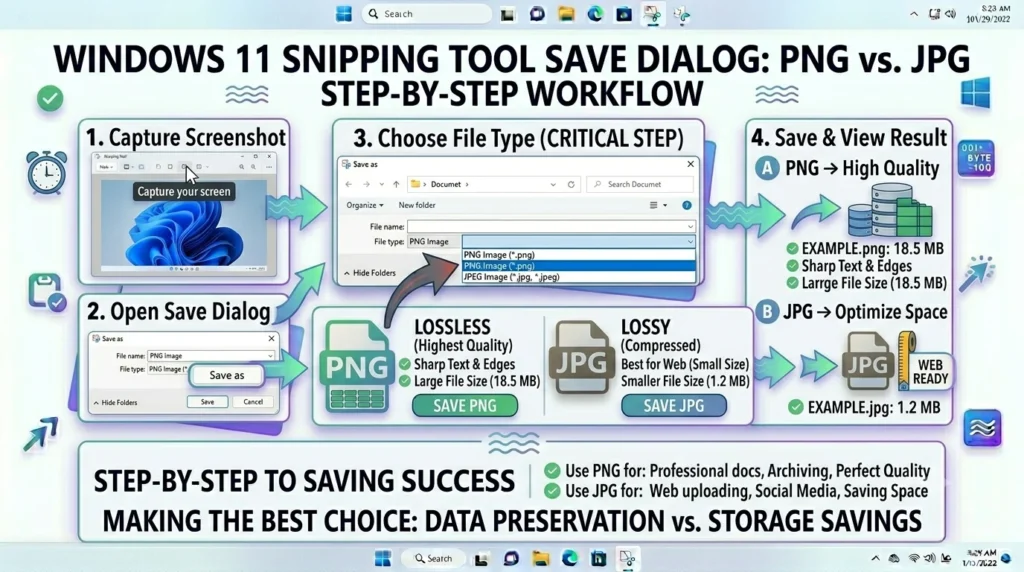
How to Save a Snipping Tool Screenshot as PNG or JPG
Saving screenshots in either format is simple.
Save as PNG
- Open Snipping Tool.
- Capture your screenshot.
- Click Save As.
- Choose a save location.
- Select PNG from the file type menu.
- Click Save.
Save as JPG
- Capture a screenshot.
- Select Save As.
- Open the file type dropdown.
- Choose JPG or JPEG.
- Click Save.
The process is identical except for selecting a different file type.
Can You Change the Default Snipping Tool Format?
Many users want Snipping Tool to save screenshots directly as JPG instead of PNG.
Currently, Windows does not offer a universal setting that permanently changes the default screenshot format for all Snipping Tool captures.
Instead, users typically select the desired format manually when saving screenshots.
If you frequently require JPG images, third-party screenshot applications may provide more customization options.
Common Mistakes When Choosing PNG or JPG
Using JPG for Text-Based Screenshots
This often reduces readability and creates blurry text.
Using PNG When File Size Matters
Large PNG files may be unnecessary for quick sharing.
Ignoring Future Editing
PNG provides more flexibility for future modifications.
Choosing JPG for Documentation
Documentation should prioritize quality over file size.
Storing Important Screenshots Only as JPG
Quality loss may become noticeable over time, especially after editing.
PNG vs JPG vs WebP
WebP is a newer image format designed to improve compression efficiency.
PNG vs WebP
PNG generally provides the highest screenshot quality.
WebP may reduce file size while maintaining excellent quality.
JPG vs WebP
WebP often achieves better quality than JPG at similar file sizes.
Which Is Best?
For screenshots:
- PNG – Best quality
- WebP – Best balance
- JPG – Smallest files
However, PNG remains the safest and most widely compatible choice.
Best Format Recommendations
| Use Case | Recommended Format |
|---|---|
| For Bloggers | PNG |
| For Students | PNG |
| For Technical Writers | PNG |
| For Customer Support Teams | PNG |
| For Software Documentation | PNG |
| For Graphic Designers | PNG |
| For Fast Sharing | JPG |
| For Email Attachments | JPG |
| For Long-Term Storage | PNG |
Final Thought
When comparing Snipping Tool PNG vs JPG, PNG is the better option for most screenshots. It preserves image quality, keeps text sharp, supports transparency, and provides the clarity needed for tutorials, technical documentation, troubleshooting guides, and professional content.
JPG remains useful when reducing file size is your primary goal. It uploads faster, consumes less storage space, and works well for casual sharing.
For most users, however, the best practice is simple: use PNG whenever quality matters and use JPG when file size matters more than image fidelity.
Frequently Asked Questions
Yes. PNG preserves image quality and keeps text sharp.
Yes. Simply choose JPG from the Save As file type menu.
PNG preserves text and interface elements more accurately.
It can. Compression may reduce sharpness, especially around text.
PNG is generally the best choice.
PNG is typically better because websites contain text and interface elements.