Best Keyboard Shortcut for the Snipping Tool (Windows 10 & Windows 11 Guide)
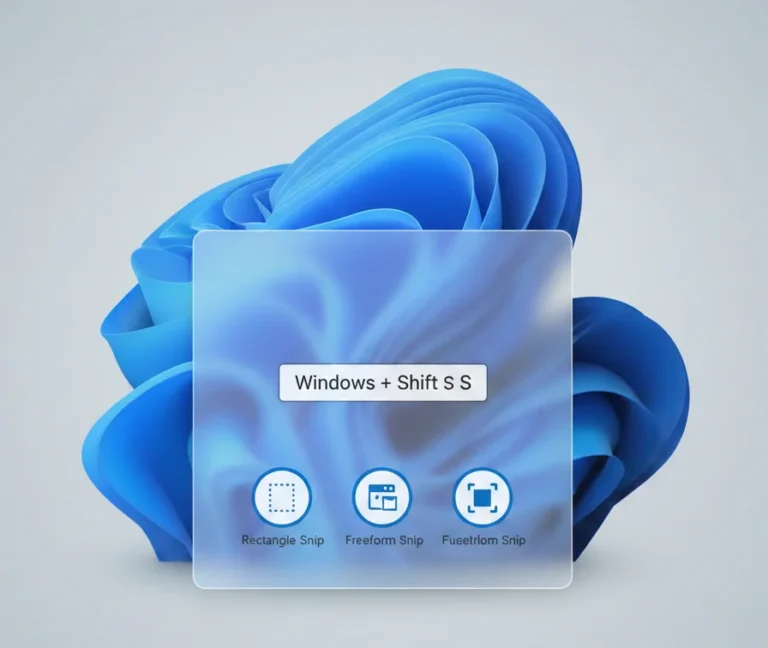
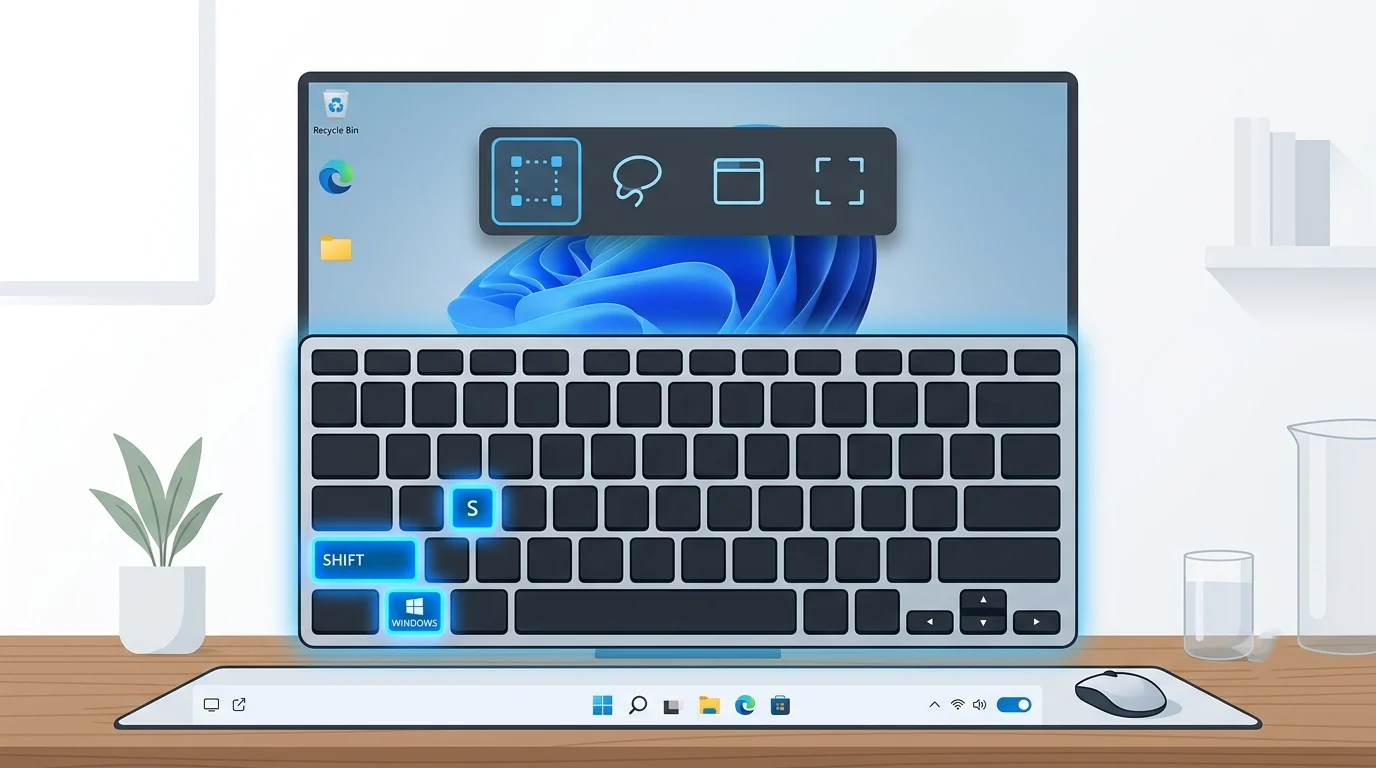
The best keyboard shortcut for the Snipping Tool is Windows + Shift + S. Pressing these keys instantly opens the Snipping Tool capture toolbar, allowing you to take a rectangular, freeform, window, or full-screen screenshot without opening the app first. On newer versions of Windows 11, you can also use Windows + Shift + R to start a screen recording directly from the Snipping Tool.
Introduction
Taking screenshots has become an everyday task for work, school, gaming, and personal projects. Whether you need to capture an error message, save an online receipt, or share part of your screen with a colleague, using the right keyboard shortcut can save valuable time.
Instead of opening the Snipping Tool manually from the Start menu, Windows provides built-in keyboard shortcuts that let you capture screenshots within seconds. While several shortcuts are available, some are much faster and more convenient than others.
In this guide, you’ll learn the best keyboard shortcut for the Snipping Tool, discover additional shortcuts worth remembering, compare them with the Print Screen key, and find troubleshooting tips if the shortcuts stop working.
Why Windows + Shift + S Is the Best Keyboard Shortcut for the Snipping Tool
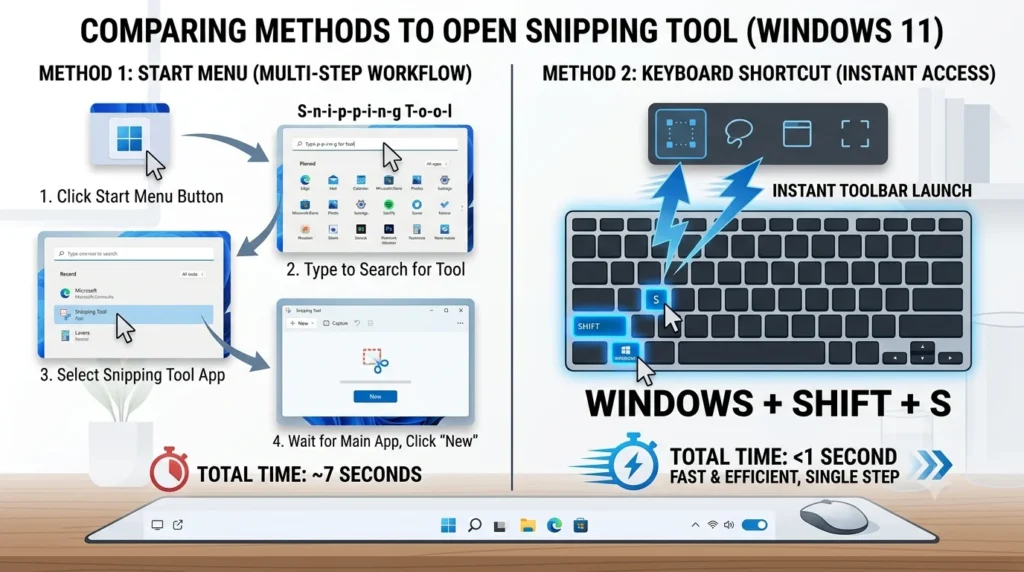
Among all available screenshot shortcuts, Windows + Shift + S stands out because it provides the fastest way to launch the Snipping Tool.
Unlike older methods, this shortcut immediately opens the screenshot toolbar without interrupting your workflow.
Microsoft also recommends using this shortcut in its official Snipping Tool documentation.
Benefits of Windows + Shift + S
- Opens the Snipping Tool instantly.
- Works from almost any application.
- Lets you capture only the area you need.
- Copies the screenshot directly to the clipboard.
- Opens the editing interface after capture.
- Available on both Windows 10 and Windows 11.
Because of these advantages, Microsoft recommends this shortcut for most users.
What Happens When You Press Windows + Shift + S?
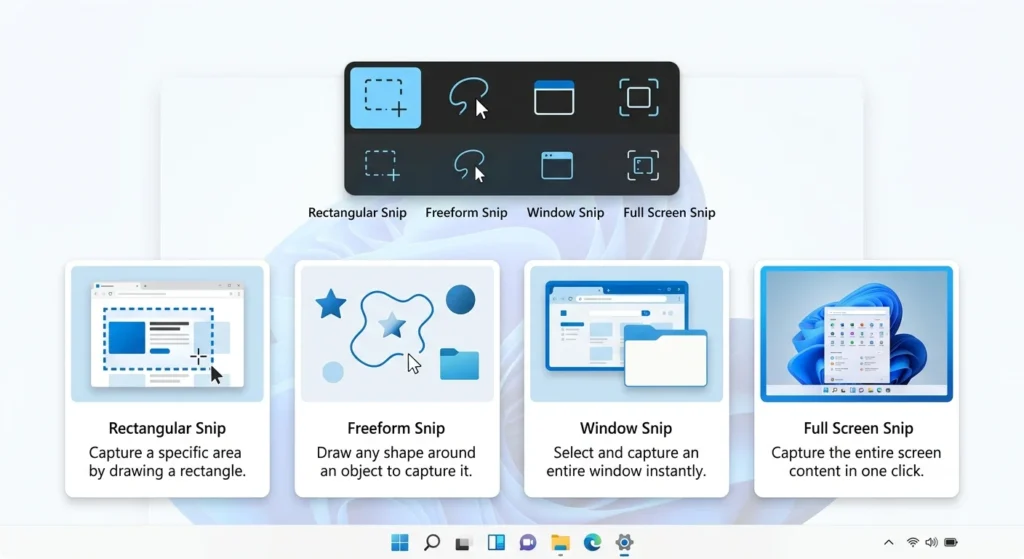
After pressing the shortcut, your screen becomes slightly dim.
The Snipping Tool toolbar appears at the top of the screen.
You’ll then be able to choose one of four capture modes.
Rectangular Snip
Drag your cursor to capture a specific rectangular area.
Best for:
- Documents
- Web pages
- Tutorials
- Receipts
Freeform Snip
Draw any custom shape around the object you want to capture.
Best for:
- Irregular objects
- Images
- Graphics
Window Snip
Capture an entire application window with one click.
Best for:
- Browser windows
- File Explorer
- Microsoft Office
- Settings
Full-Screen Snip
Capture everything currently displayed on your monitor.
Best for:
- Desktop screenshots
- Multiple windows
- Presentations
You can also explore additional Windows keyboard shortcuts that improve productivity.
Other Useful Snipping Tool Keyboard Shortcuts
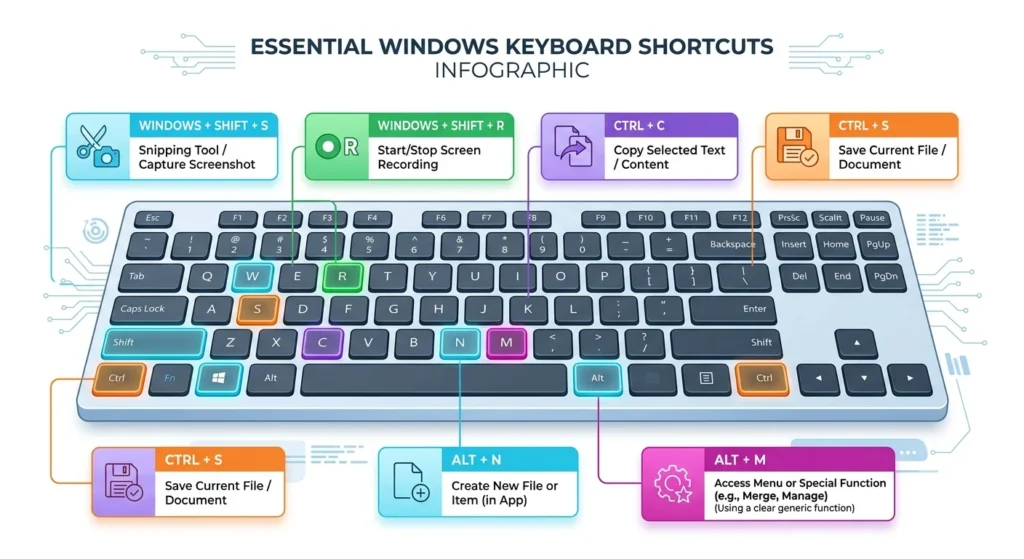
Although Windows + Shift + S is the most useful shortcut, several other keyboard shortcuts can improve your productivity.
| Keyboard Shortcut | Function |
|---|---|
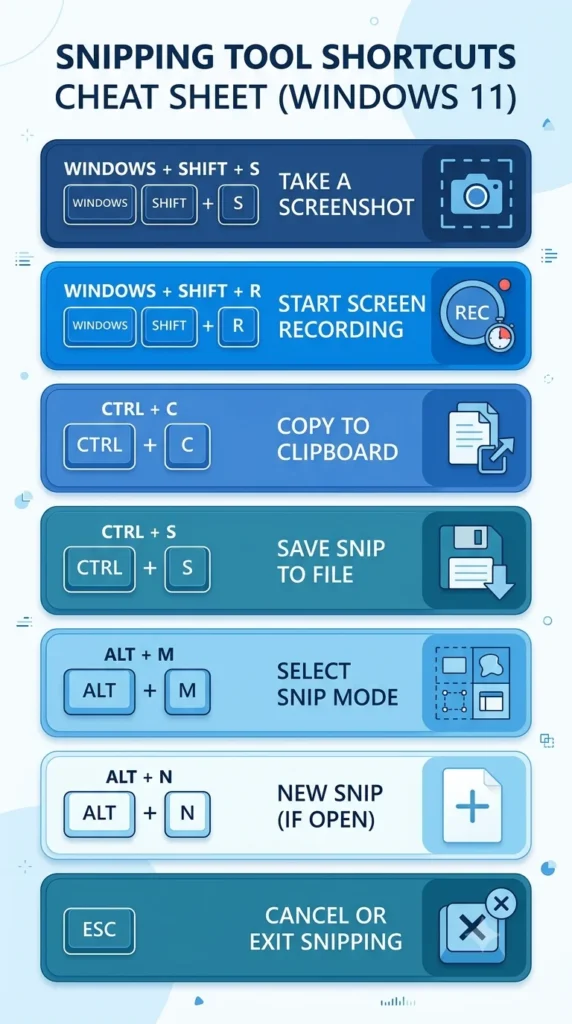
| Windows + Shift + S | Open screenshot toolbar |
| Windows + Shift + R | Start screen recording (Windows 11) |
| Alt + M | Change snipping mode |
| Alt + N | Create a new snip |
| Ctrl + C | Copy screenshot |
| Ctrl + S | Save screenshot |
| Ctrl + P | Print screenshot |
| Esc | Cancel current snip |
| Ctrl + Z | Undo edit |
| Ctrl + Y | Redo edit |
Learning just a few of these shortcuts can significantly speed up your daily workflow.
Windows + Shift + S vs Print Screen
Many users wonder which shortcut is better.
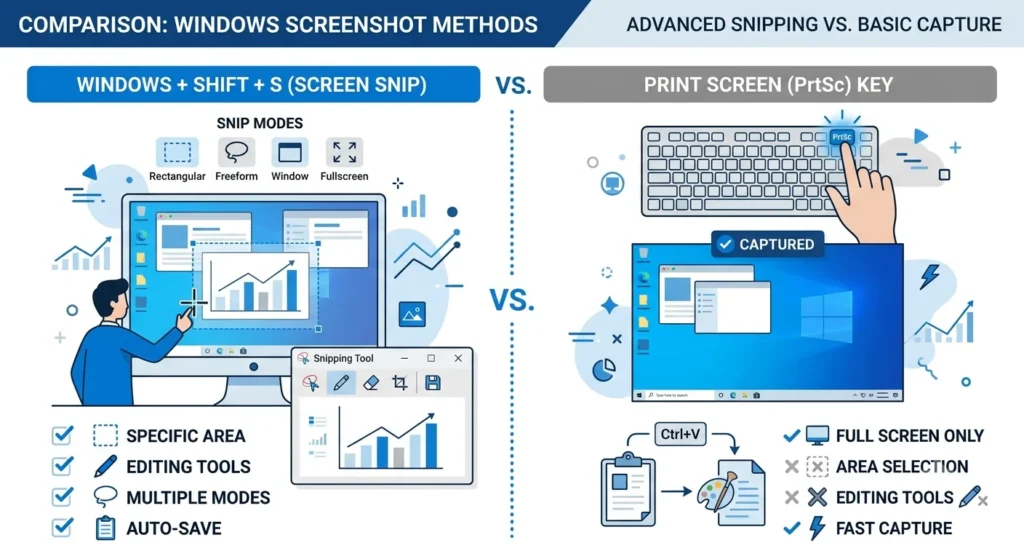
Here’s a comparison.
| Feature | Windows + Shift + S | Print Screen |
|---|---|---|
| Area selection | Yes | No |
| Window capture | Yes | No |
| Freeform capture | Yes | No |
| Opens Snipping Tool | Yes | No |
| Clipboard support | Yes | Yes |
| Faster editing | Yes | No |
| Modern interface | Yes | No |
If you frequently edit or annotate screenshots, Windows + Shift + S is the better choice.
Does the Shortcut Work on Windows 10 and Windows 11?
Yes.
The Windows + Shift + S shortcut works on both operating systems.
However, Windows 11 includes several improvements, including:
- Better annotation tools
- OCR (Text Actions)
- Screen recording support
- Improved image editing
- Enhanced user interface
Windows 10 users still receive the same screenshot functionality, but some newer editing features are exclusive to Windows 11.
Best Keyboard Shortcut for Screen Recording
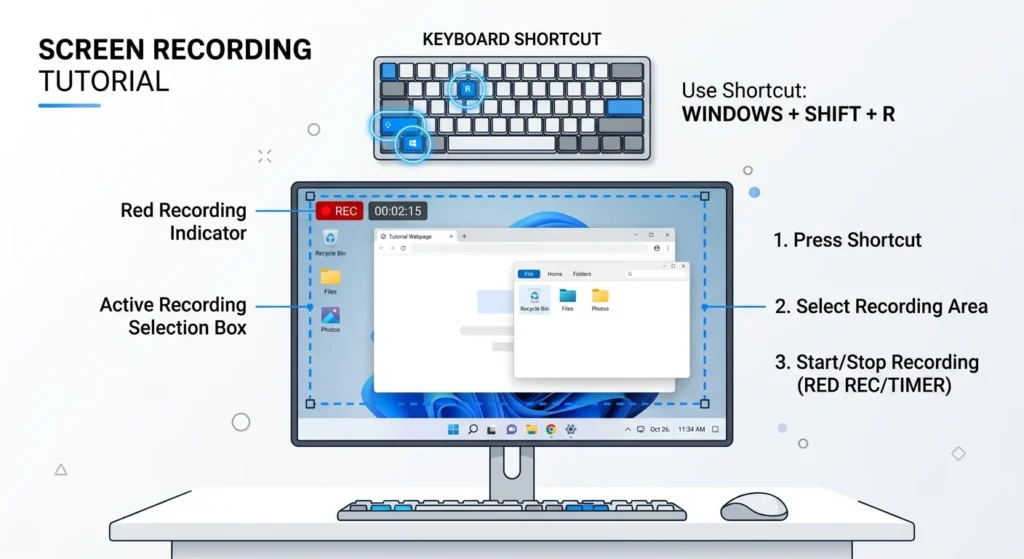
If you’re using an updated version of Windows 11, you can also record your screen directly through the Snipping Tool.
Use:
Windows + Shift + R
This shortcut launches the recording toolbar, allowing you to select an area before recording.
It’s ideal for:
- Tutorials
- Software demonstrations
- Online classes
- Gaming clips
- Bug reporting
Can You Change the Snipping Tool Shortcut?
Currently, Windows doesn’t let you assign a completely custom keyboard shortcut for launching the Snipping Tool.
However, you can enable the Print Screen key to open the Snipping Tool.
To do this:
- Open Settings.
- Go to Accessibility.
- Select Keyboard.
- Turn on Use the Print Screen button to open Snipping Tool.
After enabling this option, pressing the Print Screen key will launch the Snipping Tool instead of performing its traditional function.
Microsoft also explains how to configure the Print Screen keyboard setting.
Windows + Shift + S Not Working?
If the shortcut suddenly stops working, try these solutions.
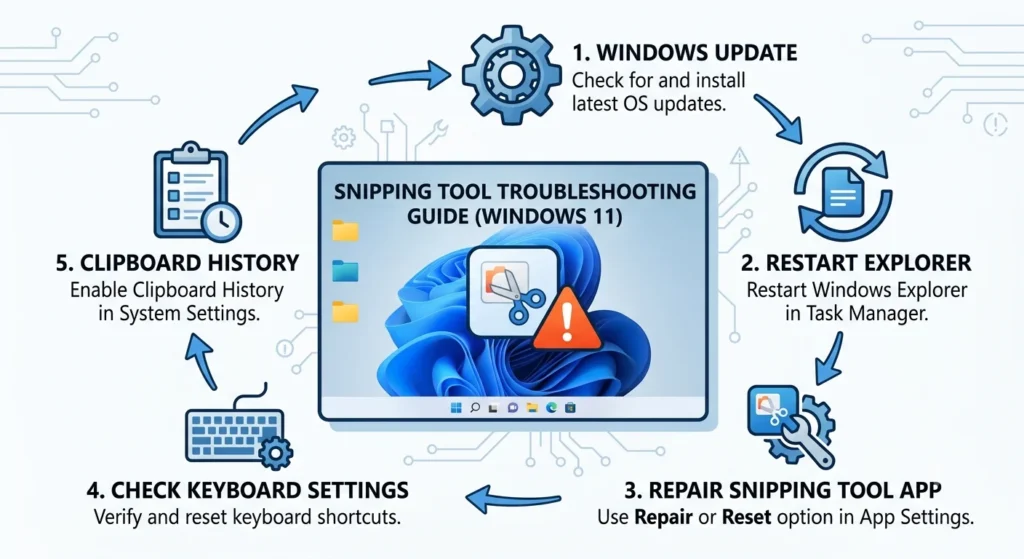
Restart Windows Explorer
Restarting Windows Explorer often fixes temporary issues.
Update Windows
Install the latest Windows updates.
Repair or Reset Snipping Tool
Go to:
Settings → Apps → Installed Apps → Snipping Tool → Advanced Options
Choose:
- Repair
- Reset
Check Keyboard Shortcuts
Ensure your Windows, Shift, and S keys are working correctly.
Enable Clipboard History
Some users experience issues when the clipboard history is disabled.
Enable it from:
Settings → System → Clipboard
Restart Your Computer
A simple restart can resolve temporary software glitches.
If the problem continues, Microsoft’s Windows support documentation provides additional repair options.
Pro Tips for Faster Screenshots
Want to work even faster? Follow these tips.
- Memorize Windows + Shift + S.
- Enable Clipboard History.
- Pin the Snipping Tool to the taskbar.
- Use keyboard shortcuts instead of opening the app.
- Save screenshots immediately after editing.
- Organize screenshots into dedicated folders.
- Learn the screen recording shortcut for tutorials.
These small habits can save several minutes every day.
Learn more about Clipboard in Windows to improve your screenshot workflow.
Final Thought
The best keyboard shortcut for the Snipping Tool is Windows + Shift + S. It provides the fastest way to capture screenshots without opening the application manually, making it the preferred option for Windows 10 and Windows 11 users alike.
If you also record tutorials or presentations, learning Windows + Shift + R can further improve your workflow. By combining these shortcuts with built-in editing tools and clipboard features, you can capture, edit, and share screenshots more efficiently every day.
Frequently Asked Questions
The best shortcut is Windows + Shift + S, which instantly opens the Snipping Tool capture toolbar.
Yes. It works on Windows 11 and Windows 10.
It opens the Snipping Tool screen recording feature on supported versions of Windows 11.
Not completely. However, you can configure the Print Screen key to open the Snipping Tool.
No. The screenshot is copied to your clipboard first. You can then edit and save it from the Snipping Tool notification.
No. Windows + Shift + S offers more flexibility, including area selection, window capture, and built-in editing tools.