Snagit for Mac: Complete Guide to Screen Capture and Recording on macOS (2026)
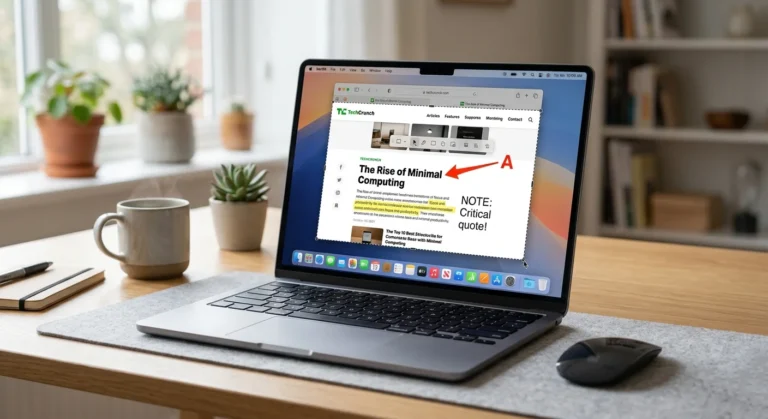
Snagit for Mac is a powerful screen capture and screen recording tool that helps users create professional screenshots, videos, tutorials, and documentation. Unlike the built-in macOS screenshot utility, Snagit includes advanced features such as scrolling capture, OCR text extraction, annotations, templates, and video recording tools.
If you regularly create tutorials, presentations, support guides, or training materials, Snagit for Mac can significantly improve your workflow. Moreover, its intuitive interface makes it suitable for both beginners and experienced professionals.
Introduction
Taking screenshots on a Mac is easy. However, editing, organizing, and sharing those screenshots professionally often requires additional tools. While macOS provides basic screenshot functionality, many users eventually need features that go beyond simple screen captures.
This is where Snagit for Mac becomes valuable. Developed by TechSmith, Snagit combines screenshot capture, image editing, screen recording, and content management in a single application. As a result, users can create polished visual content without switching between multiple tools.
Whether you are a blogger, educator, marketer, technical writer, or remote worker, this guide will help you understand everything about Snagit for Mac. In addition, you will learn how to use its key features, compare it with built-in Mac tools, and determine whether it is worth the investment.

What Is Snagit for Mac?
Snagit for Mac is a premium screen capture and screen recording application developed by TechSmith. It allows users to capture screenshots, record videos, annotate images, extract text from screenshots, and share content efficiently.
Unlike basic screenshot tools, Snagit focuses on visual communication. Therefore, it is widely used by professionals who need to explain processes, document workflows, or create instructional content.
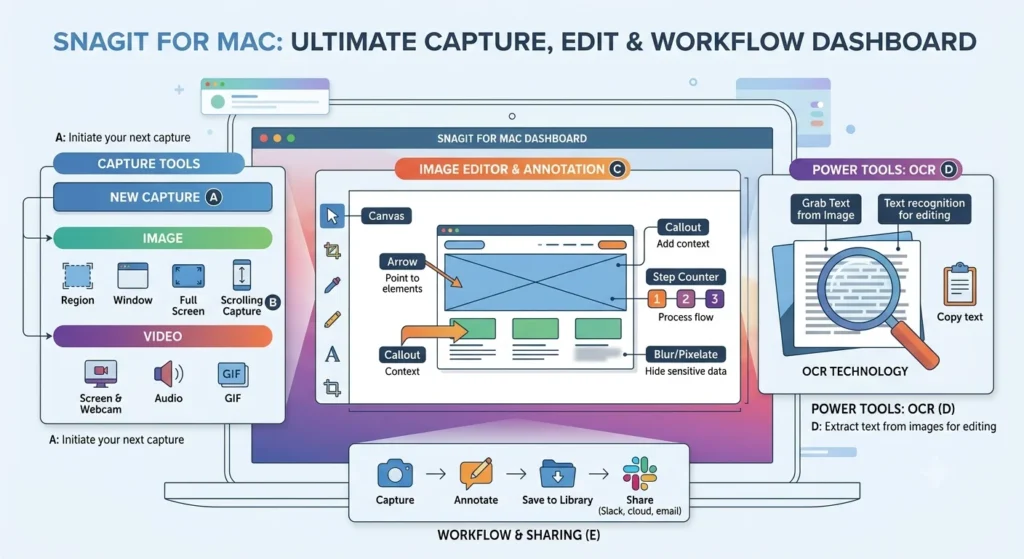
Overview of Snagit
Snagit has been a popular productivity tool for many years. Today, it is commonly used in industries such as education, software development, customer support, marketing, and training.
The software combines multiple functions into a single platform, including:
- Screenshot capture
- Screen recording
- Scrolling capture
- Image editing
- OCR text extraction
- Templates
- Content sharing
Consequently, users can complete entire projects without relying on several separate applications.
Who Should Use Snagit?
Snagit for Mac is particularly useful for:
- Bloggers and content creators
- Technical writers
- Teachers and educators
- Customer support teams
- Product managers
- Online trainers
- Remote workers
On the other hand, users who only take occasional screenshots may find the built-in macOS screenshot tool sufficient.
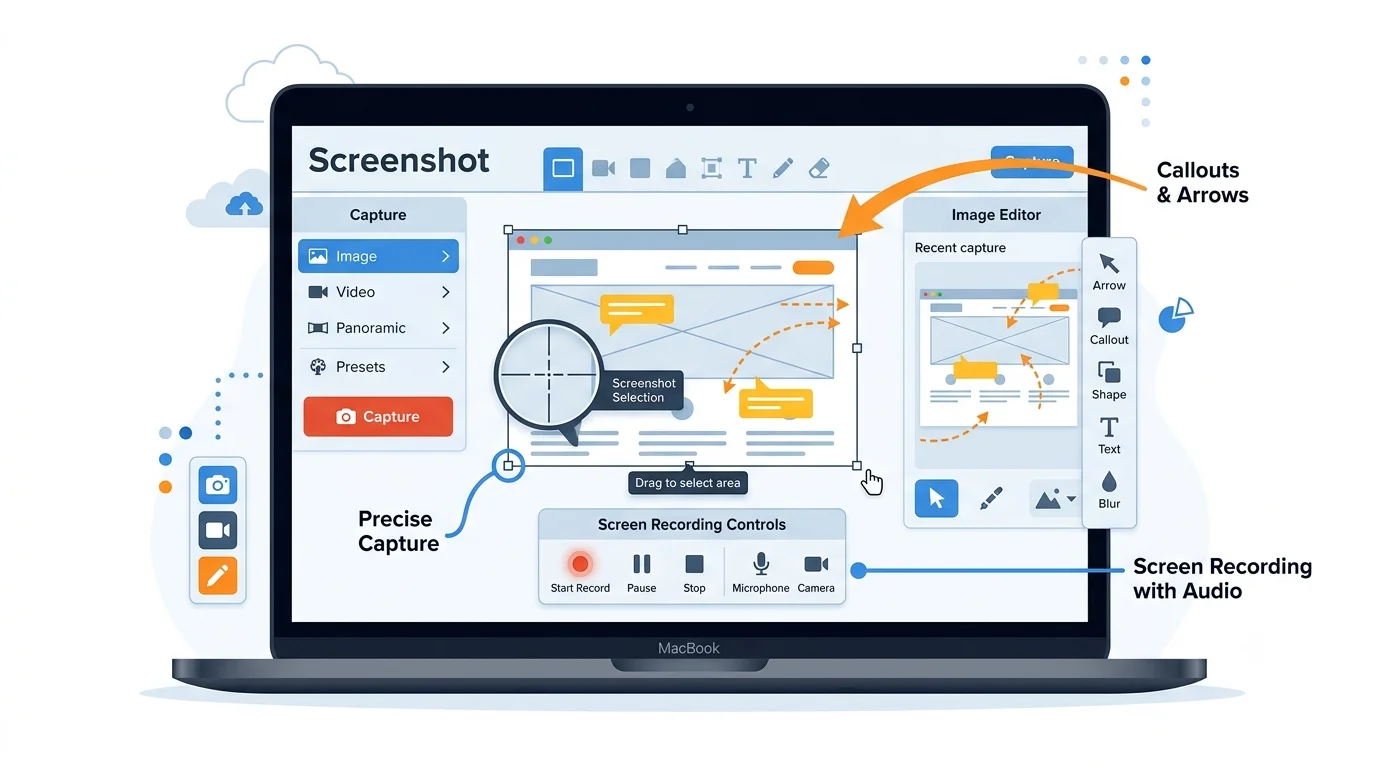
Key Features of Snagit for Mac
The popularity of Snagit for Mac comes largely from its extensive feature set. Furthermore, TechSmith continues to improve the software with productivity-focused updates.
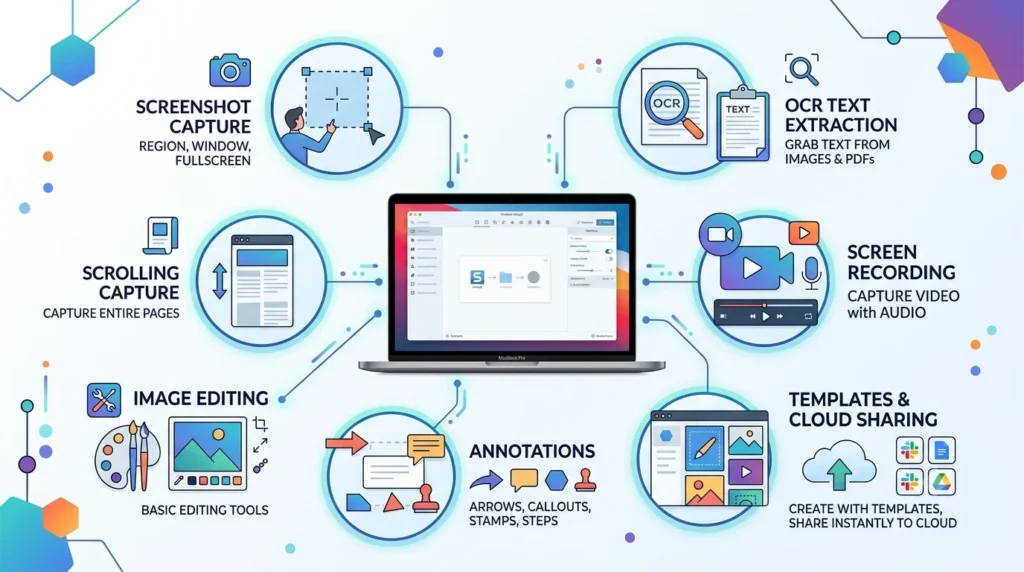
The official Snagit features page highlights tools such as scrolling capture, OCR text extraction, and advanced annotations.
Screenshot Capture
The software allows users to capture:
- Full-screen screenshots
- Selected regions
- Individual windows
- Application interfaces
- Menus and dialogs
As a result, users can capture exactly what they need without unnecessary cropping later.
Scrolling Capture
Scrolling capture is one of the most valuable features available in Snagit.
For example, users can capture:
- Entire web pages
- Long reports
- Chat conversations
- Large spreadsheets
- Documentation pages
Without this feature, creating similar screenshots would require multiple captures and manual stitching.
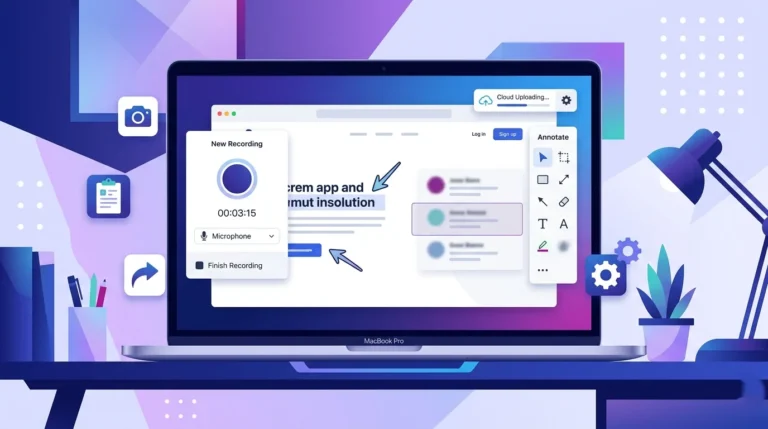
Screen Recording
In addition to screenshots, Snagit provides video recording capabilities.
Users can record:
- Full-screen videos
- Selected screen areas
- Webcam footage
- Microphone audio
- On-screen demonstrations
Therefore, the software works well for tutorials, product walkthroughs, and training sessions.
Annotation Tools
Professional annotations help make screenshots more useful.
Snagit includes:
- Arrows
- Text boxes
- Callouts
- Highlights
- Shapes
- Stamps
- Borders
Because of these tools, viewers can quickly understand important information.
OCR Text Extraction
OCR stands for Optical Character Recognition.
This feature allows users to extract text directly from screenshots and images. Consequently, you can reuse information without manually retyping it.
Templates
Templates simplify the process of creating:
- Training guides
- Tutorials
- Workflow documents
- Step-by-step instructions
Moreover, templates help maintain consistency across multiple projects.
How to Download and Install Snagit on Mac
Installing Snagit for Mac is relatively straightforward.
Step 1: Download Snagit
First, visit the official TechSmith website and download the latest version of Snagit.
Step 2: Verify System Requirements
Before installation, check whether your Mac meets the current system requirements. Additionally, ensure your macOS version is supported.
Step 3: Run the Installer
Next, open the downloaded installation package and follow the on-screen instructions.
Step 4: Complete Setup
After installation, launch Snagit and complete the initial configuration process.
Finally, sign in or activate your license if required.
How to Take Screenshots with Snagit on Mac
One reason many users choose Snagit for Mac is its flexible screenshot capture workflow.
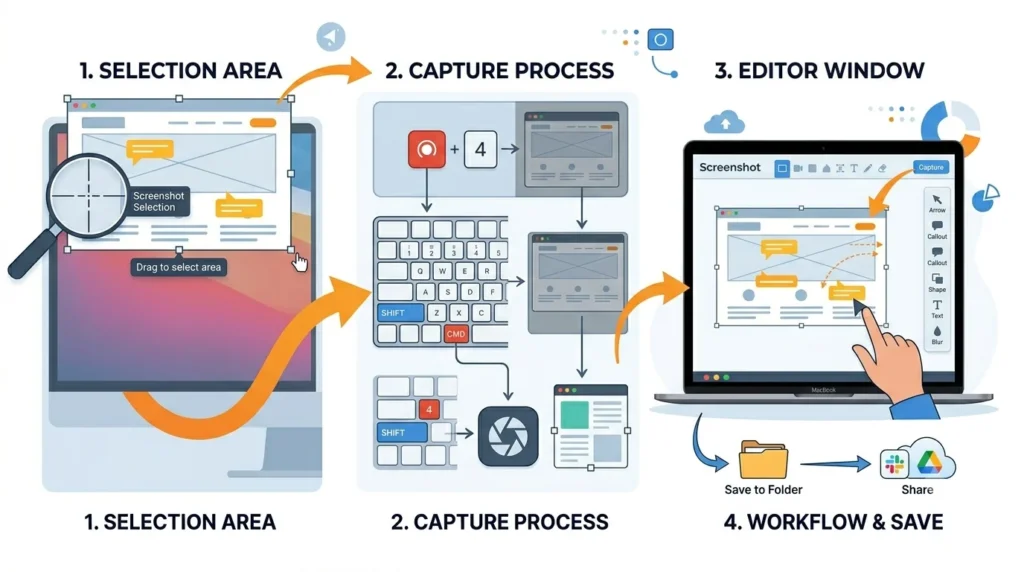
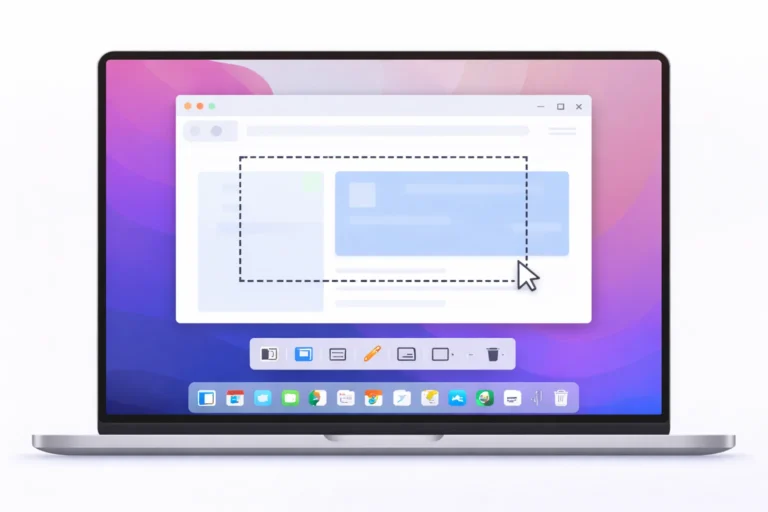
Capture a Selected Area
To capture a specific section of your screen:
- Open Snagit.
- Click Capture.
- Choose Image mode.
- Drag the cursor around the desired area.
- Release to complete the capture.
The screenshot immediately opens in the Snagit Editor.
Capture a Window
If you want to capture a specific application window:
- Start a new capture.
- Hover over the target window.
- Select the highlighted window.
- Complete the capture.
This method saves time because it automatically detects window boundaries.
Capture the Entire Screen
For full-screen screenshots, simply select the full-screen capture option before starting the capture process.
Save and Export Screenshots
After capturing your image, you can save it in formats such as:
- PNG
- JPG
- GIF
Additionally, Snagit supports sharing to various productivity and collaboration platforms.
How to Record Your Screen Using Snagit for Mac
Video recording is another major advantage of Snagit for Mac.
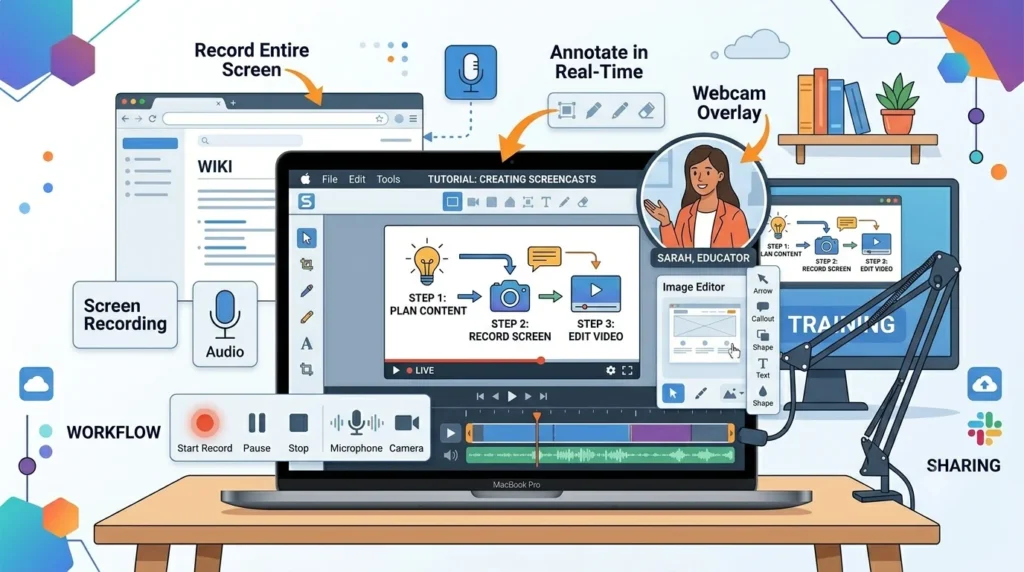
Mac users can also record their screen on Mac using Apple’s native tools, but Snagit provides additional editing options.
Start a Recording
Follow these steps:
- Open Snagit.
- Click Capture.
- Select Video mode.
- Choose the recording area.
- Configure audio settings.
- Click Record.
Once recording begins, Snagit captures everything within the selected area.
Record Audio
Users can record microphone audio during screen recordings.
Furthermore, some setups also support system audio recording depending on macOS permissions and compatibility.
Include Webcam Footage
Many creators prefer adding webcam video to tutorials.
Fortunately, Snagit allows webcam integration, making videos more engaging and personal.
Stop and Save the Recording
When finished, click Stop.
The recording then opens for review, editing, and export.
Editing Screenshots in Snagit
Capturing screenshots is only part of the process. Fortunately, Snagit includes a comprehensive editor that helps transform basic screenshots into professional visuals.
Add Arrows and Callouts
Arrows help direct attention toward important areas.
Similarly, callouts provide additional context for viewers.
Highlight Important Information
Highlights make critical information stand out.
Therefore, readers can quickly focus on key details.
Blur Sensitive Data
Privacy is important when sharing screenshots.
For this reason, Snagit includes tools that can blur:
- Personal information
- Email addresses
- Passwords
- Account details
Create Step-by-Step Guides
Many professionals use Snagit to create tutorials.
By combining screenshots, annotations, and templates, users can produce high-quality instructional content quickly.
Snagit for Mac vs Built-In macOS Screenshot Tool
Although macOS includes a screenshot utility, it lacks many professional features.
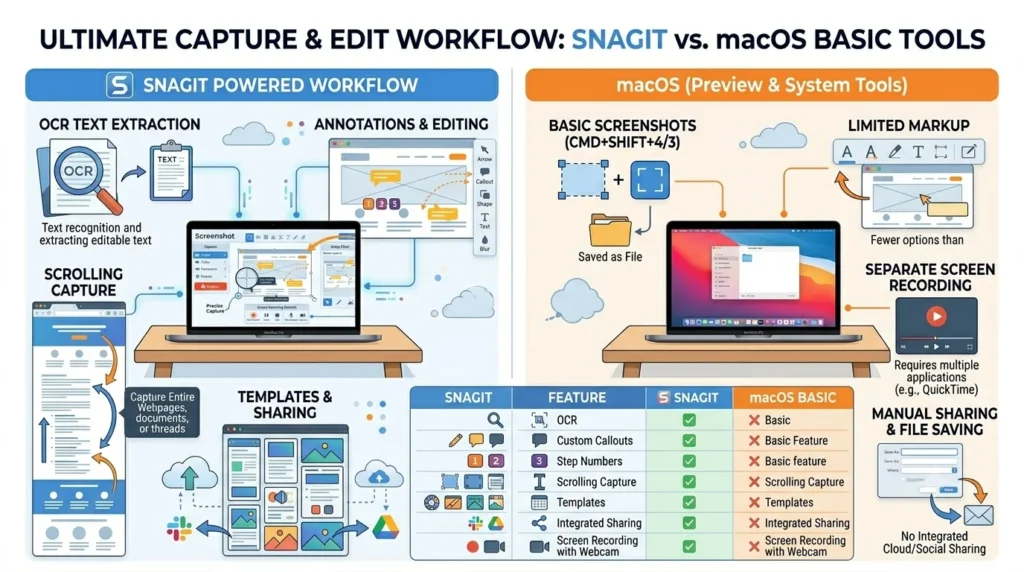
| Feature | Snagit for Mac | macOS Screenshot Tool |
|---|---|---|
| Screenshot Capture | Yes | Yes |
| Screen Recording | Yes | Yes |
| Scrolling Capture | Yes | No |
| OCR Text Extraction | Yes | No |
| Advanced Annotation | Yes | Limited |
| Templates | Yes | No |
| Content Library | Yes | No |
| Workflow Automation | Yes | No |
As the table shows, Snagit provides significantly more functionality for professional users.
Apple also provides built-in methods to take screenshots on Mac, although these tools offer fewer editing capabilities than Snagit
Pros and Cons of Snagit for Mac
Every software solution has strengths and weaknesses.
Pros
- Easy-to-use interface
- Powerful screenshot tools
- Excellent scrolling capture
- Built-in video recording
- OCR text extraction
- Professional annotations
- Time-saving templates
Cons
- Paid software
- More features than casual users need
- Learning curve for advanced functionality
Nevertheless, most professionals find the benefits outweigh the drawbacks.
Best Snagit Alternatives for Mac
Although Snagit is an excellent solution, several alternatives are worth considering.
CleanShot X
CleanShot X is popular among Mac users because it offers:
- Screenshot capture
- Screen recording
- Cloud sharing
- Scrolling screenshots
Monosnap
Monosnap provides both screenshot and recording functionality.
In addition, it offers cloud storage integration.
Shottr
Shottr focuses on speed and simplicity.
Despite its lightweight design, it still includes OCR and scrolling capture features.
Lightshot
Lightshot remains a user-friendly screenshot tool.
However, it does not provide the same level of professional functionality as Snagit.
Is Snagit for Mac Worth It?
The answer depends on your needs.
If you create tutorials, documentation, presentations, or educational content regularly, Snagit for Mac can save significant time. Furthermore, its advanced editing and recording tools eliminate the need for multiple applications.
On the other hand, casual users who only take occasional screenshots may not need all of its features.
Best For
- Bloggers
- Content creators
- Educators
- Trainers
- Technical writers
- Support teams
- Business professionals
Not Ideal For
- Casual screenshot users
- People seeking a free solution
- Users who rarely create visual content
Common Snagit for Mac Problems and Fixes
Even reliable software can occasionally experience issues.
Snagit Not Opening
Try the following solutions:
- Restart your Mac
- Update Snagit
- Reinstall the software
- Verify macOS compatibility
Screen Recording Not Working
If recording fails:
- Check screen recording permissions
- Verify microphone permissions
- Restart the application
- Install updates
Scrolling Capture Issues
Sometimes scrolling capture may not work correctly.
In such cases:
- Update your browser
- Restart Snagit
- Try capturing the page again
Export Errors
If export problems occur:
- Check available storage space
- Verify folder permissions
- Choose a different file format
Tips to Get the Most Out of Snagit for Mac
A few best practices can help maximize productivity.
Use Presets
Presets automate repetitive capture settings.
As a result, users can work more efficiently.
Learn Keyboard Shortcuts
Keyboard shortcuts reduce the number of clicks required.
Consequently, screenshot workflows become faster.
Organize Your Capture Library
Keeping captures organized makes them easier to locate later.
Therefore, use folders and naming conventions whenever possible.
Create Reusable Templates
Templates save time when creating tutorials and documentation.
Moreover, they ensure consistency across projects.
Use OCR Frequently
OCR can dramatically reduce manual typing.
For that reason, many professionals consider it one of Snagit’s most useful features.
Final Thought
Snagit for Mac is one of the most complete screen capture and screen recording solutions available for macOS. It combines screenshot capture, video recording, OCR text extraction, annotation tools, and templates into a single productivity-focused platform.
Moreover, features such as scrolling capture and advanced editing help users create professional content quickly. Whether you are a blogger, educator, technical writer, or business professional, Snagit can improve the way you create and share visual information.
If you need more than basic screenshots, Snagit for Mac remains one of the best tools available in 2026.
Frequently Asked Questions
No. Snagit is a paid application. However, TechSmith usually offers a free trial for new users.
Yes. Snagit supports screen recording and microphone audio recording.
Yes. In fact, scrolling capture is one of its most popular features.
For professional use, yes. Snagit offers advanced editing, OCR, templates, and scrolling capture features that the built-in tool does not provide.
CleanShot X, Monosnap, Shottr, and Lightshot are among the most popular alternatives.
Yes. Snagit includes OCR technology that can extract text from images and screenshots.
Yes. Current versions support Apple Silicon Macs, although users should always verify the latest compatibility information before installation.