Monosnap for Mac: Complete Review, Features, Setup & Best Alternatives
If you regularly take screenshots, create tutorials, record your screen, or share visual feedback, you probably need more than the default macOS screenshot tool. That is where Monosnap for Mac comes in.
Monosnap is a lightweight screenshot and screen recording tool designed for macOS users who want faster capture workflows, built-in annotation tools, cloud sharing, and video recording features in one application.
Unlike Apple’s built-in screenshot utility, Monosnap combines screen capture, GIF recording, annotation, and cloud integrations into a single productivity app. It is especially popular among developers, designers, remote teams, educators, marketers, and customer support professionals.
Download it from the official Monosnap website; Click Here
In this detailed Monosnap for Mac review, we will cover:
- Main features
- Installation steps
- Pros and cons
- Pricing
- macOS compatibility
- Common problems and fixes
- Best alternatives
- Whether Monosnap is worth using in 2026
What Is Monosnap for Mac?
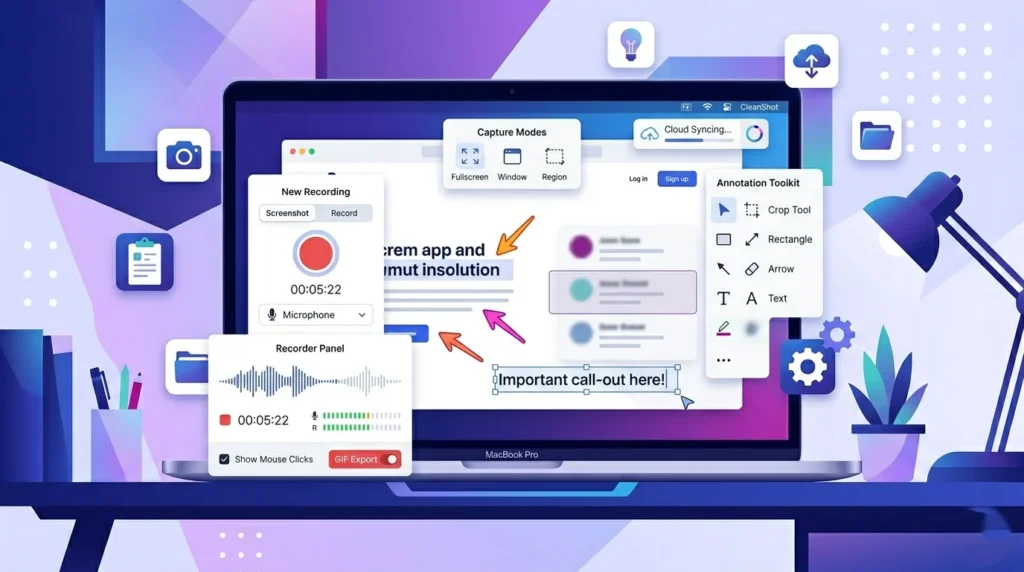
Monosnap for Mac is a screenshot and screen recording application for macOS that allows users to:
- Capture screenshots
- Record videos and GIFs
- Annotate images
- Blur sensitive information
- Upload files to cloud storage
- Share screenshots instantly
The software was originally released in 2012 and has remained popular because of its lightweight design and productivity-focused workflow.
Unlike many traditional screenshot tools, Monosnap combines image editing and cloud sharing inside the same app. This reduces the need for external editors or upload tools.
Who Should Use Monosnap?
Monosnap works well for:
- Developers creating bug reports
- Designers sharing UI feedback
- Customer support teams
- YouTube creators
- Teachers creating tutorials
- Remote teams collaborating visually
- Bloggers documenting workflows
It is especially useful for people who frequently explain things visually.
Main Features of Monosnap for Mac
Monosnap includes several useful screenshot and screen recording features for Mac users.
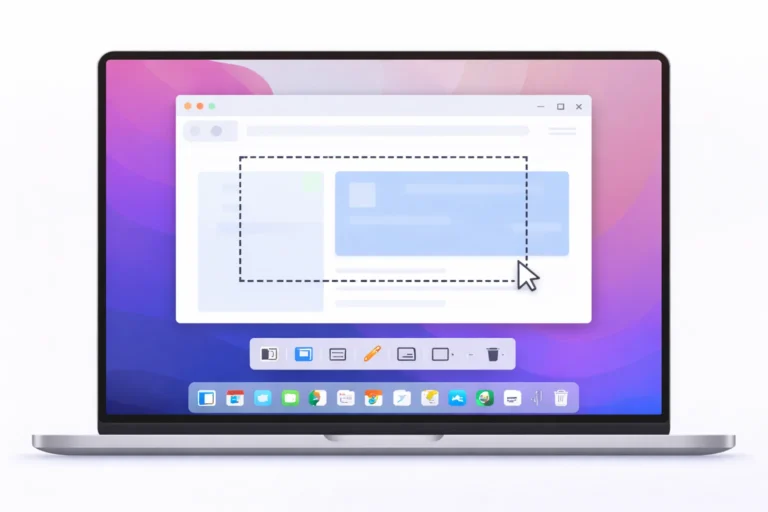
Screenshot Capture
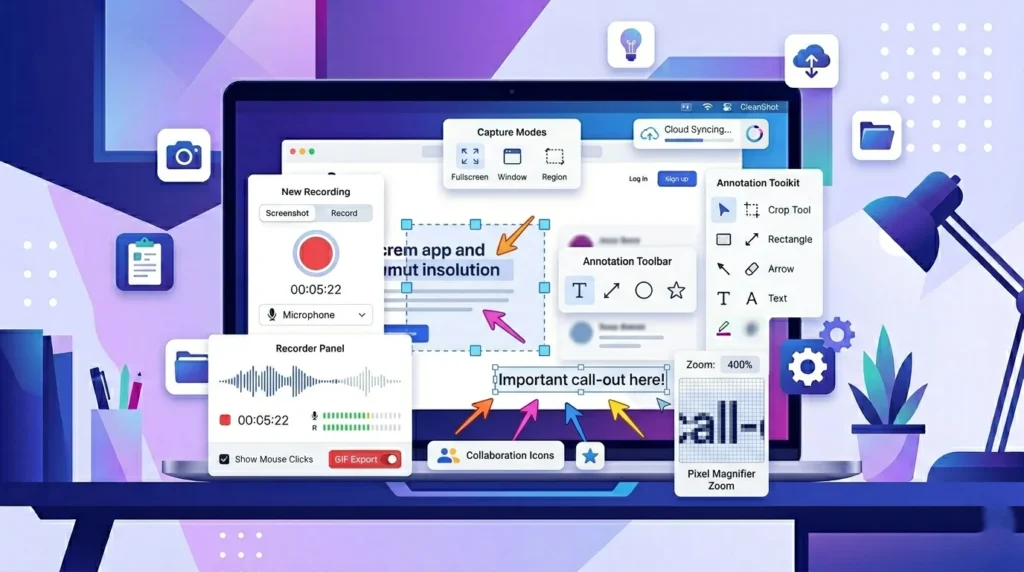
Monosnap allows users to capture:
- Full-screen screenshots
- Selected areas
- Individual application windows
- Timed screenshots
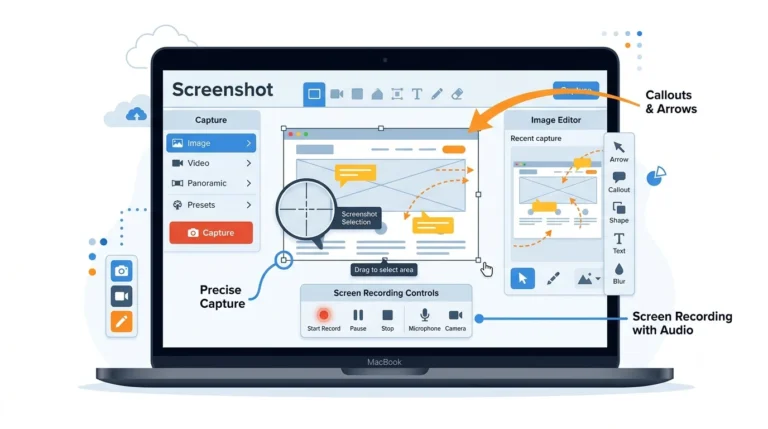
The app also includes an 8x magnifier for pixel-perfect image selection, which is particularly helpful for designers and developers.
Screen Recording
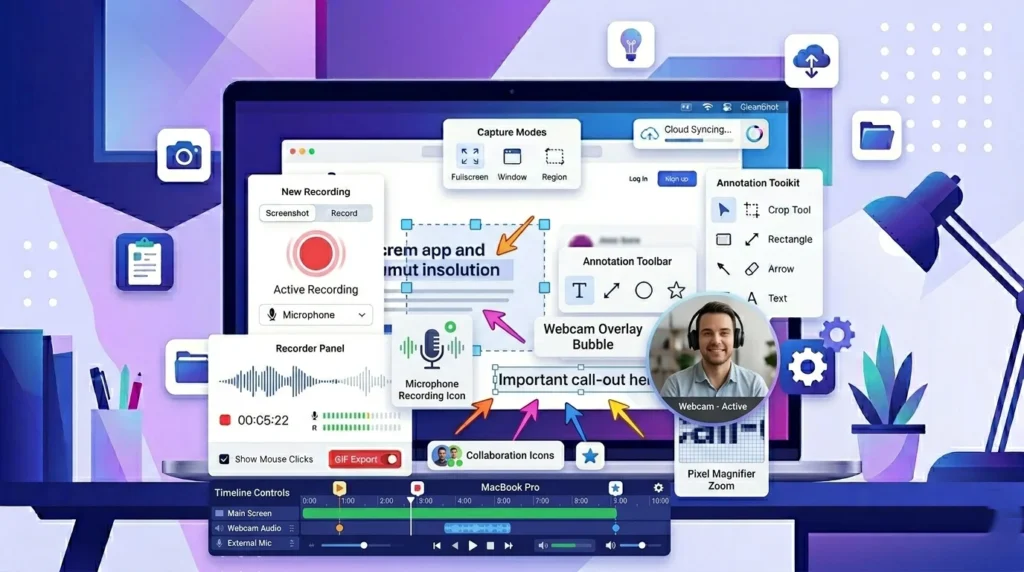
The screen recorder supports:
- Full-screen recording
- Area recording
- Webcam recording
- Microphone audio
- System audio setup
- MP4 export
Users can also highlight areas while recording tutorials or demonstrations.
GIF Recording
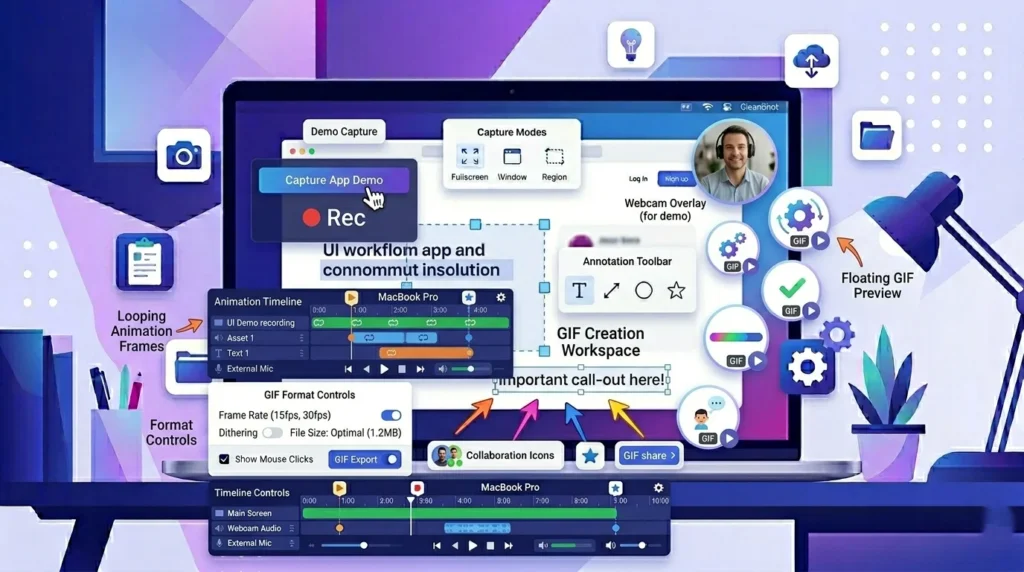
One of Monosnap’s strongest features is GIF recording support.
Instead of recording a large MP4 file, users can quickly create lightweight GIF tutorials for:
- Social media
- Product demos
- Bug reports
- Quick documentation
This makes Monosnap useful for asynchronous communication.
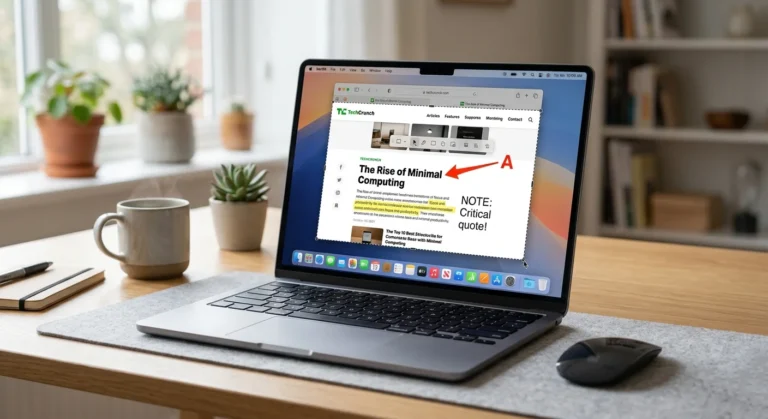
Built-In Annotation Tools
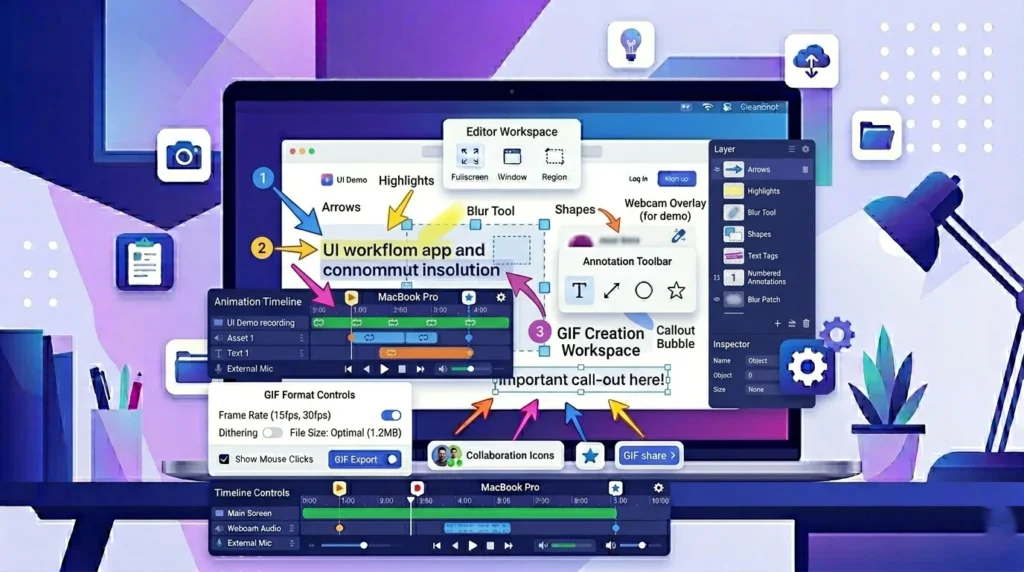
Monosnap includes several image markup tools:
- Arrows
- Shapes
- Text
- Blur tool
- Highlighting
- Pencil drawing
- Cropping
These tools help users create professional screenshots without opening Photoshop or another image editor.
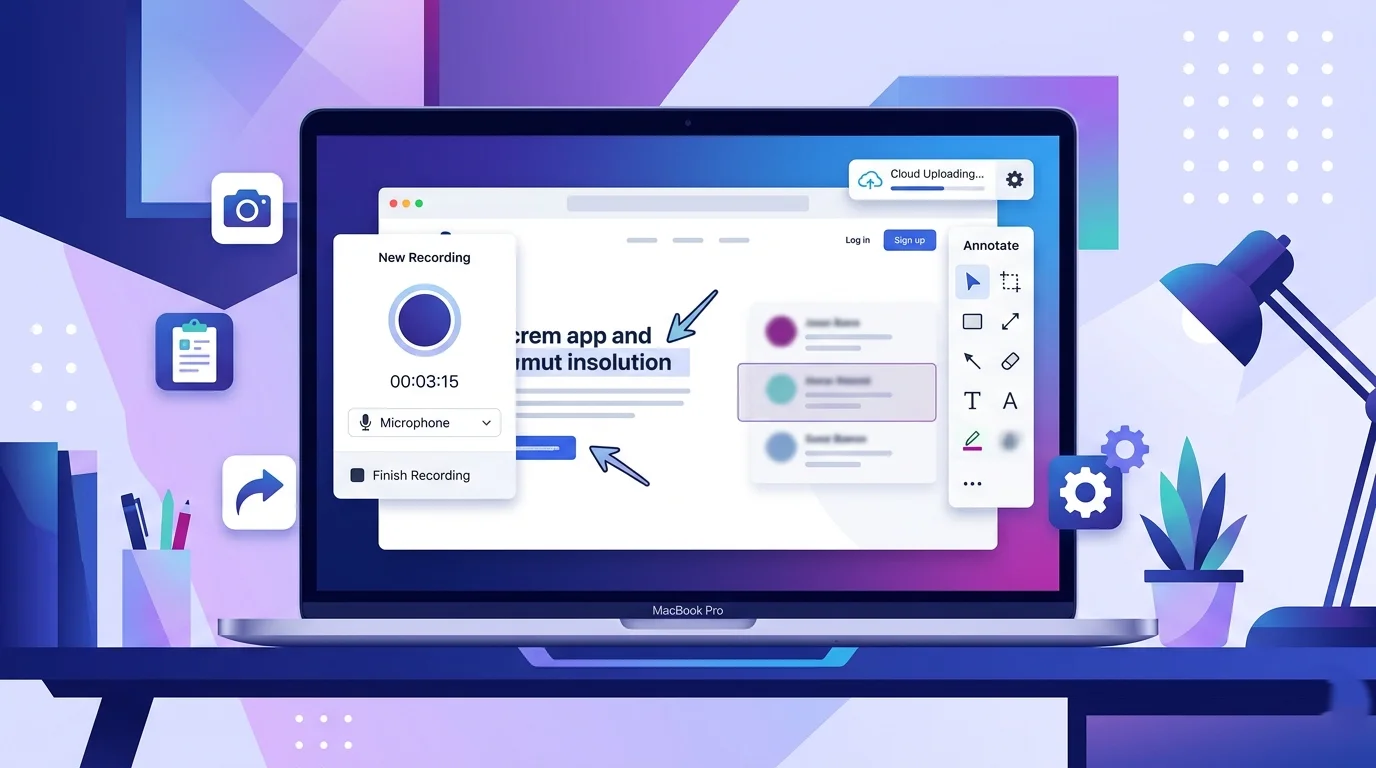
Cloud Upload and Sharing
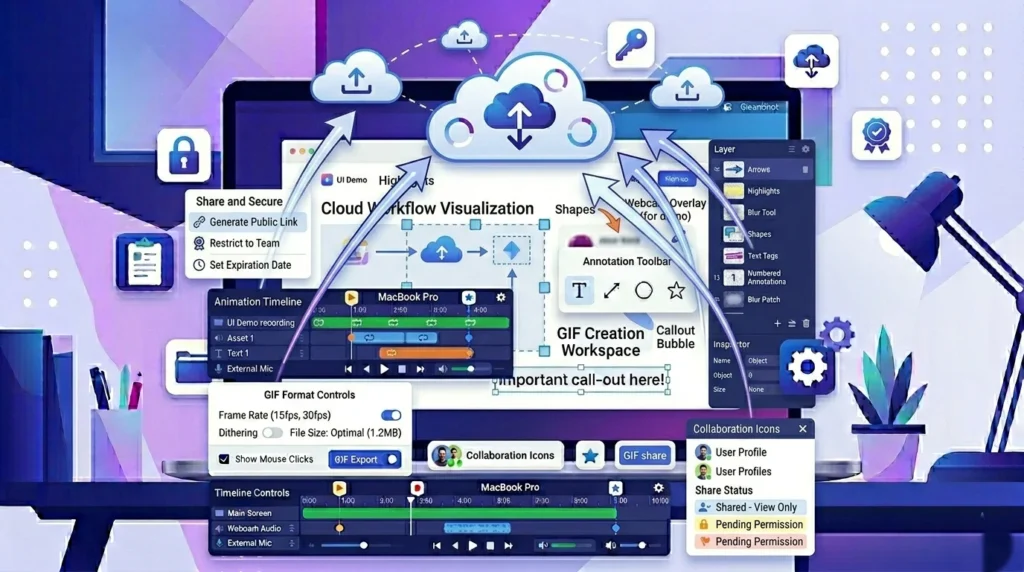
Monosnap supports cloud uploads and integrations with:
- Google Drive
- Dropbox
- Amazon S3
- FTP
- SFTP
- WebDAV
- Box
The app can generate shareable links instantly after capture.
Keyboard Shortcuts
Power users can customize hotkeys for:
- Screen capture
- Window capture
- Recording
- Uploading
This significantly speeds up workflow efficiency on macOS.
How to Install Monosnap on Mac
Installing Monosnap on macOS is simple.
Download Monosnap
You can install Monosnap from:
- The official Monosnap website
- The Apple App Store
After downloading the app, move it into the Applications folder.
Grant macOS Permissions
Like most screen recording tools, Monosnap requires permissions for:
- Screen Recording
- Accessibility
- Microphone access
To enable permissions:
- Open System Settings
- Go to Privacy & Security
- Select Screen Recording
- Enable Monosnap
- Restart the app
Without these permissions, screen recording may not work correctly.
How to Use Monosnap on Mac
The app is designed for quick access through the macOS menu bar.
Taking a Screenshot
To capture a screenshot:
- Open Monosnap
- Choose capture mode
- Select the screen area
- Edit or annotate the image
- Save or upload
Users can also use custom keyboard shortcuts.
Recording Your Screen
To record your screen:
- Open Monosnap
- Select video recording
- Choose full screen or custom area
- Enable audio if needed
- Start recording
The app exports recordings in MP4 format.
Editing Screenshots
After capture, Monosnap opens an editor where users can:
- Add arrows
- Highlight areas
- Blur private information
- Add text labels
- Crop screenshots
This makes documentation faster and easier.
Uploading and Sharing
Users can instantly upload files to:
- Monosnap Cloud
- Google Drive
- Dropbox
- YouTube
- Amazon S3
The app then generates a shareable URL.
Monosnap for Mac Pros and Cons
Like any productivity app, Monosnap has strengths and weaknesses.
Pros
Lightweight and Fast
Monosnap runs efficiently in the background without consuming excessive system resources.
Excellent Annotation Features
The built-in markup tools are useful for tutorials, bug reporting, and client communication.
GIF Recording Support
Many screenshot tools do not offer native GIF recording.
Cloud Integrations
Monosnap supports several cloud storage providers and server integrations.
Easy-to-Use Interface
The user interface is clean and beginner-friendly.
Cons
Limited Free Plan
Some advanced cloud integrations require paid subscriptions.
macOS Permission Issues
Users occasionally report permission-related problems after macOS updates.
Fewer Advanced Editing Tools
Compared to Snagit or CleanShot X, Monosnap offers fewer advanced editing features.
Free Version Restrictions
The free version is intended mainly for non-commercial usage.
Monosnap vs Other Mac Screenshot Tools
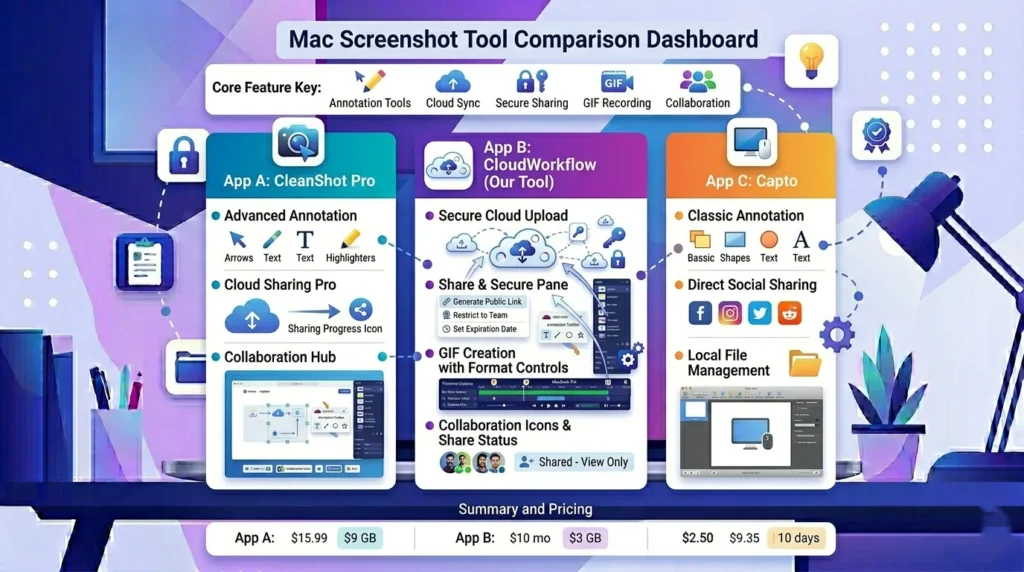
Many Mac users compare Monosnap with other screen capture applications.
Monosnap vs CleanShot X
CleanShot X offers:
- Better scrolling screenshots
- Advanced editing
- Background customization
- Better cloud UI
However, Monosnap remains more affordable for casual users.
Monosnap vs Snagit
Snagit is more powerful for enterprise workflows and documentation.
However:
- Snagit costs significantly more
- Monosnap is lighter and simpler
Monosnap vs Shottr
Shottr is extremely fast and lightweight.
However, Monosnap provides:
- Better cloud sharing
- GIF recording
- Video capture
Monosnap vs Loom
Loom focuses more on video messaging.
Monosnap is better for:
- Screenshots
- Annotations
- Technical documentation
Best Monosnap Alternatives for Mac
If Monosnap does not fit your workflow, several alternatives are worth considering.
CleanShot X
Best for power users who need advanced screenshot workflows.
Best Features
- Scrolling capture
- Background effects
- OCR support
- Advanced annotations
Shottr
Best free lightweight alternative for developers and designers.
Best Features
- Fast performance
- Precision screenshots
- OCR support
Snagit
Best enterprise-level screenshot software.
Best Features
- Professional templates
- Advanced editing
- Team collaboration
Xnapper
Best for beautiful social-media-ready screenshots.
Best Features
- Stylish backgrounds
- Automatic formatting
- Minimal interface
Loom
Best for video communication and async meetings.
Best Features
- Webcam recording
- Team collaboration
- Video comments
Common Monosnap Problems on Mac and Fixes
Some users experience technical issues after installing Monosnap.
Here are the most common problems and solutions.
Monosnap Screen Recording Not Working
Fix
- Enable Screen Recording permission
- Restart the app
- Restart your Mac
macOS security settings often block recording access initially.
Hotkeys Not Working
Fix
- Open Monosnap settings
- Reconfigure keyboard shortcuts
- Avoid conflicts with macOS shortcuts
Upload Failed Error
Fix
- Reconnect cloud integrations
- Check internet connection
- Re-login to your account
App Crashing on macOS
Fix
- Update Monosnap
- Update macOS
- Reinstall the app
Older versions may conflict with newer macOS releases.
Is Monosnap Safe for Mac?
Yes, Monosnap is generally considered safe for Mac users.
The app is available through the Apple App Store and has been used by Mac users for many years.
However, because Monosnap requires:
- Screen recording permissions
- Microphone access
- Accessibility permissions
Users should only download it from official sources.
As with any cloud-based screenshot tool, users should avoid uploading sensitive or confidential information unless they trust the storage provider.
Best Use Cases for Monosnap
Monosnap is useful across many industries.
Bug Reporting
Developers can quickly annotate screenshots and create GIF demonstrations for debugging.
Tutorial Creation
Educators and YouTubers can record tutorials with voice narration and annotations.
Client Feedback
Designers and agencies can visually explain revisions to clients.
Remote Team Communication
Remote teams can reduce meetings by sharing visual explanations asynchronously.
Social Media Content
Creators can make quick GIFs and visual demonstrations for online platforms.
Final Verdict
Monosnap for Mac remains one of the best lightweight screenshot and screen recording tools for macOS users in 2026.
It combines:
- Screenshot capture
- GIF creation
- Screen recording
- Annotation tools
- Cloud sharing
into a single streamlined application.
While advanced users may prefer premium alternatives like CleanShot X or Snagit, Monosnap still offers excellent value for freelancers, developers, educators, support teams, and remote workers.
If you need a lightweight visual communication tool with built-in cloud sharing and annotation features, Monosnap is definitely worth trying.
Frequently Asked Questions
Yes, Monosnap offers a free version with limited features for non-commercial users.
Yes, Monosnap supports microphone audio and can be configured for system audio recording.
Yes, webcam recording is supported.
Yes, Monosnap works on modern Apple Silicon Macs, including M1, M2, and newer chips.
Yes, Google Drive integration is available in supported plans.
That depends on your workflow.
Monosnap is simpler and lighter.
Snagit is more advanced and enterprise-focused.