Lightshot for Mac – Download, Features, Alternatives & Complete Guide (2026)
If you’re searching for a fast and lightweight screenshot tool, Lightshot for Mac is often recommended. But many users struggle to find clear information about whether it works on Mac, how to install it, and whether it’s better than built-in tools.
In this complete guide, you’ll learn everything about Lightshot on Mac, including download steps, features, pros & cons, common issues, and the best alternatives.
If you’re searching for a fast screenshot tool, you can easily download Lightshot for Mac from its official website and start capturing your screen instantly.
What Is Lightshot?
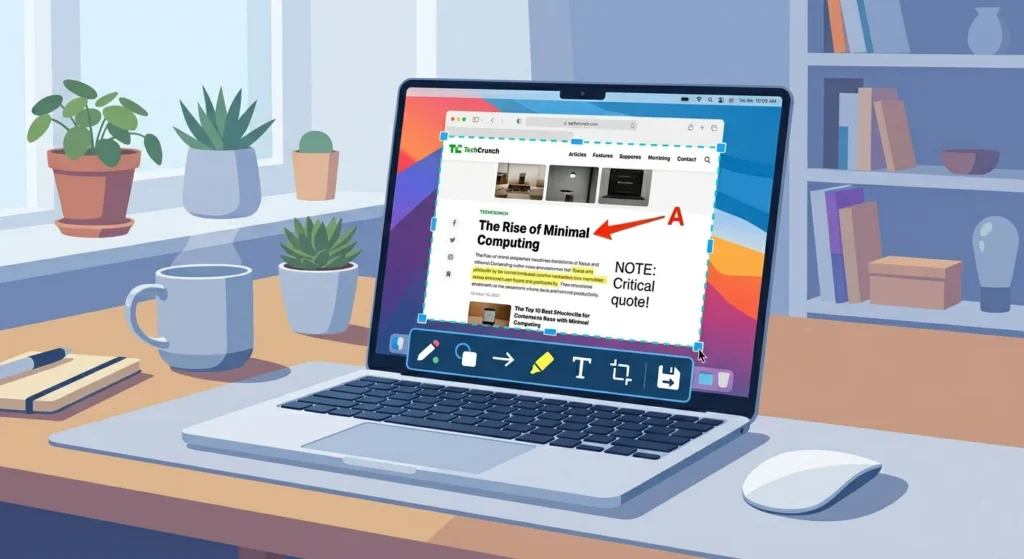
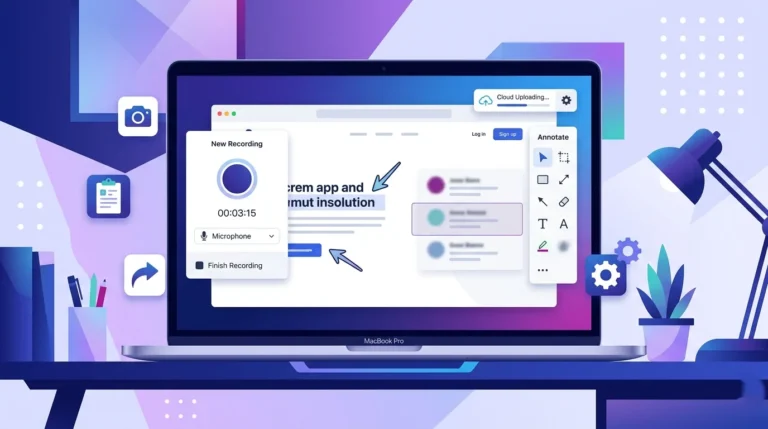
Lightshot is a free screenshot tool developed by Skillbrains. It allows users to quickly capture any part of their screen, edit it instantly, and share it online.
Lightshot is a popular Lightshot screenshot tool that allows users to capture and edit images quickly.
Key Features:
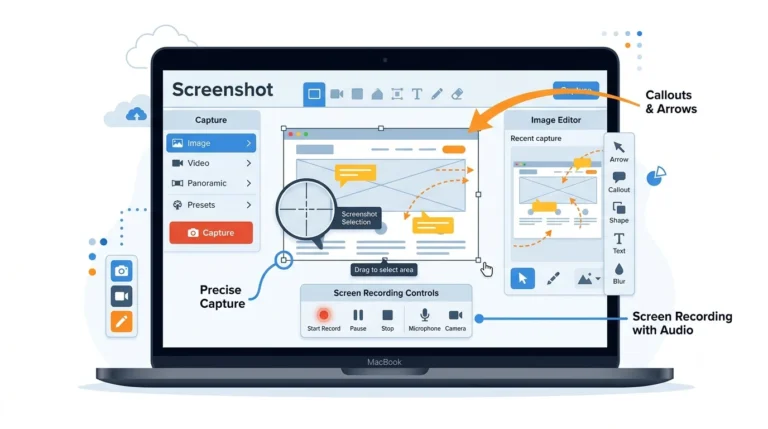
- Select any screen area instantly
- Built-in annotation tools (text, arrows, highlights)
- One-click upload and share
- Search similar images online
Originally popular on Windows, Lightshot has also been made available for Mac users.
Is Lightshot Available for Mac?
Yes, Lightshot is available for Mac, and it works on most versions of macOS.
However, unlike Windows, Lightshot on Mac is:
- Less widely discussed
- Slightly limited in awareness (not features)
- Often confused with Mac’s built-in screenshot tool
Important: Many users assume it doesn’t exist because Apple already provides strong native screenshot tools.
How to Download and Install Lightshot on Mac
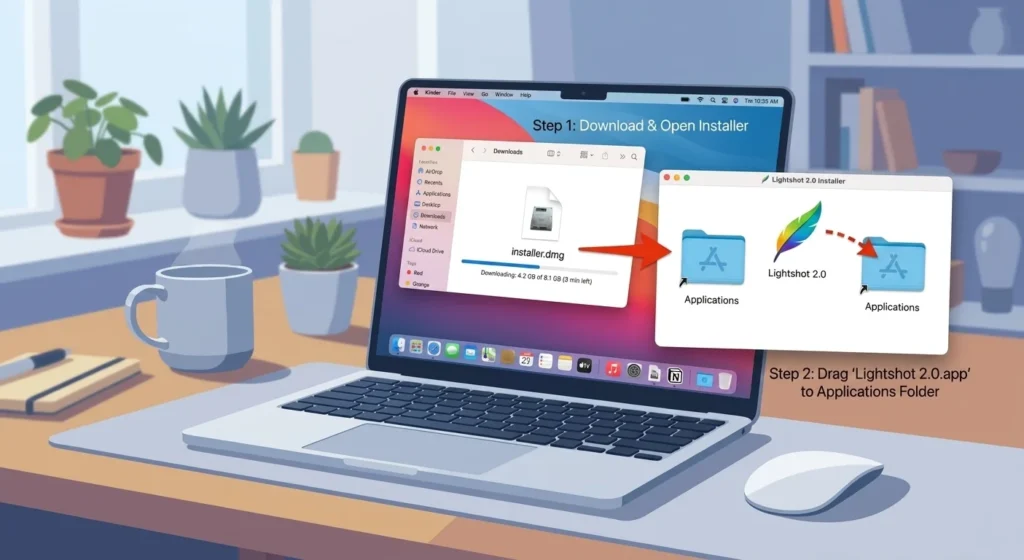
Installing Lightshot on Mac is straightforward.
To begin, visit the official Lightshot website and download the Mac version.
Step-by-Step Guide:
- Visit the official Lightshot website
- Download the Mac version (.dmg file)
- Open the file and drag Lightshot into Applications
- Launch the app
- Grant screen recording permissions (required on macOS)
System Requirements:
- macOS 10.10 or later
- Basic screen recording permissions enabled
Setup Tip:
After installation, Lightshot runs in the background and replaces the default screenshot shortcut (or works alongside it).
How to Use Lightshot on Mac
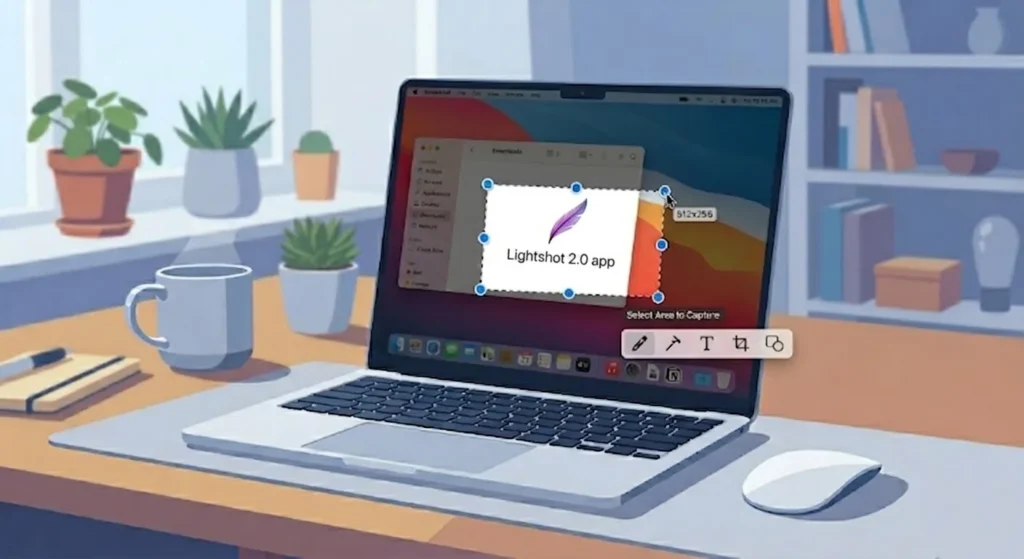
Using Lightshot is simple and intuitive.
Take a Screenshot:
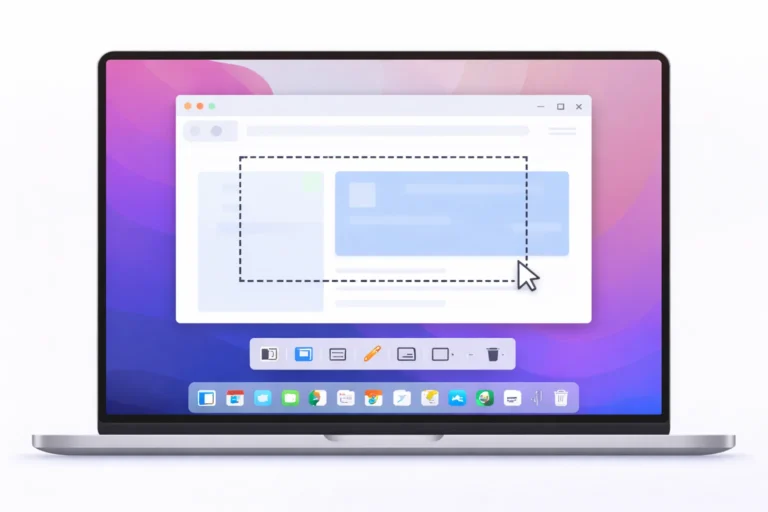
- Press the shortcut key (usually customizable)
- Select the area you want to capture
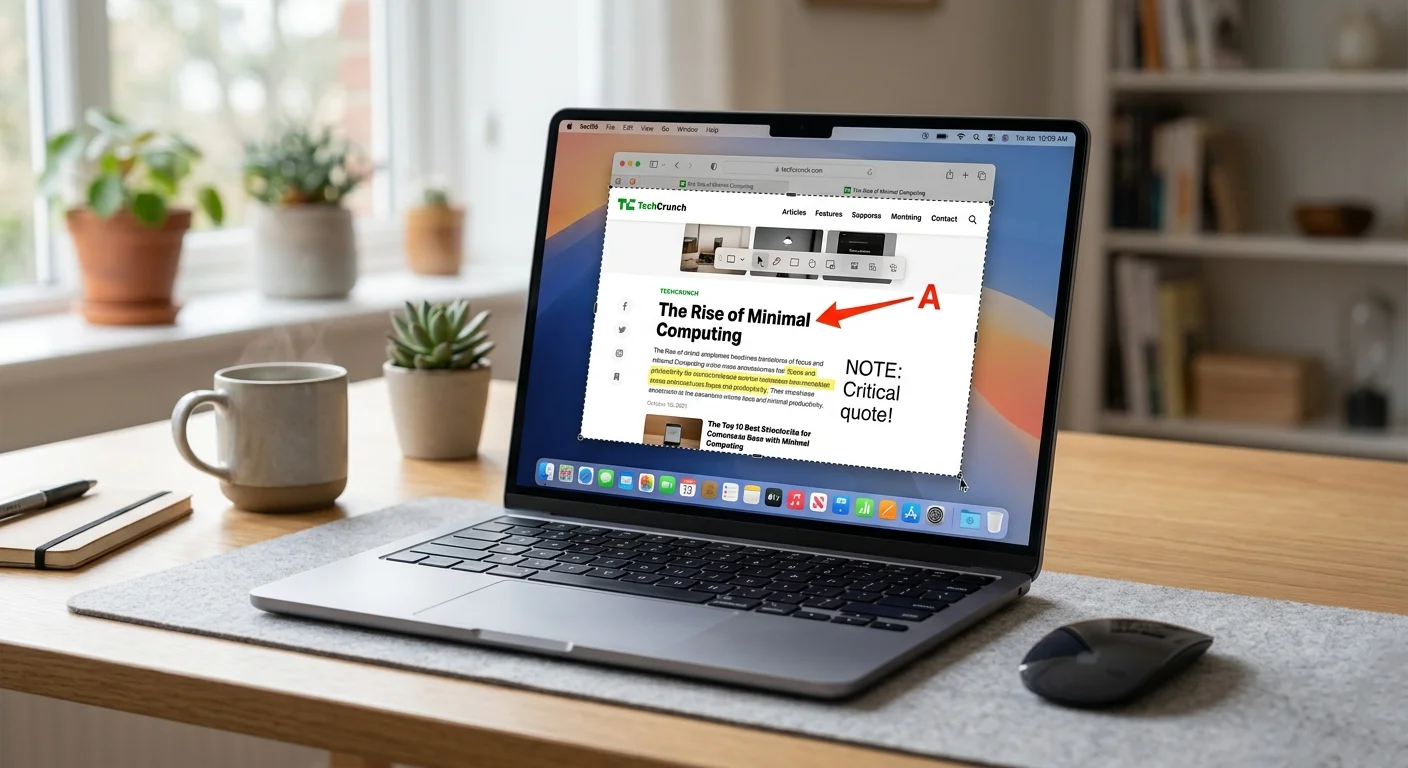
Edit the Screenshot:
- Add text, arrows, or highlights
- Draw directly on the image
Share or Save:
- Upload instantly and get a shareable link
- Save locally to your Mac
This makes it faster than traditional screenshot workflows.
Lightshot Mac Shortcuts & Controls
Lightshot allows customizable shortcuts, but common usage includes:
- Capture area → via keyboard shortcut
- Copy screenshot → Ctrl/Cmd + C
- Save image → Ctrl/Cmd + S
Tip: Customize shortcuts in settings to avoid conflict with macOS defaults.
Key Features of Lightshot for Mac
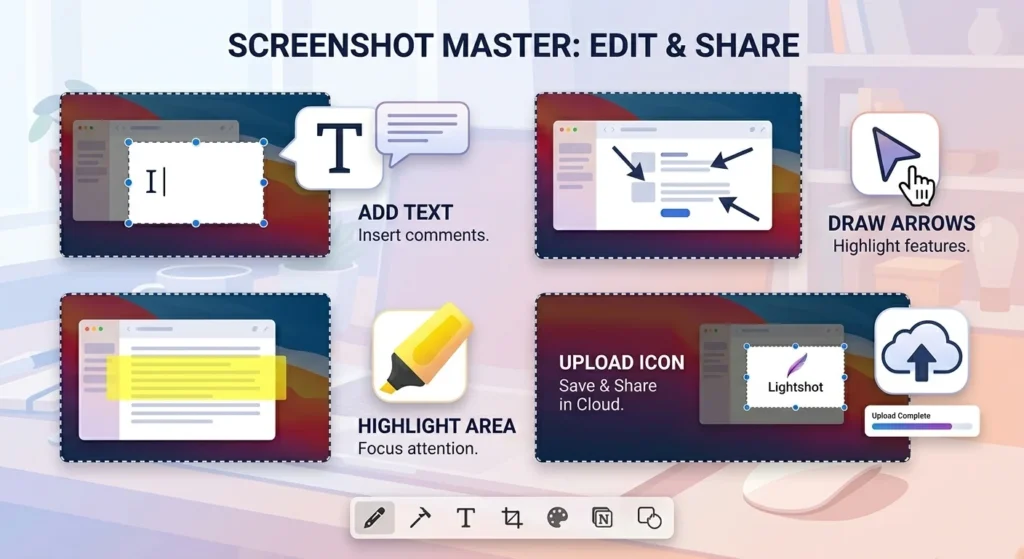
1. Fast Screen Capture
Capture any part of your screen instantly without opening heavy software.
2. Built-in Editor
Edit screenshots immediately after capturing, no extra tools needed.
3. Cloud Sharing
Upload screenshots and generate a link in seconds.
4. Reverse Image Search
Search similar images directly from your screenshot.
Pros and Cons of Lightshot on Mac
Pros:
- Free and lightweight
- Extremely fast workflow
- Easy sharing via links
- Simple UI (beginner-friendly)
Cons:
- Requires the internet for the sharing feature
- Limited advanced editing compared to premium tools
- Privacy concerns when uploading images publicly
Common Issues with Lightshot on Mac (Fixes Included)
1. Lightshot Not Working
Fix: Check screen recording permissions in System Settings.
2. Screenshot Shortcut Conflict
Fix: Change the shortcut in Lightshot settings or disable the macOS default shortcut.
3. Screenshots Not Saving
Fix: Ensure the correct save directory is selected.
4. Permission Errors
Fix:
- Go to System Settings → Privacy & Security
- Enable Lightshot under Screen Recording
Lightshot vs Mac Built-in Screenshot Tool
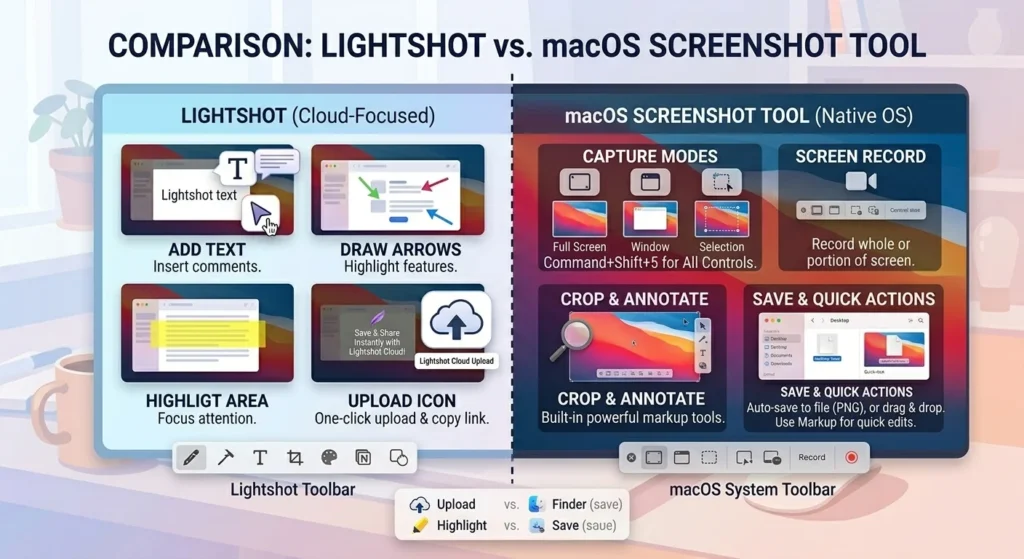
Mac already includes a powerful screenshot tool in macOS.
macOS already includes built-in screenshot features, and you can use Mac screenshot shortcuts for quick screen capture.
Comparison:
| Feature | Lightshot | Mac Built-in Tool |
|---|---|---|
| Ease of Use | Very simple | Simple |
| Editing | Built-in quick tools | Basic |
| Sharing | Instant link sharing | Manual |
| Customization | Moderate | Limited |
Verdict:
- Use Lightshot for quick sharing and annotations
- Use the Mac tool for basic screenshots
Best Alternatives to Lightshot for Mac
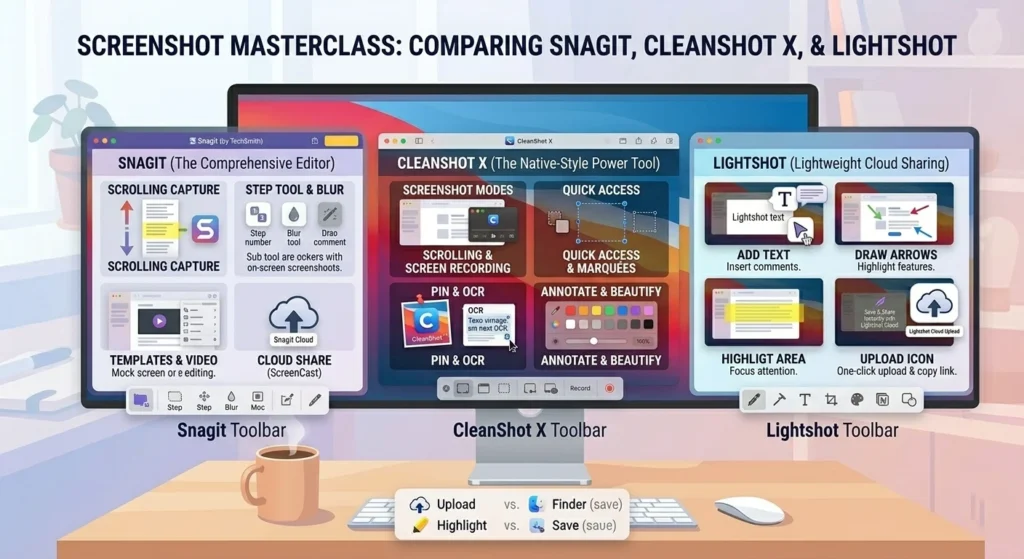
If Lightshot doesn’t meet your needs, consider these tools:
1. Snagit
The Snagit screenshot tool is a powerful alternative with advanced editing features.
Premium tool with advanced editing and screen recording.
2. CleanShot X
Popular among professionals with powerful features.
3. Greenshot
Lightweight alternative (more common on Windows, limited Mac use).
Also note:
Mac users often compare Lightshot with Snipping Tool, but that tool is not available on Mac.
Is Lightshot Safe to Use on Mac?
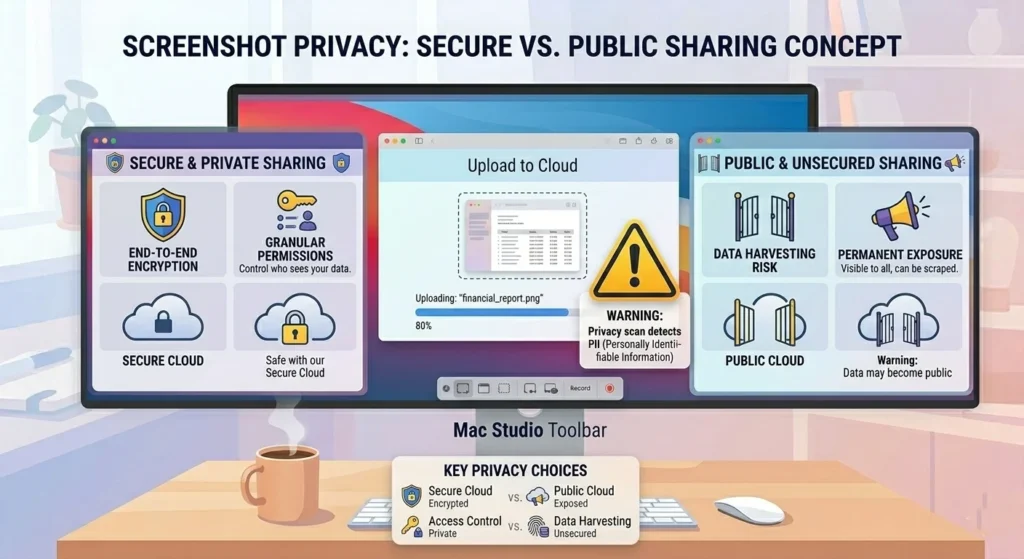
Lightshot is generally safe, but there’s one important concern:
Before uploading screenshots online, always follow online privacy best practices to protect sensitive data.
Privacy Warning:
- Uploaded screenshots are publicly accessible via links
- Avoid sharing sensitive or personal information
Best Practice:
- Use the local save option for private screenshots
- Only upload non-sensitive content
Final Verdict – Should You Use Lightshot on Mac?
Lightshot for Mac is an excellent choice if you want:
- Fast screenshot capture
- Quick annotations
- Easy sharing via links
However, if you need advanced editing or privacy-focused workflows, you may prefer alternatives.
Best for: Bloggers, marketers, and everyday users
Not ideal for: Advanced designers or privacy-sensitive tasks
Frequently Asked Questions
Yes, Lightshot is completely free to use.
Yes, it works on all Mac devices running supported macOS versions.
Because macOS already includes a built-in screenshot tool, reducing demand.
No, Snipping Tool is only available on Windows. Mac users need alternatives.