Snipping Tool Black Screen Problem Fix (Complete 2026 Guide)
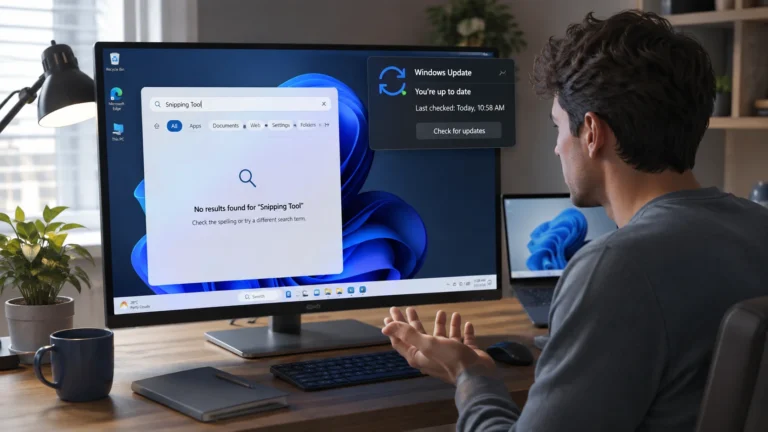
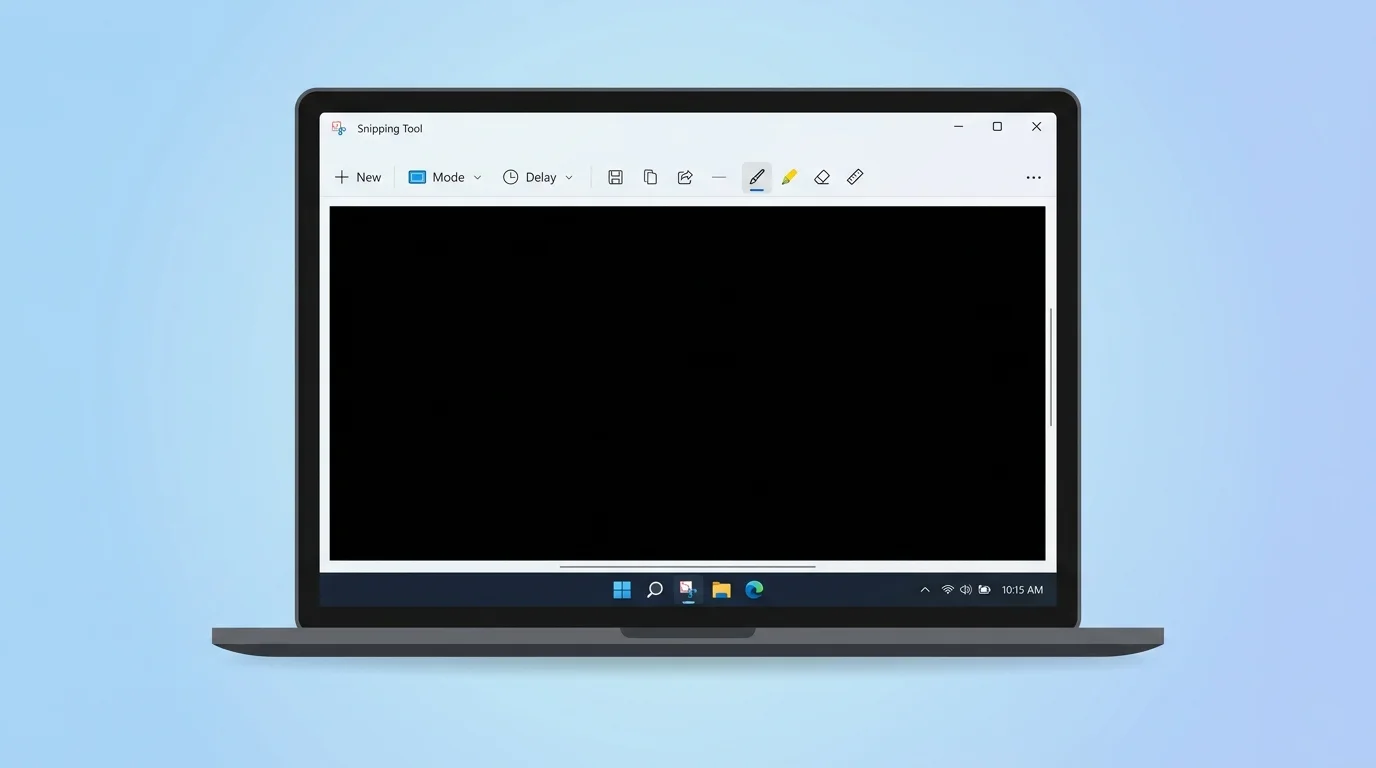
If your screenshot appears completely black when using the Snipping Tool, you’re not alone. The Snipping Tool black screen problem is a common issue in both Windows 10 and Windows 11, especially when capturing videos, browsing, or protected content.
In this complete guide, you’ll learn why the Snipping Tool shows a black screen and how to fix it step-by-step using proven solutions.
What Is the Snipping Tool Black Screen Problem?
The black screen issue occurs when:
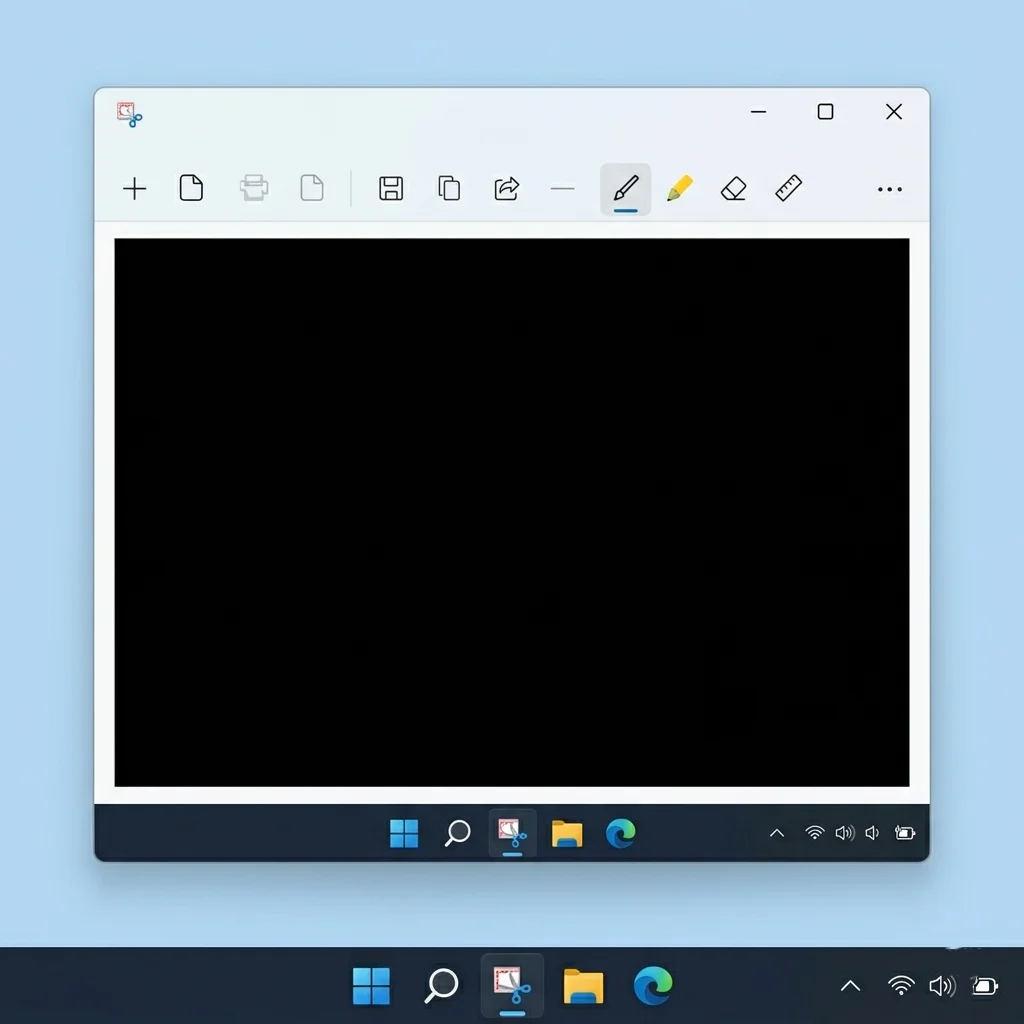
- Your screenshot turns completely black
- The captured image shows only a blank or dark screen
- Video or streaming content is not visible in screenshots
This problem usually appears when capturing:
- Browsers like Chrome or Edge
- Streaming platforms (Netflix, Prime Video)
- Video calls (Zoom, Teams)
- GPU-accelerated apps
Why Snipping Tool Shows a Black Screen
Understanding the cause is key to fixing the issue permanently.
1. Graphics Driver Issues
Outdated or corrupted graphics drivers can prevent proper screen capture, resulting in black screenshots.
2. Hardware Acceleration in Browsers
Modern browsers use GPU acceleration. This often blocks screenshot tools from capturing content correctly.
3. DRM-Protected Content
Streaming platforms use Digital Rights Management (DRM) to prevent screen recording or screenshots.
4. Antivirus or Security Restrictions
Some antivirus programs block screen capture to protect sensitive data.
5. Corrupted Snipping Tool or Windows Bug
Temporary glitches or outdated system files can cause the tool to malfunction.
6. Remote Desktop or Virtual Machine Limitations
Screenshots may fail in remote sessions or virtual environments.
Quick Fixes (Try These First)
Before diving into advanced solutions, try these quick fixes:
- Restart your computer
- Press Win + Shift + S instead of opening the app manually
- Try capturing a different screen or app
- Run Snipping Tool as administrator
Method 1 – Update or Reinstall Graphics Drivers
Outdated drivers are one of the most common causes.
Steps:
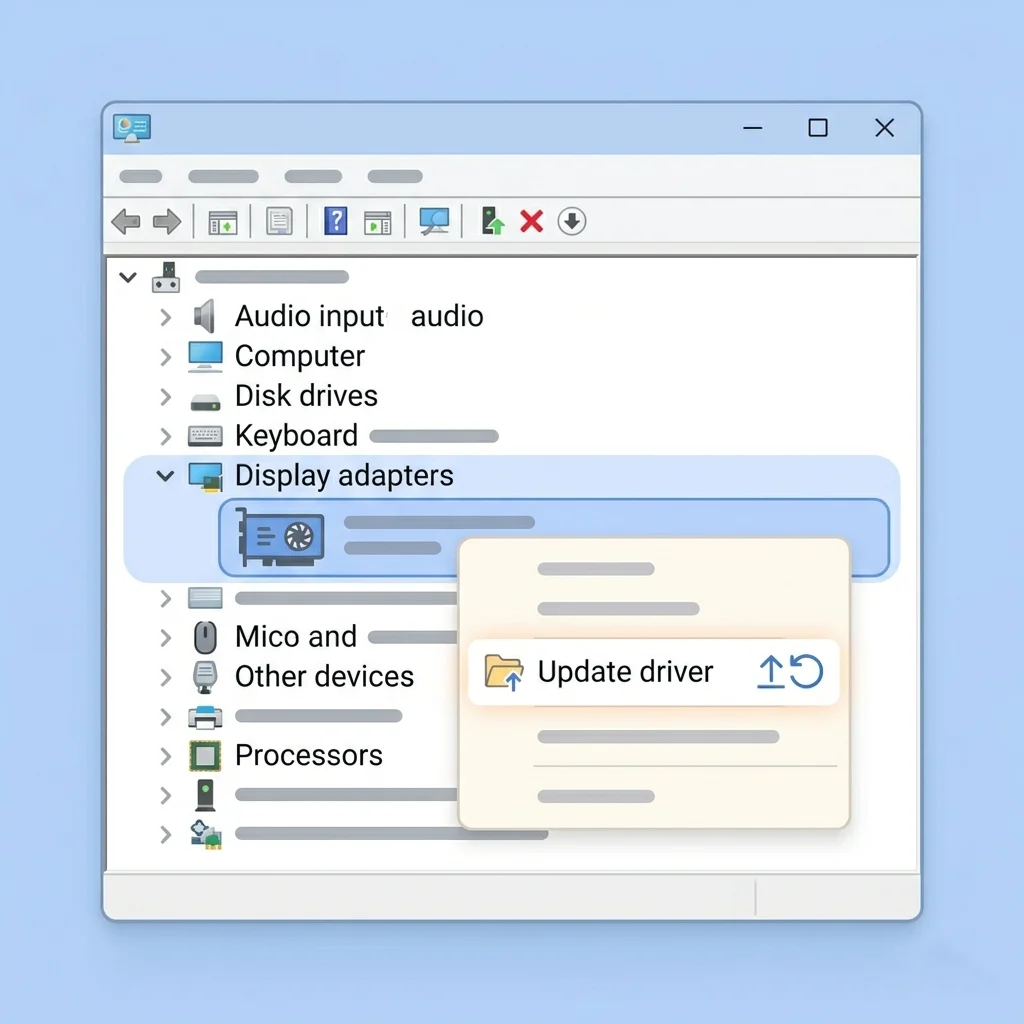
- Press Windows + X → Device Manager
- Expand Display adapters
- Right-click your GPU → Click Update driver
- Restart your system
If the issue persists, uninstall and reinstall the driver.
Method 2 – Disable Hardware Acceleration (Chrome / Edge)
This fix works for most users.
For Chrome:
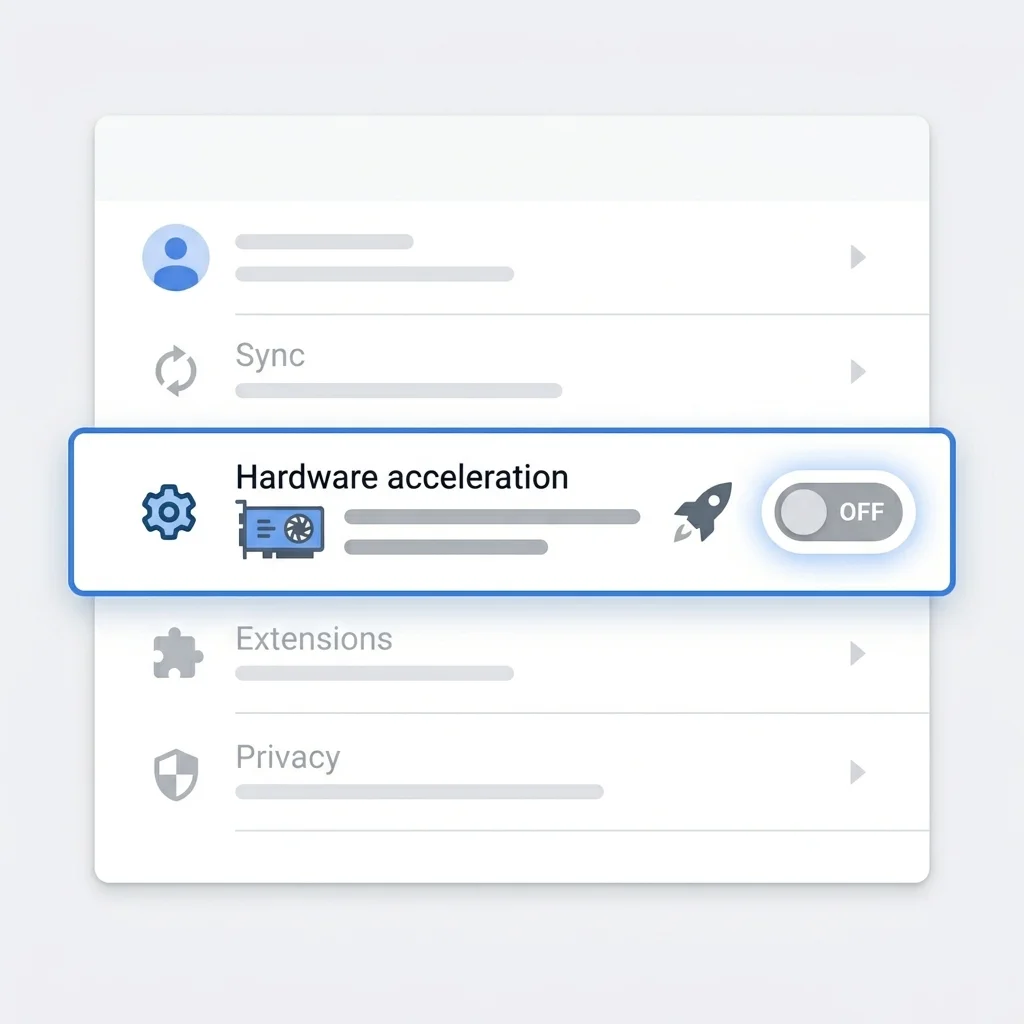
- Open Chrome Settings
- Go to System
- Turn OFF Use hardware acceleration when available
- Restart the browser
For Edge:
- Open Edge Settings
- Navigate to System and Performance
- Disable hardware acceleration
- Restart Edge
Method 3 – Fix Black Screen While Capturing Videos
If you’re trying to capture Netflix or similar platforms:
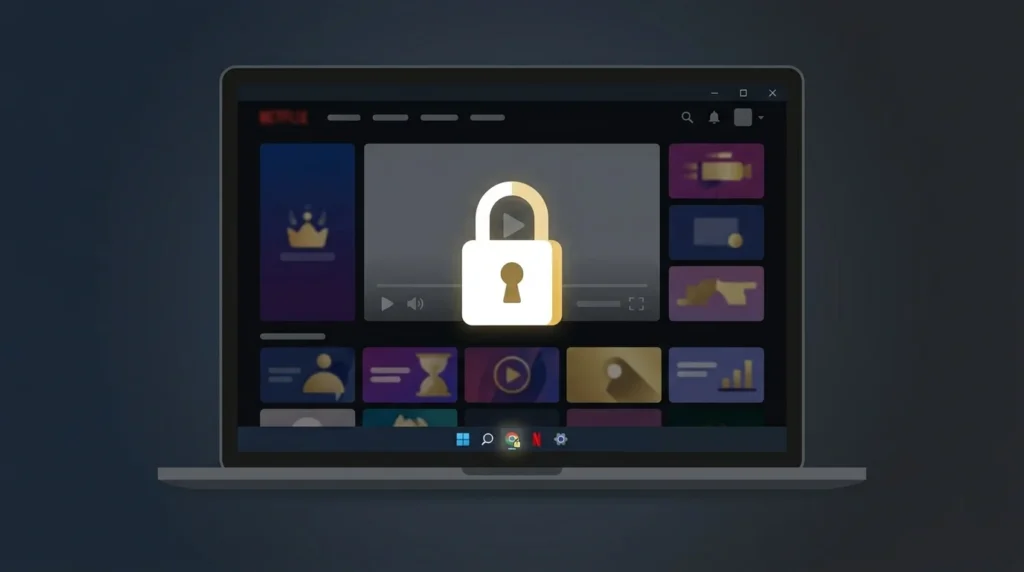
This is intentional behavior, not a bug.
Streaming services block screenshots using DRM protection.
Solution:
- Disable hardware acceleration (browser fix above)
- Or use a different device/browser (not always guaranteed)
Method 4 – Disable Antivirus Screenshot Blocking
Some antivirus tools block screen capture.
Fix:
- Open your antivirus settings
- Look for screen protection or privacy protection
- Disable it temporarily
- Add Snipping Tool as an exception
Method 5 – Reset or Reinstall Snipping Tool
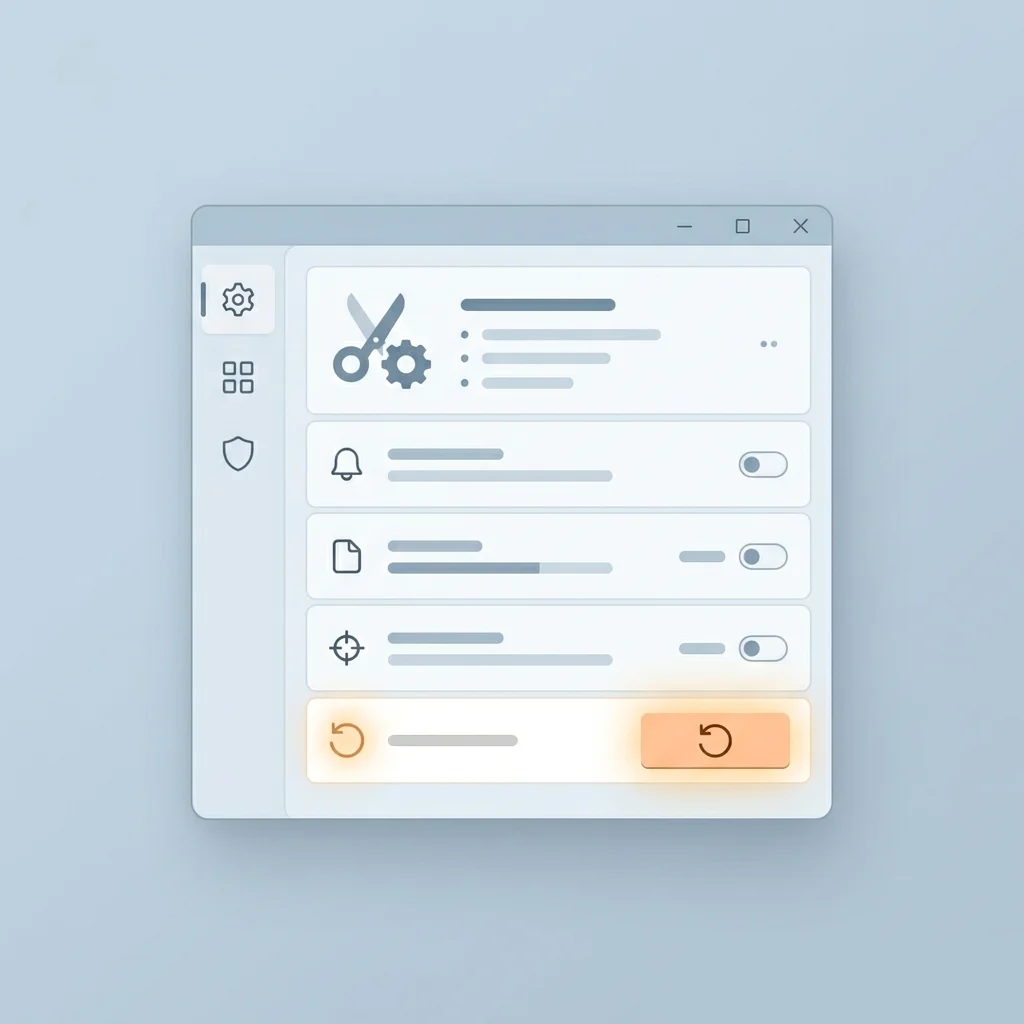
Corrupted app files can cause the issue.
Steps:
- Go to Settings → Apps → Installed Apps
- Find Snipping Tool
- Click Advanced options
- Select Reset
If needed, uninstall and reinstall it from the Microsoft Store.
Method 6 – Run System File Checker (SFC Scan)
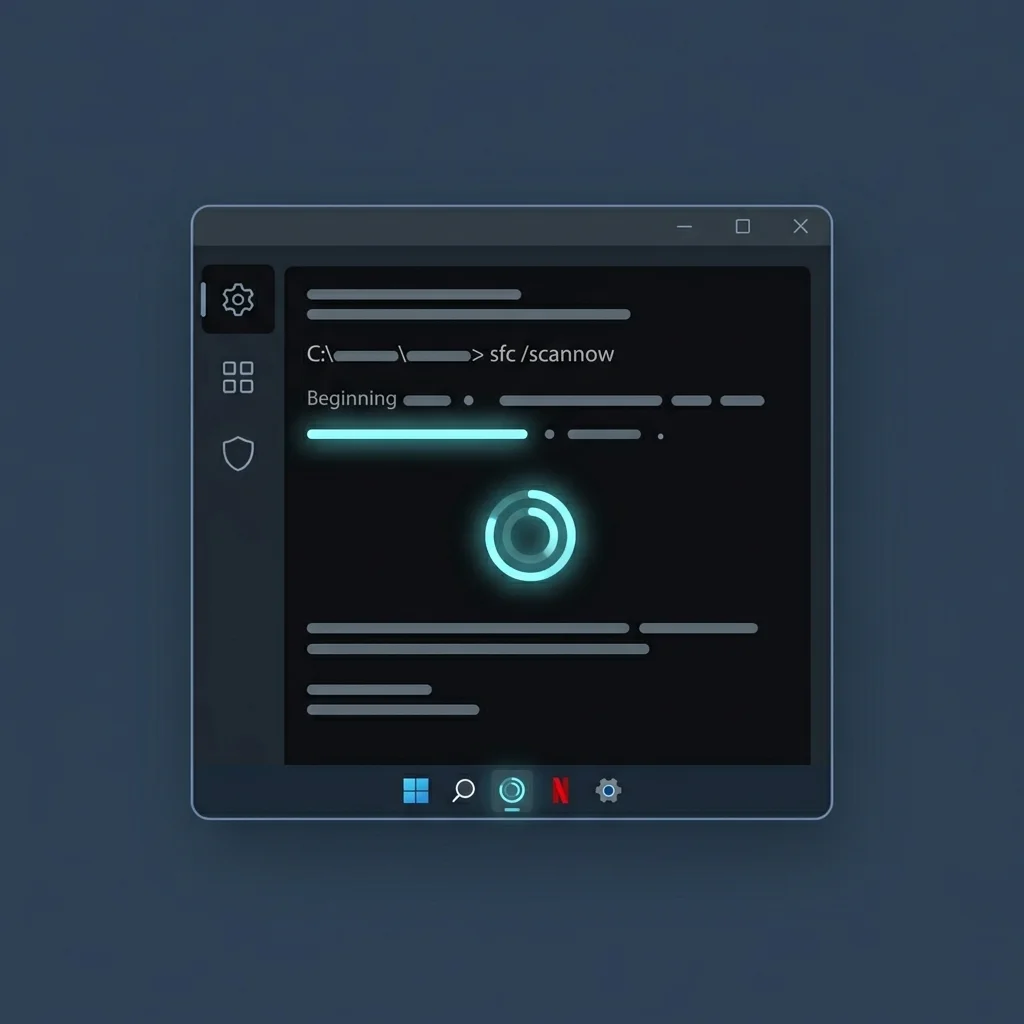
Fix corrupted Windows files:
sfc /scannow
Steps:
- Open Command Prompt as administrator
- Run the command above
- Wait for the process to complete
- Restart your PC
Method 7 – Disable Background Apps (Clean Boot)
Conflicting apps can interfere with screenshots.
Steps:
- Press Windows + R → msconfig
- Go to Services
- Check Hide all Microsoft services
- Click Disable all
- Restart your PC
Method 8 – Fix Black Screen in Remote Desktop or VM
If you’re using Remote Desktop:
- Enable Use hardware graphics adapter in settings
- Avoid capturing protected apps
- Try taking screenshots locally instead
Snipping Tool Black Screen on Windows 11
For Windows 11 users:
- Update Windows to the latest version
- Reset Snipping Tool
- Check optional updates (especially drivers)
Snipping Tool Black Screen on Windows 10
For Windows 10:
- Install the latest updates
- Update GPU drivers
- Use legacy Snipping Tool if needed
Best Alternative Screenshot Tools
If the issue still isn’t fixed, try these tools:
- ShareX (advanced features)
- Greenshot (lightweight)
- Lightshot (simple UI)
Final Thoughts
The Snipping Tool black screen problem can be frustrating, but in most cases, it’s easy to fix.
Start with:
- Disabling hardware acceleration
- Updating graphics drivers
- Resetting Snipping Tool
If the issue occurs on streaming platforms, remember, it’s not a bug but a built-in restriction.
By following this guide, you should be able to fix the issue and take screenshots without any problems.
Frequently Asked Questions
This usually happens due to GPU acceleration, DRM protection, or outdated drivers.
No, it cannot capture DRM-protected screens.
Streaming platforms block screenshots intentionally using DRM technology.
Disabling hardware acceleration in your browser works in most cases.