Mac Snipping Tool Not Working Fix (9 Easy Solutions That Actually Work)
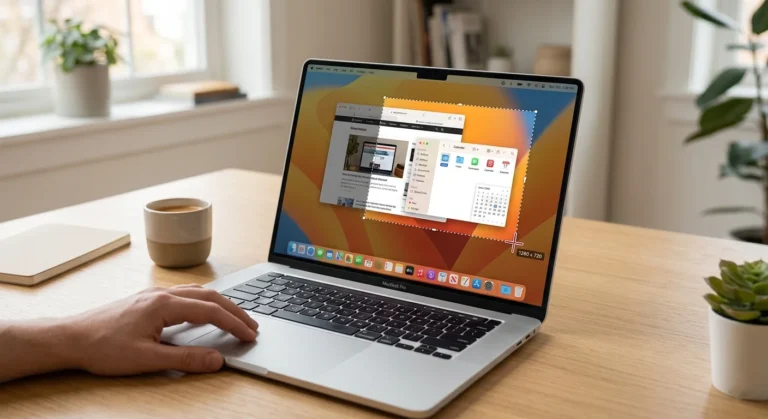
If your Mac snipping tool is not working, you are not alone. Many Mac users experience issues where screenshot shortcuts stop working, the screenshot toolbar does not appear, or screenshots are not saved.
Unlike Windows, macOS does not have a built-in tool called Snipping Tool. Instead, Apple provides a powerful Screenshot Tool that allows you to capture your entire screen, a selected window, or a custom area.
Normally, you can take screenshots using these shortcuts:
- Command + Shift + 3 – Capture the entire screen
- Command + Shift + 4 – Capture a selected area
- Command + Shift + 5 – Open the screenshot toolbar
However, sometimes these shortcuts stop working due to system glitches, incorrect settings, or software conflicts.
In this guide, you will learn the best Mac snipping tool not working fixes, along with step-by-step solutions that restore screenshot functionality quickly.
What Is the Snipping Tool on Mac?
Mac does not include a tool officially named Snipping Tool like Windows. Instead, macOS uses the Screenshot Tool, which provides similar features.
This built-in tool allows users to:
- Capture the entire screen
- Capture a selected portion of the screen
- Capture a specific window
- Record screen videos
- Annotate screenshots
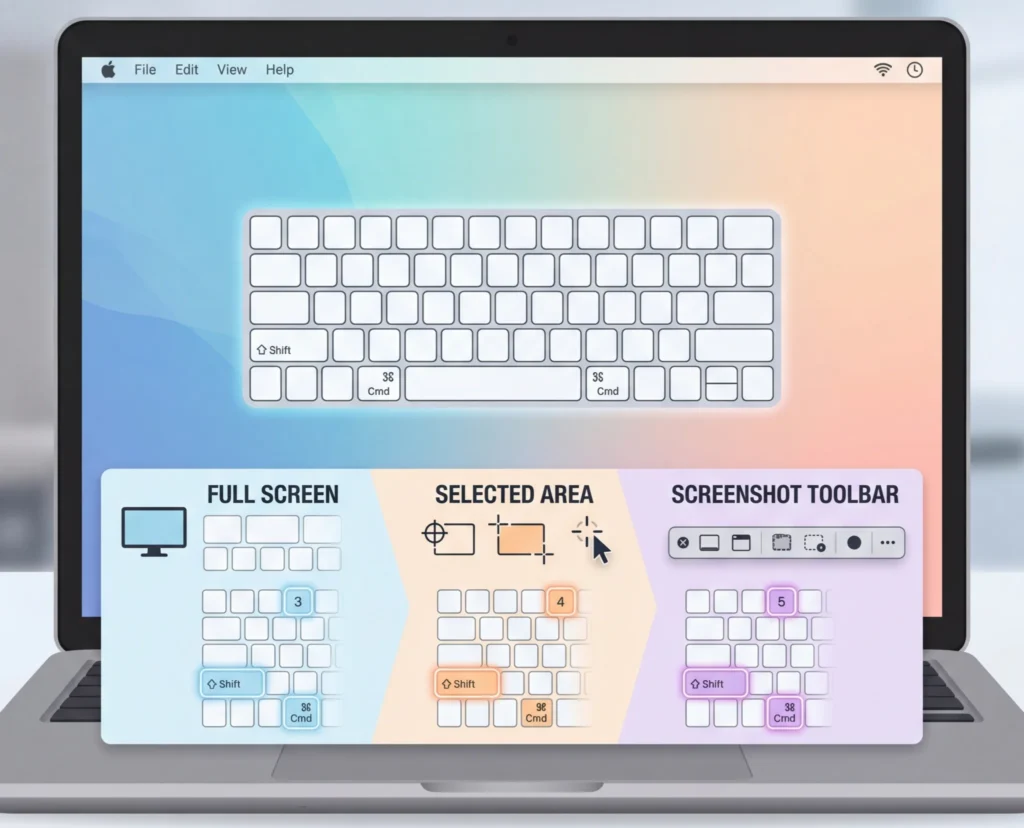
The screenshot feature has been integrated into macOS since macOS Mojave (2018) with the Screenshot Toolbar that appears when you press Command + Shift + 5.
If this feature stops working, the issue is usually related to settings, shortcuts, or system conflicts.
Why Is the Mac Snipping Tool Not Working?
There are several reasons why the screenshot feature may stop working on a Mac.
1. Screenshot keyboard shortcuts are disabled
macOS allows users to disable screenshot shortcuts. If they are turned off, the snipping feature will not respond.
2. Incorrect keyboard shortcuts
Some apps or keyboard customization tools may change default shortcuts.
3. Screenshot save location changed
If the save location is changed, screenshots may appear missing.
4. Software conflicts
Screen recording or keyboard remapping apps can interfere with screenshot functions.
5. Low storage space
When your Mac has very little disk space, screenshots may fail to save.
6. macOS bugs or glitches
Temporary system issues can cause screenshot tools to stop responding.
7. Outdated macOS
Older macOS versions sometimes contain screenshot-related bugs.
Mac Snipping Tool Not Working Fix (Step-by-Step)
Follow these proven solutions to fix screenshot problems on Mac.
Fix 1: Restart Your Mac
Restarting your Mac is often the quickest way to fix temporary system glitches.
Steps
- Click the Apple logo in the top-left corner.
- Select Restart.
- Wait for the system to reboot.
After restarting, try using:
Command + Shift + 4
If the screenshot tool works again, the issue was likely a temporary system bug.
Fix 2: Check Screenshot Keyboard Shortcuts
If screenshot shortcuts are disabled, the Mac snipping tool will not work.
Steps
- Open System Settings
- Go to Keyboard
- Click Keyboard Shortcuts
- Select Screenshots
Make sure these options are enabled:
- Save a picture of the screen as a file
- Save a picture of the selected area as a file
- Copy the picture of the selected area to the clipboard
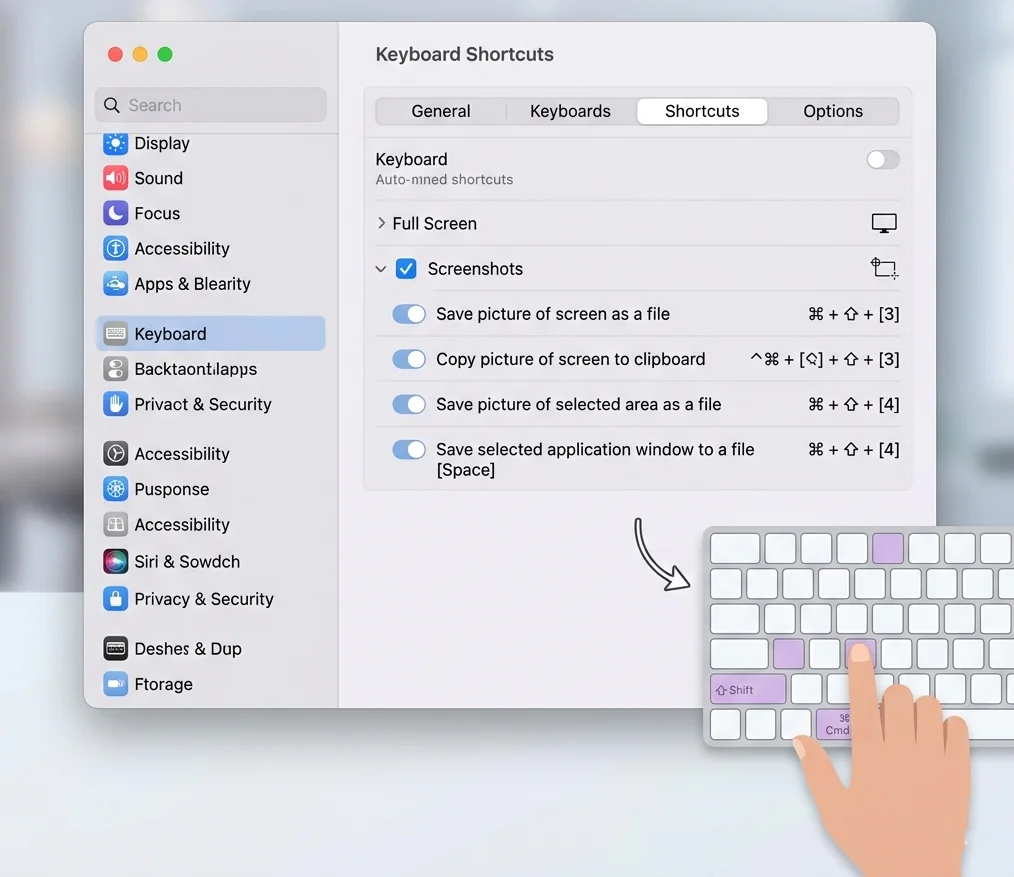
Once enabled, test the screenshot shortcut again.
Fix 3: Use the Screenshot Toolbar
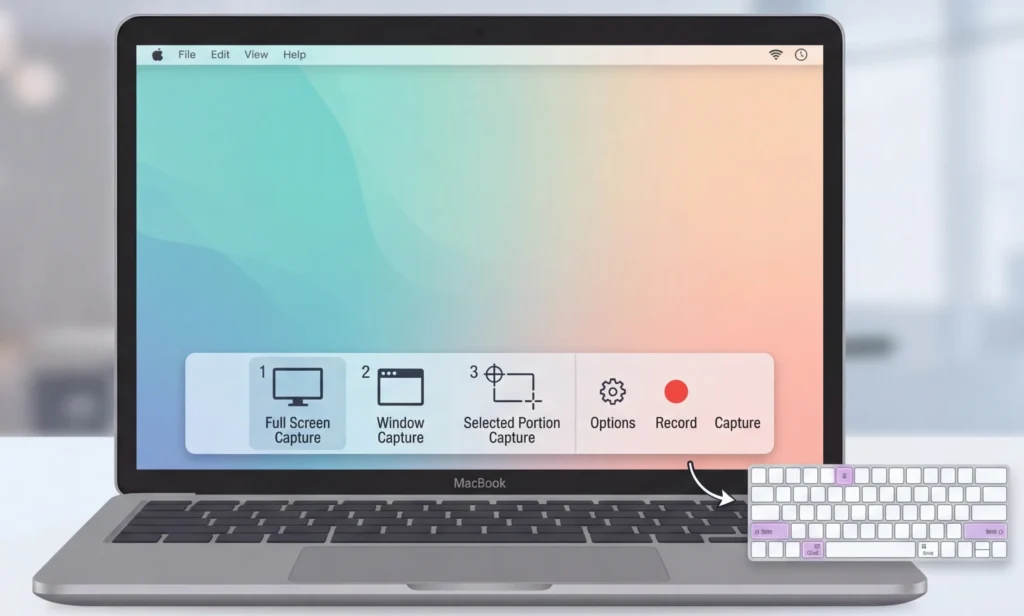
The screenshot toolbar provides more capture options.
Steps
Press:
Command + Shift + 5
This opens the screenshot control panel, where you can:
- Capture the full screen
- Capture a window
- Capture a selected area
- Record the screen
If the toolbar appears, the screenshot feature is working properly.
Fix 4: Check Screenshot Save Location
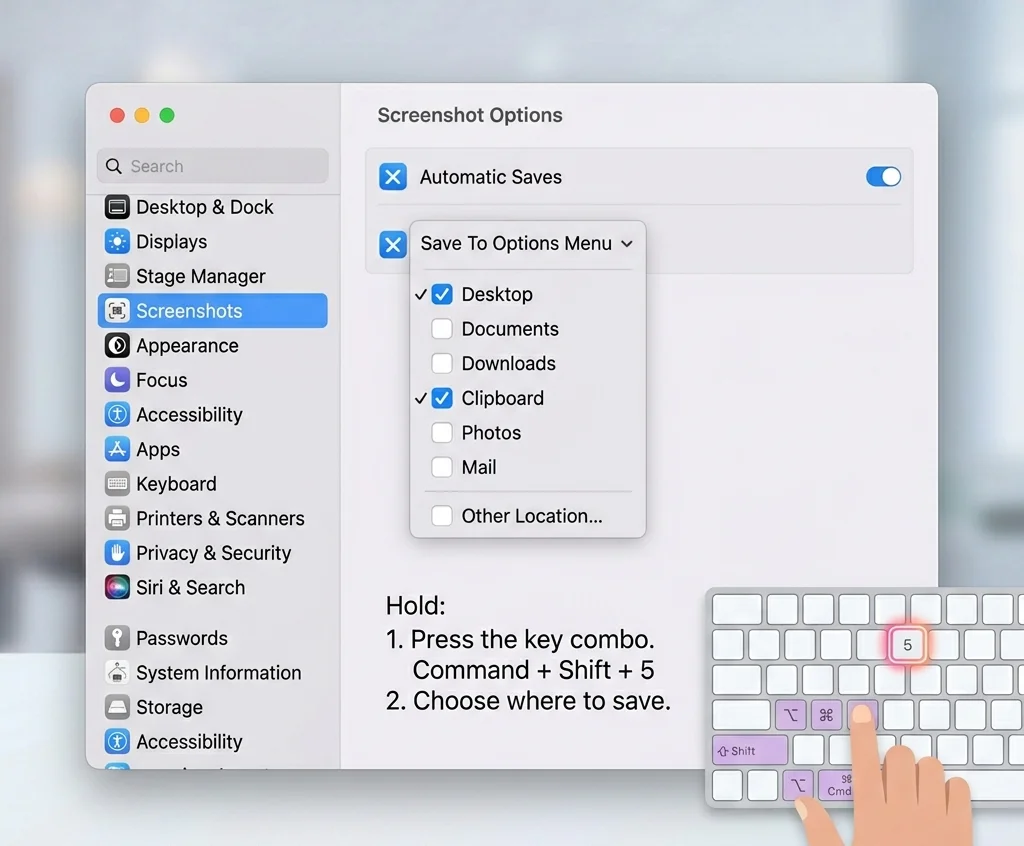
Sometimes screenshots are saved in a different folder, which makes users think the snipping tool is broken.
Steps
- Press Command + Shift + 5
- Click Options
- Check the Save To location
Common locations include:
- Desktop
- Documents
- Clipboard
Set it back to Desktop if you cannot find your screenshots.
Fix 5: Close Conflicting Applications
Certain apps may interfere with screenshot shortcuts.
Examples include:
- Screen recording tools
- Keyboard remapping software
- Third-party screenshot utilities
Try closing these apps and test the screenshot shortcut again.
Fix 6: Free Up Disk Space
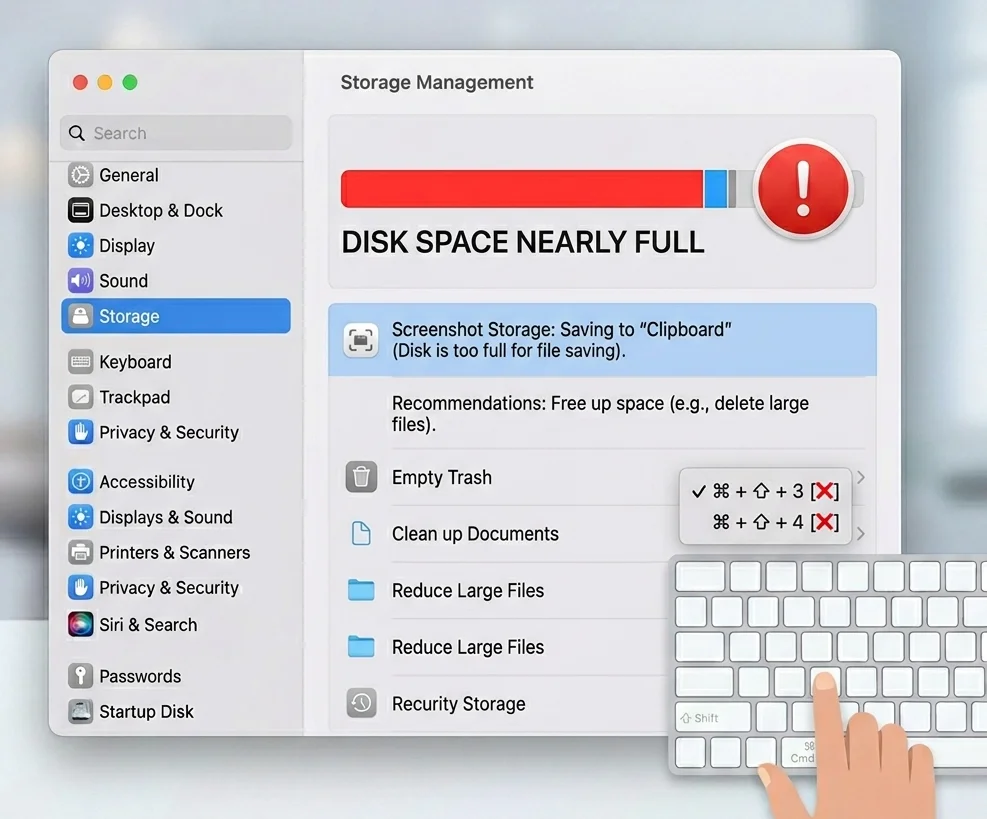
If your Mac’s storage is nearly full, screenshots may fail to save.
Steps
- Click the Apple menu
- Select About This Mac
- Open Storage
Delete unnecessary files or move them to cloud storage.
Having at least 10–15% free disk space helps maintain system performance.
Fix 7: Reset NVRAM / PRAM
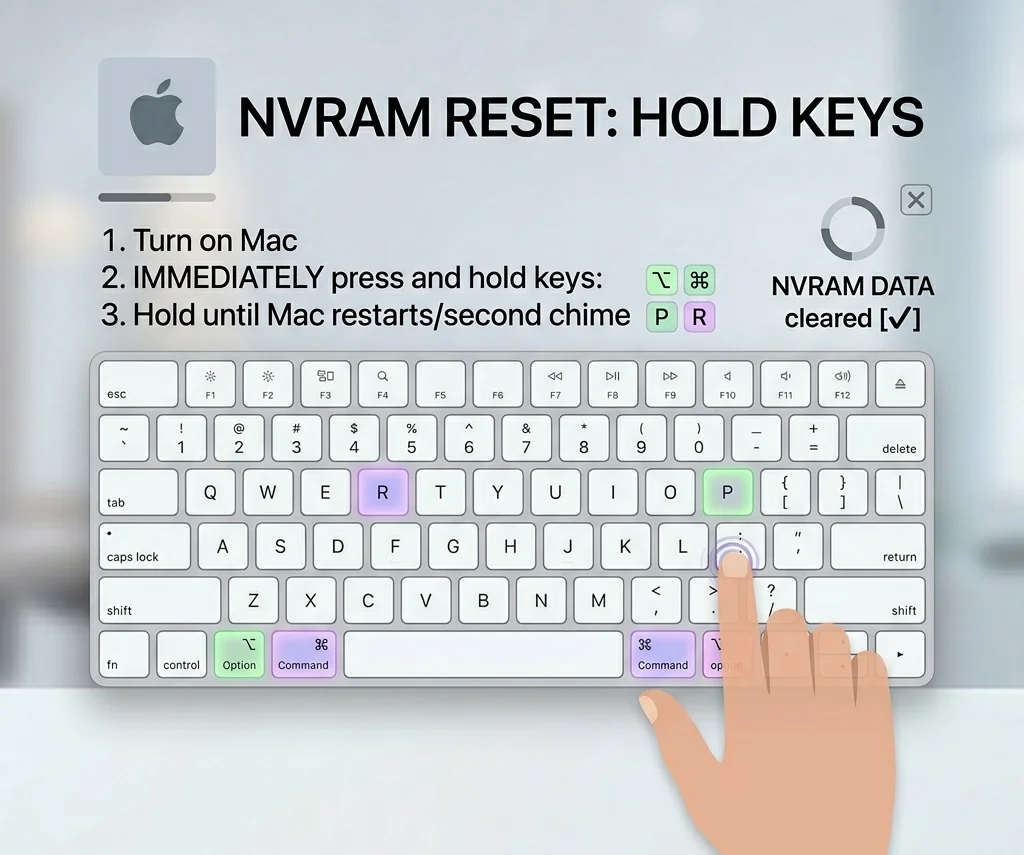
Resetting NVRAM can fix several system-level issues, including keyboard shortcuts.
Steps
- Shut down your Mac.
- Turn it back on.
- Immediately press and hold:
Option + Command + P + R
- Hold the keys for about 20 seconds.
Your Mac will reset system settings and may restore screenshot functionality.
Fix 8: Update macOS
Apple regularly fixes bugs through system updates.
Steps
- Open System Settings
- Click General
- Select Software Update
Install the latest macOS update and restart your Mac.
Fix 9: Boot Your Mac in Safe Mode
Safe Mode helps identify software conflicts.
Steps
- Shut down your Mac.
- Turn it on while holding the Shift key.
- Release the key when the login screen appears.
Once in Safe Mode, test the screenshot shortcuts again.
If the feature works, a third-party app may be causing the issue.
Screenshot Shortcut Not Working on Mac (Additional Fixes)
If shortcuts like Shift + Command + 4 still do not work, try these additional solutions:
- Reset keyboard settings
- Disconnect external keyboards
- Test another user account
- Restart the Finder process
These steps can resolve deeper system conflicts.
Best Alternative Screenshot Tools for Mac
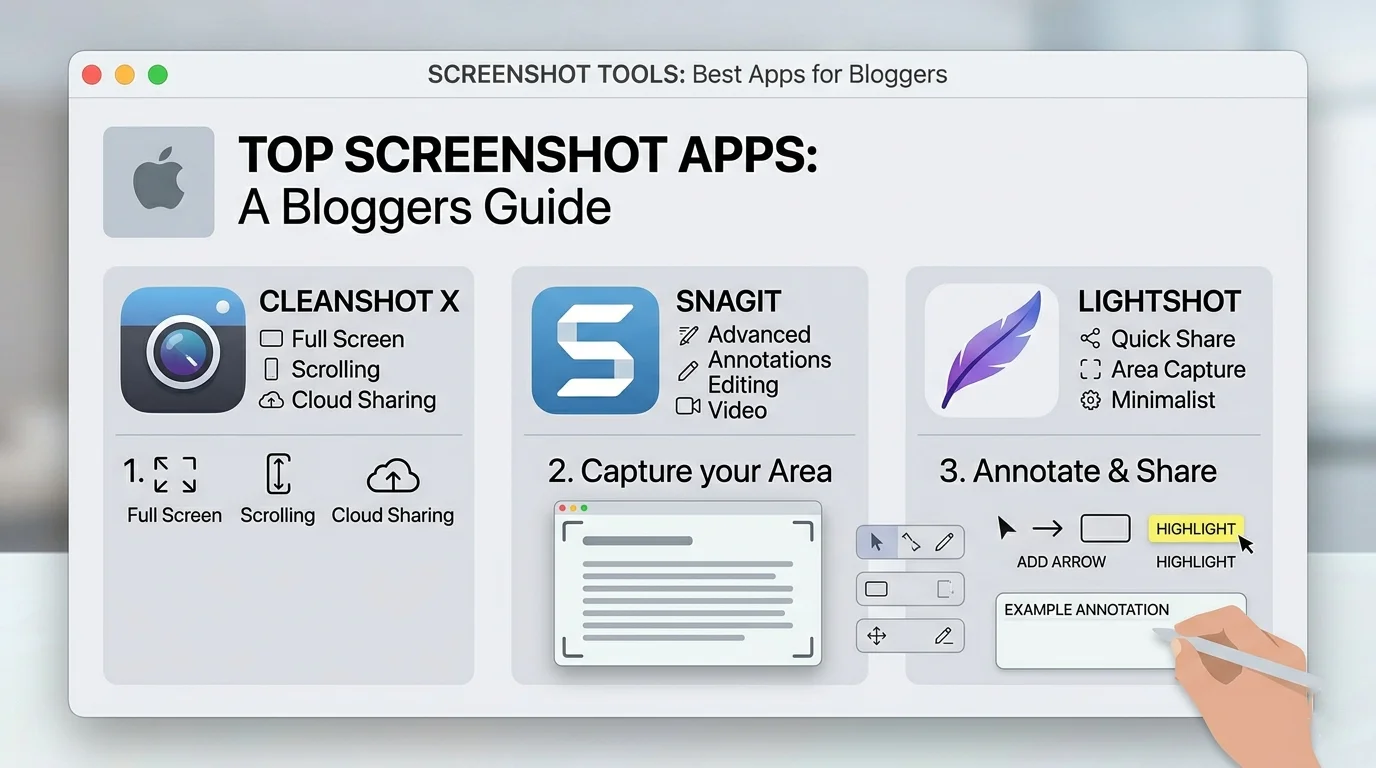
If the built-in screenshot tool continues to fail, you can use third-party tools.
Popular options include:
- CleanShot X
- Snagit
- Lightshot
- Monosnap
These tools offer advanced features such as:
- scrolling screenshots
- annotation tools
- cloud sharing
- screen recording
Where Do Screenshots Go on Mac?
By default, screenshots are saved to the Desktop.
The file name usually looks like this:
Screenshot 2026-03-15 at 10.25.30 AM.png
You can change the save location using the screenshot toolbar.
Press Command + Shift + 5 → Options → Save To.
Final Thought
When the Mac snipping tool is not working, the issue is usually caused by disabled shortcuts, incorrect settings, or temporary system glitches.
Fortunately, the fixes are simple.
By checking screenshot shortcuts, restarting your Mac, verifying save locations, and updating macOS, you can restore screenshot functionality quickly.
If the problem continues, third-party screenshot tools can also provide a reliable alternative.
Frequently Asked Questions
The most common reasons include disabled shortcuts, system glitches, low storage space, or software conflicts.
This shortcut may stop working if screenshot shortcuts are disabled in Keyboard Settings or if another app overrides the shortcut.
The Mac equivalent of Snipping Tool is the Screenshot Tool, which is built into macOS and accessed using Command + Shift + 5.
Screenshots may not save if:
Disk storage is full
The save location was changed
macOS has a temporary bug