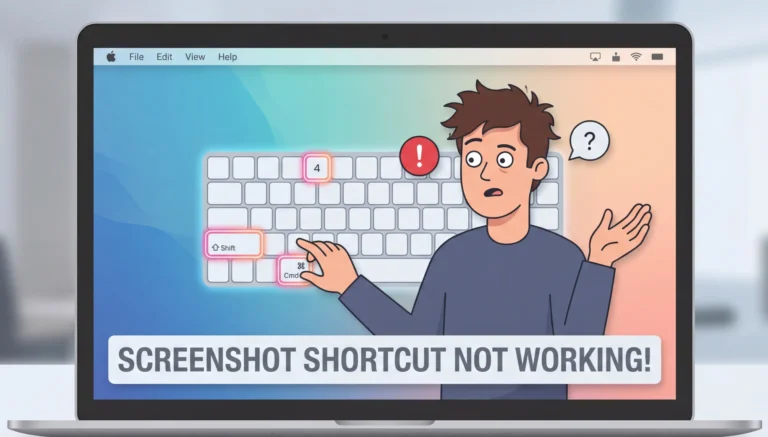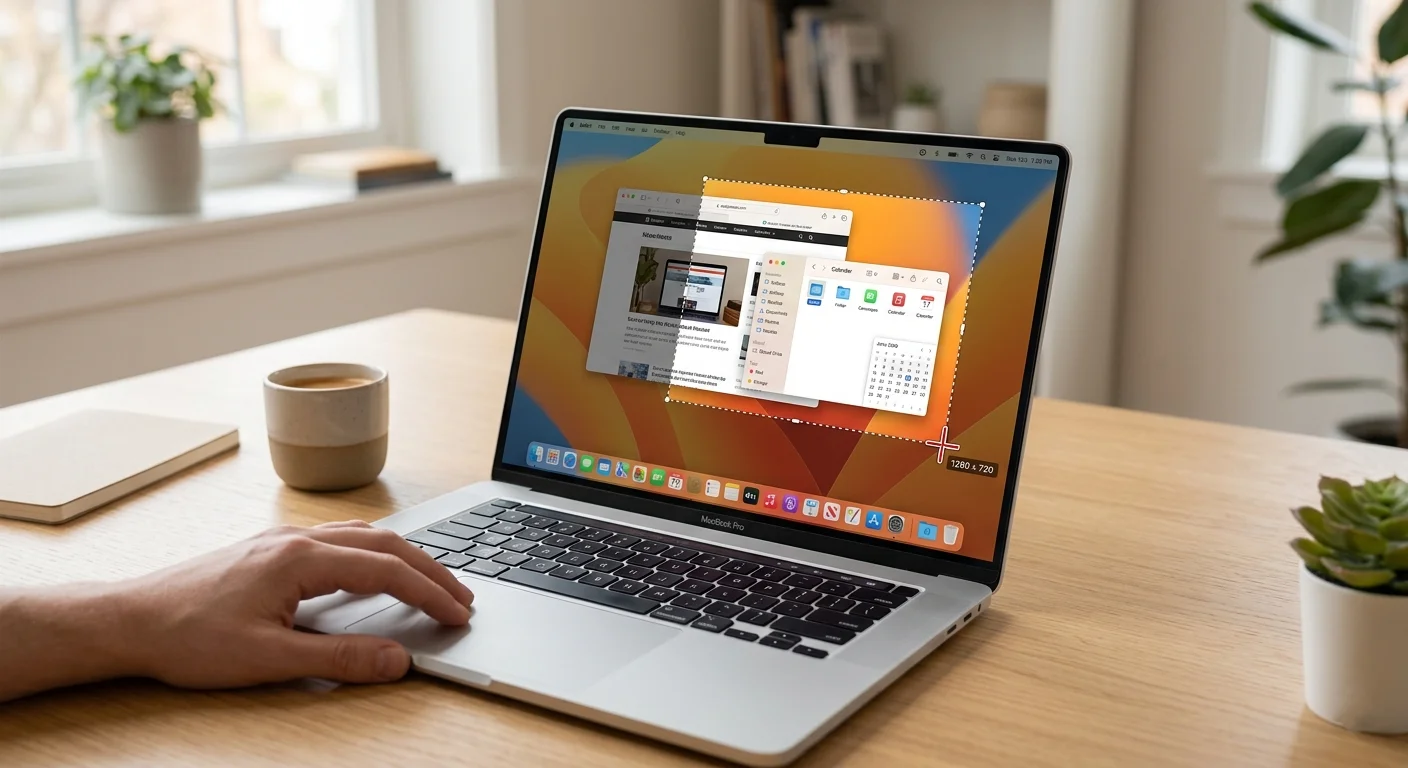
Mac Snipping Tool Copy and Paste Issue (Fix Screenshot Not Pasting on Mac)
If you’re facing a Mac Snipping Tool copy and paste issue, you’re not alone. Many users, especially those switching from Windows, struggle when screenshots don’t paste after capturing them.
The confusion comes from one simple fact:
macOS doesn’t have a built-in “Snipping Tool” like Windows.
Instead, Apple Inc. provides a powerful screenshot system, but it works differently. If you don’t use the correct method, your screenshot will save instead of copying, causing paste failures.
In this guide, you’ll learn why screenshots aren’t pasting on Mac and how to fix it step-by-step.
What Is “Snipping Tool” on Mac?
On Windows, Snipping Tool lets you capture and copy screenshots easily.
On macOS, the equivalent includes:
- Screenshot shortcuts (keyboard-based)
- Screenshot toolbar (built-in UI)
- Preview app (for editing screenshots)
There is no app called “Snipping Tool” on Mac, but the functionality exists; it just behaves differently.
Why Screenshot Copy and Paste Is Not Working on Mac
Here are the most common reasons behind this issue:
1. Screenshot Is Saving Instead of Copying
By default, macOS saves screenshots to your desktop instead of copying them.
2. Wrong Keyboard Shortcut Used
If you don’t press the correct combination, the image won’t go to the clipboard.
3. Clipboard (pboard) Issue
The macOS clipboard process (pboard) may freeze or crash.
4. Screenshot Tool Settings Misconfigured
Your screenshot tool might be set to save files instead of copying.
5. macOS Glitch or Temporary Bug
Minor system issues can interrupt clipboard functionality.
6. Third-Party App Interference
Clipboard managers or screen tools can override default behavior.
How to Copy a Screenshot to the Clipboard on Mac (Correct Way)
To avoid the issue, use the correct shortcut:
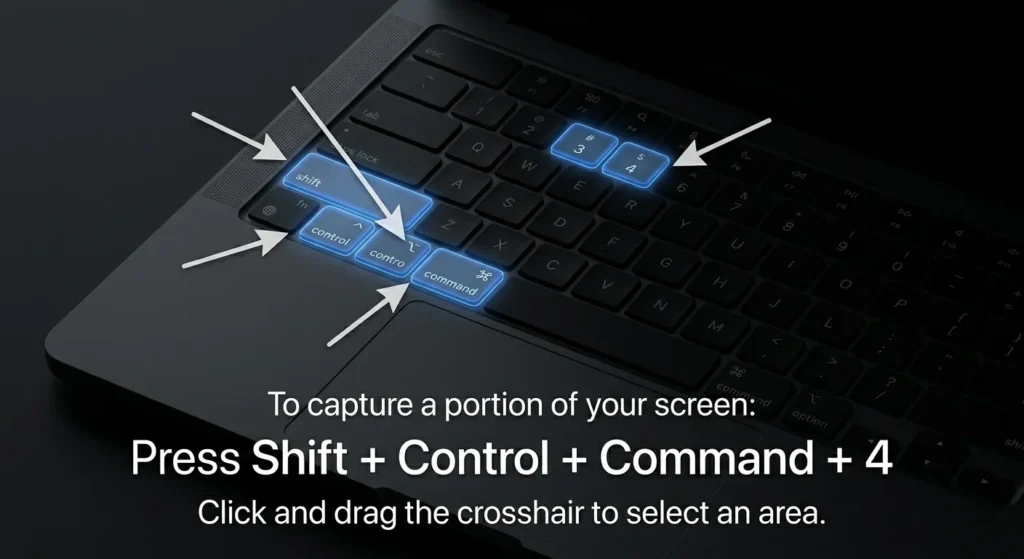
Method 1: Direct Copy Shortcut
Press:
Command (⌘) + Control + Shift + 4
This copies the selected area directly to the clipboard.
Method 2: Full-Screen Copy
Press:
Command (⌘) + Control + Shift + 3
Method 3: Screenshot Toolbar
Press:
Command (⌘) + Shift + 5
Then:
- Choose capture mode
- Ensure output is set correctly
Fix Mac Snipping Tool Copy and Paste Issue (Step-by-Step)
Follow these proven fixes:
Fix 1 – Use the Correct Shortcut
Make sure you include the Control (Ctrl) key.
- Without Ctrl → Saves file
- With Ctrl → Copies to clipboard
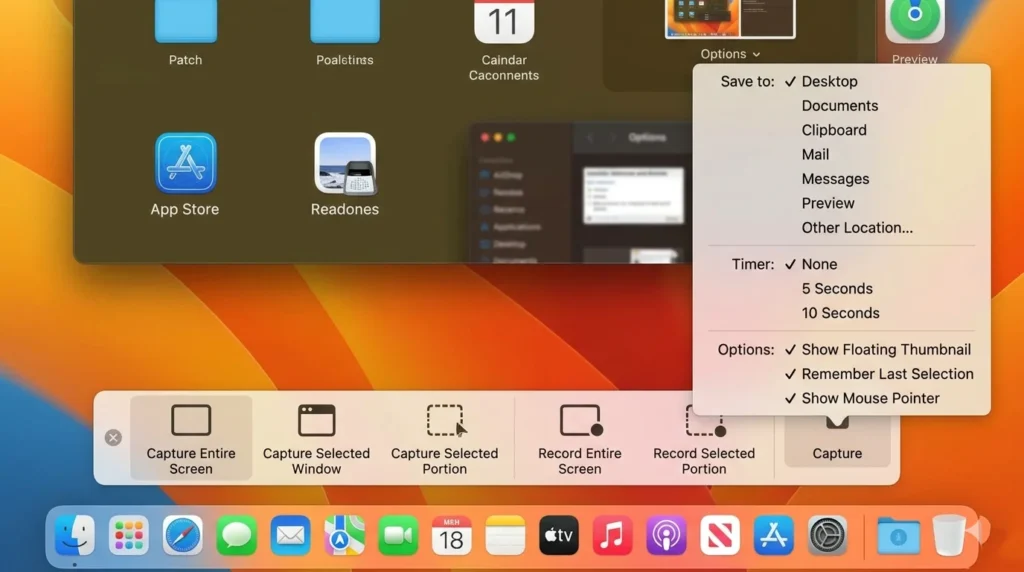
Fix 2 – Check Screenshot Settings
- Press Command + Shift + 5
- Click Options
- Verify save location or clipboard behavior
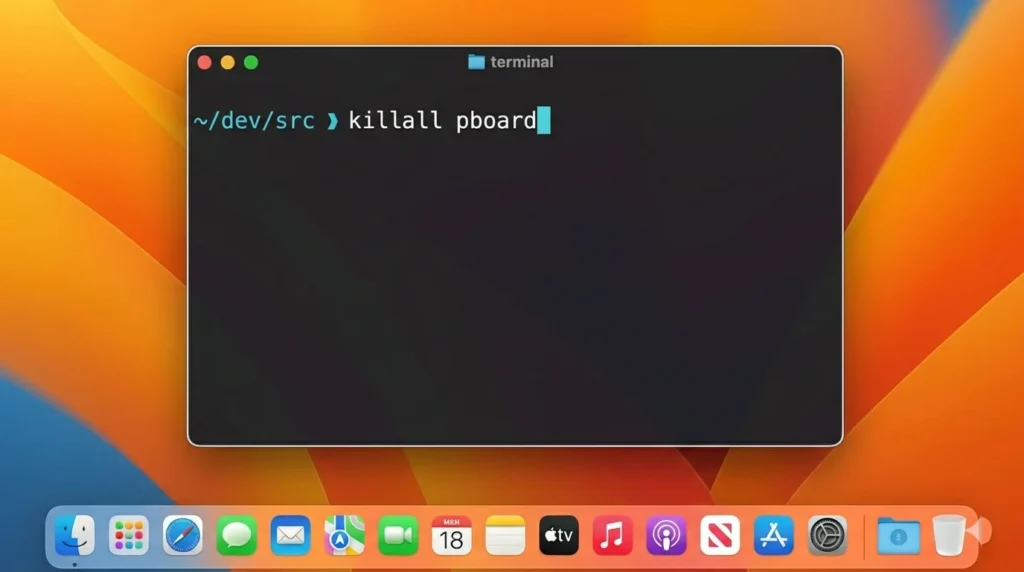
Fix 3 – Restart Clipboard (pboard)
Open Terminal and run:
killall pboard
This resets the clipboard instantly.
Fix 4 – Restart Your Mac
Simple but effective, it clears temporary glitches.
Fix 5 – Close Conflicting Apps
Disable:
- Clipboard managers
- Screenshot tools
- Screen recording apps
Fix 6 – Update macOS
Go to:
System Settings → General → Software Update
Screenshot Copied but Not Pasting? (Advanced Fix)
If the screenshot is copied but won’t paste:
Possible Reasons:
- The app doesn’t support image pasting
- Clipboard overwritten
- Permission issues
Solutions:
- Try pasting into Notes or Preview first
- Restart the app you’re pasting into
- Check app permissions
Mac Snipping Tool Alternatives
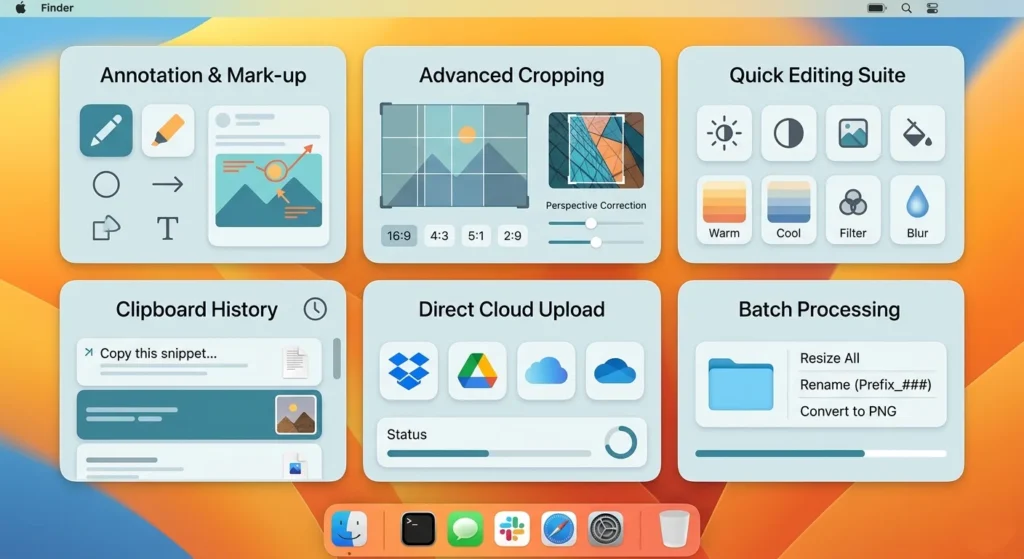
If you want a more “Snipping Tool-like” experience:
Built-in:
- Screenshot toolbar
- Preview app
Third-party tools:
- CleanShot X
- Snagit
- Lightshot
These offer:
- Copy-paste workflows
- Annotation tools
- Clipboard history
Common Mistakes Users Make
Avoid these:
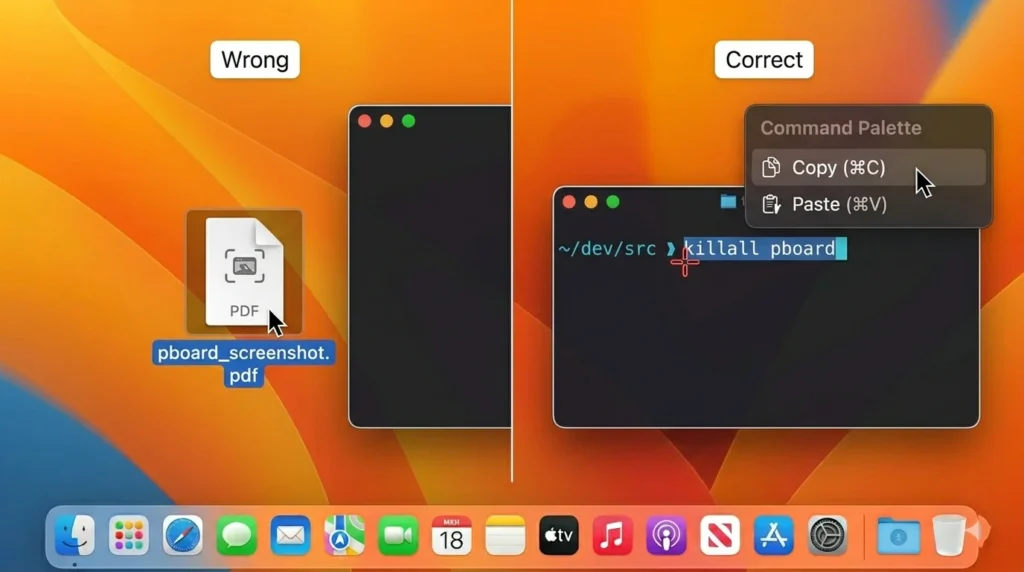
Forgetting the Control key
Expecting Windows-style behavior
Not checking clipboard functionality
Using the wrong shortcut combinations
Pro Tips to Improve Workflow
- Use clipboard managers for history tracking
- Paste immediately after capture
- Learn keyboard shortcuts for speed
- Use Preview for quick edits
Final Thought
The Mac Snipping Tool copy and paste issue is not really a bug—it’s usually a misunderstanding of how macOS handles screenshots.
Once you:
- Use the correct shortcut
- Fix clipboard issues
- Adjust settings
You’ll be able to copy and paste screenshots effortlessly.
Frequently Asked Questions
Because the screenshot was saved instead of copied, or the clipboard isn’t working.
Use: Command + Control + Shift + 4
macOS uses Screenshot shortcuts and toolbar, not a dedicated app.
Restart it using: killall pboard