Best Tools for Editing Screenshots on Mac (2026 Guide)
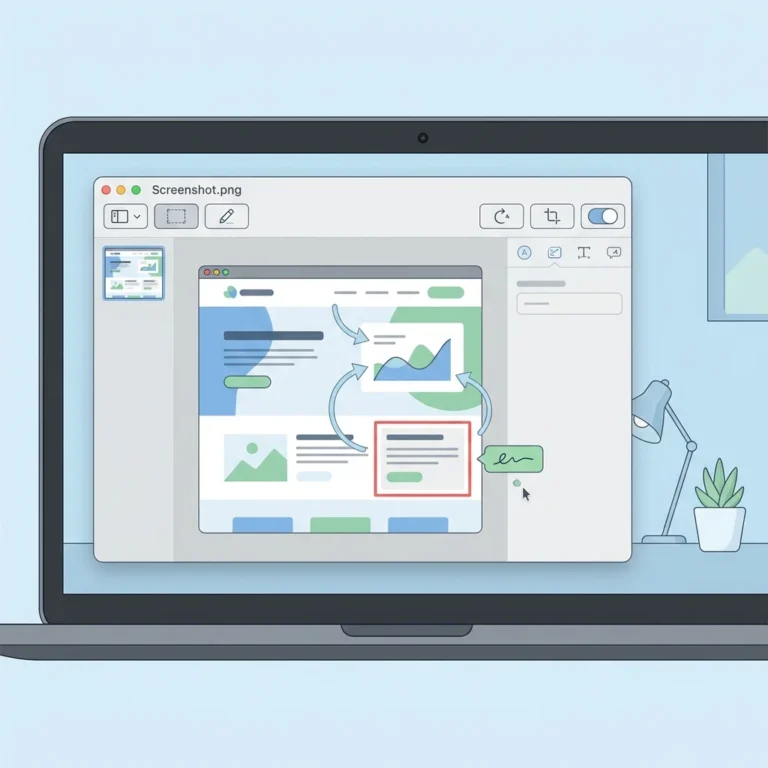
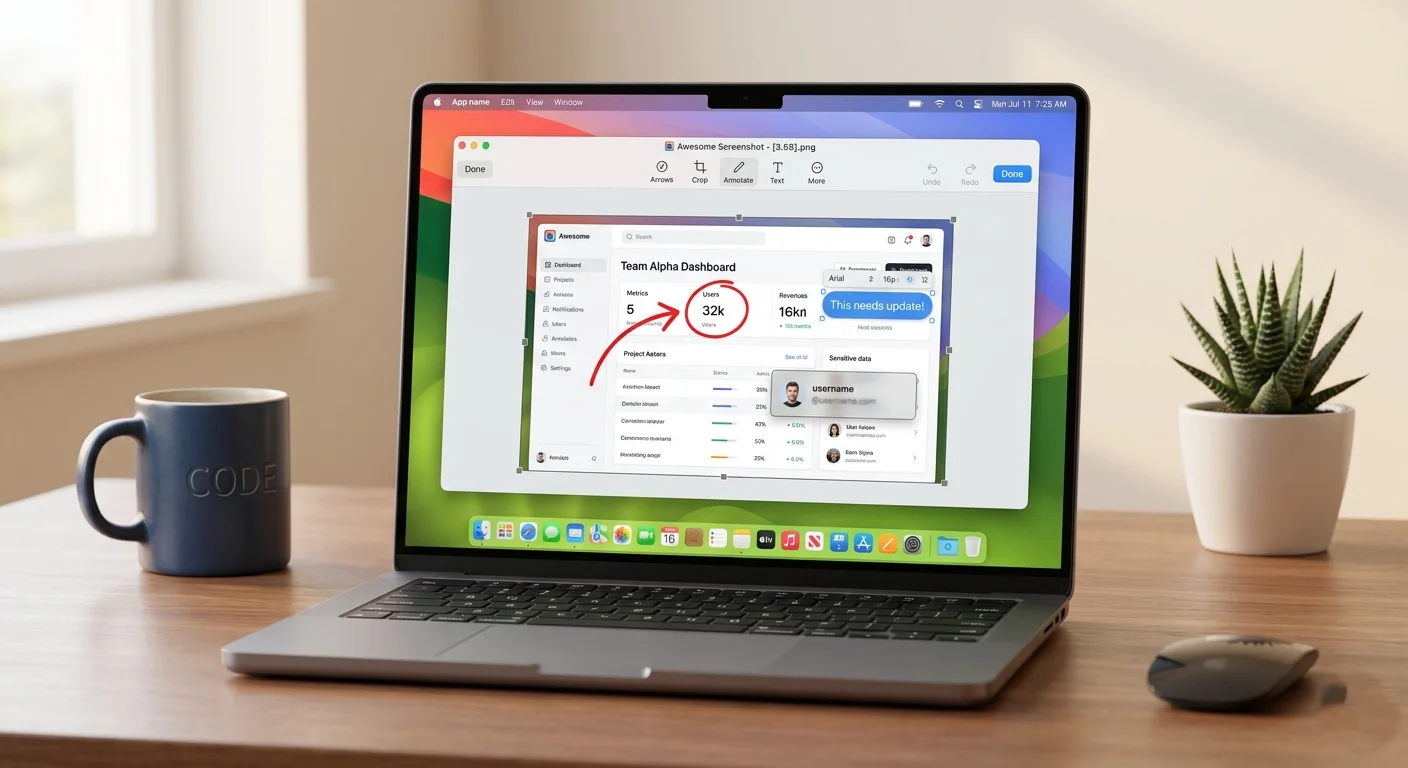
Screenshots are essential for tutorials, bug reporting, presentations, and content creation. While macOS offers basic screenshot capabilities, editing those screenshots efficiently requires better tools.
If you’re struggling with limited editing features on Mac, this guide covers the best tools for editing screenshots on Mac, from simple annotation apps to professional-grade editors.
Why You Need Screenshot Editing Tools on Mac
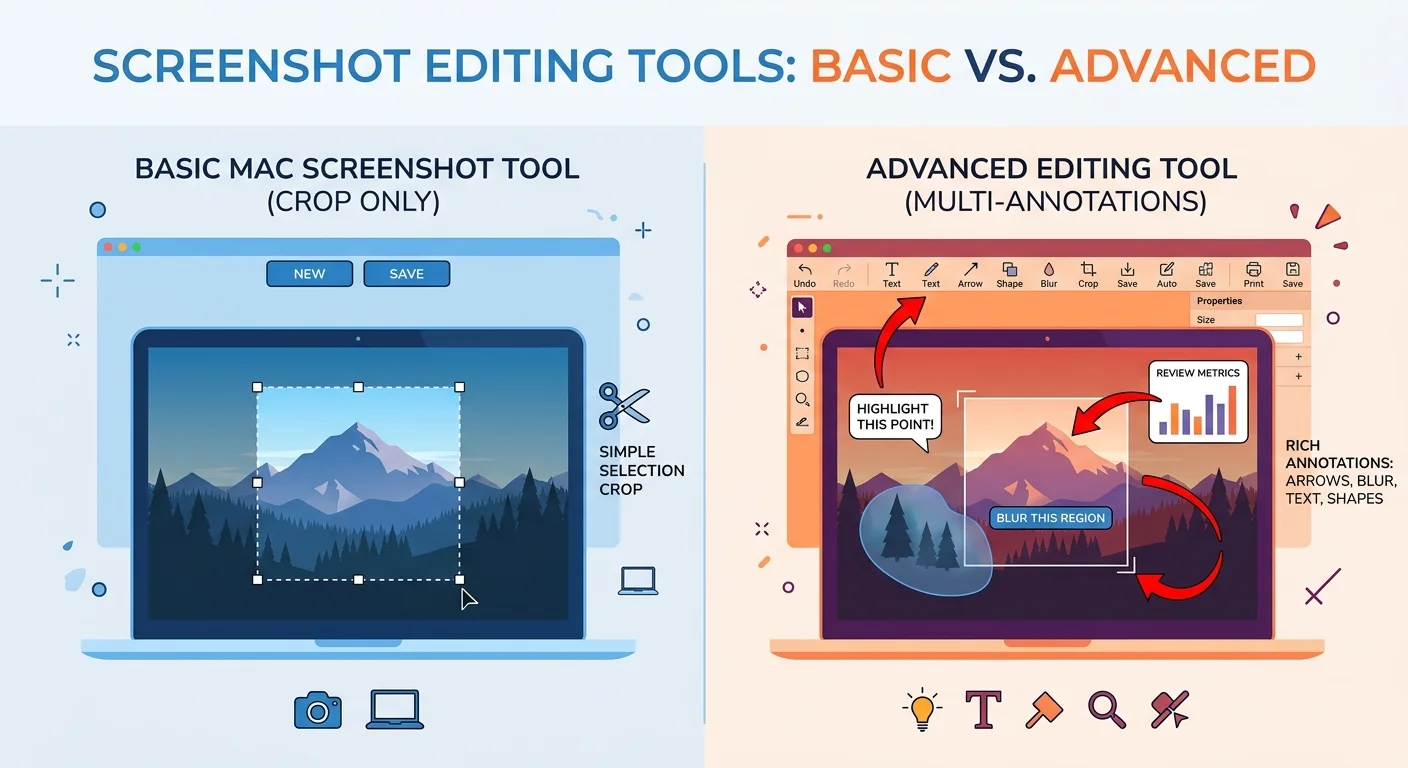
GuideLIMITATIONS OF BUILT-IN TOOLS
- Basic annotation only
- No advanced editing features
- Limited export and sharing options
WHY USE THIRD-PARTY TOOLS
- Adding arrows, text, and highlights
- Blurring sensitive information
- Cropping and resizing images
- Enhancing visuals for professional use
What Makes a Good Screenshot Editing Tool?
GuideKEY FEATURES TO LOOK FOR
- Annotation tools (text, arrows, shapes)
- Blur & pixelation for privacy
- Cropping and resizing options
- OCR (text extraction)
- Easy sharing/export features
- Fast performance on Mac (Apple Silicon support)
Best Tools for Editing Screenshots on Mac (Top Picks)
1. CleanShot X – Best All-in-One Tool
CleanShot X is one of the most powerful screenshot tools available for Mac users. It offers advanced features designed for professionals who need more than just basic screenshots.
- Advanced annotation tools
- Built-in cloud sharing
- Scrollable capture
- Clean and modern UI
- Powerful features
- Clean UI
- Cloud sharing
- Paid tool
- Mac only
2. Snagit – Best for Advanced Editing
Snagit by TechSmith is a premium screenshot tool known for its powerful editing capabilities, making it ideal for creating professional visuals and tutorials.
- Advanced image editing
- Templates and presets
- Screen recording included
- OCR text recognition
- Very powerful editing tools
- Great for tutorials
- Includes screen recording
- Paid software
- Can feel heavy for beginners
3. Shottr – Best Lightweight Tool
Shottr is a fast, lightweight, and efficient screenshot tool designed for users who need quick edits without heavy software.
- Pixel-perfect editing
- Fast performance
- Built-in OCR
- Scrolling screenshots
- Very fast and lightweight
- Accurate editing tools
- Useful OCR feature
- Mac only
- Limited advanced features
Best For: Quick edits and minimal workflows
4. Monosnap – Best for Capture + Editing
Monosnap combines screenshot capture and editing in one tool, making it a convenient option for users who want an all-in-one solution for capturing and sharing visuals.
- Annotation tools
- Cloud storage integration
- Easy sharing options
- Basic editing features
- All-in-one tool
- Cloud integration
- Good for collaboration
- Limited advanced features
- Free version restrictions
Best For: Remote teams and collaboration
5. Lightshot – Best Free Tool
Lightshot is a simple and free screenshot editor that offers essential tools for quick captures and basic editing, making it ideal for everyday use.
- Easy-to-use interface
- Basic annotation tools
- Instant sharing
- Lightweight
- Completely free
- Very easy to use
- Quick sharing options
- Limited features
- Not for advanced editing
Best For: Beginners and casual users
6. Skitch – Best for Annotation
Developed by Evernote, Skitch focuses on quick and effective annotation, making it ideal for adding notes, highlights, and visual explanations to screenshots.
- Arrows and callouts
- Highlighting tools
- Simple UI
- Integration with Evernote
- Great annotation tools
- Easy to use
- Fast workflow
- Limited advanced features
- Focused only on annotation
Best For: Markups and quick explanations
7. Xnapper – Best AI Tool
Xnapper uses AI to enhance screenshots automatically, making them look polished and ready for sharing with minimal effort.
- Auto beautification
- Background cleanup
- Social media-ready screenshots
- Minimal manual editing
- AI-powered enhancements
- Very easy to use
- Great for social media
- Paid tool
- Limited manual control
Best For: Creators and marketers
| Tool | Best For | Platform | Price | |
|---|---|---|---|---|
| CleanShot X | All-in-One | Mac | Paid | Download |
| Snagit | Advanced Editing | Mac/Windows | Paid | Download |
| Shottr | Lightweight | Mac | Free | Download |
| Monosnap | Capture + Editing | Mac/Windows | Free/Paid | Download |
| Lightshot | Free Tool | Mac/Windows | Free | Download |
| Skitch | Annotation | Mac | Free | Download |
| Xnapper | AI Tool | Mac | Paid | Download |
Built-in Mac Tools for Editing Screenshots
Free – MacAVAILABLE TOOLS
- Preview app
- Screenshot toolbar (Shift + Command + 5)
LIMITATIONS
- Limited annotation
- No advanced editing
- No automation features
Good for basic edits, but not ideal for professional use.
Best Tool Based on Use Case
| Use Case | Best Tool |
|---|---|
| Quick edits | Shottr |
| Professional editing | Snagit |
| Free tool | Lightshot |
| AI editing | Xnapper |
| All-in-one | CleanShot X |
Screenshot Editing Workflow on Mac
Steps- Capture screenshot (Shift + Command + 4)
- Open in editing tool
- Add annotations (text, arrows)
- Blur sensitive information
- Export or share
Free vs Paid Screenshot Editing Tools
ComparisonFREE TOOLS
- Lightshot
- Shottr
- Skitch
PAID TOOLS
- CleanShot X
- Snagit
- Xnapper
Verdict:
Free tools are ideal for basic screenshot needs, while paid tools provide advanced features and professional-level results.
Free Tools Pros
- Completely free
- Easy to use
- Quick screenshots
Paid Tools Pros
- Advanced editing features
- Professional workflows
- Better productivity tools
Common Problems While Editing Screenshots on Mac
Issues- Blurry screenshots
- Unable to annotate
- File format issues
- Copy-paste errors
These issues can be easily solved by using the advanced screenshot tools listed above.
Final Thought
Summary- Best overall: CleanShot X
- Best professional tool: Snagit
- Best free tool: Shottr
- Best AI tool: Xnapper
Choosing the best screenshot editing tool depends on your needs. If you frequently work with screenshots, investing in a premium tool can significantly improve your workflow and productivity.
Frequently Asked Questions
Shottr and Lightshot are excellent free options.
Yes, using Preview, but features are limited.
Skitch and CleanShot X are great choices.
Use tools like Snagit or Shottr with blur features.