
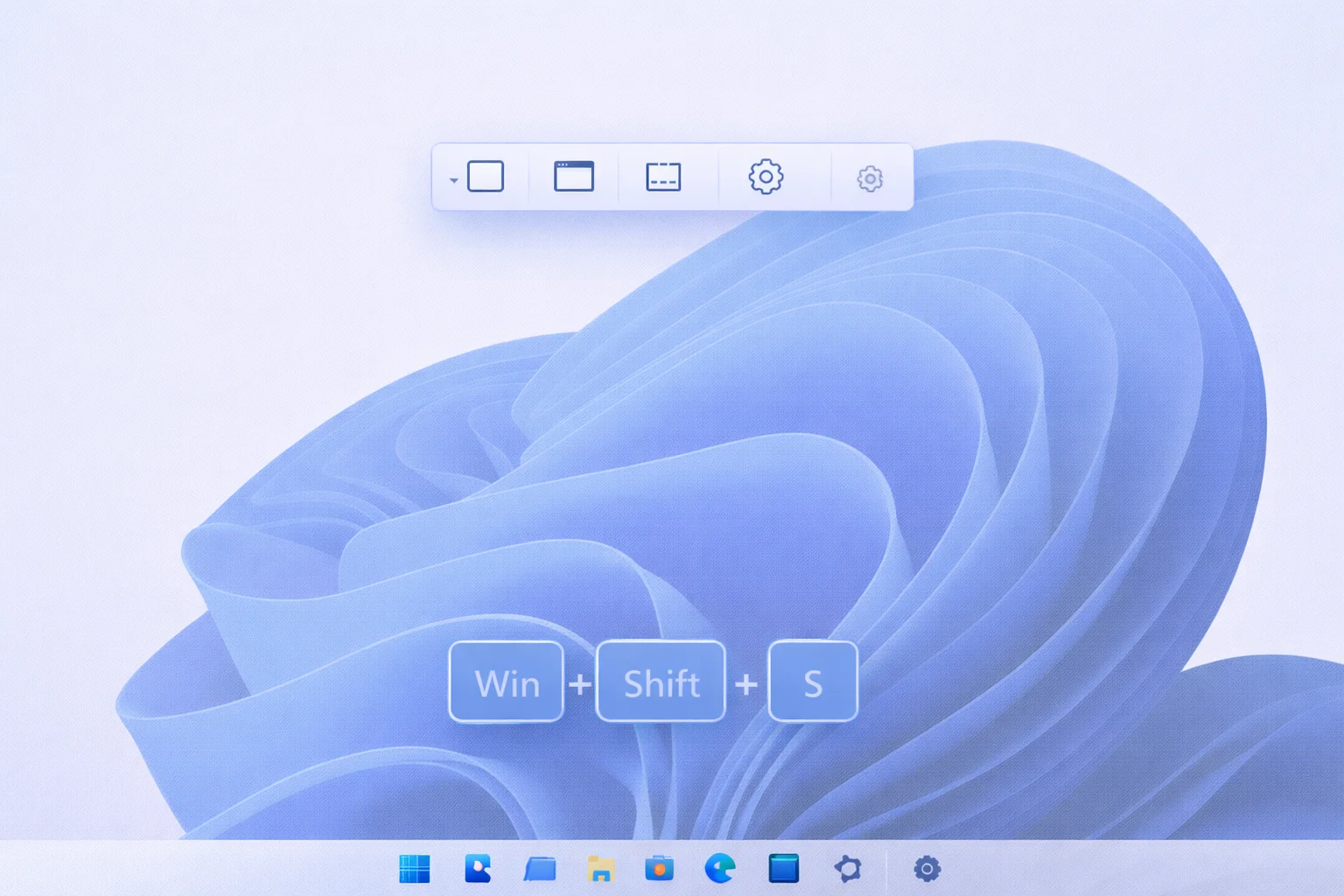
Windows 11 Snipping Tool Keyboard Shortcuts (Complete Guide)
Taking screenshots quickly is essential for productivity, and Windows 11 Snipping Tool keyboard shortcuts make the process fast, smooth, and efficient. Whether you want to capture a specific area, a full screen, or record your screen, knowing the right keyboard shortcuts can save you time and clicks.
In this guide, you’ll learn all the Snipping Tool keyboard shortcuts in Windows 11, how they work, how to customize them, and what to do if they stop working.
What Is the Snipping Tool in Windows 11?
The Snipping Tool is the built-in screenshot and screen-recording utility in Windows 11. Microsoft merged the classic Snipping Tool and Snip & Sketch into a single modern app that supports:
- Screenshot capture
- Screen recording
- Editing and annotation
- Clipboard copying
- Automatic saving
Keyboard shortcuts are the fastest way to access these features without opening the app manually.
Default Windows 11 Snipping Tool Keyboard Shortcut
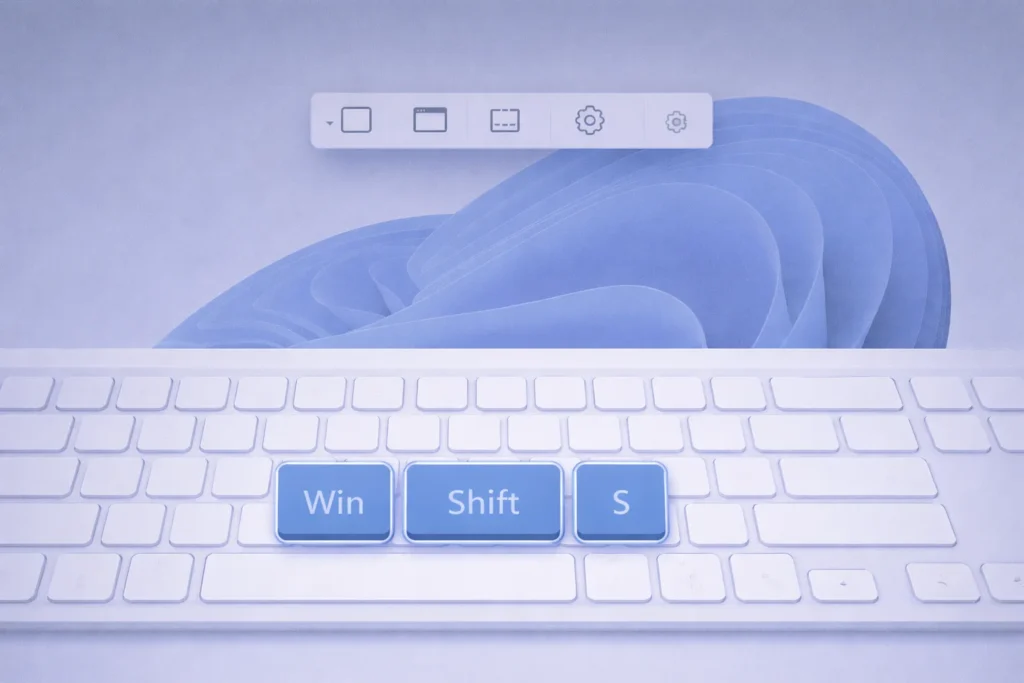
Win + Shift + S (Most Important Shortcut)
This is the primary keyboard shortcut for the Snipping Tool in Windows 11.
What it does:
- Opens the snipping overlay instantly
- Let you choose a capture mode
- Copies the screenshot to the clipboard
Available capture modes:

- Rectangular Snip
- Freeform Snip
- Window Snip
- Full-screen Snip
All Windows 11 Snipping Tool Keyboard Shortcuts
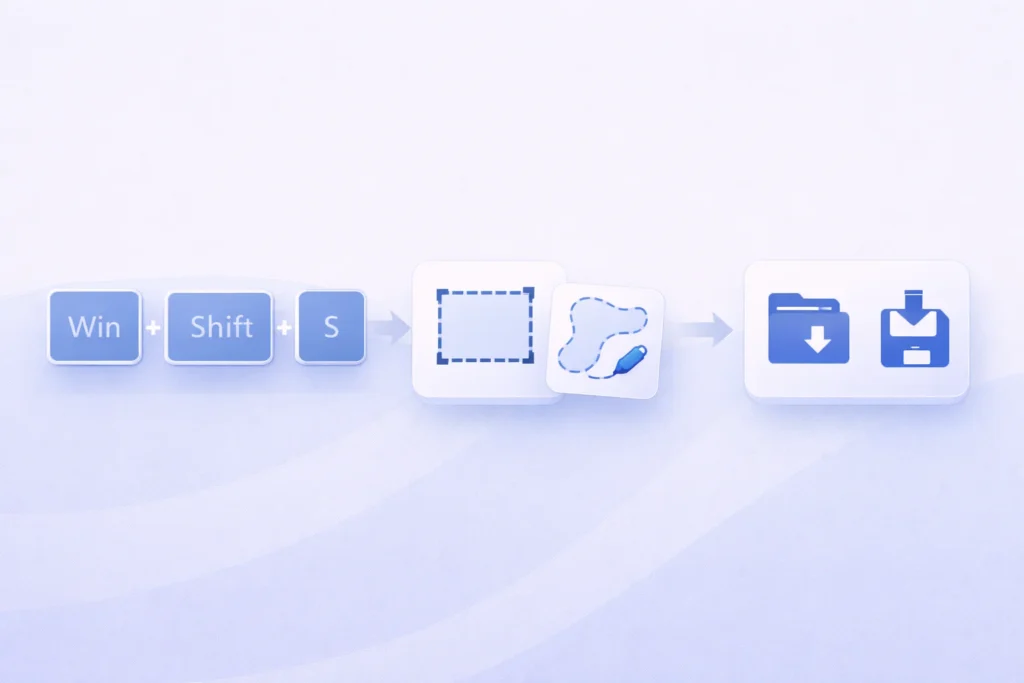
Here’s a complete list of working and verified shortcuts for the Snipping Tool in Windows 11:
Capture & Workflow Shortcuts
| Keyboard Shortcut | Function |
|---|---|
| Win + Shift + S | Open Snipping Tool overlay |
| Alt + M | Switch snip mode |
| Ctrl + N | New snip |
| Esc | Cancel snipping |
| Ctrl + C | Copy snip to clipboard |
| Ctrl + S | Save the screenshot |
| Ctrl + P | Print the snip |
| Ctrl + Z | Undo last action |
| Ctrl + Y | Redo action |
Snipping Tool Screen Recording Shortcut (Windows 11)
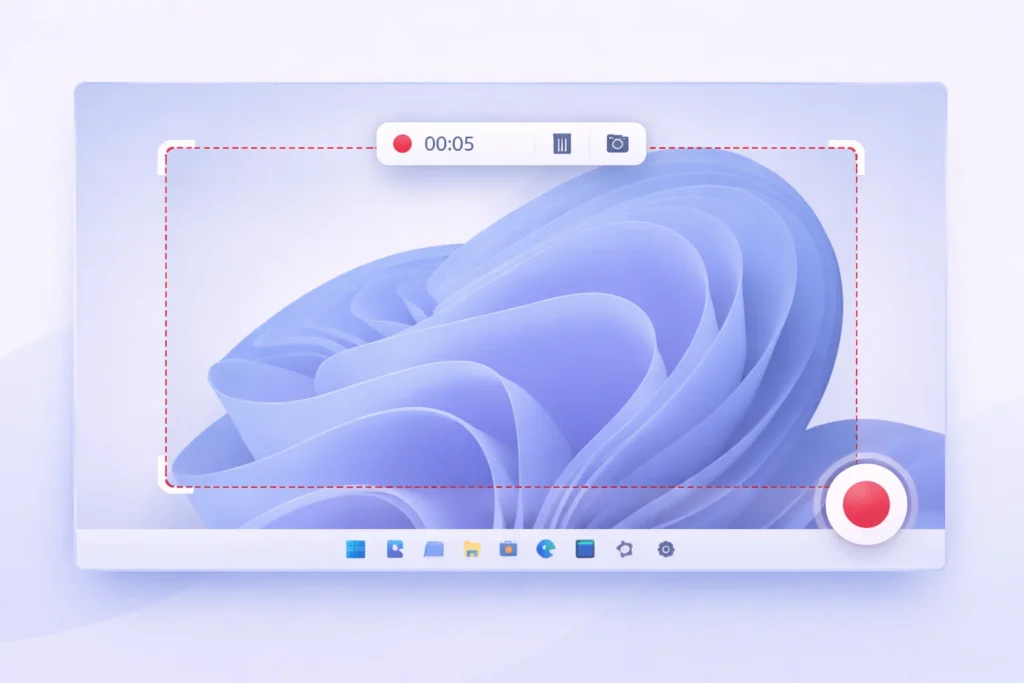
Windows 11 also supports screen recording inside the Snipping Tool.
Win + Shift + R
- Starts screen recording directly
- Let’s you select a recording area
- Saves the recording automatically
Note: Screen recording is available only in newer Windows 11 builds. If you don’t see it, update Windows.
How to Change or Customize Snipping Tool Keyboard Shortcuts
Windows 11 does not allow full shortcut remapping for the Snipping Tool by default, but you have options.
Option 1: Use Print Screen Key
- Open Settings
- Go to Accessibility → Keyboard
- Enable Use the Print Screen key to open Snipping Tool
Now pressing PrtSc launches the Snipping Tool instead of taking a traditional screenshot.
Option 2: Use Third-Party Tools
You can remap keys using tools like:
- PowerToys (Keyboard Manager)
- AutoHotkey
Tip: This is useful if Win + Shift + S conflicts with other apps.
Where Are Snipping Tool Screenshots Saved in Windows 11?
By default:
- Screenshots are copied to the clipboard
- If you save manually, they go to Pictures → Screenshots
Screen recordings are saved automatically to:
- Videos → Screen recordings
You can change the save location inside the Snipping Tool settings.
Fix Snipping Tool Keyboard Shortcuts Not Working

If Windows 11 Snipping Tool keyboard shortcuts aren’t working, try these fixes:
1. Restart Snipping Tool
- Close the app completely
- Reopen and test shortcuts
2. Check Background Apps
Some apps override keyboard shortcuts (screen recorders, gaming overlays).
3. Update Windows 11
Outdated builds may cause shortcut issues.
4. Reset Snipping Tool
- Settings → Apps → Installed apps
- Snipping Tool → Advanced options → Reset
Snipping Tool vs Other Screenshot Shortcuts in Windows 11
| Shortcut | Result |
|---|---|
| Win + Shift + S | Snipping Tool overlay |
| PrtSc | Full screen to clipboard |
| Alt + PrtSc | Active window |
| Win + PrtSc | Auto-save full screen |
If you want precision and editing, Snipping Tool shortcuts are the best choice.
Final Thoughts
Mastering Windows 11 Snipping Tool keyboard shortcuts makes capturing screenshots and screen recordings faster and more efficient. The Win + Shift + S shortcut alone can dramatically improve your workflow, while additional shortcuts help with editing, saving, and sharing.
If you use screenshots daily, learning these shortcuts is absolutely worth it.
Frequently Asked Questions
Yes. Win + Shift + S is the default shortcut.
You can map Print Screen or use third-party key remapping tools.
Yes. Snip & Sketch has been fully replaced by the Snipping Tool in Windows 11.
Yes, on updated Windows 11 versions.
