Windows 10 Snipping Tool Shortcut Keys Explained
Taking screenshots in Windows 10 becomes incredibly fast once you learn the right Snipping Tool shortcut keys. Instead of opening apps or clicking multiple buttons, you can capture any part of your screen in seconds using simple keyboard combinations.
In this complete guide, you’ll learn all Windows 10 Snipping Tool shortcut keys, how they work, when to use them, and what to do if they don’t work. This article is updated, beginner-friendly, and optimized for speed, accuracy, and productivity.
What Is the Snipping Tool in Windows 10?
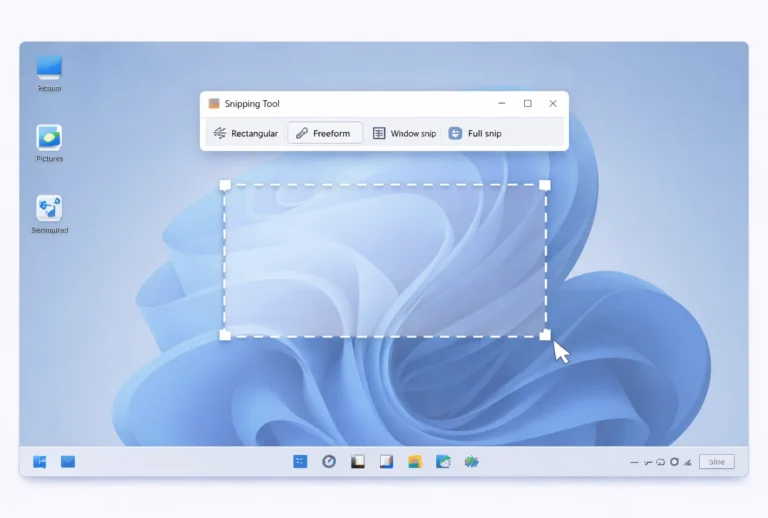
The Snipping Tool is a built-in Windows utility that lets you capture screenshots in different formats, such as:
- Rectangular snips
- Free-form snips
- Window snips
- Full-screen snips
In modern versions of Windows 10, the Snipping Tool works closely with Snip & Sketch, which provides faster keyboard shortcuts and better annotation tools.
Learning shortcut keys allows you to:
- Capture screenshots instantly
- Avoid interrupting your workflow
- Work faster as a developer, designer, writer, or support agent
Primary Windows 10 Snipping Tool Shortcut Key
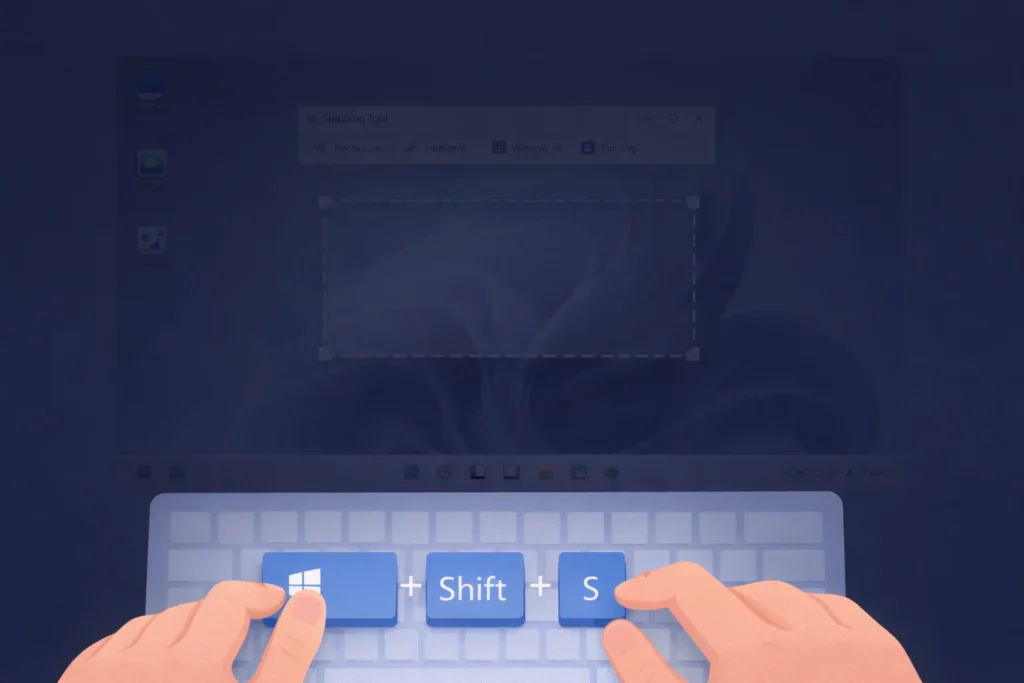
Windows Key + Shift + S
This is the most important Snipping Tool shortcut key in Windows 10.
What it does:
- Opens the snipping overlay instantly
- Let you choose the snip type
- Copies the screenshot directly to the clipboard
How it works:
- Press Win + Shift + S
- Your screen dims
- Select one of the snip modes
- Drag or click to capture
This shortcut works system – wide and does not require opening the Snipping Tool app first.
Snipping Modes Available After Pressing Win + Shift + S

Once the overlay opens, you can choose from four capture modes:
| Snip Type | Description |
|---|---|
| Rectangular Snip | Drag to capture a custom rectangle |
| Free-form Snip | Draw any shape around content |
| Window Snip | Capture a specific window |
| Full-screen Snip | Capture the entire screen |
The captured image is copied to your clipboard automatically.
Snipping Tool In-App Shortcut Keys (Keyboard Controls)

When you open the Snipping Tool application manually, you can use additional keyboard shortcuts:
| Shortcut Key | Function |
|---|---|
| Alt + N | Create a new snip |
| Alt + M | Change snip mode |
| Alt + D | Set delay before capture |
| Ctrl + C | Copy snip to clipboard |
| Ctrl + S | Save the screenshot |
| Esc | Cancel the snip |
These shortcuts are especially useful for users who prefer keyboard navigation or accessibility workflows.
Screenshot Shortcut Keys Related to Snipping Tool
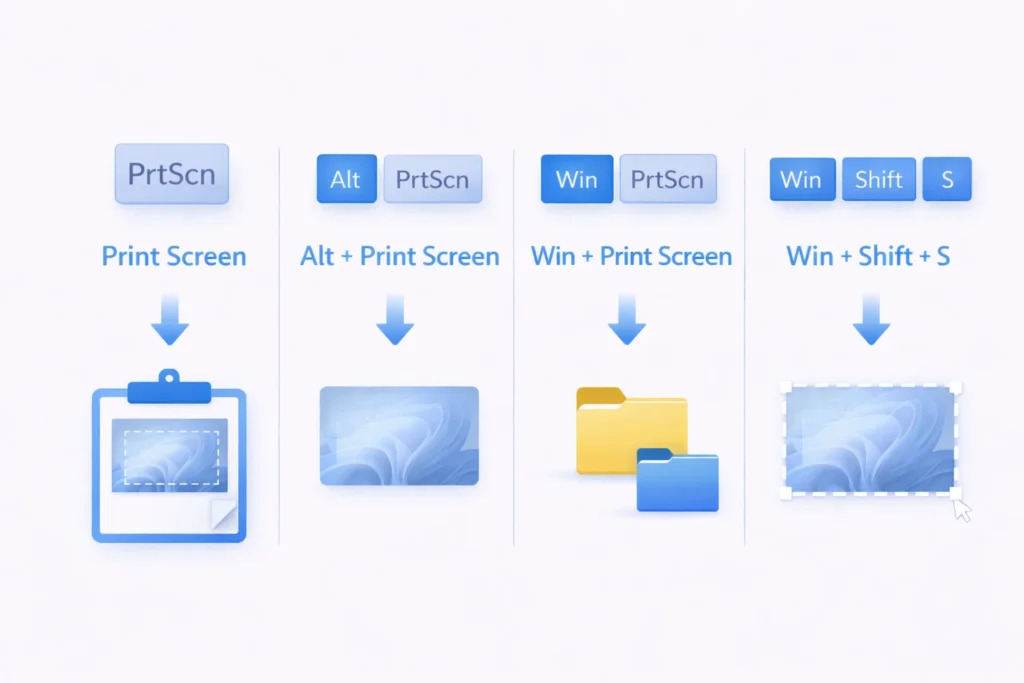
While not strictly part of the Snipping Tool, these Windows 10 screenshot shortcuts are commonly used alongside it:
| Shortcut | Action |
|---|---|
| Print Screen | Copies the entire screen to the clipboard |
| Alt + Print Screen | Copies the active window |
| Windows + Print Screen | Saves a full screenshot automatically |
| Ctrl + V | Paste screenshot from the clipboard |
Screenshots saved using Win + Print Screen appear in:
Pictures → Screenshots
How to Enable Print Screen to Open Snipping Tool

If Win + Shift + S feels awkward, you can assign the Snipping Tool to the Print Screen key.
Steps:
- Open Settings.
- Go to Ease of Access.
- Select Keyboard.
- Enable “Use the Print Screen key to open screen snipping.”
- Restart your computer.
After this, pressing Print Screen will launch the snipping overlay.
Snipping Tool Shortcut Keys Not Working? (Fixes)
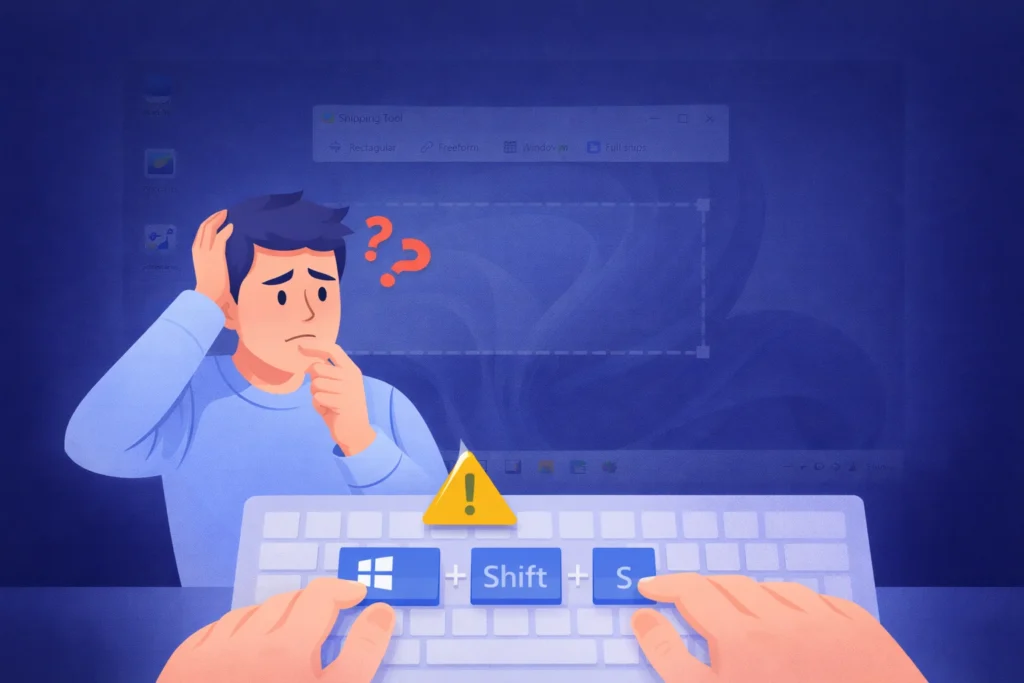
If shortcut keys are not working, try these solutions:
Check App Permissions
- Ensure Snip & Sketch is allowed to run in the background
Restart Windows Explorer
- Open Task Manager → Restart Windows Explorer
Update Windows 10
- Older versions may not support newer shortcuts
Reset Snip & Sketch
- Settings → Apps → Snip & Sketch → Advanced Options → Reset
Snipping Tool vs Snip & Sketch (Shortcut Comparison)
| Feature | Snipping Tool | Snip & Sketch |
|---|---|---|
| Keyboard Shortcut | Limited | Win + Shift + S |
| Clipboard Support | Manual | Automatic |
| Annotation Tools | Basic | Advanced |
| Windows 10 Support | Yes | Recommended |
For shortcut-based workflows, Snip & Sketch is the better option.
Final Thoughts
Knowing the right Windows 10 Snipping Tool shortcut keys can dramatically speed up your daily work. Whether you capture screenshots for tutorials, bug reports, or documentation, keyboard shortcuts make the process smoother and faster.
Quick recap:
- Use Win + Shift + S for instant snips
- Use Alt + N and Alt + M inside the app
- Enable Print Screen for even faster access
Once you master these shortcuts, you’ll never go back to manual screenshots again.
Frequently Asked Questions
The main shortcut is Windows Key + Shift + S.
They are copied to the clipboard. You must paste or save them manually unless using Win + Print Screen.
Yes, by creating a desktop shortcut and assigning a custom key combination.