Snipping Tool Shortcuts You Should Know (Windows 10 & 11)
Taking screenshots is something most Windows users do every day, but many still rely on the mouse or the Print Screen key. If you want to capture, save, and edit screenshots faster, learning Snipping Tool shortcuts is essential.
In this guide, you’ll discover all the Snipping Tool shortcuts you should know, how they work, and how to use them efficiently on Windows 10 and Windows 11.
What Is the Snipping Tool?
The Snipping Tool is a built-in Windows application that lets you capture screenshots of your entire screen, a specific window, or a custom-selected area. It also includes basic editing and annotation tools, making it more powerful than traditional Print Screen screenshots.
Using keyboard shortcuts with the Snipping Tool allows you to work faster and avoid unnecessary clicks.
Complete List of Snipping Tool Shortcuts
These are the most important Snipping Tool keyboard shortcuts every Windows user should know.
Essential Snipping Tool Shortcuts (Must-Know)

| Shortcut | Action |
|---|---|
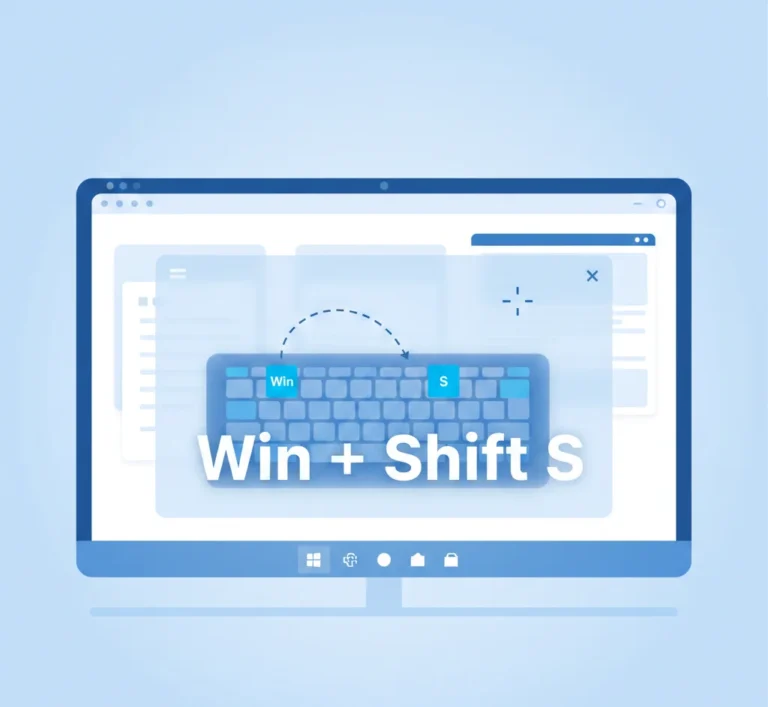
| Windows + Shift + S | Open the snipping overlay |
| Ctrl + S | Save the screenshot |
| Ctrl + C | Copy the screenshot to clipboard |
| Alt + N | Create a new snip |
| Esc | Cancel the snipping process |
Snipping Tool Shortcuts for Editing & Annotation
After capturing a screenshot, Snipping Tool provides basic editing options. These shortcuts help speed up post – capture actions.

| Shortcut | Action |
|---|---|
| Ctrl + Z | Undo last action |
| Ctrl + Y | Redo action |
| Ctrl + P | Print the screenshot |
| Ctrl + A | Select entire image |
These shortcuts work when the Snipping Tool editing window is active.
Snipping Tool Shortcuts for Faster Workflow
Keyboard shortcuts significantly reduce the time spent capturing screenshots, especially if you work with documentation, tutorials, or remote collaboration.
Why shortcuts improve productivity:
- No need to open the app manually
- Faster capture during meetings
- Instant copy-paste into emails or documents
- Less interruption to your workflow
Pro tip:
Use Windows + Shift + S → Ctrl + C to instantly paste screenshots into WordPress, Google Docs, or email without saving files.
Snipping Tool vs Print Screen Shortcuts
Many users confuse Snipping Tool shortcuts with traditional Print Screen commands. Here’s a quick comparison.

| Shortcut | What It Does |
|---|---|
| Print Screen (PrtSc) | Captures full screen to clipboard |
| Alt + Print Screen | Captures active window |
| Windows + Print Screen | Saves full screen automatically |
| Windows + Shift + S | Opens Snipping Tool overlay |
Key difference: Snipping Tool shortcuts allow custom selection and editing, while Print Screen shortcuts do not.
How to Enable Snipping Tool with the Print Screen Key
You can configure Windows to open Snipping Tool when pressing Print Screen.
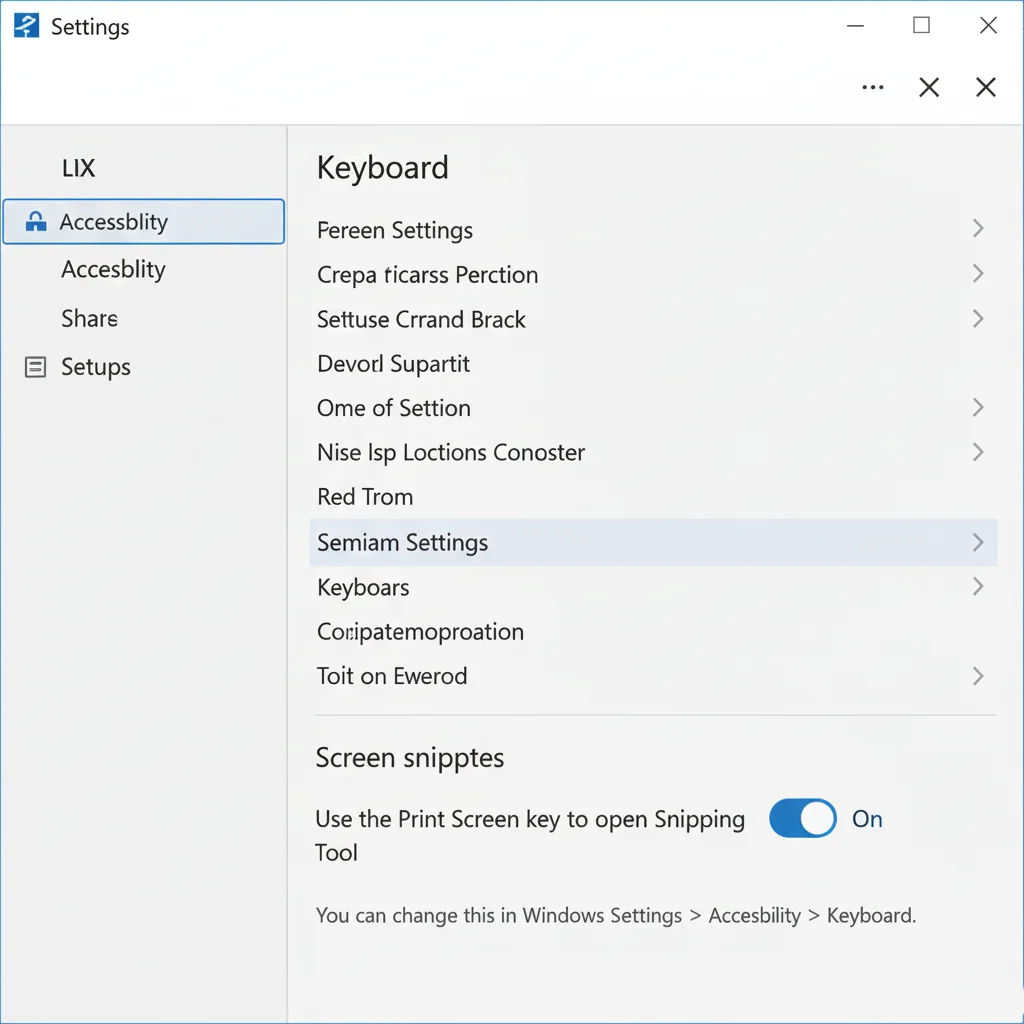
Steps:
- Open Windows Settings
- Go to Accessibility → Keyboard
- Enable Use the Print Screen key to open Snipping Tool
This setting makes Snipping Tool even faster to access.
Common Problems With Snipping Tool Shortcuts (And Fixes)
Snipping Tool shortcut not working?
- Make sure Windows is updated
- Check that no third-party screenshot tool is overriding shortcuts
- Restart the Snipping Tool app
Snipping Tool not opening?
- Search for “Snipping Tool” in the Start Menu
- Reinstall via Microsoft Store if needed
Tips Most Users Don’t Know About the Snipping Tool
- You can use Delay Snip to capture menus
- Works across multiple monitors
- Screenshots can auto – copy to the clipboard
- Ideal for quick tutorials and bug reporting
Final Thoughts
Learning the Snipping Tool shortcuts you should know can dramatically improve how you capture and manage screenshots in Windows. Whether you’re a student, professional, or content creator, these shortcuts save time and reduce effort.
Bookmark this guide or keep it handy; you’ll use these shortcuts more than you expect.
Frequently Asked Questions
No, built-in shortcuts cannot be customized, but you can remap keys using third-party tools.
Windows + Shift + S opens the Snipping Tool overlay instantly.
Yes, all major shortcuts work the same in Windows 10 and Windows 11.
Yes, Snipping Tool offers selective capture, editing, and annotations.