Snipping Tool Shortcut Windows: Complete Keyboard Shortcuts Guide (Windows 10 & 11)
Taking screenshots on Windows doesn’t have to be slow. If you know the right Snipping Tool shortcuts, you can capture screenshots or screen recordings in seconds, without opening any app manually.
In this guide, you’ll learn all Snipping Tool shortcuts in Windows, including the main shortcut, in-app keyboard keys, screen recording shortcuts, and fixes if the shortcut doesn’t work.
What Is the Main Snipping Tool Shortcut in Windows?

The most important Snipping Tool shortcut in Windows is:
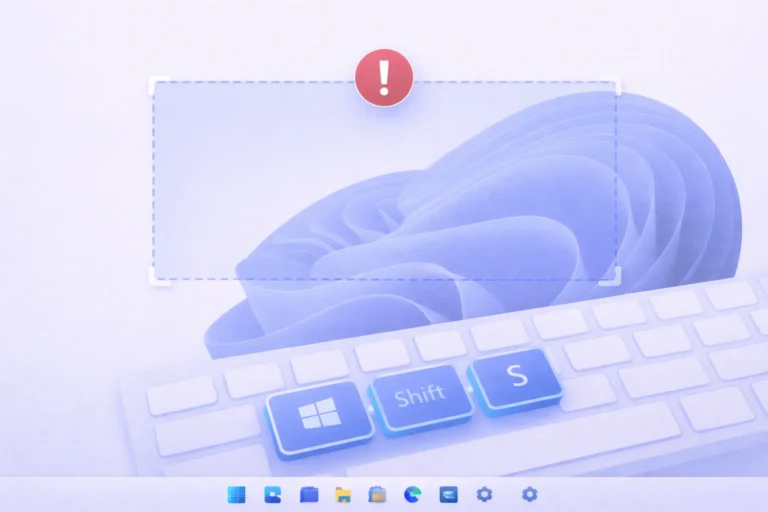
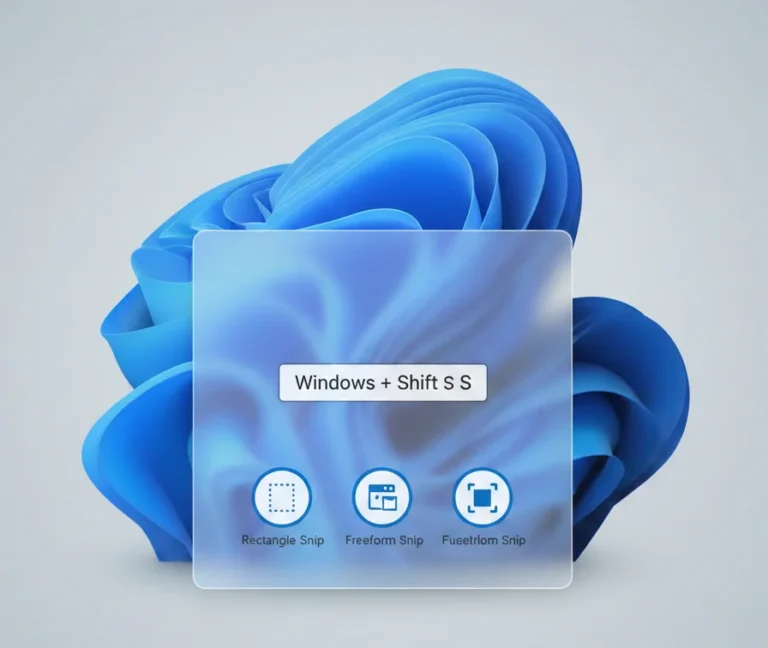
Windows + Shift + S
This shortcut instantly opens the Snipping Tool overlay, allowing you to select exactly what you want to capture.
Once pressed, your screen dims, and you can choose from:
- Rectangular snip
- Free – form snip
- Window snip
- Full – screen snip
Your screenshot is copied to the clipboard automatically, and a notification appears so you can edit or save it.
If you remember only one Snipping Tool shortcut, make it Win + Shift + S.
Snipping Tool Screen Recording Shortcut (Windows 11)

Windows 11 includes built-in screen recording inside the Snipping Tool.
Screen recording shortcut:
Windows + Shift + R
This shortcut opens the Snipping Tool directly in recording mode, letting you:
- Select an area of the screen
- Start recording
- Stop and save the video automatically
This shortcut is available only on Windows 11 with the updated Snipping Tool app.
Snipping Tool Keyboard Shortcuts (Inside the App)

When the Snipping Tool is open, these keyboard shortcuts help you work faster:
| Shortcut | Action |
|---|---|
| Alt + N | Create a new snip |
| Alt + M | Change snip mode |
| Ctrl + S | Save the screenshot |
| Ctrl + C | Copy the snip |
| Esc | Cancel the snip |
These shortcuts are especially useful if you take screenshots frequently or prefer keyboard, only workflows.
Complete Snipping Tool Shortcuts Cheat Sheet
Here’s a quick copy-paste-friendly reference table:
| Shortcut | What It Does |
|---|---|
| Win + Shift + S | Open snipping overlay |
| Win + Shift + R | Start screen recording (Windows 11) |
| Alt + N | New snip |
| Alt + M | Switch snip modes |
| Ctrl + S | Save screenshot |
| Ctrl + C | Copy screenshot |
| Esc | Cancel snip |
How to Change Snip Mode Using Keyboard

To switch between snip modes without using the mouse:
- Open Snipping Tool or press Win + Shift + S
- Press Alt + M
- Use arrow keys to select:
- Rectangular
- Window
- Full – screen
- Free – form
- Press Enter to confirm
This is ideal for power users and accessibility-focused workflows.
Where Do Snipping Tool Screenshots Go?
By default:
- Screenshots are copied to the clipboard
- Clicking the notification opens the editor
- Screenshots are saved only when you press Ctrl + S
Saved files usually go to:
Pictures → Screenshots
Screen recordings are saved automatically to:
Videos → Screen Recordings
Win + Shift + S Not Working? Try These Fixes
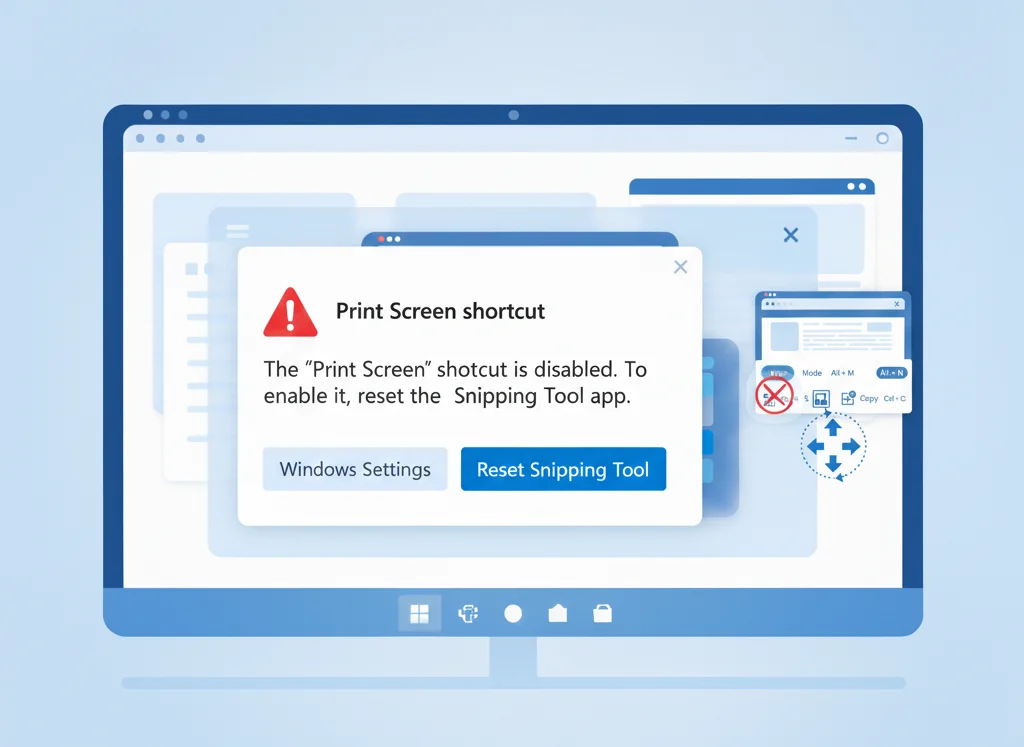
If the Snipping Tool shortcut isn’t working, try these quick fixes:
- Restart Windows Explorer
- Update Windows and Snipping Tool from the Microsoft Store
- Reset Snipping Tool
- Settings → Apps → Installed apps → Snipping Tool → Advanced options → Reset
- Disable conflicting screenshot tools
- Third-party apps may override the shortcut
Most users fix the issue with a simple reset or update.
Snipping Tool Shortcut vs Print Screen Key
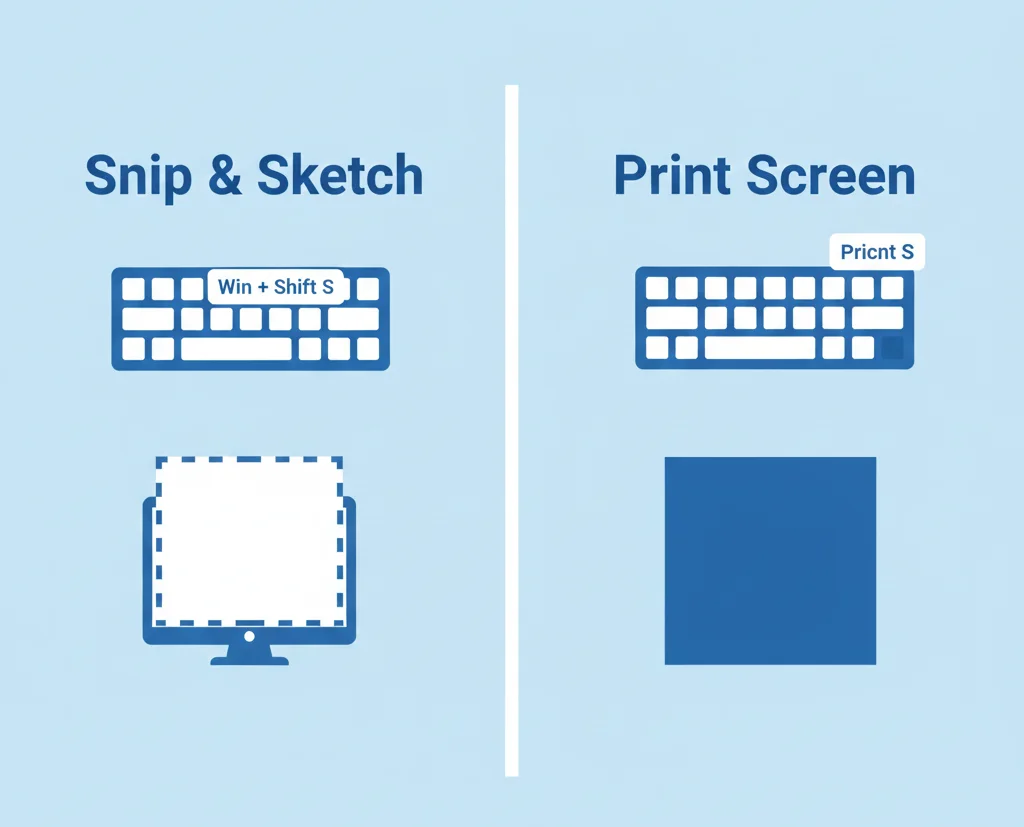
| Feature | Snipping Tool | Print Screen |
|---|---|---|
| Select a specific area | Yes | No |
| Capture window only | Yes | No |
| Built-in editing | Yes | No |
| One-key capture | No | Yes |
Best option:
- Use Win + Shift + S for precision
- Use Print Screen for instant full-screen capture
Final Thoughts
Knowing the Snipping Tool shortcut in Windows can save you time every single day. Whether you’re capturing a quick screenshot, recording your screen, or switching snip modes, these shortcuts make the Snipping Tool faster and more powerful.
If you regularly take screenshots, mastering Win + Shift + S is a must.
Frequently Asked Questions
The main shortcut is Windows + Shift + S.
Use Windows + Shift + R on Windows 11.
Yes, Windows 10 supports Win + Shift + S, but not screen recording.
They are copied to the clipboard and saved manually to Pictures → Screenshots.
The shortcut may be disabled, outdated, or overridden by another app.
Yes, most functions work using keyboard shortcuts like Alt + N and Alt + M.