Snipping Tool Hotkey Not Working Fix (Windows + Shift + S)
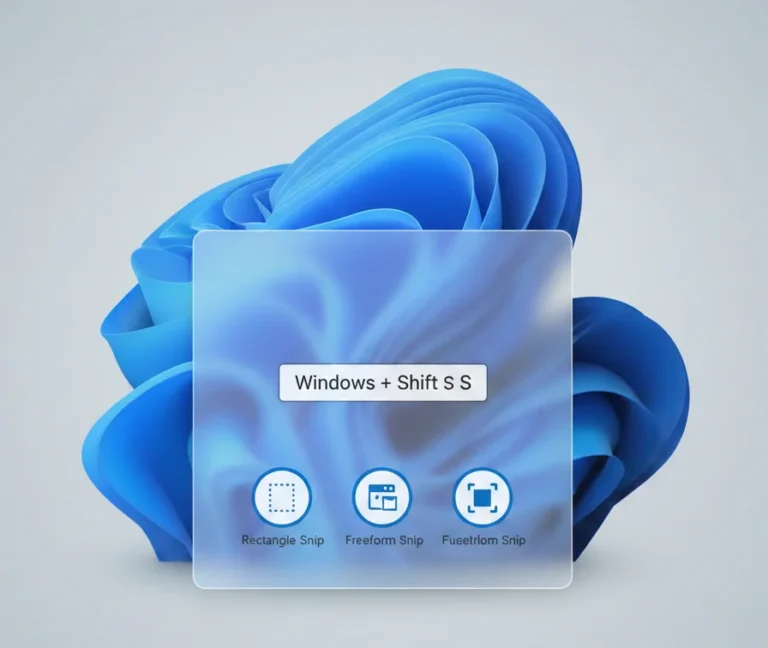
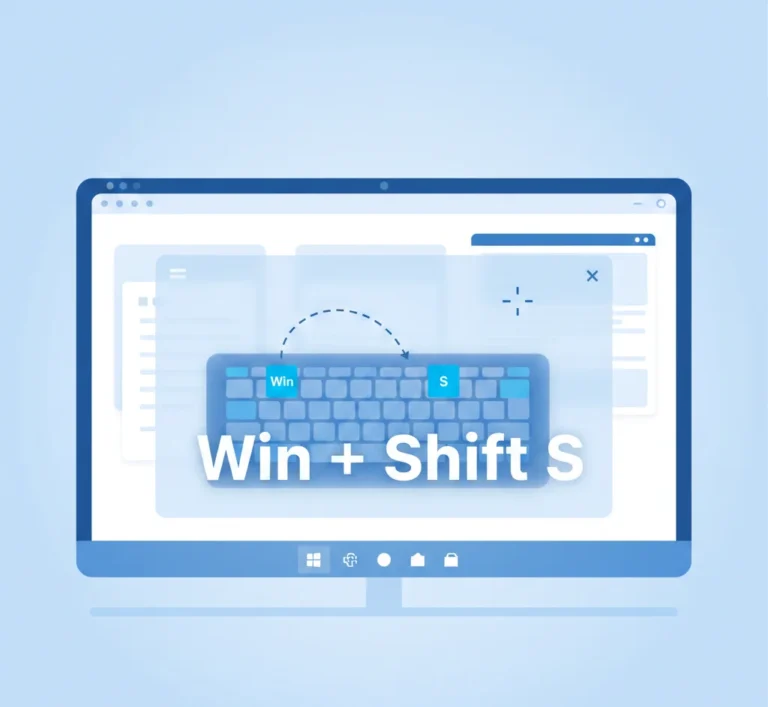
If your Snipping Tool hotkey is not working, you’re not alone. Many Windows users report that pressing Windows + Shift + S does nothing, shows no screen overlay, or fails to save screenshots. This issue commonly appears after Windows updates, app conflicts, or notification setting changes.
In this guide, you’ll learn why the Snipping Tool shortcut stops working and how to fix it step by step. We’ll start with quick fixes and move on to advanced solutions, so you can restore the screenshot hotkey without reinstalling Windows.
What Is the Snipping Tool Hotkey?
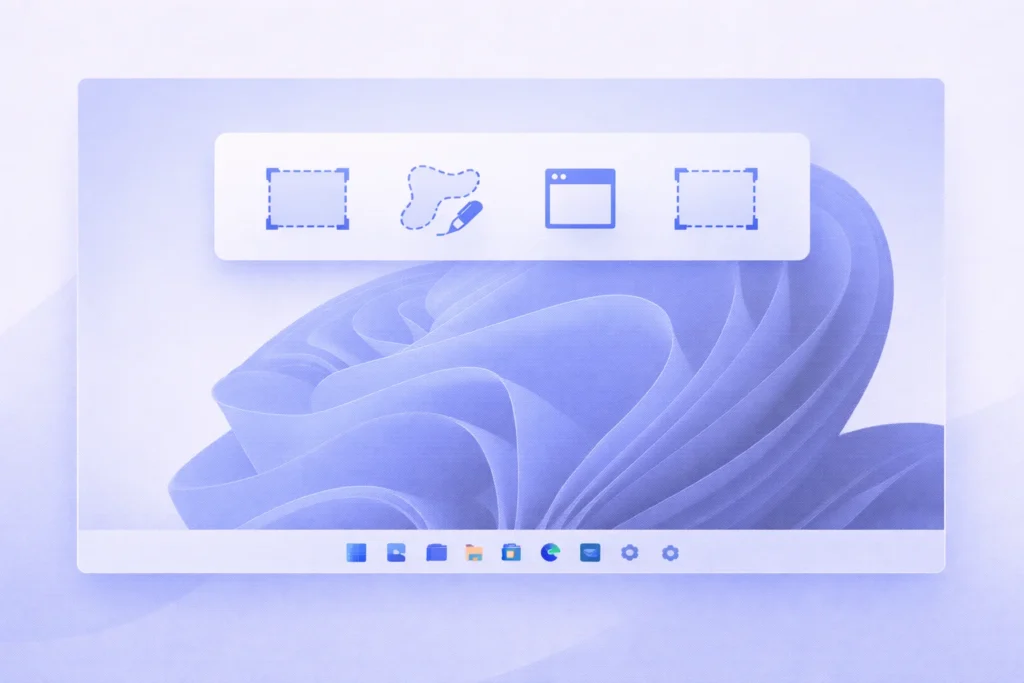
The default Snipping Tool hotkey in Windows is:
Windows + Shift + S
When this shortcut works correctly, Windows dims the screen and opens the snipping toolbar, allowing you to capture:
- Rectangular snips
- Freeform snips
- Window snips
- Full-screen snips
The captured screenshot is copied to the clipboard and saved once you open it in the Snipping Tool app.
If this shortcut fails, the tool may not launch at all, or the screenshot may not be saved.
Quick Fixes to Try First
Before moving to advanced troubleshooting, try these simple solutions. In many cases, one of these fixes restores the Snipping Tool hotkey immediately.
Restart Windows Explorer
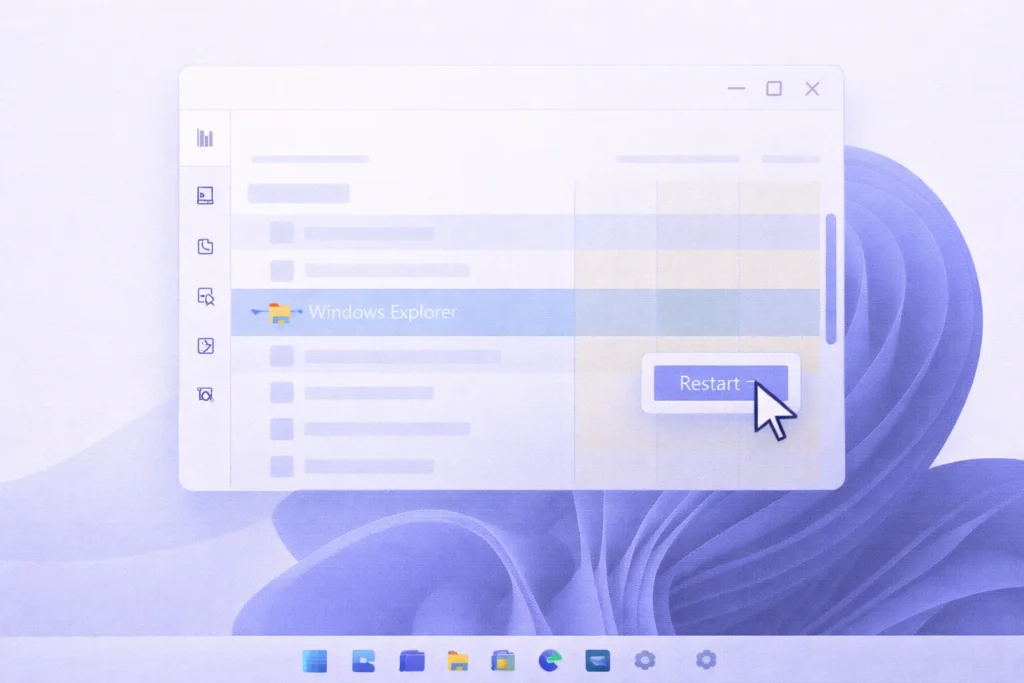
A temporary Explorer crash can disable keyboard shortcuts.
Steps:
- Press Ctrl + Shift + Esc
- Find Windows Explorer
- Right-click → Restart
Try Windows + Shift + S again.
Check Notifications Are Enabled
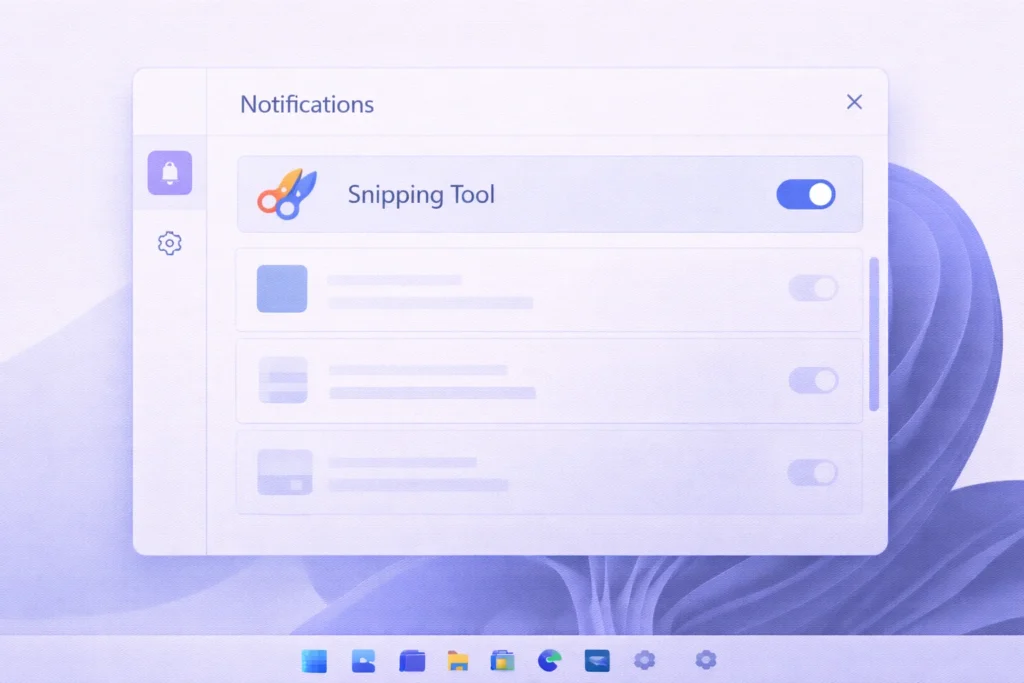
The Snipping Tool relies on notifications to open the screenshot editor.
Go to:
Settings → System → Notifications
- Make sure Notifications are turned ON
- Ensure Snipping Tool is allowed to send notifications
Disable Focus Assist (Do Not Disturb)
Focus Assist can block the snipping overlay.
Path:
Settings → System → Focus Assist
- Set it to Off
Why Is the Snipping Tool Hotkey Not Working?
Understanding the cause helps you apply the right fix faster.
Common Reasons
- The Snipping Tool app is corrupted or outdated
- Windows notifications are disabled
- Another app is overriding the shortcut
- Print Screen settings are misconfigured
- Windows Explorer is frozen
- Group Policy or Registry restrictions (work PCs)
Fix 1: Repair or Reset the Snipping Tool
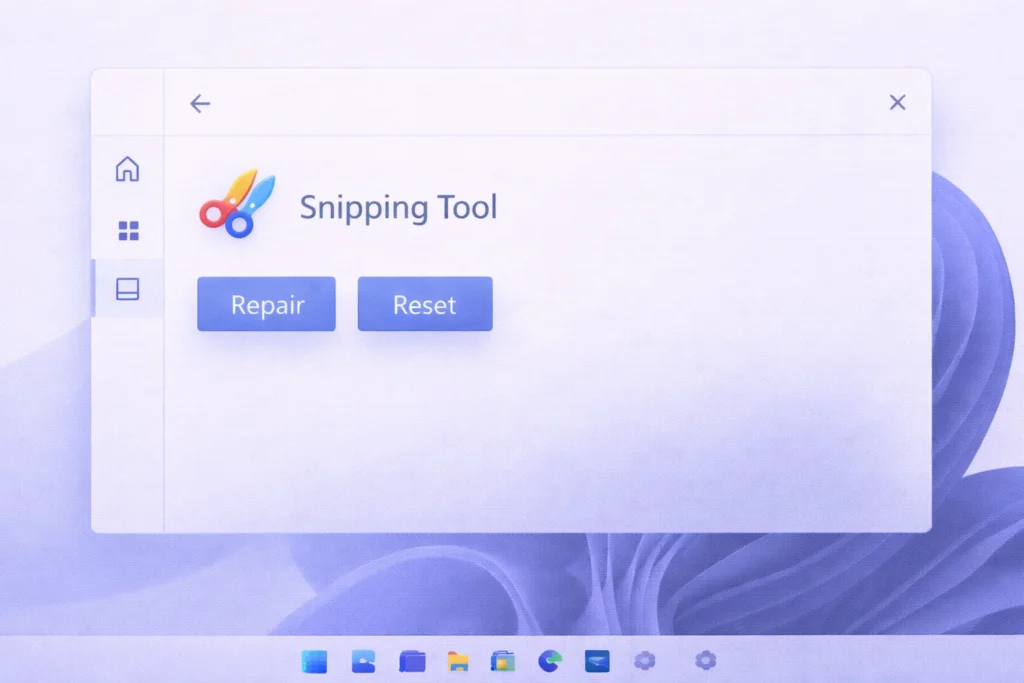
This is one of the most effective fixes.
Steps:
- Open Settings
- Go to Apps → Installed apps
- Search for Snipping Tool
- Click Advanced options
- Click Repair
If it still doesn’t work:
- Click Reset (this clears app data but not Windows files)
Restart your PC and test the shortcut again.
Fix 2: Reinstall Snipping Tool (Recommended)
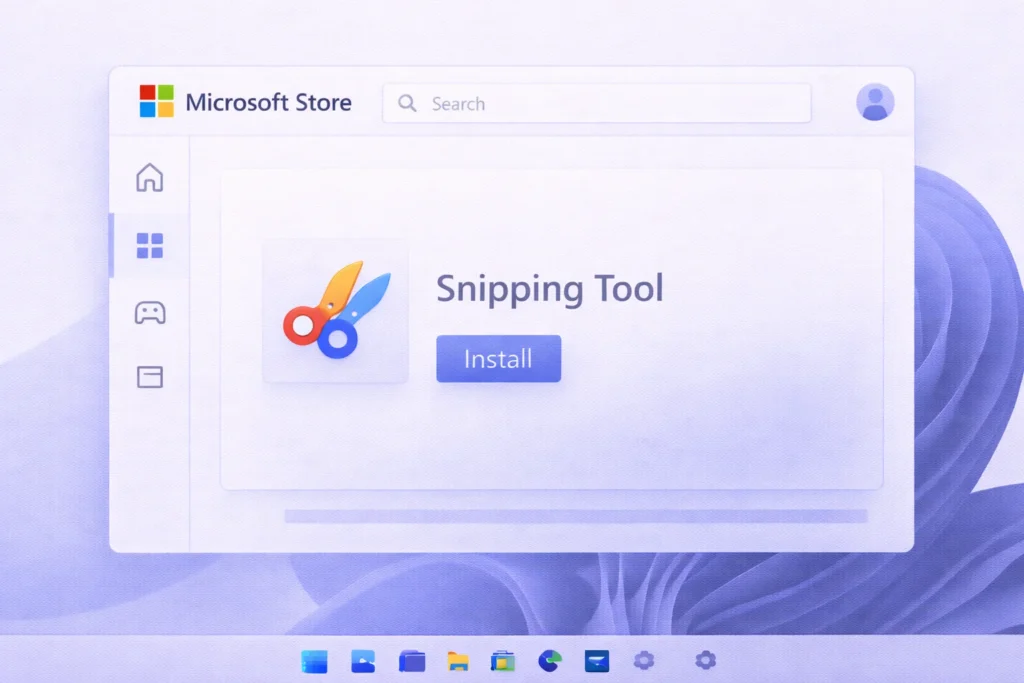
If repairing doesn’t help, reinstall the app.
Steps:
- Open Settings → Apps
- Uninstall Snipping Tool
- Open Microsoft Store
- Search for Snipping Tool
- Install the latest version
This resolves most corruption, related issues.
Fix 3: Enable “Use Print Screen to Open Snipping Tool”
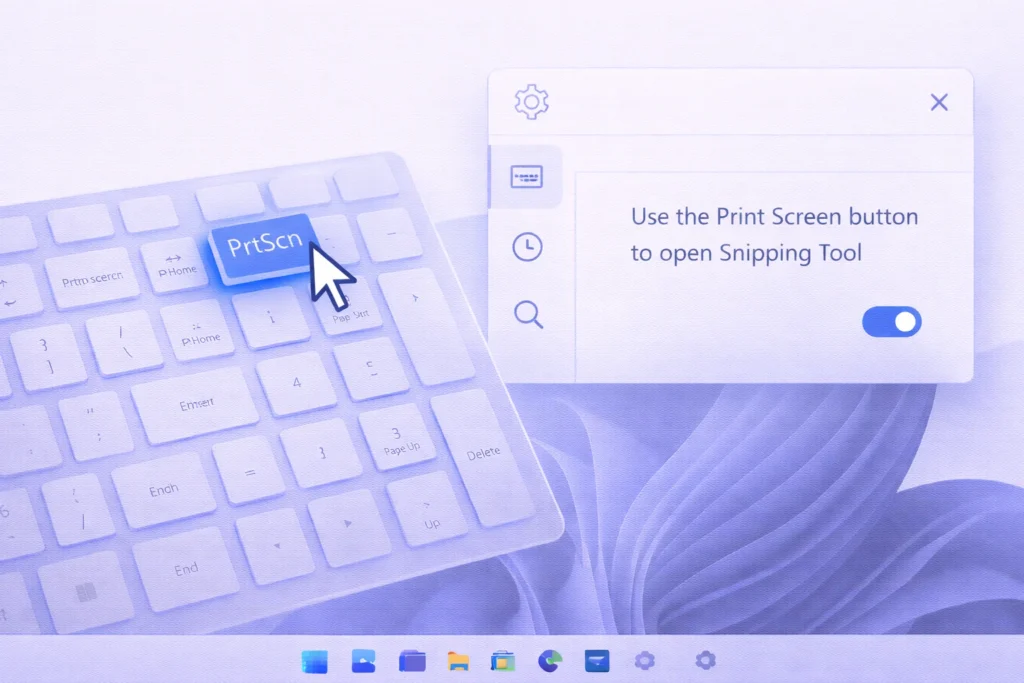
Sometimes the shortcut conflict is tied to the Print Screen key.
Steps:
- Go to Settings → Accessibility → Keyboard
- Enable Use the Print Screen key to open Snipping Tool
- Restart your computer
This does not disable Windows + Shift + S; it enhances compatibility.
Fix 4: Check for App Conflicts
Some apps override screenshot shortcuts, including:
- Screen recording software
- Gaming overlays
- Logitech / Razer keyboard software
- Clipboard managers
What to Do
- Temporarily close background apps
- Disable overlays (Xbox Game Bar, GPU overlays)
- Test the shortcut again
If it works after closing an app, you’ve found the conflict.
Fix 5: Restart Clipboard Services
Snipping Tool depends on the clipboard to store screenshots.
Steps:
- Press Windows + R
- Type services.msc
- Restart:
- Clipboard User Service
- Windows Explorer
Fix 6: Update Windows
An outdated system can break built-in tools.
Path:
Settings → Windows Update → Check for updates
Install all pending updates and reboot.
Advanced Fix: Group Policy or Registry (Advanced Users Only)
On managed or work PCs, screenshot tools may be restricted.
Group Policy Check
- Press Windows + R
- Type gpedit.msc
Navigate to:
User Configuration → Administrative Templates → Windows Components → Tablet PC
- Navigate to:
User Configuration → Administrative Templates → Windows Components → Tablet PC - Ensure “Turn off Snipping Tool” is set to Not Configured.
Skip this step if you’re not comfortable with system settings.
Troubleshooting Checklist (Quick Review)
- Restart Windows Explorer
- Enable notifications
- Turn off Focus Assist
- Repair or reset the Snipping Tool
- Reinstall from the Microsoft Store
- Check conflicting apps
- Enable Print Screen mapping
- Update Windows
Final Thoughts
If your Snipping Tool hotkey is not working, the issue is usually easy to fix. In most cases, repairing or reinstalling the Snipping Tool, enabling notifications, or resolving app conflicts restores the shortcut instantly.
Follow the steps in order, and you’ll have Windows + Shift + S working again without drastic measures.
Frequently Asked Questions
Most commonly, notifications are disabled, the app is corrupted, or another app is blocking the shortcut.
Screenshots are copied to the clipboard and saved once you open them in the Snipping Tool editor.
No. Snipping Tool is built in and actively supported in Windows 10 and Windows 11.
Windows does not natively allow custom shortcuts, but you can use third-party tools to remap keys.