Snipping Tool Freeze Issue Fix – 9 Working Solutions
Is your Snipping Tool freezing, stuck on a grey, dim screen, or not responding after you press Windows + Shift + S? You’re not alone. Many users on Microsoft Windows 11 and Microsoft Windows 10 report that the Snipping Tool becomes unresponsive due to app glitches, driver conflicts, or recent updates.
In this article, you’ll learn step-by-step fixes to solve the issue quickly, from simple keyboard shortcuts to advanced system repair commands.
Quick Fix (Try This First)
If the Snipping Tool freezes:
- Press Esc to exit the snip mode.
- Press Ctrl + Shift + Esc to open Task Manager.
- Select Snipping Tool (or Snip & Sketch).
- Click End Task.
- Relaunch the app.
In many cases, this immediately resolves the freeze.
Why Does Snipping Tool Freeze?
Common causes include:
- Corrupted app cache or settings
- Conflict with screen recording or overlay apps
- Outdated Windows updates
- Graphics driver issues
- System file corruption
- Bugs introduced after recent updates
The good news? Most of these problems are fixable in minutes.
9 Working Methods to Fix Snipping Tool Freeze Issue
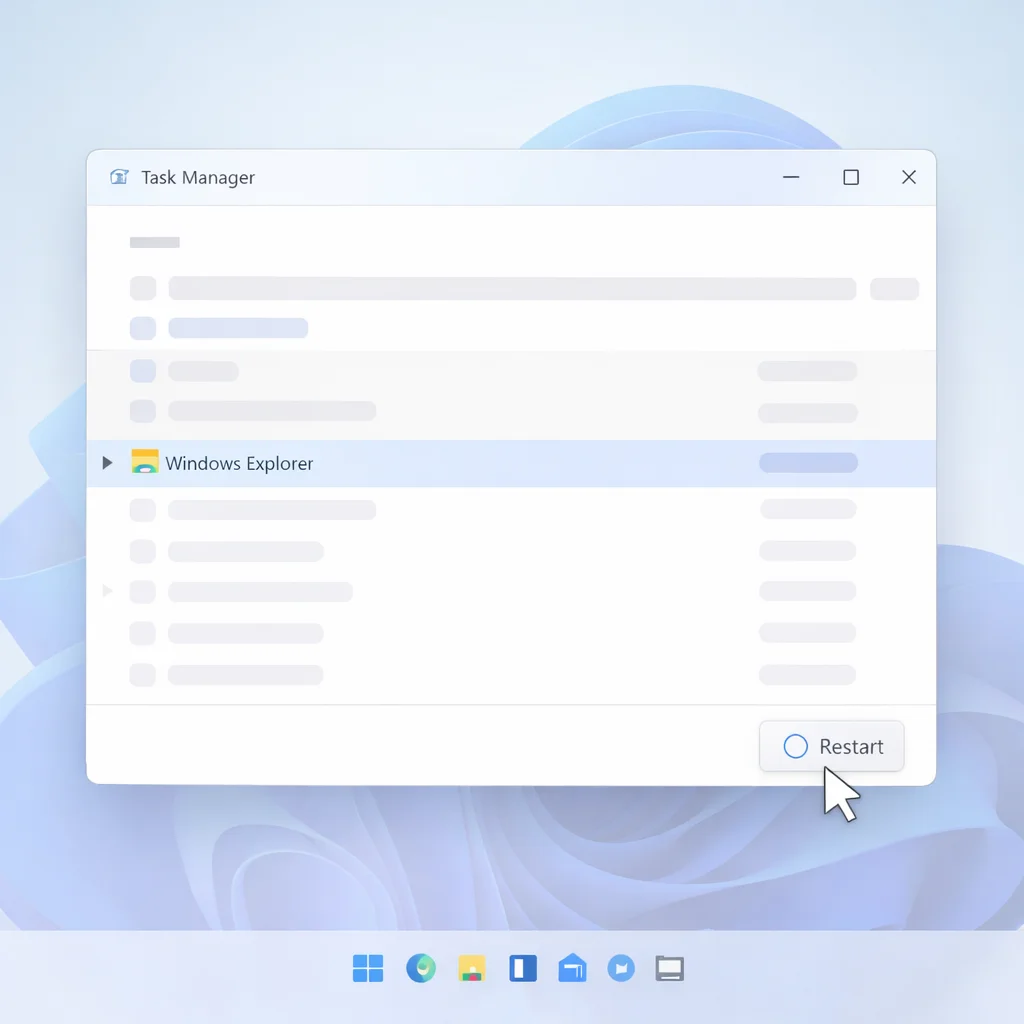
1. Restart Windows Explorer
Sometimes the issue isn’t the app, it’s Windows Explorer.
Steps:
- Press Ctrl + Shift + Esc
- Scroll to Windows Explorer
- Click Restart
This refreshes the desktop and screenshot overlay system.
2. Repair the Snipping Tool App (Recommended)
Windows allows you to repair built-in apps without deleting data.
Steps:
- Open Settings
- Go to Apps > Installed Apps
- Find Snipping Tool
- Click Advanced Options
- Click Repair
Repair attempts to fix corrupted files without removing your saved screenshots.
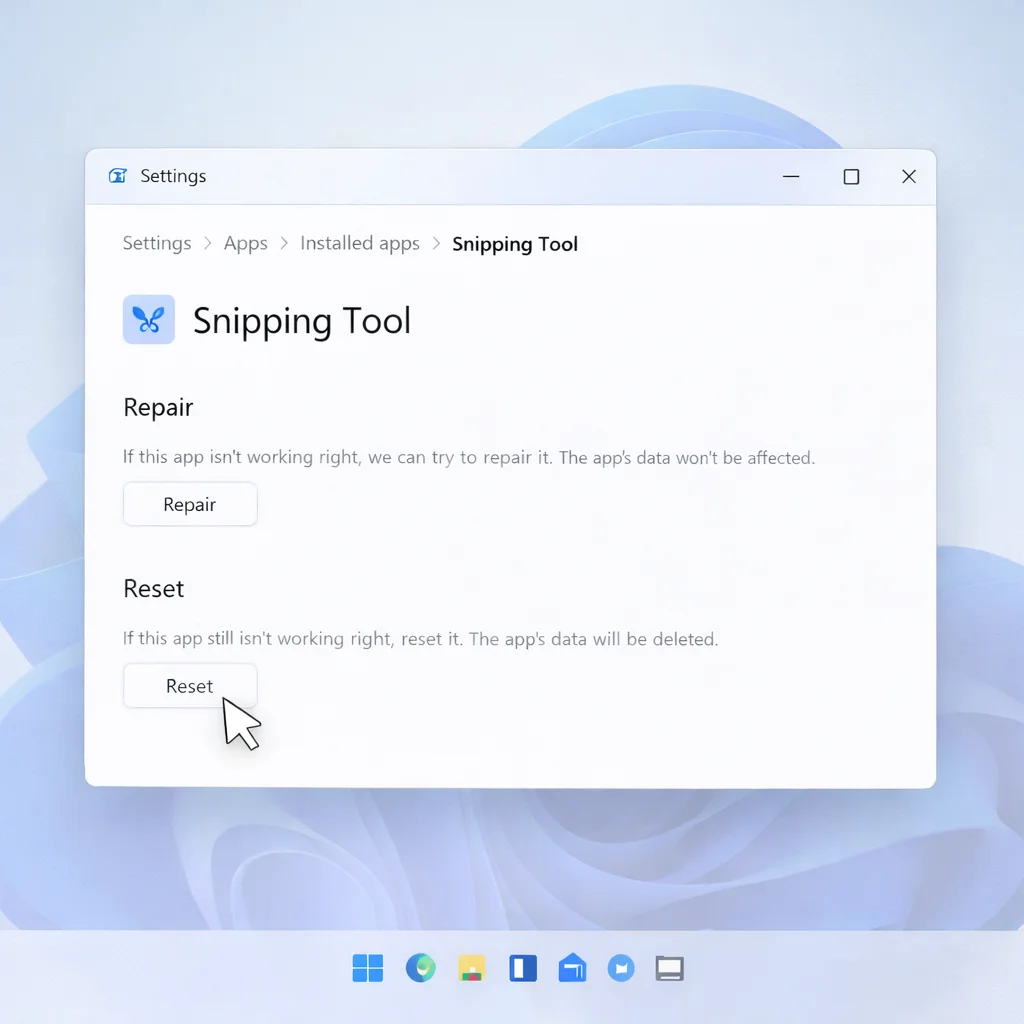
3. Reset the Snipping Tool
If Repair doesn’t work, reset the app.
Reset will remove app preferences but won’t delete screenshots saved in Pictures.
Steps:
- Go to Settings > Apps > Installed Apps
- Select Snipping Tool
- Click Advanced Options
- Choose Reset
4. Update Windows
Freezing issues often occur after partial or pending updates.
Steps:
- Open Settings
- Go to Windows Update
- Click Check for updates
- Install all available updates
- Restart your PC
Keeping Windows updated reduces compatibility bugs.
5. Update Graphics Drivers
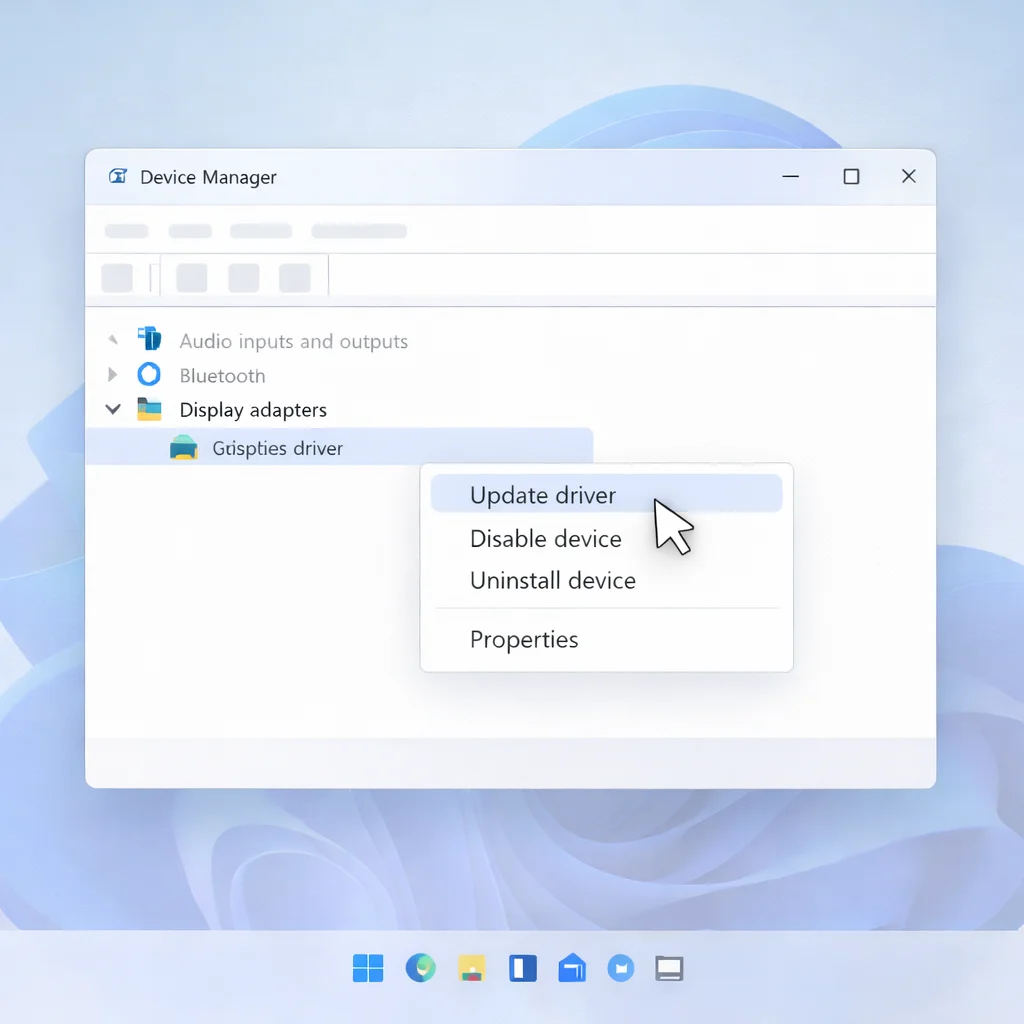
Snipping Tool relies on display drivers to render the screen overlay.
Steps:
- Press Win + X
- Select Device Manager
- Expand Display adapters
- Right-click your GPU
- Select Update driver
Outdated GPU drivers are a common cause of screen capture freezes.
6. Disable Overlay & Recording Apps
Apps like:
- Game overlays
- Screen recorders
- Video conferencing tools
- Third-party screenshot software
can conflict with Snipping Tool.
Temporarily disable these apps and test again.
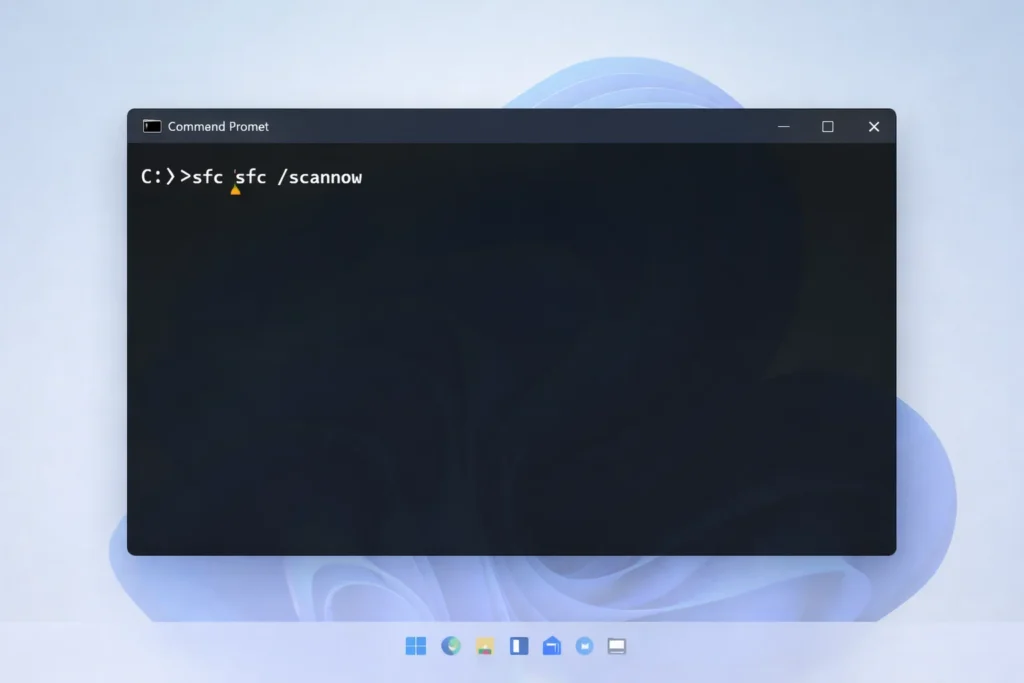
7. Run System File Checker (Advanced Fix)
Corrupted system files can cause built-in apps to freeze.
Steps:
- Search Command Prompt
- Run as Administrator
- Type:
sfc /scannow- Press Enter
- Restart after completion
This scans and repairs damaged system files.
8. Reinstall Snipping Tool
If the issue persists:
- Go to Settings > Apps
- Uninstall Snipping Tool
- Open the Microsoft Store
- Reinstall the app
This ensures a fresh installation.
9. Create a New User Profile
If the problem only occurs on your account, your Windows profile may be corrupted.
Create a new local user account and test the Snipping Tool there.
What If Snipping Tool Is Stuck on a Grey Screen?
This usually means the screen capture mode did not exit properly.
Try:
- Press Esc
- Press Alt + F4
- End Task from Task Manager
- Sign out (Ctrl + Alt + Delete → Sign out)
These methods force Windows to exit capture mode.
Alternative Screenshot Methods (If You Need It Urgently)
While fixing the issue, you can use:
- Win + PrtScn (Auto saves to Pictures)
- Print Screen (Clipboard)
- Windows + Shift + S shortcut
- Third-party tools like ShareX or Greenshot
Prevent Snipping Tool From Freezing Again
- Keep Windows updated
- Avoid running multiple screenshot tools
- Update GPU drivers regularly
- Restart PC weekly
- Avoid interrupting Windows updates
Final Thought
The Snipping Tool Freeze Issue Fix is usually simple. Start with Esc, restart Explorer, then Repair or Reset the app. If needed, update Windows and drivers or run system repair commands.
Most users solve the issue within 5–10 minutes using the steps above.
Frequently Asked Questions
It usually freezes due to corrupted app data, outdated drivers, or conflicts with overlay applications.
Press Ctrl + Shift + Esc, select Snipping Tool, and click End Task.
No. Reset only clears app settings. Saved screenshots remain in your Pictures folder.