Snipping Tool Not Opening Fix (Windows 10 & 11)
If your Snipping Tool is not opening, crashing, or refusing to launch on Windows 10 or Windows 11, you’re not alone. This is a common Windows issue caused by corrupted app files, outdated system updates, notification settings, or background permission problems.
In this guide, you’ll learn why the Snipping Tool won’t open and how to fix it using simple, proven troubleshooting steps, from quick fixes to advanced solutions.
Why Is the Snipping Tool Not Opening?
Before applying fixes, it helps to understand the most common causes of this issue:
- Corrupted or missing Snipping Tool app files
- Outdated Windows version or pending updates
- Notifications disabled (editor won’t open after capture)
- Background app permissions turned off
- Windows Explorer or system process glitch
- Conflicts with third-party screenshot tools
- Temporary Windows Store cache issues
Quick Fixes (Try These First)
These solutions resolve the issue for most users and take less than a minute.
Restart Your Computer
A simple restart clears temporary system glitches that may prevent the Snipping Tool from launching.
Use the Correct Shortcut
Press: Windows + Shift + S
If the snipping overlay appears, the tool is working, but the editor may be blocked by notifications.
Restart Windows Explorer
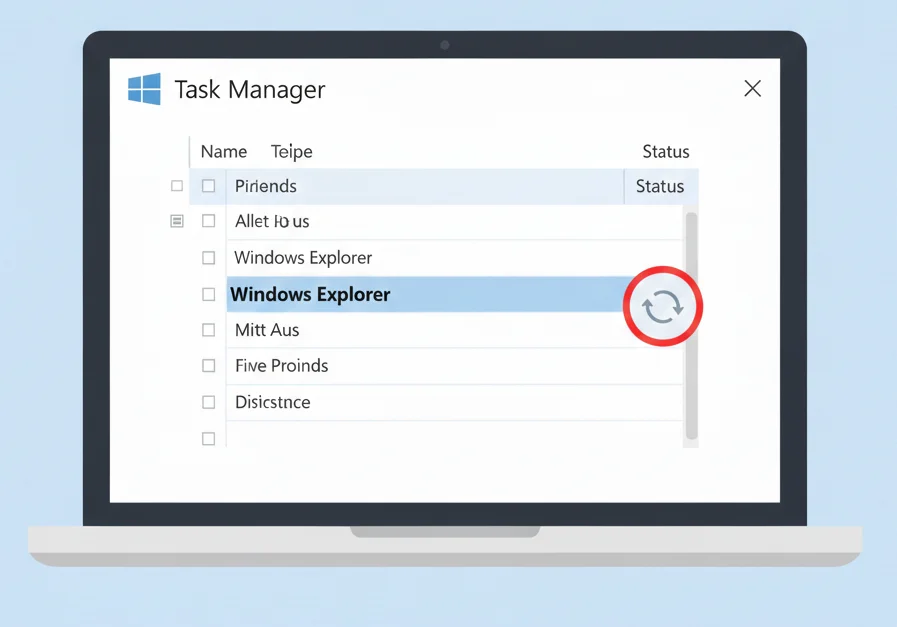
- Press Ctrl + Shift + Esc
- Find Windows Explorer
- Right-click → Restart
This refreshes the Windows shell and fixes launch-related issues.
Fix Snipping Tool Notification Issues (Very Common)
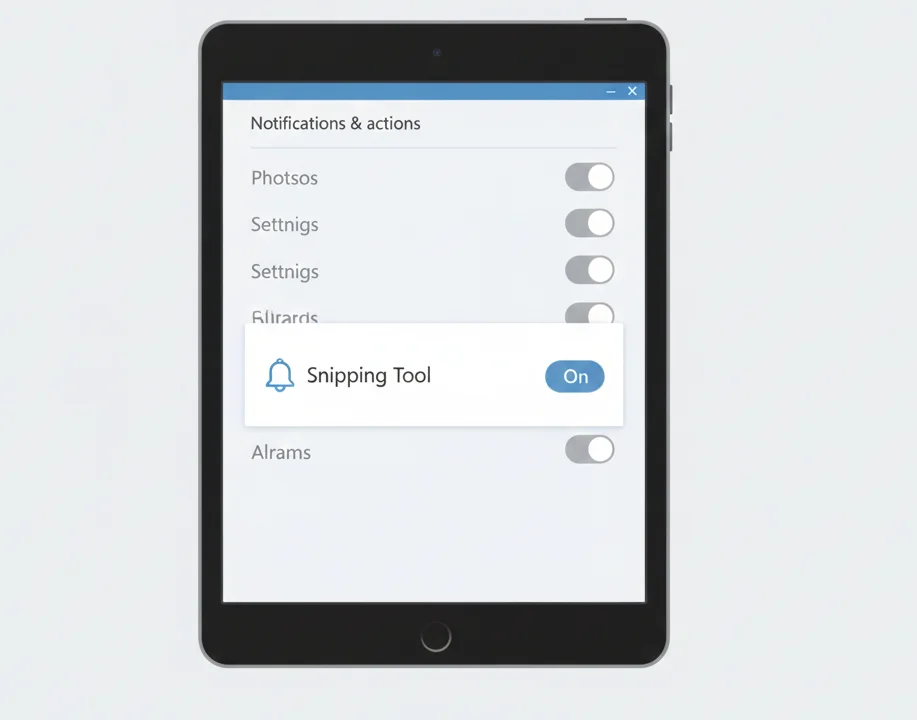
If screenshots are taken but the editor doesn’t open, notifications are likely disabled.
Enable Notifications
- Go to Settings → System → Notifications
- Turn Notifications ON
- Scroll down and enable notifications for Snipping Tool
Without notifications, the Snipping Tool runs silently in the background.
Repair or Reset the Snipping Tool App
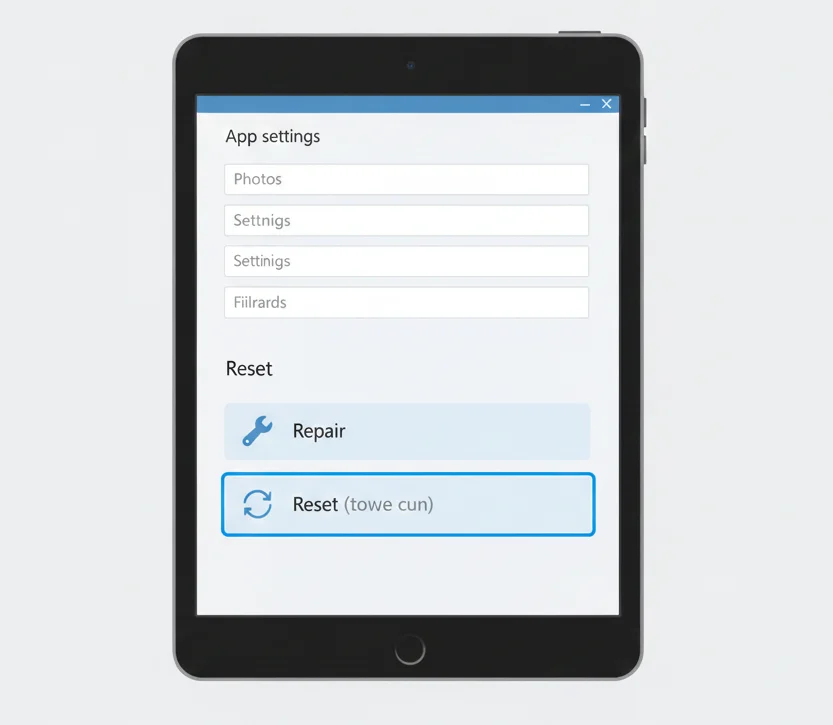
If the app files are corrupted, repairing or resetting them fixes the issue.
Repair the App
- Go to Settings → Apps → Installed apps
- Search for Snipping Tool
- Click Advanced options
- Select Repair
Reset the App (If Repair Doesn’t Work)
- Click Reset (this restores default settings)
Check for Windows Updates
Microsoft regularly fixes Snipping Tool bugs through Windows updates.
Update Windows
- Open Settings → Windows Update
- Click Check for updates
- Install all pending updates
- Restart your PC
Outdated Windows versions are a frequent cause of Snipping Tool launch failures.
Enable Background App Permissions
If background permissions are disabled, the Snipping Tool won’t open properly.
How to Enable Background Access
- Go to Settings → Apps → Installed apps
- Open Snipping Tool → Advanced options
- Set Background app permissions to Always
Run System File Checker (Advanced Fix)
If system files are corrupted, Windows tools can repair them.
Run SFC Scan
- Press Windows + X
- Select Terminal (Admin) or Command Prompt (Admin)
- Run:
sfc /scannow- Wait for completion and restart
This fixes missing or corrupted Windows system files that affect built-in apps.
Reinstall the Snipping Tool (Last Resort)
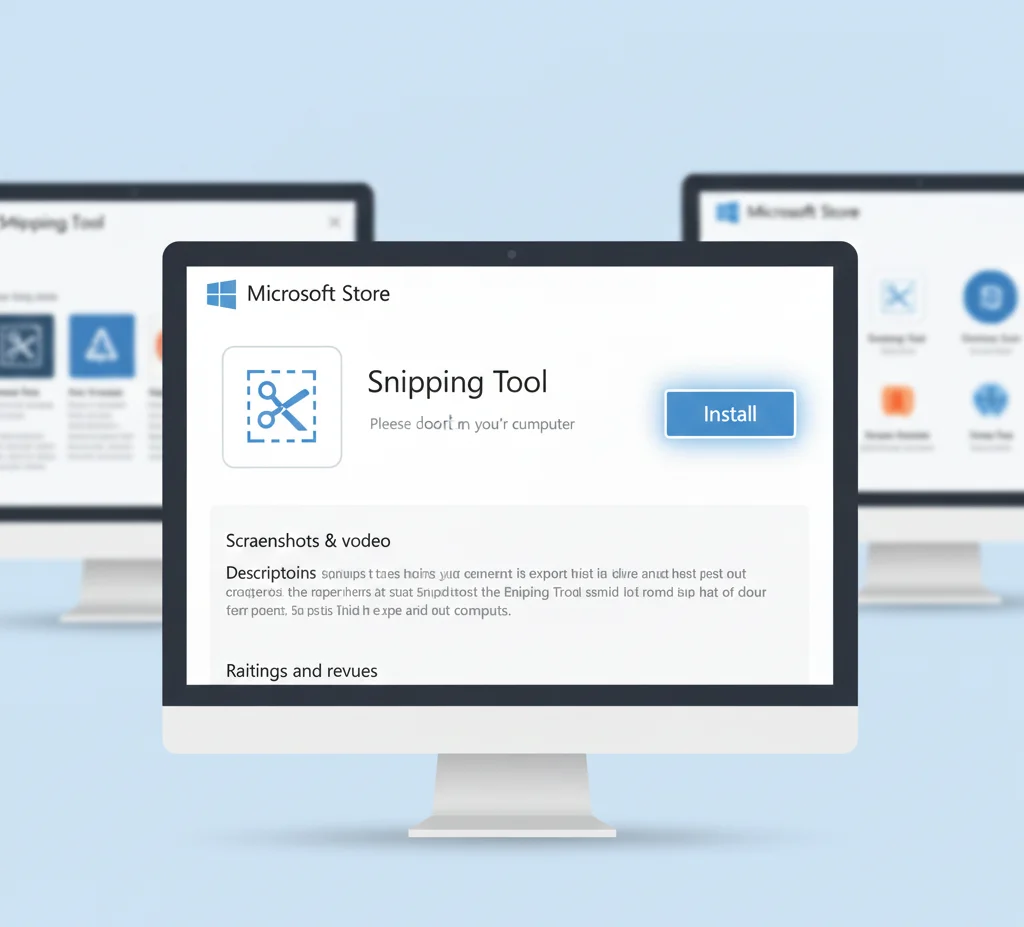
If nothing works, reinstalling the app usually solves the problem.
Reinstall from the Microsoft Store
- Open Microsoft Store
- Search Snipping Tool
- Click Install
- Restart your PC
Common Scenarios & Fixes
Snipping Tool Opens But Shows Blank Screen
- Restart Windows Explorer
- Update display drivers
- Disable third-party screenshot tools temporarily
Snipping Tool Works Only After Clicking the Notification
- Enable notifications (see above)
- Disable Focus Assist
Snipping Tool Not Opening on Windows 11 Only
- Ensure Windows 11 is fully updated
- Reinstall via Microsoft Store
Snipping Tool Alternatives (If It Still Won’t Open)
If the issue persists, you can temporarily use:
- Windows Print Screen
- Built-in Game Bar (Win + G)
- Third-party screenshot tools
These aren’t replacements, but useful while troubleshooting.
Final Thoughts
When the Snipping Tool is not opening, the fix is usually simple: restart Explorer, enable notifications, repair the app, or update Windows. Follow the steps in order, and you’ll restore functionality without reinstalling Windows or using third-party tools.
If the issue continues, reinstalling the app from the Microsoft Store is the most reliable solution.
Frequently Asked Questions
Usually, this is due to disabled notifications, corrupted app files, or outdated Windows updates.
Why did Snipping Tool suddenly stop working?
No. It is still supported and actively updated in Windows 10 and Windows 11.
In most cases, it’s a temporary Windows issue, not hardware-related.