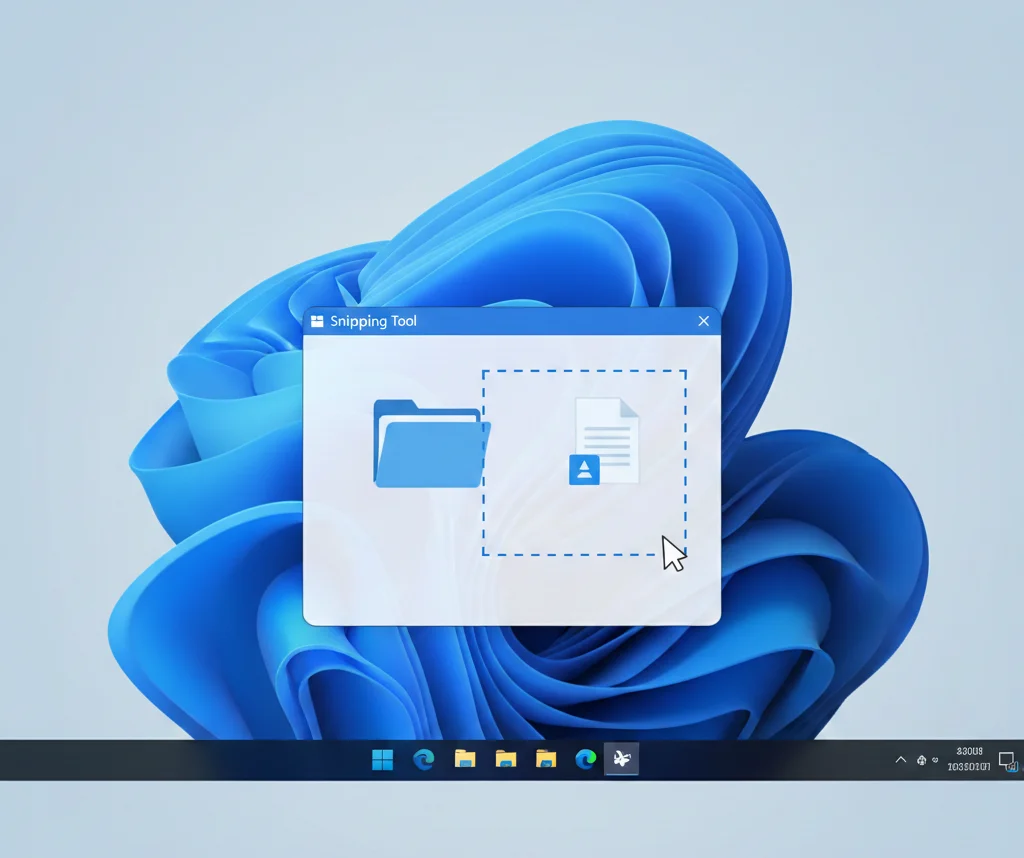
How to Download Snipping Tool for Free on Windows (Safe Methods)
If you want to capture screenshots quickly and without spending money, Microsoft’s Snipping Tool is one of the best free solutions available. Many users assume they need to buy software or download unsafe third-party apps, but the truth is simpler: Snipping Tool is completely free and officially provided by Microsoft.
In this guide, you’ll learn how to download Snipping Tool for free, how to reinstall it if it’s missing, and how to use it effectively on Windows 10 and Windows 11.
What Is Snipping Tool?
Snipping Tool is a built-in Windows screenshot utility that lets you capture part of your screen, a specific window, or the entire display. It has been included in Windows since Windows Vista and is still actively maintained by Microsoft.
With Snipping Tool, you can:
- Capture screenshots easily
- Annotate or edit screenshots
- Save or share images instantly
- Use keyboard shortcuts for faster workflow
Best of all, it’s free for all Windows users
Is Snipping Tool Really Free?
Yes, Snipping Tool is 100% free.
- It comes pre-installed on most Windows systems
- It is officially distributed by Microsoft
- There are no hidden costs, subscriptions, or licenses
On Windows 10 and Windows 11, Snipping Tool is delivered and updated through the Microsoft Store, ensuring it remains secure and up to date.
How to Download Snipping Tool for Free (Official & Safe Methods)
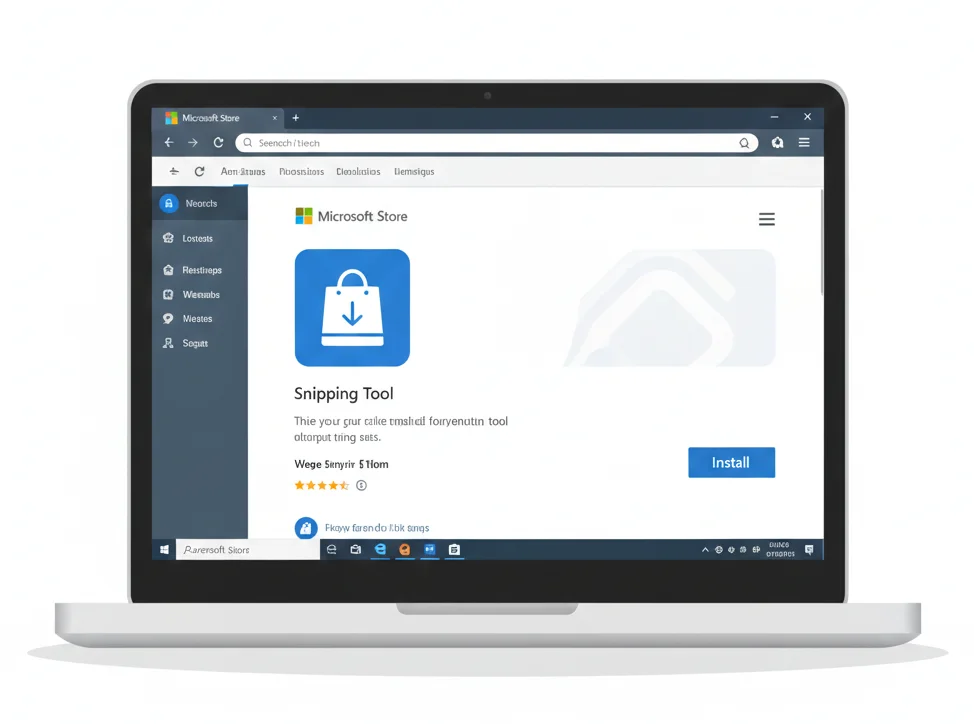
Method 1: Download Snipping Tool from Microsoft Store (Recommended)
This is the safest and most reliable method.
Step-by-step instructions:
- Open the Microsoft Store on your Windows PC
- Search for Snipping Tool
- Click Get or Install
- Wait for the installation to complete
- Launch Snipping Tool from the Start menu
This method works for Windows 10 and Windows 11
Ensures you get the official, virus-free version
Method 2: Check If Snipping Tool Is Already Installed
In many cases, Snipping Tool is already available, and no download is needed.
Try one of these:
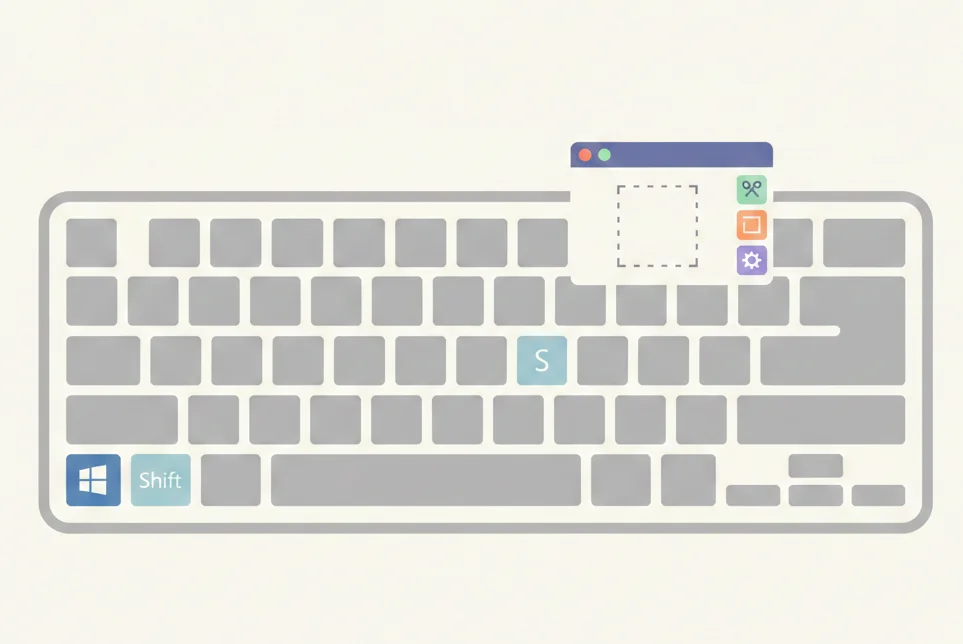
- Press Windows + Shift + S
- Type Snipping Tool in Windows Search
- Press Windows + R, type snippingtool, and hit Enter
If the tool opens, it’s already installed
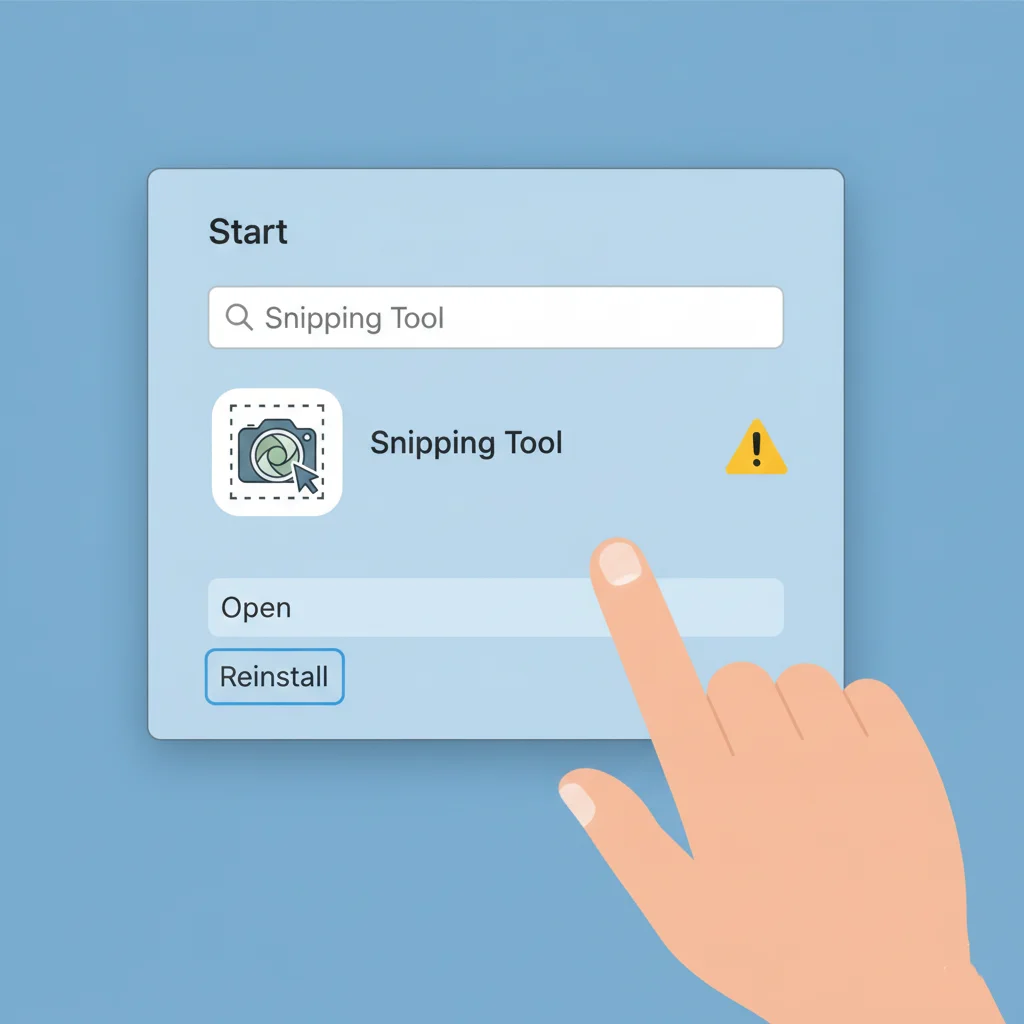
Method 3: Reinstall Snipping Tool If It’s Missing
If Snipping Tool was removed or is not working properly:
- Open Microsoft Store
- Search for Snipping Tool
- Click Install
- Restart your computer if needed
This restores the app without modifying your Windows system files.
Method 4: Download from Trusted Software Portals (Only if Necessary)
If the Microsoft Store is unavailable on your system (rare but possible):
- Use well-known, reputable download sites only
- Verify Windows compatibility (Windows 7, 8, 10, or 11)
- Avoid unofficial, modified, or cracked installers
Microsoft does not recommend downloading system tools from unknown sources due to security risks.
How to Use Snipping Tool After Installation
Once installed, Snipping Tool is easy to use.
Screenshot Modes Available
- Rectangular Snip → drag to select an area
- Window Snip → capture a specific window
- Full-Screen Snip → capture the entire screen
- Free-form Snip → draw a custom shape

Useful Keyboard Shortcut
Windows + Shift + S
This opens the snipping toolbar instantly.
Editing and Saving Screenshots
After taking a snip, you can:
- Crop the image
- Highlight important areas
- Use pen or marker tools
- Save as PNG or JPG
- Copy to clipboard for quick sharing
On Windows 11, Snipping Tool has improved editing options and a modern interface.
Common Problems and Fixes
Snipping Tool Not Opening?
- Restart Windows Explorer
- Update Windows
- Reinstall via Microsoft Store
Snipping Tool Missing from Start Menu?
- Use Windows Search
- Run snippingtool from the Run dialog
- Reinstall from the Microsoft Store
Shortcut Not Working?
- Check Settings → Keyboard Shortcuts
- Ensure no third-party tools override the shortcut
Is Snipping Tool Safe to Use?
Yes, when downloaded from Microsoft
No, if downloaded from untrusted or modified sources
Always prefer the official Microsoft Store version for maximum security.
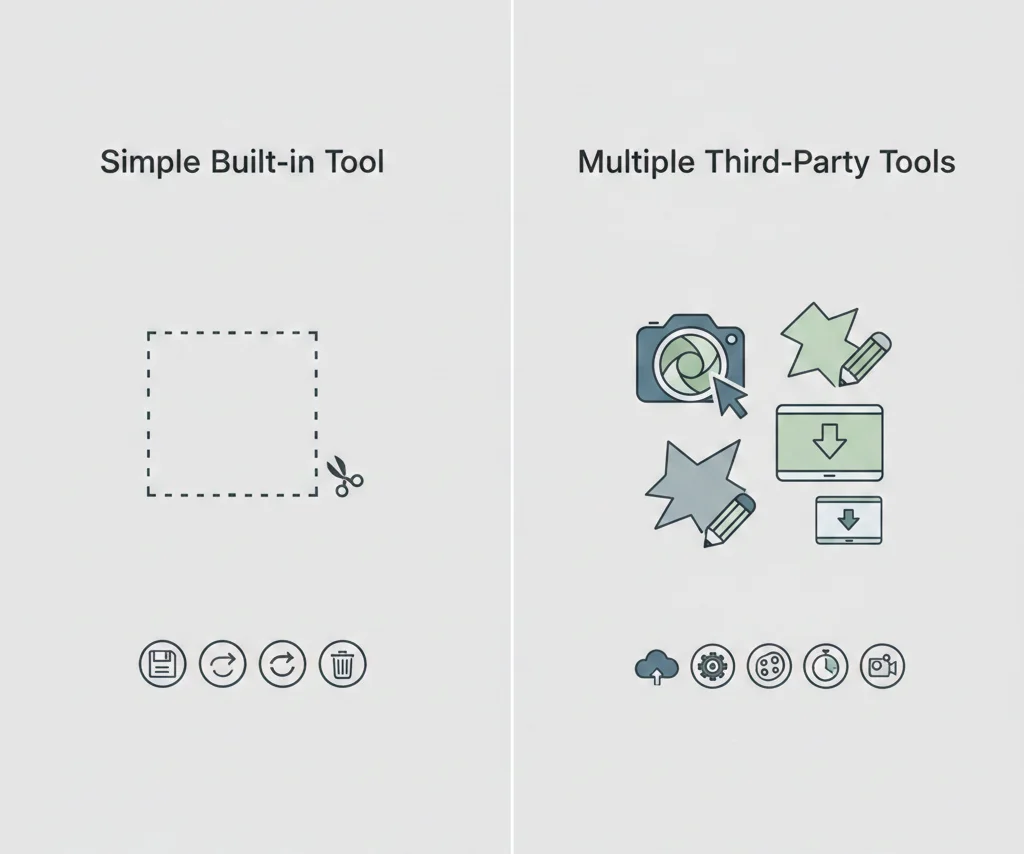
Free Alternatives to Snipping Tool
If you need advanced features, consider these free alternatives:
- Greenshot → open-source screenshot tool
- ShareX → advanced capturing and automation
- Lightshot → simple and fast screenshot sharing
Final Thought
Downloading the Snipping Tool for free is simple, safe, and fully supported by Microsoft. Whether it’s already built into your Windows system or you install it through the Microsoft Store, the tool remains one of the easiest ways to capture and edit screenshots. With modern features, keyboard shortcuts, and quick access options, it offers everything most users need without requiring extra software.
If you ever face issues, reinstalling or troubleshooting is straightforward, and alternatives exist for users who want advanced functionality. Overall, Snipping Tool remains a reliable, free, and essential Windows utility that every user should know how to use.
Frequently Asked Questions
Yes. Snipping Tool is completely free and officially provided by Microsoft.
Open the Microsoft Store, search for Snipping Tool, and click Install to download it on your PC.
Yes, the Windows 11 version supports screen recording.
Why is Snipping Tool missing on my PC?
The shortcut may be disabled or overridden. Restart your PC or check settings.