
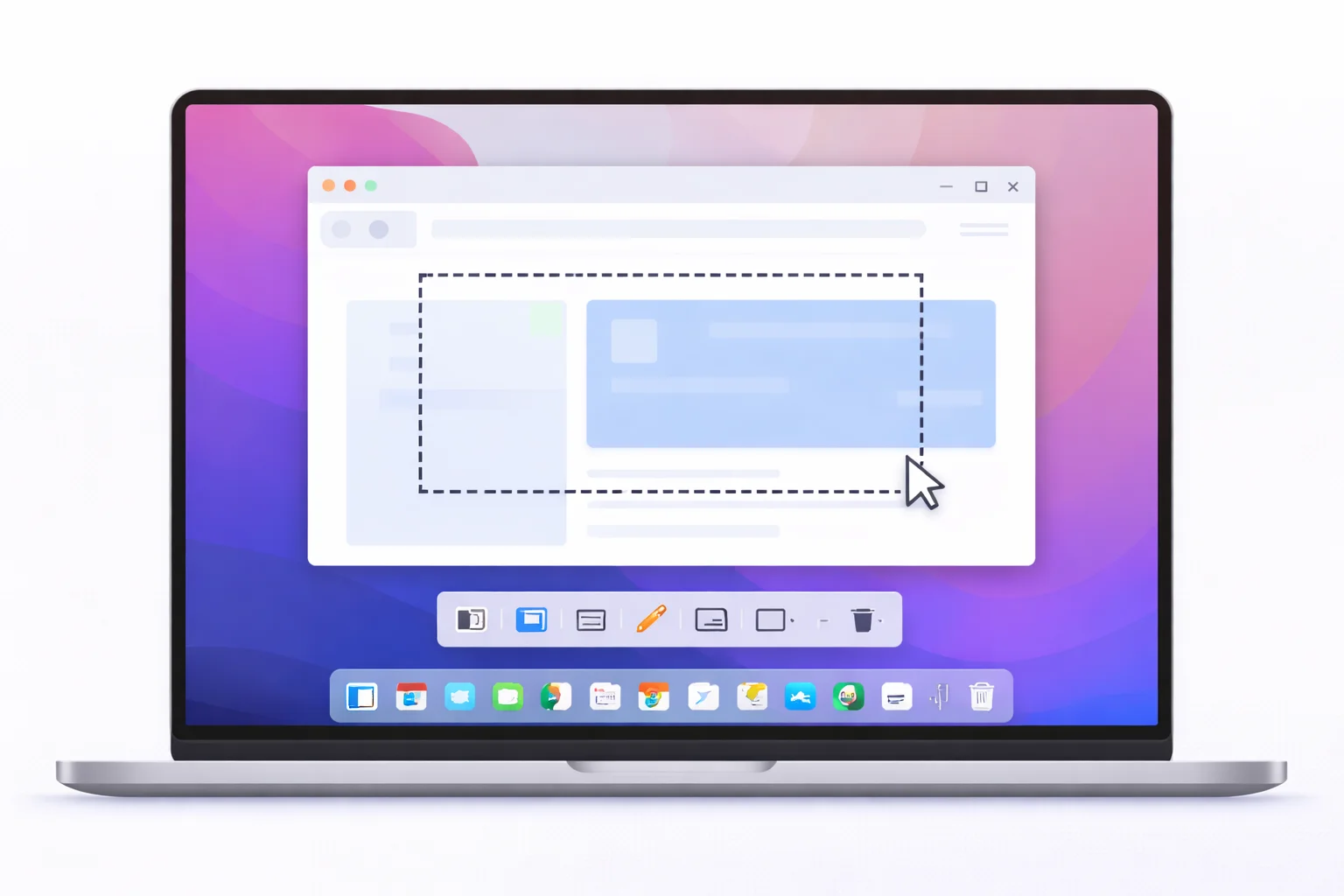
Best Snipping Tool Option for Mac Users (Free & Paid Tools Compared)
Mac computers come with built-in screenshot tools, but many users still look for a better snipping tool option for Mac users with more features like annotations, scrolling screenshots, OCR, and instant sharing.
If you recently switched from Windows, you may miss the familiar Snipping Tool experience. Fortunately, macOS offers both a built-in screenshot utility and several powerful third-party tools that provide advanced screen capture features.
In this article, we’ll explore the best snipping tool options for Mac users, compare their features, and help you choose the right tool for your workflow.
Does Mac Have a Built-in Snipping Tool?
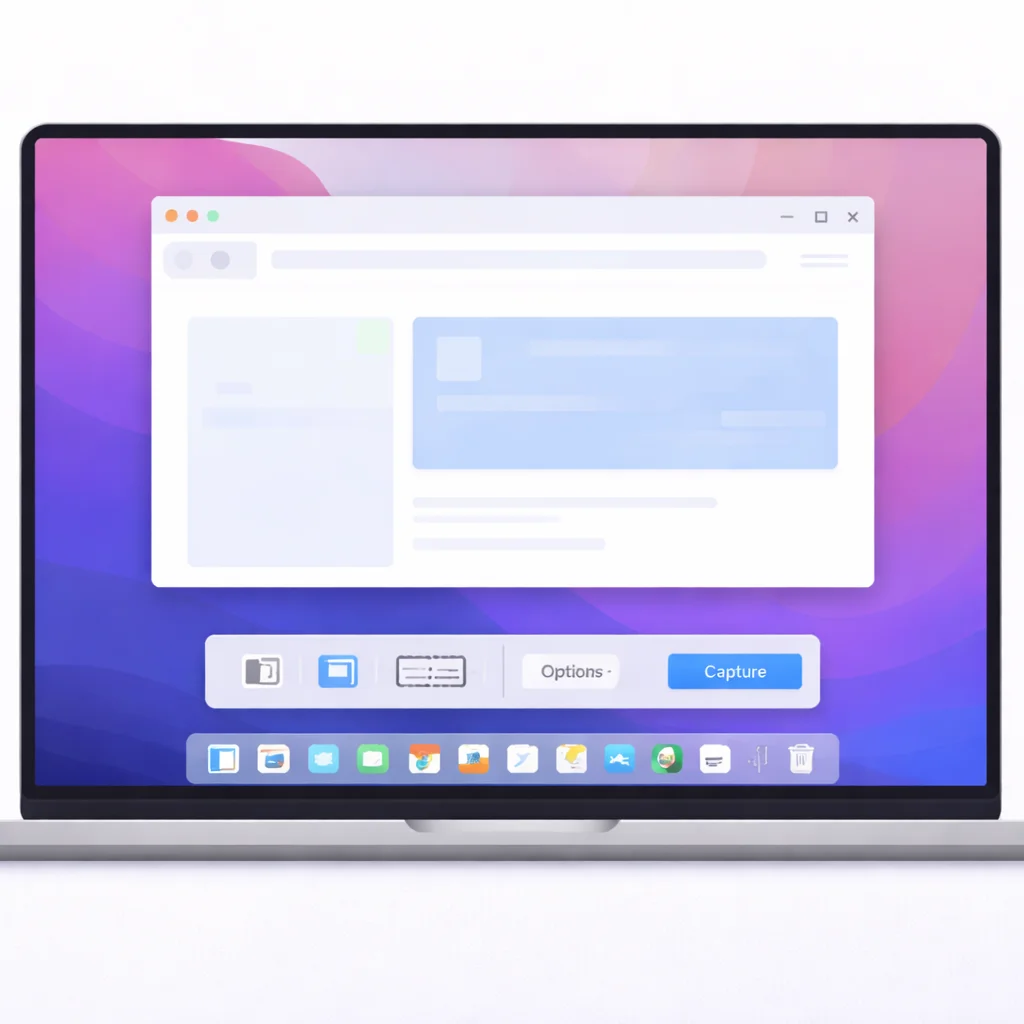
Yes. macOS includes a built-in screenshot utility that works similarly to the Windows Snipping Tool. It allows you to capture the entire screen, a selected area, or a specific window.
You can access it using simple keyboard shortcuts.
Mac Screenshot Toolbar
Press:
Command (⌘) + Shift + 5
This opens the Mac screenshot toolbar, which allows you to:
- Capture the full screen
- Capture a selected window
- Capture a selected portion
- Record the screen
- Choose the screenshot save location
- Set timers for screenshots
The toolbar makes it easy to capture screenshots without installing additional software.
Mac Screenshot Shortcuts
Mac also provides quick keyboard shortcuts for different types of screenshots:
Command (⌘) + Shift + 3
Captures the entire screen.
Command (⌘) + Shift + 4
Let’s you select a custom area to capture.
Command (⌘) + Shift + 5
Opens the screenshot control panel.
Command (⌘) + Shift + 4 + Spacebar
Captures a specific window.
These shortcuts work instantly and save screenshots directly to your desktop by default.
Limitations of the Built-in Screenshot Tool
While the built-in tool is useful, it lacks several advanced features that many users need.
Common limitations include:
- Limited annotation tools
- No scrolling screenshot support
- No built-in OCR text extraction
- Minimal editing features
- No cloud sharing integrations
Because of these limitations, many Mac users prefer third-party snipping tools.
Best Snipping Tool Options for Mac Users
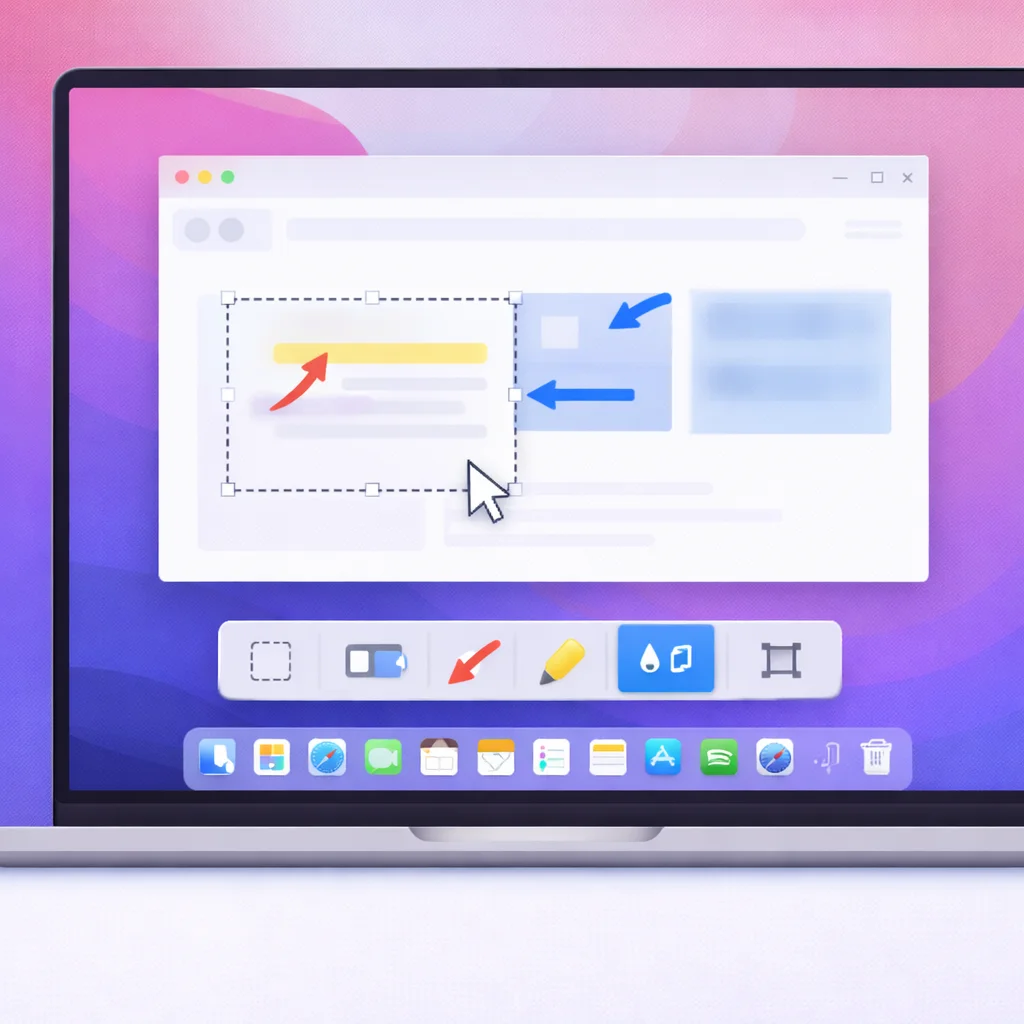
Here are some of the best screenshot and snipping tools available for macOS.
CleanShot X: Best Overall Snipping Tool for Mac
CleanShot X is widely considered one of the most powerful screenshot tools for Mac users. It offers advanced capture features and a polished editing interface.
Key features include:
- Scrolling screenshots
- Screen recording
- Annotation tools
- Blur and highlight effects
- Cloud sharing
- Quick access overlay
Pros:
- Extremely powerful features
- Excellent editing tools
- Fast screenshot workflow
Cons:
- Paid software
CleanShot X is ideal for content creators, bloggers, and developers who need professional screenshots.
Shottr: Best Free Snipping Tool for Mac
Shottr is a lightweight and fast screenshot tool that many Mac users love.
Features:
- Area screenshot capture
- Pixel-perfect annotations
- OCR text recognition
- Scrolling screenshots
- Measurement tools
Pros:
- Very fast performance
- Free to use
- Powerful annotation tools
Cons:
- Fewer integrations than premium tools
Shottr is a great choice if you want a free but powerful snipping tool.
Monosnap: Best for Quick Sharing
Monosnap combines screenshot capture with screen recording and easy sharing.
Features:
- Screenshot capture
- Screen recording
- Built-in editor
- Cloud storage integration
- File sharing links
Pros:
- Easy sharing options
- Built-in cloud storage
- Good for collaboration
Cons:
- Interface feels slightly outdated
Monosnap works well for teams and remote workers.
Snagit: Best for Professional Documentation
Snagit is a professional screen capture tool widely used for documentation, tutorials, and training materials.
Features:
- Advanced screenshot editor
- Scrolling screenshots
- Templates for tutorials
- Screen recording
- Text extraction (OCR)
Pros:
- Extremely powerful editing tools
- Great for instructional content
Cons:
- Higher price than other tools
Snagit is ideal for technical writers and educators.
Lightshot: Best Lightweight Screenshot Tool
Lightshot is a simple and lightweight screenshot tool that focuses on speed and simplicity.
Features:
- Quick area capture
- Simple annotation tools
- Instant online sharing
- Easy interface
Pros:
- Very easy to use
- Fast screenshot workflow
Cons:
- Limited advanced features
Lightshot is best for users who want a simple screenshot tool without complexity.
TextSniper: Best for Extracting Text from Screenshots
TextSniper is a unique screenshot tool focused on extracting text from images and screenshots.
Features:
- OCR text capture
- Screenshot recognition
- Copy text directly from the screen
Pros:
- Very accurate OCR
- Fast workflow
Cons:
- Limited editing tools
This tool is perfect if you often need to copy text from images or videos.
Comparison Table of the Best Mac Snipping Tools
| Tool | Best For | Key Features | Price |
|---|---|---|---|
| CleanShot X | Professionals | Scrolling capture, cloud sharing | Paid |
| Shottr | Free users | OCR, annotations, scrolling capture | Free |
| Monosnap | Teams | Sharing and cloud storage | Free / Paid |
| Snagit | Documentation | Advanced editing tools | Paid |
| Lightshot | Beginners | Simple screenshot capture | Free |
| TextSniper | OCR tasks | Extract text from images | Paid |
How to Choose the Best Snipping Tool for Mac
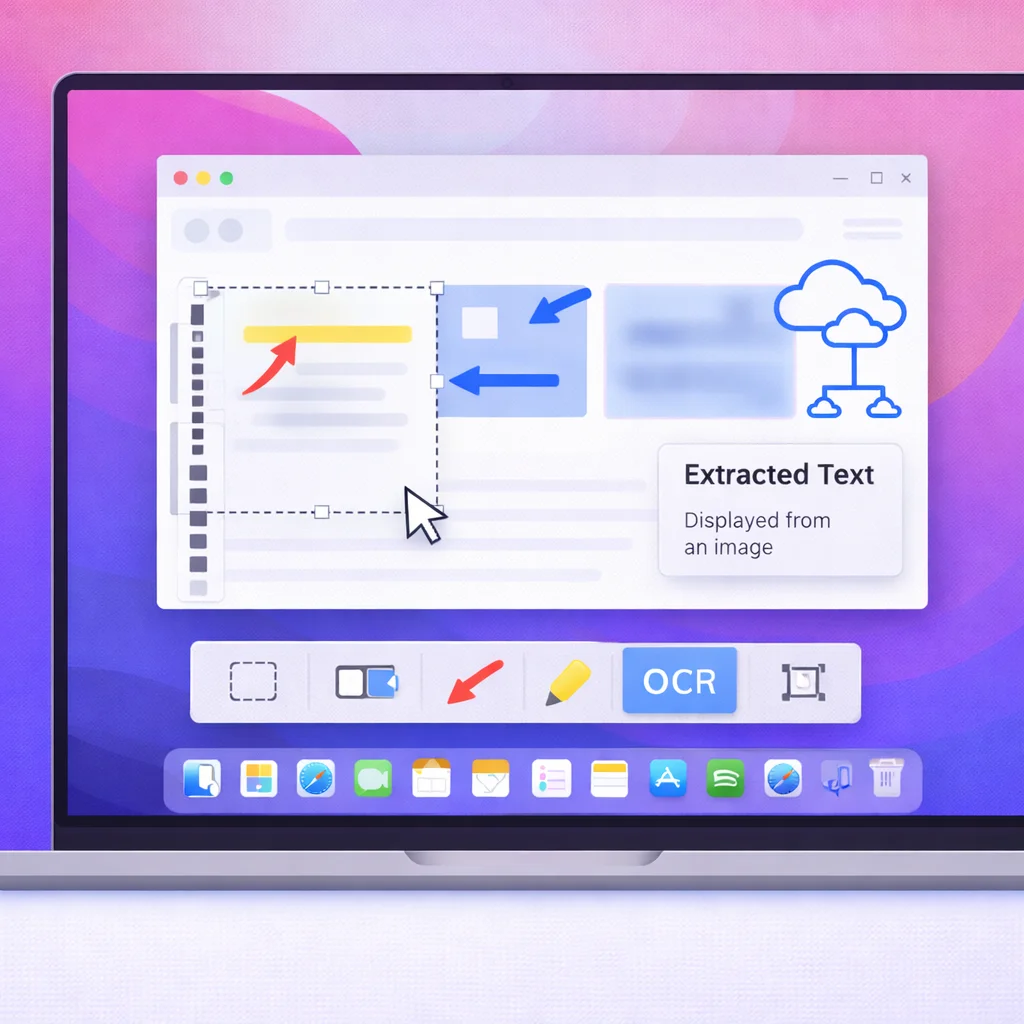
When selecting the best snipping tool, consider the following factors.
Ease of Use
Choose a tool with a simple interface and quick keyboard shortcuts to capture screenshots efficiently.
Editing and Annotation Tools
Advanced tools offer:
- Arrows
- Highlights
- Blur effects
- Text annotations
These features are useful for tutorials and documentation.
Scrolling Screenshot Support
Some tools allow you to capture long webpages or documents, which the built-in Mac tool cannot do.
Sharing Options
Many tools include cloud sharing, link generation, or team collaboration features.
Price
Some tools are free, while others offer premium features for professionals.
Built-in Mac Screenshot Tool vs Third-Party Snipping Tools
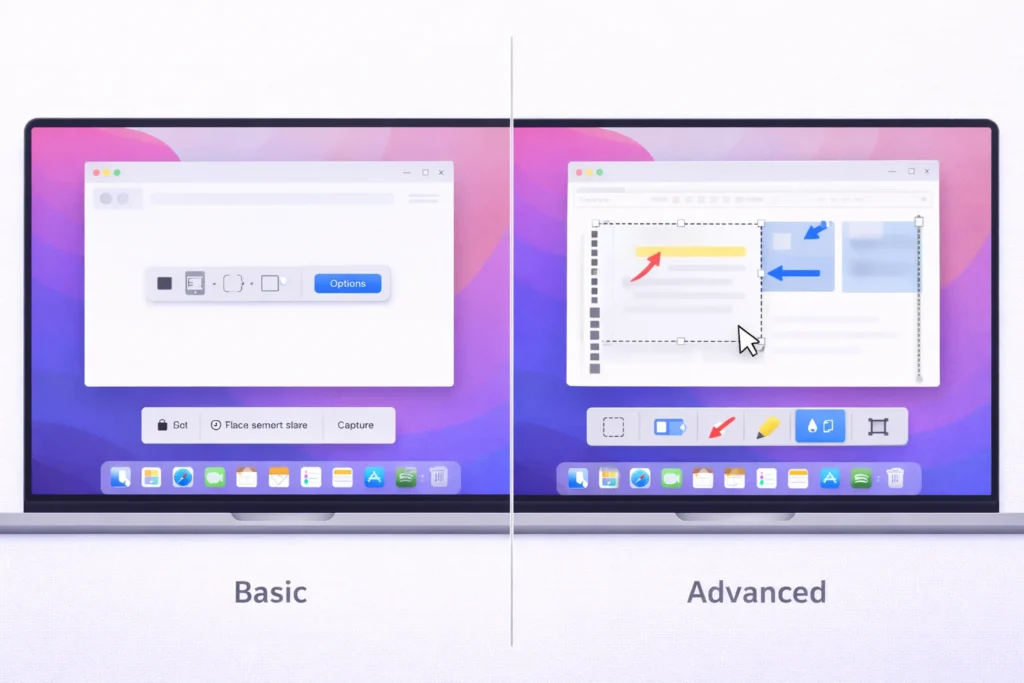
| Feature | Built-in Tool | Third-Party Tools |
|---|---|---|
| Screenshot capture | Yes | Yes |
| Basic editing | Limited | Advanced |
| Scrolling screenshots | No | Yes |
| OCR text capture | No | Yes |
| Cloud sharing | No | Yes |
Third-party tools clearly offer more advanced features.
When Should You Use the Built-in Mac Screenshot Tool?
The built-in tool is perfect for:
- Quick screenshots
- Basic screen captures
- Occasional screenshot needs
- Users who don’t want extra apps
When Should You Use a Third-Party Snipping Tool?
Third-party tools are better if you:
- Create tutorials or guides
- Write blog posts
- Produce documentation
- Need advanced screenshot editing
- Capture scrolling webpages
Best Snipping Tool Option for Different Mac Users
Different users need different tools.
For beginners:
Use the built-in Mac screenshot tool.
For bloggers and content creators:
CleanShot X is a great choice.
For free users:
Shottr provides excellent features.
For documentation creators:
Snagit offers advanced editing tools.
For OCR and text extraction:
TextSniper works best.
Final Thought
Mac already includes a useful screenshot tool, but many users need more advanced capabilities.
If you only need quick screenshots, the built-in Mac screenshot utility works perfectly. However, if you want annotations, scrolling screenshots, OCR, and professional editing tools, third-party apps provide a much better experience.
Among all options, CleanShot X and Shottr stand out as the best snipping tool options for Mac users, depending on whether you prefer a paid or free solution.
Choosing the right tool ultimately depends on your workflow, budget, and screenshot needs.
Frequently Asked Questions
The Mac equivalent is the built-in screenshot utility, accessible using Command + Shift + 4 or Command + Shift + 5.
Shottr is widely considered one of the best free screenshot tools for macOS because it includes OCR, annotations, and fast capture features.
Press Command + Shift + 4, then drag your cursor to select the portion of the screen you want to capture.
The built-in screenshot tool does not support scrolling capture. However, tools like CleanShot X, Shottr, and Snagit provide this feature.
CleanShot X and Snagit are excellent choices for professional screenshots, tutorials, and documentation.

