

10 Best Snipping Tool Alternatives Revealed
When I first started creating tech tutorials, the default Snipping Tool felt quick and convenient. By pressing Control, Shift, and “S,” I could capture my screen in moments and share the screenshots with my team. However, as my needs grew more professional, I realized this built-in utility barely scratches the surface of what modern screen-capturing tools offer. After extensive exploration, I’ve discovered several excellent alternatives that dramatically boost productivity through intuitive editing tools. These alternative options let you efficiently create engaging tutorials with fine-tuning capabilities for dynamic transitions, visual effects, and even sound editing features for adding music or voiceover tracks.
What truly impressed me during my troubleshooting sessions was how these best alternatives transformed simple images into comprehensive training materials. Some options provide an extra dimension through complex visual effects like subtitles and creative wipes, completely transforming your work. As someone who relies on screen captures for collaboration daily, this guide will provide a detailed overview of tools that extend far beyond what the basic Snipping Tool offers. I’ve tested each one, finding their advanced features indispensable for creating genuinely informative content.
Why Do I Need A Snipping Tool Alternative?
While the Snipping Tool is a convenient and simple tool for grabbing quick screenshots and basic screen recordings, I’ve found its limitations become frustrating for any serious work. Last month, I needed to create a training guide for junior members of my team and quickly realized the default tool lacks support for complex editing. When you record multiple short clips of a task, the Snipping Tool leaves you unable to stitch together these fragments into a cohesive narrative. After researching alternatives like Lightshot, GreenShare, or ShareX, I discovered how truly powerful screen recordings can be when paired with editing tools that make it effortless to edit recordings into full video tutorials for even complex tasks.
The beauty of modern alternatives sits at the perfect point on the spectrum between two extremes. On the simplest end, the Snipping Tool offers basic functionality, while the opposite, complex end features sophisticated video editing software like Premiere Pro, which feels like using a hammer to swat a fly. Such programs require powerful computers and often limit creation to dedicated members with specialized training, as they’re complex to operate with advanced features that confuse team members. The ideal software solution provides the best of both worlds: easy to operate yet powerful enough to create engaging videos with professional cuts, visual effects, soundtracks, and other impressive features that elevate your tutorial without requiring a film degree.
Quick Summary
| Tool | Best For | Platforms | Price |
|---|---|---|---|
| ShareX | Free screenshots + screen recording | Windows | Free |
| Greenshot | Simple screenshots with fast notes | Windows, Mac | Free (Win) · $2.99 (Mac) |
| LightShot | Quick captures with easy sharing | Windows, Mac | Free |
| PicPick | Strong editing and color tools | Windows | Free (personal) · Paid (pro) |
| Snagit | Full tutorial making and deep editing | Windows, Mac | Paid · Free trial |
| Screenpresso | Easy screen notes + fast file sorting | Windows | Free · Pro |
| Zight (CloudApp) | Sharing links, GIFs, quick video demos | Windows, Mac, Chrome, iOS | Free · Pro |
| ScreenRec | Fast screenshots + HD recording | Windows, Mac, Linux | Free |
| Apowersoft Free Screen Capture | Browser use without installs | Windows, Browser | Free |
| Snipping Tool++ | Basic screenshots with blur | Windows | Free |
Best 11 Alternatives to Snipping Tool in 2025
In this article, I’ll explore the top 10 Snipping Tool alternatives that occupy the perfect sweet spot between complexity and accessibility. After testing dozens of screen capture tools over my 15-year career in technical writing, I’ve curated this list of software solutions that can genuinely transform your business workflows. What impressed me most during implementation wasn’t just their feature sets but how they became inspiring catalysts for a new culture of collaboration within my team, effectively breaking down communication silos that tend to form naturally in growing companies.
My clients consistently report that these tools keep their organizations remarkably agile when facing rapid changes in work environments. The perfect screenshot solution does far more than capture images—it enables micro-education moments between colleagues, streamlines re-training efforts when systems change, and dramatically improves the onboarding experience for new hires. Each tool I recommend strikes that delicate balance where powerful features meet intuitive design, allowing everyone from marketing interns to C-suite executives to create visual communication without technical barriers. These alternatives have literally changed how my team shares knowledge day-to-day.
1. ShareX
If you need a free, open-source software solution for more than just basic screen captures, ShareX is a strong contender. This tool goes beyond simple screenshots, allowing you to edit and share screen recordings with advanced features. A major differentiator is its range of editing tools, like stitching together different videos, cutting around sections, or highlighting specific parts before sharing. The window selection model makes it easy to record only what you need, whether it's a single browser tab, a particular application, or just a portion of the screen, ensuring unwanted sections won't be recorded.
One of its best features is the ability to perform complex tasks efficiently. The precise window selection gives you full control over what gets recorded, making it great for detailed work. Being fully open-source, you can download and use it freely, with support from a passionate community. Users even have direct access to the source code, allowing customization for exact needs. While smaller or growing teams might find it slightly complex without proper training, larger teams often appreciate its flexibility and the fact that it’s backed by active development.
| Feature | Details |
|---|---|
| Capture Modes | Full screen, window, region, scrolling |
| Screen Recording | Supports video and GIF recording |
| Editor | Advanced tools for cutting, stitching, and highlighting |
| Automation | Custom workflows for capture, edit, and upload |
| Price | Free and open-source |
Pros
- Completely free and open-source
- Powerful capture and recording options
- Great for detailed and complex workflows
- Highly customizable through source code
Cons
- Interface can feel complex for new users
- May require some learning for smaller teams

2. Greenshot
If you need a simple, lightweight tool for screenshots, Greenshot is a fantastic alternative to Snip and Sketch. With an intuitive interface, it helps enhance productivity by letting you capture, annotate, and share images effortlessly. Its key features include customizable capture options, handy annotation tools, and various export options like PNG, JPG, BMP, and GIF. Rated 4.8 out of 5 from 154 reviews on G2, this powerful screenshot tool is perfect for Windows users who want to streamline screen-capturing needs.
Being free and open-source, Greenshot offers benefits that private, closed-source software often lacks. Originally designed for Microsoft OS and later ported to Mac, it’s a quirky software solution with a dedicated base of user-developers. What makes it special is its open, hands-on approach—users can edit Greenshot’s code, customize it for specific needs, and even add features. While it lacks a central team, its healthy community of bright members is always eager to help. You can download it for free on the Windows Store, though Mac users pay a low cost of $2.99 just to cover Apple Store’s fees.
However, Greenshot isn’t perfect. It has no video capture or scrolling screenshots, which might be a dealbreaker for some. While highly customizable, its user interface can feel confusing due to a lack of cohesive design direction. For technically adept individuals, it’s a great alternative to the Snipping Tool, but diverse teams might struggle with adoption. Companies with a deep interest in data privacy and security may also have concerns about its open-source nature.
| Feature | Details |
|---|---|
| Capture Modes | Region, window, full screen |
| Annotation Tools | Text, arrows, shapes, highlights |
| Export Formats | PNG, JPG, BMP, GIF |
| Open Source | Editable code and active community |
| Mac Version | Paid ($2.99) on App Store |
Pros
- Free and open-source on Windows
- Fast and lightweight
- Good set of annotation tools
- Active user-developer community
Cons
- No video recording
- No scrolling screenshots
- Interface can feel confusing
- Open-source nature may worry some companies
3. LightShot
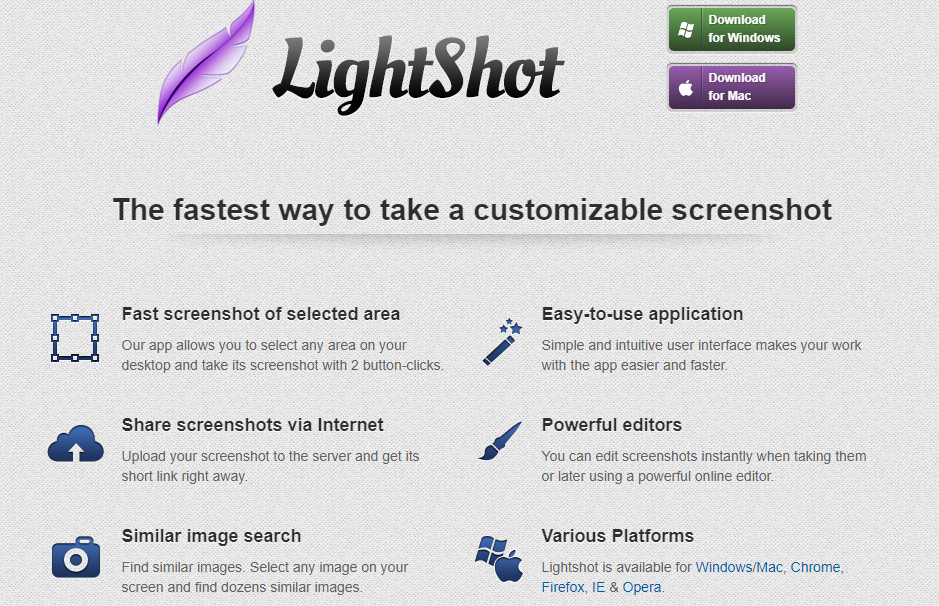
For those needing quick, easy screenshots across Windows and macOS, LightShot stands out as a versatile, user-friendly alternative to the Windows Snipping Tool. What makes it special? With just a few simple clicks or custom keyboard shortcuts, you can capture any desired screen area or the entire screen, then use its powerful editing tools to annotate, draw, highlight, and add text before instant online sharing. Rated 4.7 out of 5 from 121 reviews on G2, this intuitive tool simplifies the entire process from capturing to sharing screenshots for both personal and professional use.
The key features that make LightShot shine include being super easy to use with very convenient sharing options – I’ve personally saved hours using its setup shortcuts to capture screenshots instantly. While it offers editing tools that rival more complex software, newcomers should note it requires some time to set up initially. The convenient features and effortless workflow ultimately make it one of the most intuitive screenshot solutions I’ve used.
| Feature | Details |
|---|---|
| Capture Modes | Select area or capture entire screen |
| Editing Tools | Draw, text, shapes, highlight |
| Sharing | Instant upload + link sharing |
| Shortcuts | Custom hotkeys for fast capture |
| Rating | 4.7/5 (G2) |
Pros
- Very fast and easy to use
- Simple editing tools for quick work
- Instant online sharing with links
- Lightweight and beginner-friendly
Cons
- No video recording
- Initial shortcut setup may confuse beginners
- Limited advanced editing capabilities
4. PicPick
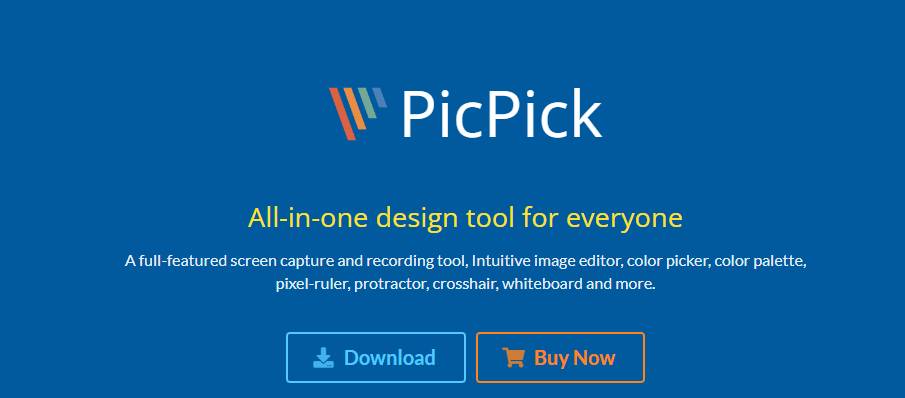
While most tools focus on basic screen recordings and simple editing operations, PicPick stands apart with its bold ambition to be a comprehensive graphic design tool. Rated 4.8 out of 5 from 262 reviews on Windows Report, this Windows-exclusive software (for Windows 7 and 10) offers advanced editing features that let you alter colors, adjust saturation, and even apply motion blur—perfect for creating visually appealing tutorials. What makes it shine is the scrolling window capture feature, a rarity among Snip and Sketch alternatives. You can take screenshots of an entire screen, active window, or specific region, then use the built-in image editor to annotate, highlight, and add effects like drop shadows, frames, and watermarks.
Available as both installed software and a portable application, PicPick is ideal for users who need powerful annotation and editing tools. it allows you to add effects to images easily, and its portable version is great for on-the-go work. However, it is only available for Windows and has a free version restricted to personal, non-commercial use. While it boasts features on par with CapCut or Premiere Pro, its heavy emphasis on graphic editing might overwhelm teams who just need simpler tools for streamlined solutions.
| Feature | Details |
|---|---|
| Scrolling Capture | Capture full webpages and long documents |
| Editing Tools | Color control, saturation, motion blur, drop shadows, frames, watermarks |
| Capture Modes | Full screen, active window, region, scrolling window |
| Portable Version | Can be used from USB or without full install |
| License | Free for personal use, paid for commercial use |
Pros
- Very strong editing features for screenshots
- Rare scrolling capture support
- Portable version for flexible use
- Good fit for tutorial and design-heavy work
Cons
- Windows only
- Free version cannot be used commercially
- Too feature-heavy for people who just need basic captures
5. Snagit
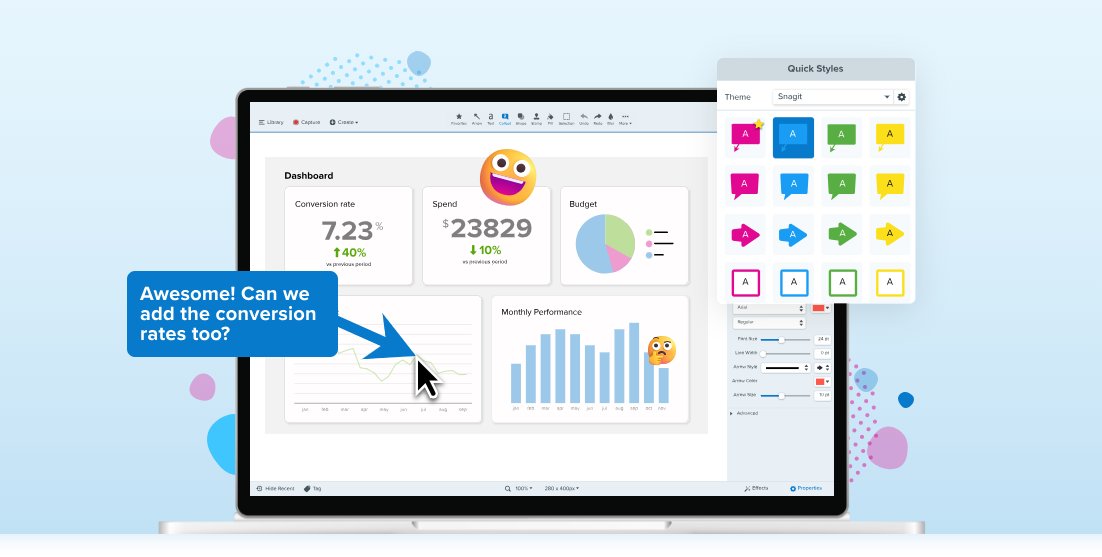
Snagit by TechSmith is a custom software solution that helps businesses streamline communication by turning simple screenshots into visually engaging learning materials. Unlike basic tools, it offers advanced editing features that let you draw attention to specific areas, highlight content with bursts of color, and even rearrange elements after capture. I've personally used its Videos from Images feature to turn static images into informative tutorials by simply adding voice recording - a game-changer for creating immersive slides without complex software.
What sets Snagit apart is its explicit goal of cutting email chains and wasted meetings. The ability to move or remove paragraphs and pictures from existing screenshots saves countless revision hours. While the intuitive UI makes it accessible for novice users, power users appreciate features like step-by-step tutorial creation. However, at $31.20/year (or $38.40/user/year for teams), it's significantly more expensive than free rivals like Lightshot, whose magic wand automatically tracks clicks to create tutorials.
For mid-sized companies with roughly 100 employees, the costs can quickly add up to a hefty price tag. While Snagit offers superior control and range of features, the Snipping Tool and other alternatives now offer many comparable capabilities for free. The decision often comes down to whether your team needs professional-grade tutorial creation tools or just basic screen capture functionality.
| Feature | Details |
|---|---|
| Advanced Editing | Move/remove elements, highlight, annotate, add effects |
| Videos from Images | Create narrated tutorial videos from screenshots |
| Capture Modes | Full screen, region, window, scrolling capture |
| Documentation Tools | Step-by-step guides, templates, structured workflows |
| Pricing | Free trial + Paid plans starting at $31.20/year |
Pros
- Turns screenshots into full narrated tutorials
- Advanced editing and visual enhancement tools
- Great for training, onboarding, and documentation
- Reduces long email back-and-forth
Cons
- Much more expensive than free alternatives
- Cost scales fast for teams
- More complex than needed for basic captures
6. Screenpresso
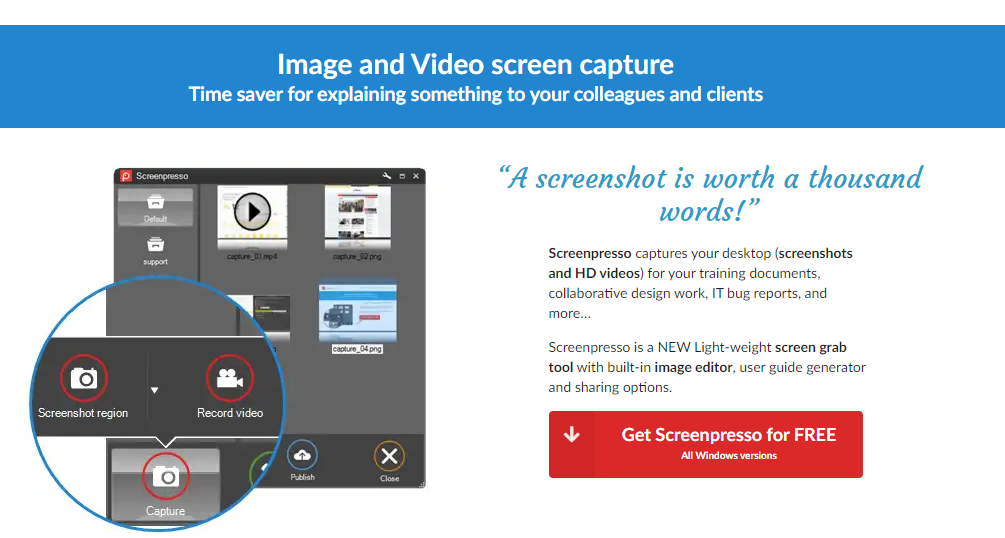
Screenpresso lives up to its reputation as fast and convenient, striking that perfect balance between simplicity and usability. Rated 4.6 out of 5 from 33 reviews on G2, this Windows tool helps boost productivity through smart organization, letting you capture the entire screen, single windows, or specific areas, then automatically save screenshots to designated folders. What I love most is how it simplifies workflow with customizable keyboard shortcuts and quick access to recent captures, making it a better alternative to the Snipping Tool in Windows 10.
The built-in image editor is surprisingly powerful yet intuitive, allowing you to add effects, colors, notes, and texts to highlight relevant parts. Unlike some competitors, it requires no installation, making it ideal for people of all technical backgrounds. Its easy and natural editing process helps executives, team leaders, and even professors communicate complex processes visually. The ability to organize content by specific workspaces (like departments or seniority levels) is a game-changer for file management.
However, Screenpresso isn't perfect. The licensing model can feel unintuitive, and frequent update prompts become annoying. Still, as someone who's tested many alternatives, I appreciate how its compact UI with robust features helps save hours of meeting time while maintaining a user-friendly interface. For teams needing to quickly capture, annotate, and share screenshots for various purposes, it's one of the most efficient tools I've used.
| Feature | Details |
|---|---|
| Capture Modes | Full screen, window, region |
| Organization | Automatic saving to folders + workspace sorting |
| Editing Tools | Annotations, colors, notes, effects |
| Installation | No-install portable version available |
| Rating | 4.6/5 (G2) |
| License | Free + Paid Pro version |
Pros
- Fast and lightweight
- Strong organizing system with workspaces
- No installation required
- Easy editing for all skill levels
- Boosts productivity with shortcuts and quick access
Cons
- Licensing can feel confusing
- Frequent update prompts
- Windows only
7. Zight (CloudApp)
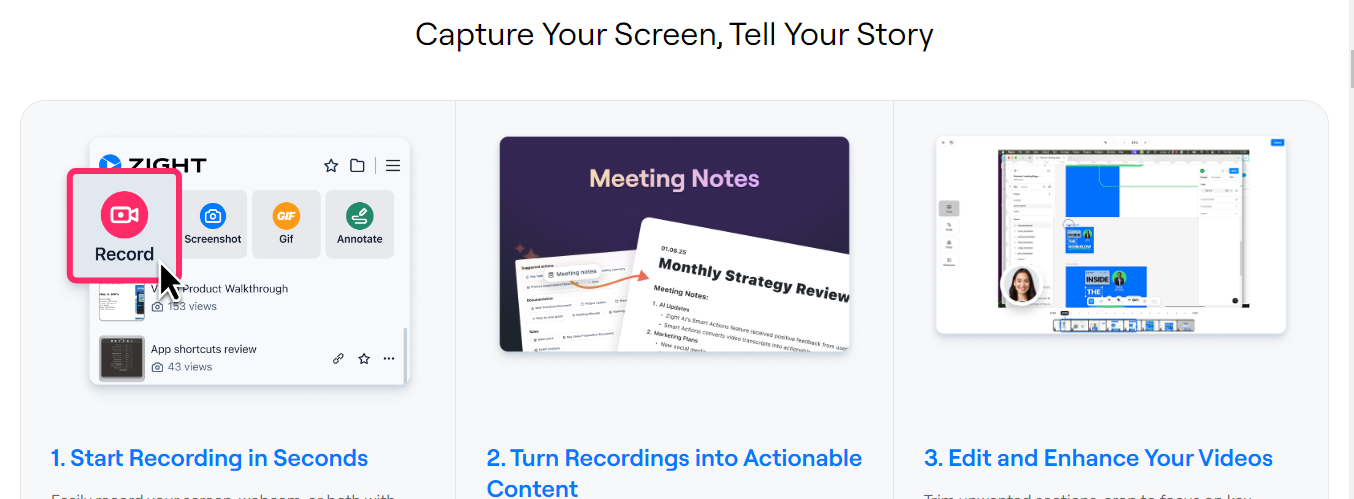
Zight (formerly CloudApp) stands out as a fast and versatile screen capture platform that goes beyond basic screenshots. Professionals across software development, design, customer success, support, sales, and marketing rely on it to record and embed video, create GIFs, and share marked-up images throughout their business workflows. What makes it special is how effortlessly you can take full or partial screenshots either by using a shortcut or launching the app, then immediately add arrows, text, or crop and blur sensitive areas before sharing.
The real game-changer is how Zight simplifies collaboration - you can easily share screenshots and other media via autogenerated link, which works anywhere you can share a URL. As someone who's tested numerous alternatives, I'm consistently impressed by how seamlessly it fits into professional workflows, eliminating the back-and-forth of file attachments. Whether you need quick video demos, annotated images, or screencasts, Zight delivers a polished solution that feels purpose-built for professionals who value efficiency.
| Feature | Details |
|---|---|
| Screenshot Capture | Full or partial screen with quick editing |
| Video Recording | Record screen + webcam, ideal for demos |
| GIF Creation | Create looping GIFs instantly |
| Collaboration | Share via auto-generated link anywhere |
| Platform Support | Windows, Mac, Chrome Extension, iOS |
Pros
- Instant sharing with auto-generated links
- Great for GIFs, video demos, and quick tutorials
- Professional workflow integration
- Easy annotation and blur tools
- Available on Windows, Mac, Chrome, and iOS
Cons
- Full features require paid plan
- Cloud uploads may concern privacy-focused users
- Not ideal for offline-only environments
8. ScreenRec
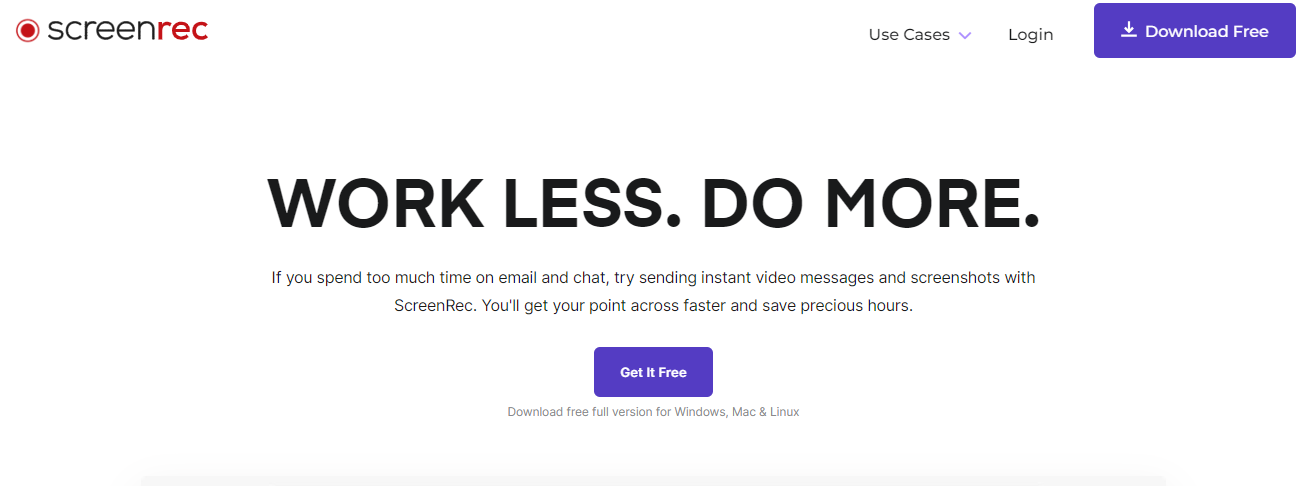
ScreenRec delivers high-quality screenshots and high-definition screen recording in a remarkably lightweight application that barely takes up space on your computer. This productivity tool helps busy professionals save time by letting you take screenshots on the go or record your screen, then communicate faster through instant private video messages. While it offers limited editing features, its no-frills approach works without lag - perfect for capturing quick references or creating tutorial content when you need simplicity and speed.
| Feature | Details |
|---|---|
| Screenshots | Instant capture with lightweight performance |
| HD Screen Recording | Record without lag or dropped frames |
| Sharing | Private video messages for teams |
| Storage | Encrypted cloud storage |
| Platforms | Windows, Mac, Linux |
sudo wget -q -O - https://screenrec.com/download/pub.asc | sudo apt-key add -
sudo add-apt-repository 'deb https://screenrec.com/download/ubuntu stable main'
sudo apt update
sudo apt install screenrec
Pros
- Extremely lightweight
- No lag during HD recording
- Instant private video message sharing
- Works on Windows, Mac, and Linux
- Free to use
Cons
- Very limited editing features
- Cloud-based storage may not suit everyone
- No advanced annotation tools
9. Apowersoft Free Screen Capture
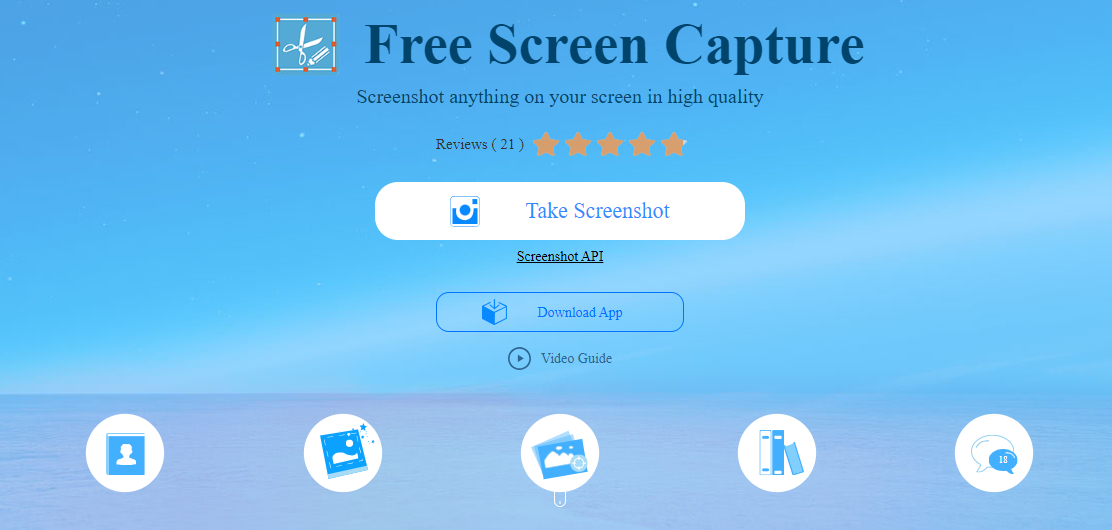
Apowersoft Free Screen Capture provides a completely free, browser-based solution for screen recording and screenshot capture without requiring any software installation. The tool allows you to select specific screen regions or windows to capture, with customizable options to adjust frame rates, choose audio inputs, and select output formats. A standout feature is its ability to record online audio and video content continuously without interruptions, making it particularly useful for capturing tutorials, meetings, or streaming content.
The platform offers convenient annotation tools for screenshots and provides free cloud storage for your captures. You can easily share content directly to social media platforms from your web browser. While highly accessible and feature-rich, the tool does require a browser plugin to function, which may be a limitation for some users. Overall, Apowersoft delivers an efficient and user-friendly screen capture experience entirely through your web browser.
| Feature | Details |
|---|---|
| Browser-Based Capture | Take screenshots and record videos without installing software |
| Custom Options | Adjust frame rates, audio inputs, and output formats |
| Continuous Recording | Record online tutorials, meetings, and streams without interruption |
| Annotations | Edit screenshots with arrows, text, shapes |
| Cloud Storage | Free online storage + instant sharing |
| Requirement | Needs a browser plugin to work |
Pros
- No installation required
- Free to use
- Cloud storage included
- Good annotation tools
- Custom frame rate + audio options
Cons
- Requires browser plugin
- Limited offline use
- No advanced editing options
11. Snipping Tool++
Snipping Tool++ is a small and easy tool made for people who want more options than the basic Windows Snipping Tool. It lets you take quick screenshots of your full screen, any window, or a selected area with simple keyboard shortcuts. You can also draw, add text, blur private information, and save your images in different formats. The tool runs smoothly on older computers too, so you don’t need a fast system to use it. While it doesn’t offer video recording or advanced editing, it works well for everyday screenshot needs and keeps everything simple for beginners.
| Feature | Details |
|---|---|
| Screenshot Modes | Full screen, window, region |
| Editing Tools | Draw, text, blur, highlight |
| Shortcuts | Custom hotkey support |
| Performance | Runs well on older systems |
| Price | Free |
Pros
- Free and lightweight
- Easy to use
- Blur tool for hiding sensitive areas
- Custom hotkeys for fast capture
- Good for older computers
Cons
- No video recording
- No advanced editor
- Not updated often
Comparison of Tools
| Tool | Screenshots | Screen Recording | Editing | Sharing | Ease of Use |
|---|---|---|---|---|---|
| ShareX | Yes | Yes (HD) | Strong | Many services | Medium |
| Greenshot | Yes | No | Good | Basic | Easy |
| LightShot | Yes | No | Basic notes | Fast link sharing | Very easy |
| PicPick | Yes | No | Strong editor | Local save | Easy |
| Snagit | Yes | Yes | Very strong | Share + templates | Easy |
| Screenpresso | Yes | Yes | Good | Quick links | Easy |
| Zight | Yes | Yes | Simple notes | Instant share links | Very easy |
| ScreenRec | Yes | Yes (HD) | Light editing | Private video links | Very easy |
| Apowersoft Free Screen Capture | Yes | Yes | Basic editor | Cloud + social | Easy |
| Snipping Tool++ | Yes | No | Basic tools | Local only | Very easy |
Frequently Asked Questions
If you can’t use the Snipping Tool, try pressing the Print Screen key to capture your whole display, then paste the image into Paint or another editing application to make simple changes. This basic technique serves as an easy alternative for taking screenshots.
Snip & Sketch (the new name for Snipping Tool) offers similar functionality while providing an improved, more intuitive interface for capturing and editing screenshots on Windows 10. This convenient tool allows users to annotate their screenshots using various drawing tools, making it ideal for quick visual notes and edits.

HELP! I just somehow deleted my very basic snipping tool. It does ONE job well – it takes recangular screenshots with a minimum of fuss – I want the ewxact opposite to you. It had a pair of scissors as it’s shortcut. Now I can’t find it again to download because the search results are full of crap like this recommending the same overengineered downloads. You’re probably just another AI bot but on the off chanced that you actually breathe, can you help me?
I get your frustration. You just wanted the simple old snipping tool, nothing fancy, and Windows loves to push new stuff you didn’t ask for.
The one you’re talking about with the scissors icon is actually the classic Snipping Tool that comes built-in with Windows. You don’t need to download anything. It’s still on your system — it just hides itself after updates.
Try this:
Press Windows key and type Snipping Tool.
If it doesn’t show, press Windows + Shift + S — that’s the shortcut for the same tool.
If that works, Windows simply switched you to the “Snip & Sketch” version, but it still takes the same rectangle screenshots.
If the classic one really got removed, you can bring it back:
Go to Settings > Apps > Optional features
Search for Snipping Tool
Install it from there
No weird downloads needed, no heavy tools, just the built-in one you had before.
If you still can’t find it, tell me your Windows version and I’ll guide you step by step. AND BTW i am not an AI bot 😛